DS4Windows Not Detecting Controller via Bluetooth
If DS4Windows is causing trouble when connecting the controller via Bluetooth, most issues are due to weak Bluetooth signals caused by a low-quality adapter. It could also be because of pairing the controller incorrectly or too much signal interference from nearby devices.
A good USB Bluetooth adapter, properly removing and re-pairing your controller, and checking DS4Windows settings can be a good fix. The issue might be with the controller or adapter itself if no fix is working.
Moreover, while going wireless via Bluetooth, you may also experience frequent input lag or slow response. This is usually due to a weak Bluetooth signal, interference, or outdated drivers. Upgrading your adapter, moving closer to your PC, switching to 5GHz WiFi, and updating drivers, along with a few tweaks in DS4Windows, can help reduce input delay.
On this page, we have shared all the common issues we have come across while connecting controllers via Bluetooth and how to fix them.
Check out our guide on DS4Windows not detecting the controller if your controller connects properly but is not being detected.
DS4Win Bluetooth Connection Issues
Here are the issues you may face while connecting the controller to DS4Windows wirelessly (BT connectivity).
- A bad Bluetooth connection
- The controller is paired with Windows incorrectly
- Windows is not detecting the controller properly
- Controller connected but not recognized by Windows or DS4Windows
- The controller fails to reconnect after a system restart, sleep, or shutdown.
- The controller connects but randomly disconnects or stops responding.
- Windows cannot connect with multiple controllers, or the connection is dropping.
- Windows is using the built-in Bluetooth instead of the USB adapter
- WiFi or Bluetooth signals are dropped when the controller is connected.
- The controller is trying to connect to a different nearby PC
- The Bluetooth connection is causing lag or slow response on the controller
Troubleshooting DS4Windows Bluetooth Connection Issues
Here are the fixes for each issue, listed in the exact order we described above, to help resolve your DS4Windows Bluetooth connection issues.
1. A Bad Bluetooth Connection
Use a High-Quality USB Bluetooth Adapter
Built-in Bluetooth adapters often don’t work well. Most connection problems happen because of weak Bluetooth signals due to relying on built-in Bluetooth adapters.
These integrated adapters often don’t work well. So, try using a dedicated Bluetooth adapter with at least version 4.0. You’ll get even stronger and more stable signals with a Bluetooth 5.0 or newer adapter.
2. The Controller is Paired with Windows Incorrectly
Remove and Re-Pair the Controller Correctly
So, another issue with DS4Windows Bluetooth connectivity is when you wrongly connect the controller. There are two ways to connect the controller.
Many users simply turn on the controller and accept the “Add a device” notification. If you let the controller automatically connect to Windows, that’s the wrong way. It will not work properly, even if Windows is showing it as connected.
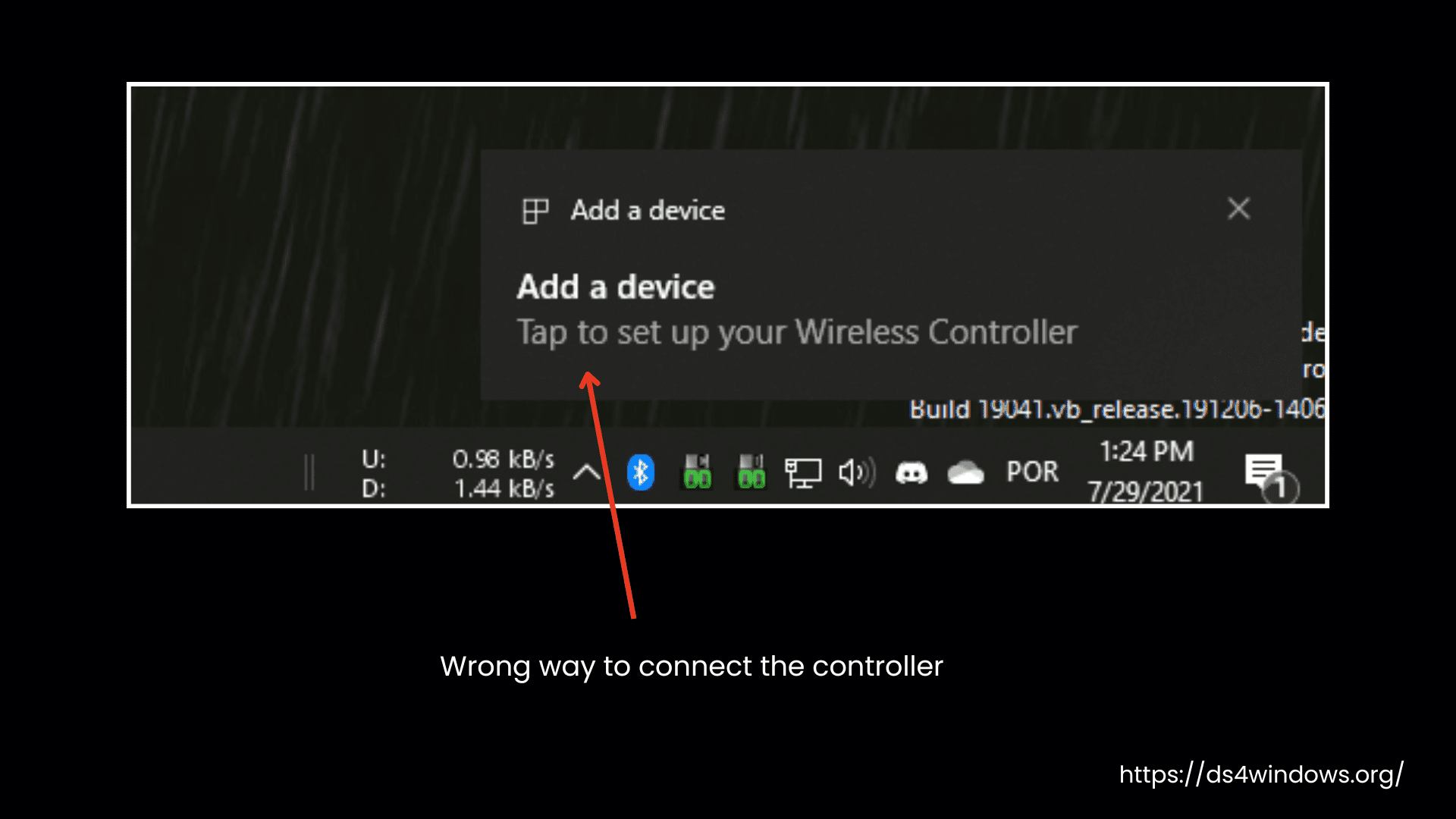
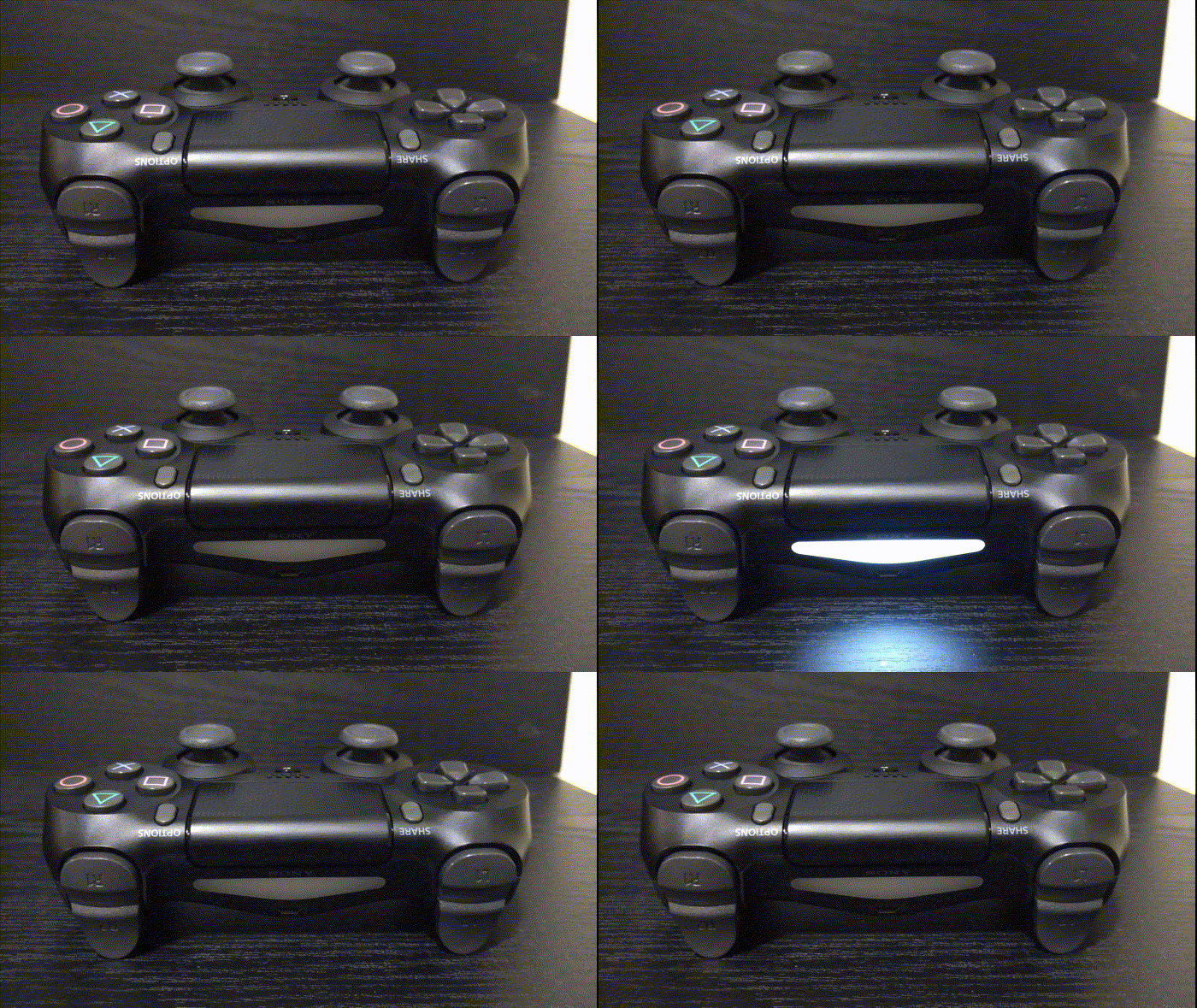
The right method is to put the controller into pairing mode first and then connect it to Windows. Here’s how your screen interface will look when connecting the controller wrongly and correctly.
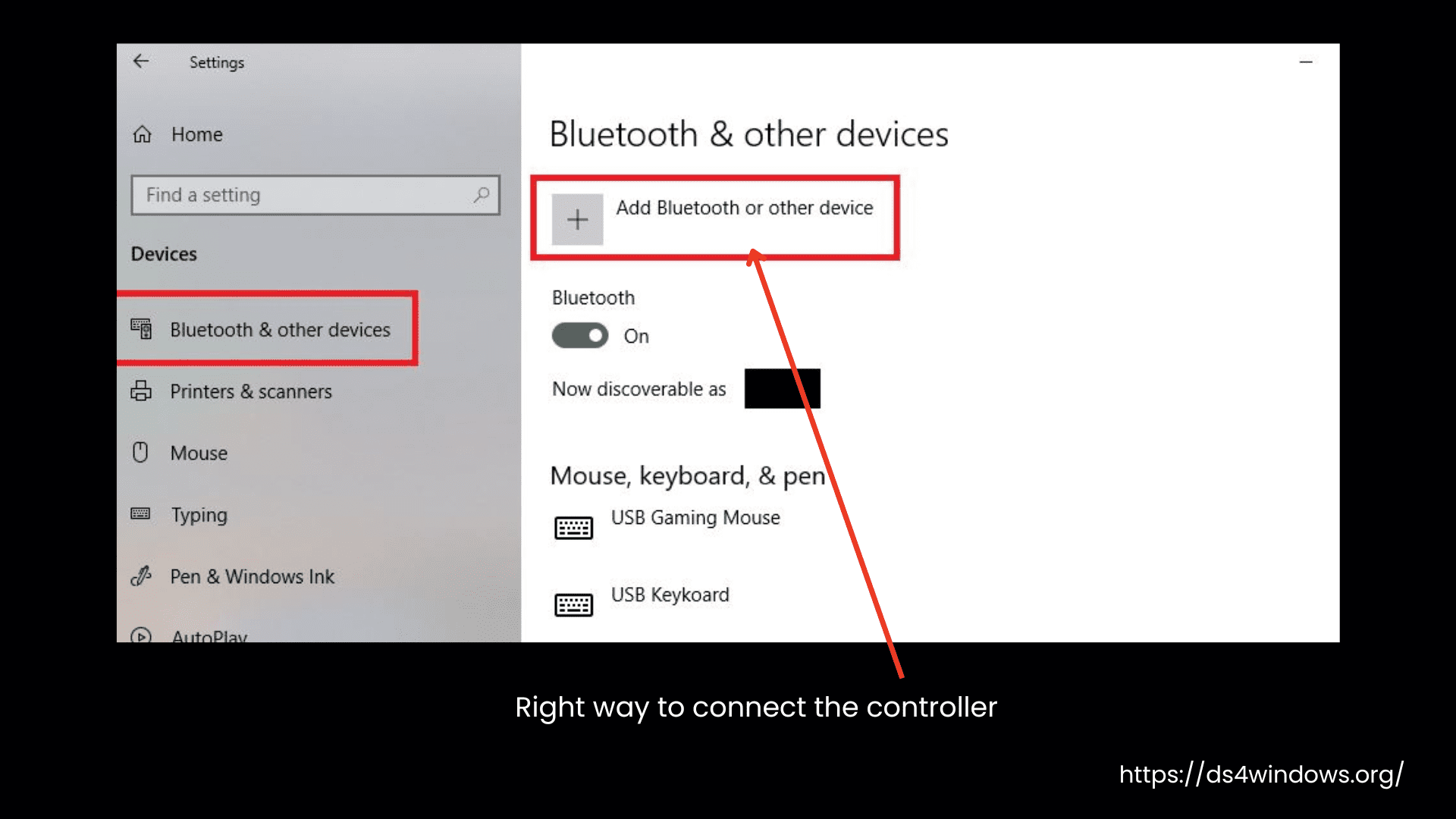
If you are unsure whether your controller is connected correctly, it’s best to remove it from Windows and pair it again the right way.
How to Remove a Paired Controller from Windows?
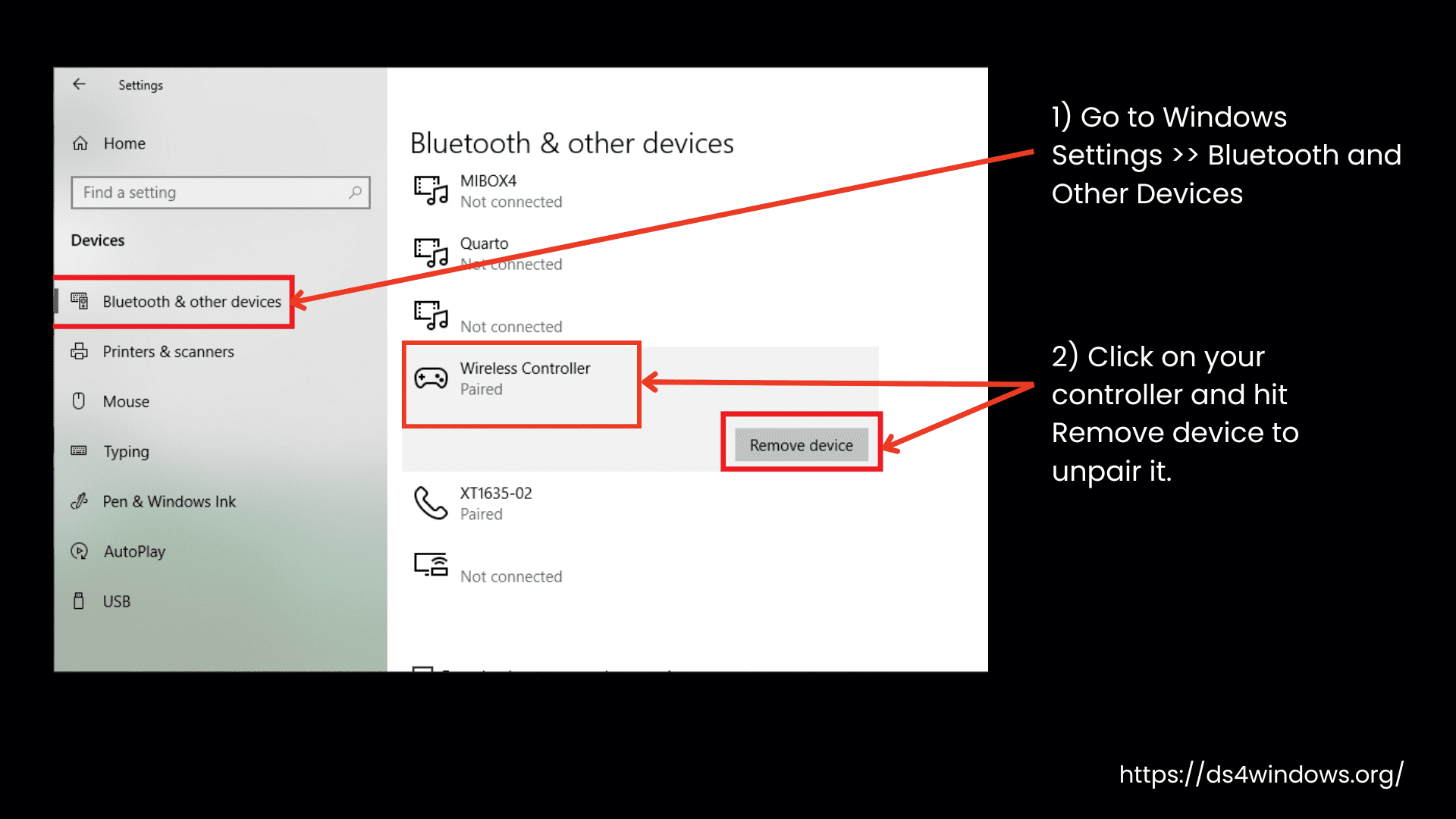
Remove from Bluetooth Settings (We recommend this method.)
- Open Windows Settings and head over to the Bluetooth & Devices section.
- Scroll through the list to find your controller.
- Click on it and hit Remove device to unpair it.
Remove from Devices and Printers
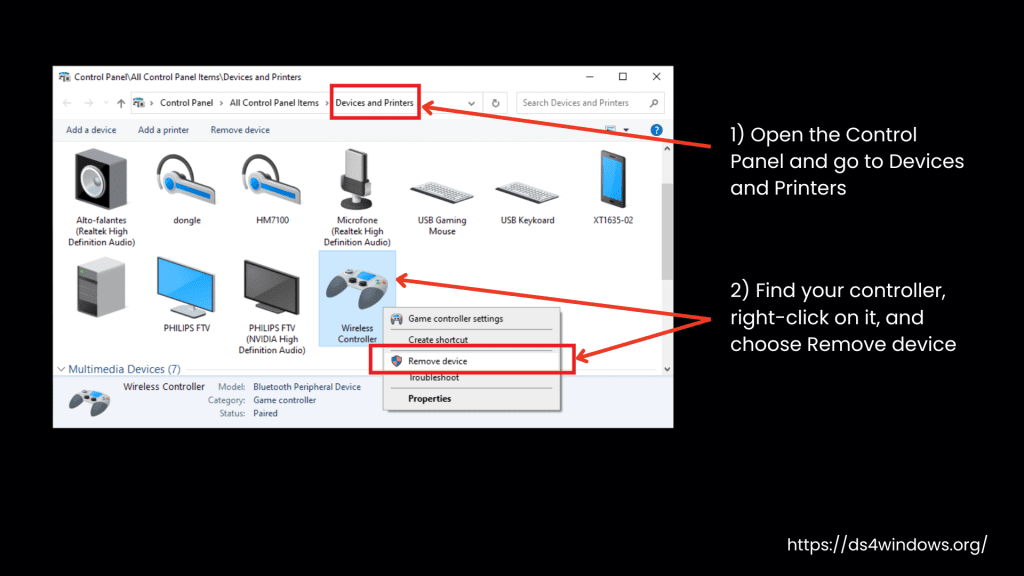
If the method above isn’t working, try this one:
- Open the Control Panel and go to Devices and Printers.
- Find your controller, right-click on it, and choose Remove device.
You can verify the controller’s removal by checking Windows’ paired devices list. If your controller isn’t showing up, that means it’s fully unpaired. Now, let’s get it connected the right way.
Properly Pairing a Controller to Windows
3. Windows is Not Finding the Controller Properly
Make sure that your controller is paired correctly.
Here’s how you can solve the issue of Windows failing to recognize the controller when you try to add it in Bluetooth settings.
- Make sure your device is in pairing mode.
- As we mentioned in the first fix, you must check Bluetooth compatibility. Most controllers connect properly with a Bluetooth 4.0 or higher adapter.
- If your controller is already in Windows’ paired devices list, then you have to remove it first, otherwise, Windows will not detect it.
- If you had connected the controller before, but it doesn’t show up now, check Devices and Printers in Windows. If it’s showing in the list, remove it first before trying again.
- Sometimes, Windows takes a long time to recognize DS4v1 controllers, so wait for around 5 minutes.
- Moreover, you can check whether your controller has been picked up by Windows or not with the help of a Gamepad Tester.
4. Controller Connected But Not Recognized by Windows or DS4Windows
Check that your controller is paired correctly, and Turn off or Unpair Other Bluetooth Devices
So, the above issue was when Windows couldn’t see the controller at all. In another situation, Windows finds the controller, but it doesn’t recognize it or function properly.
So, you can try these steps to fix this issue:
Disconnect and then re-pair the controller the right way, as we have discussed above.
If you are using a console controller like PS3, PS4, PS5, or Switch, you may have mistakenly connected it to the console instead of the PC. So, as a precautionary measure, unplugging the console before pairing the controller to your PC is a good practice.
If you have other Bluetooth devices nearby that might be interfering, also unpair those devices.
If the controller is still not recognized, check the controller detection troubleshooting guide.
5. Controller Rejects to Reconnect After Reboot, Sleep, or Shutdown
Try a Different USB Port or Bluetooth Adapter
This may be because of a faulty Bluetooth adapter. Sometimes, Bluetooth adapters don’t work because we are trying to insert them into an incompatible USB port like inserting an older adapter in the newer USB port.
First, disconnect the controller and check the adapter by inserting it into another port.
If you are inserting an older adapter into a USB 3.0 port, it will not work. For an older adapter, use a USB 2.0 port to resolve this issue.
If the problem persists, change your Bluetooth adapter.
Additionally, verify if your adapter requires a specific driver from the manufacturer to work correctly.
6. Your Controller Randomly Disconnects or Stops Responding
Use A Stronger Adapter.
Now discussing the issue where your controller connects and works fine but randomly disconnects or stops responding. Try these fixes, and hopefully, this will resolve the issue.
7. Windows is Failing to Connect More Than One Controller
Use a good-quality Bluetooth adapter that supports multiple controllers.
The beauty of DS4Windows is that you can connect multiple controllers with it, and it can translate them successfully, letting you play games with your favorite controller. However, if it is failing to connect more than one controller or your connection keeps getting lost, it might be due to:
- The most suspected reason is a low-quality Bluetooth adapter.
- There may be too many Bluetooth devices around the system, creating enough interference to make the connection unstable.
- Some Bluetooth adapters can’t handle the input data for multiple controllers, so the controllers disconnect randomly.
Solution:
A better Bluetooth adapter with a stronger signal is the solution to all these issues. Turn off other Bluetooth devices in your surroundings that you suspect may cause signal interference. The details are discussed in the Input Delay on Bluetooth section.
8. Windows is Using Built-in Bluetooth instead of External Bluetooth Adapter
Disable Integrated Bluetooth Adapter is a quick fix.
In the gaming world, where we use DS4Windows to connect our favorite PlayStation controllers with a PC, we need strong signals, a higher data transfer rate, and lower latency. The built-in or integrated adapter in PCs and laptops is weaker and doesn’t support the data speed required for such a setup. Therefore, external USB Bluetooth adapters are recommended as reliable for gaming. So, before playing your games, you have to disable the built-in adapter and use an external USB adapter.
Here’s how you can kick that integrated Bluetooth adapter:
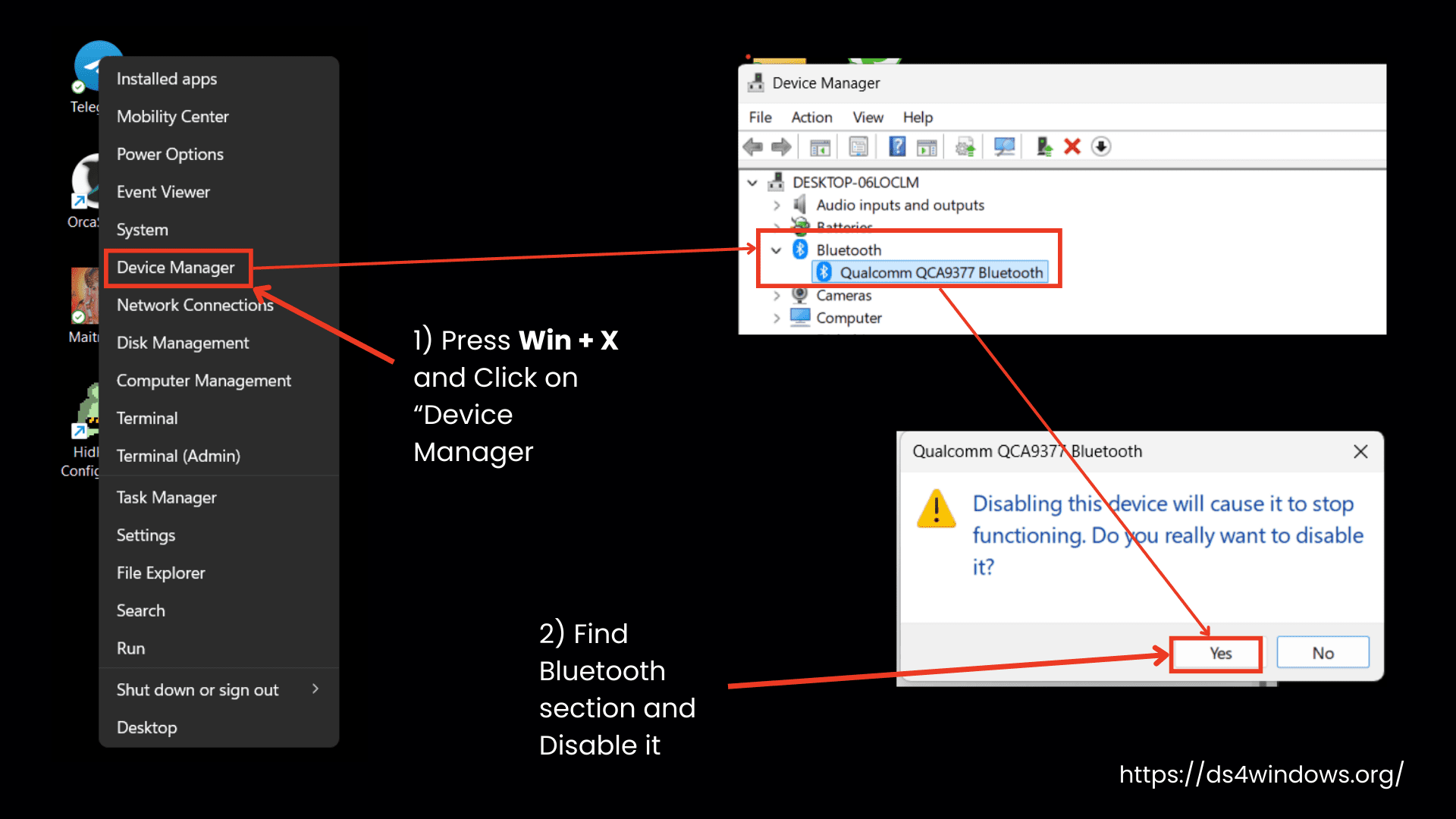
Press Win + X on your keyboard. It will bring up a handy menu. From there, click on Device Manager.
Scroll down to the Bluetooth section and find your built-in adapter hiding there.
Right-click on it and hit Disable.
Now, unplug your external Bluetooth adapter, then plug it back in.
9. WiFi or Bluetooth Signals are Dropped When the Controller is Connected
Reduce interference with other Bluetooth or WiFi devices.
How many of you have experienced that your WiFi slows down or your Bluetooth devices start acting weird when you connect your controller? Don’t worry, it’s because of a signal interference problem.
Why Does This Happen?
Some PCs and laptops have a combined WiFi and Bluetooth card, meaning both signals share the same hardware. If the hardware is of low quality, Bluetooth can interfere with WiFi and vice versa.
Even if you have separate Bluetooth and WiFi adapters, if one has a weak signal quality, it can still interfere with the other.
Other devices like smartphones, smart TVs, and laptops around your PC also send strong signals. This also increases signal interference.
When DS4Windows communicates with the controller, too much signal interference can affect the increased data transfer between the PC and the controller, which results in signal drops.
Solution
- Use an external strong Bluetooth adapter.
- Move your WiFi router or PC to reduce interference from other devices.
- Turn off other nearby devices to reduce interference.
- Reduce the number of connected Bluetooth devices.
10. Controller Tries to Connect to Other Nearby PC
Disable Bluetooth on the other PC or unpair the controller from it.
You are trying to connect the controller to your PC where DS4Windows is installed, but it connects to another nearby PC. Don’t get confused; this happens when both PCs have Bluetooth adapters and the controller has been paired with both before. It gets confused and connects to the PC that responds first.
11. Latency/Input Delay Issues on Bluetooth
Another prominent issue when you connect a controller with DS4Win via Bluetooth is the latency or delayed input issue. This is a situation where the controller sends delayed signals to your PC through the Windows Bluetooth system.
Consequently, your PC responds slowly in a game, and if the latency is high, then even the controller feels unresponsive. Too much unstable delay causes unpredictable movements that create trouble for you to control your character.
Why Does This Happen in DS4Windows?
Mostly, the reason for the input delay is not DS4Win or your controller. Instead, it is because of an unstable Bluetooth connection. DS4Windows connects to the controller through the Windows Bluetooth system. If the Bluetooth connection is weak or unstable, the communication becomes slower and the controller becomes unresponsive.
How to Check Your Controller’s Latency?
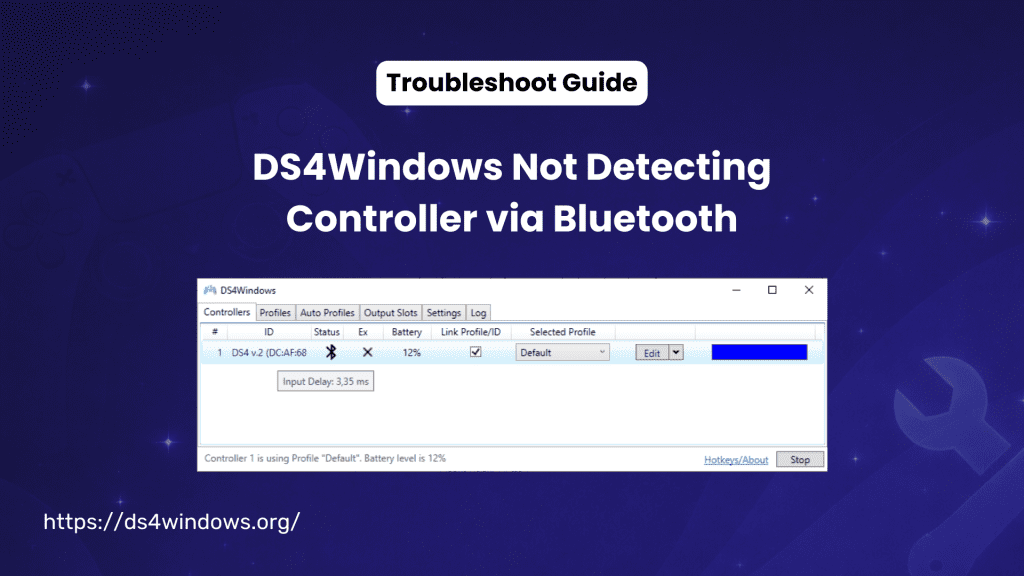
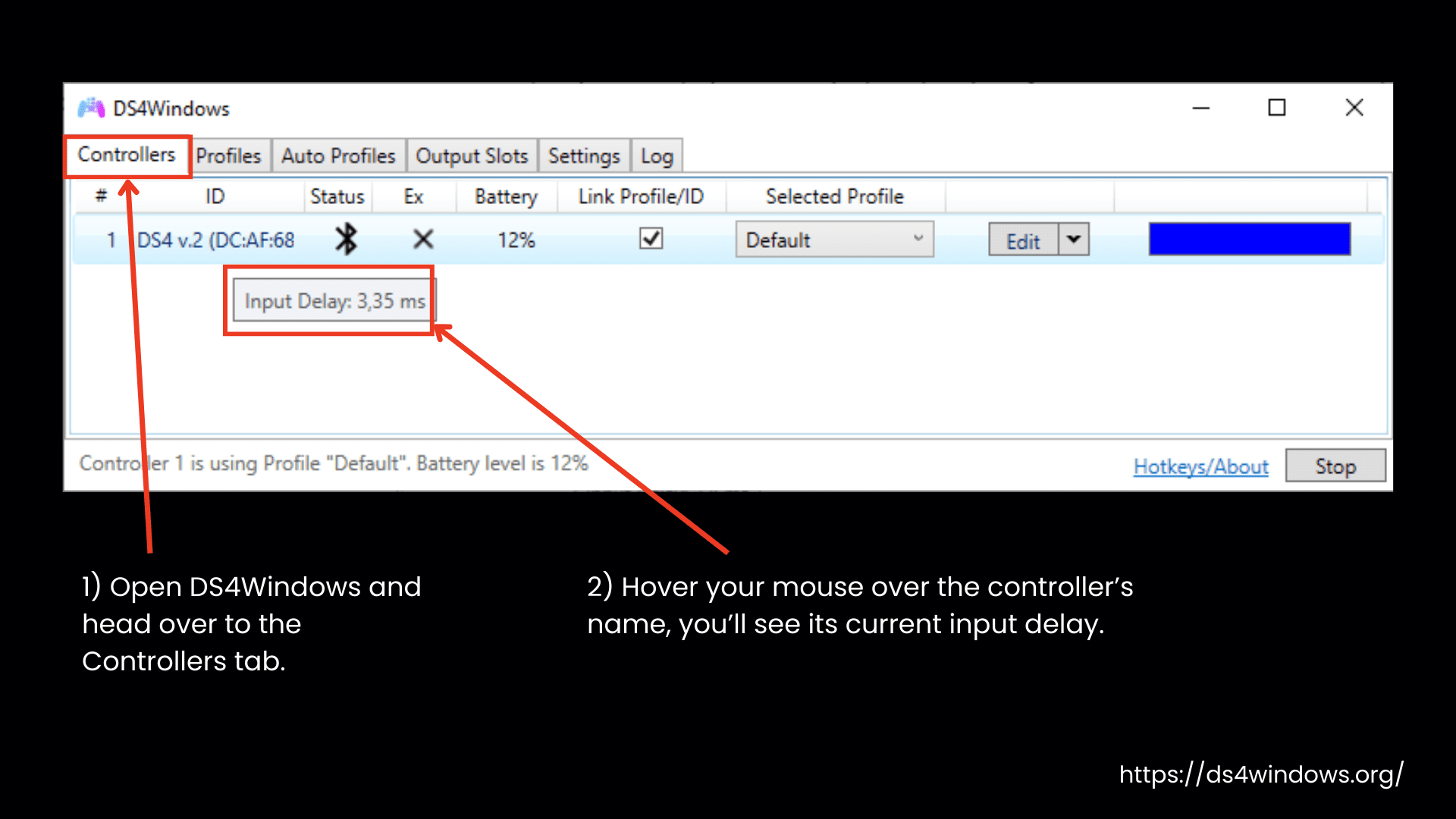
- Open DS4Windows and head over to the Controllers tab.
- When you hover your mouse over the controller’s name, you’ll see its current input delay.
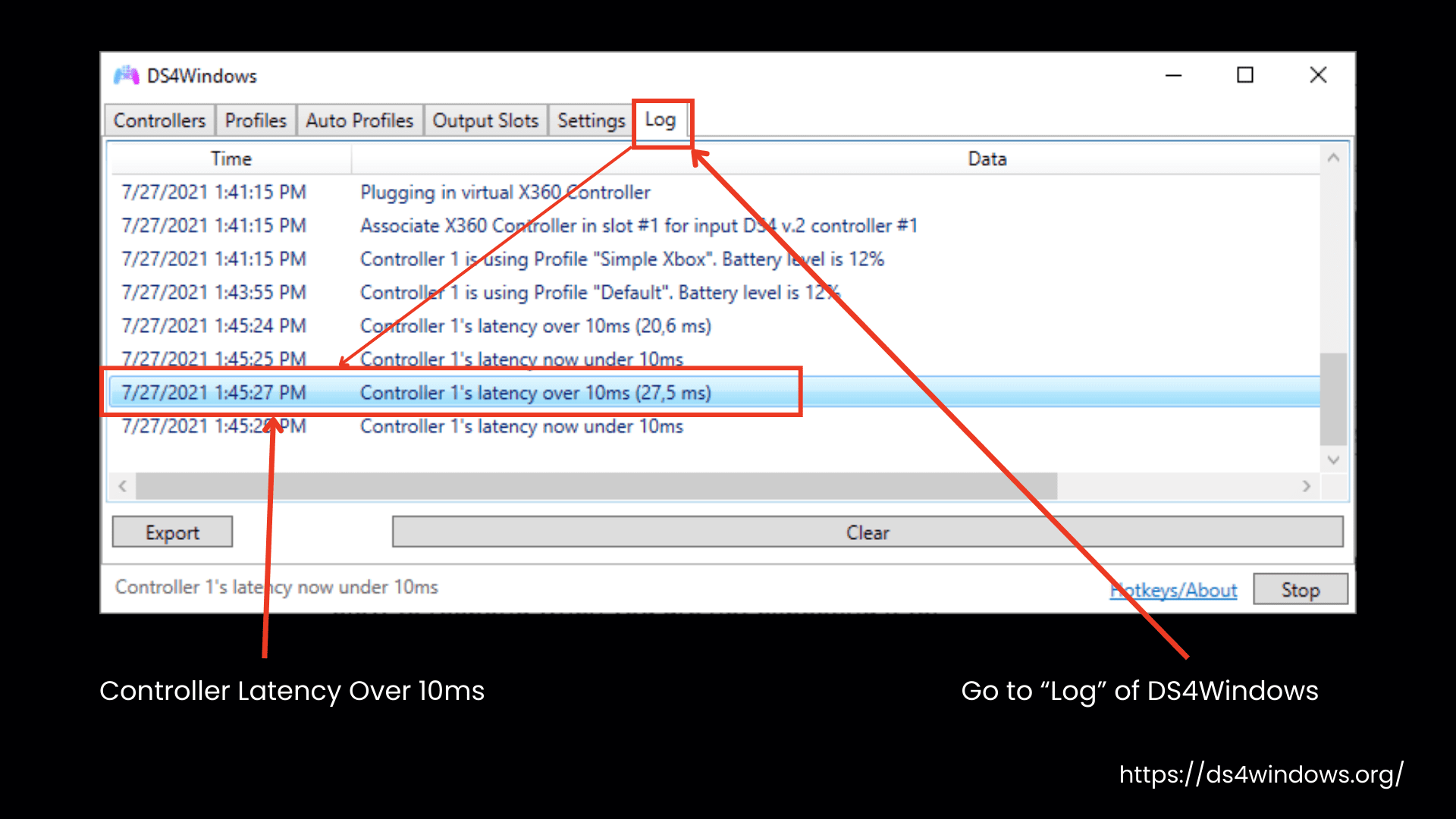
- If the delay is more than 10ms, DS4Win will show it in the Log section of DS4Windows.
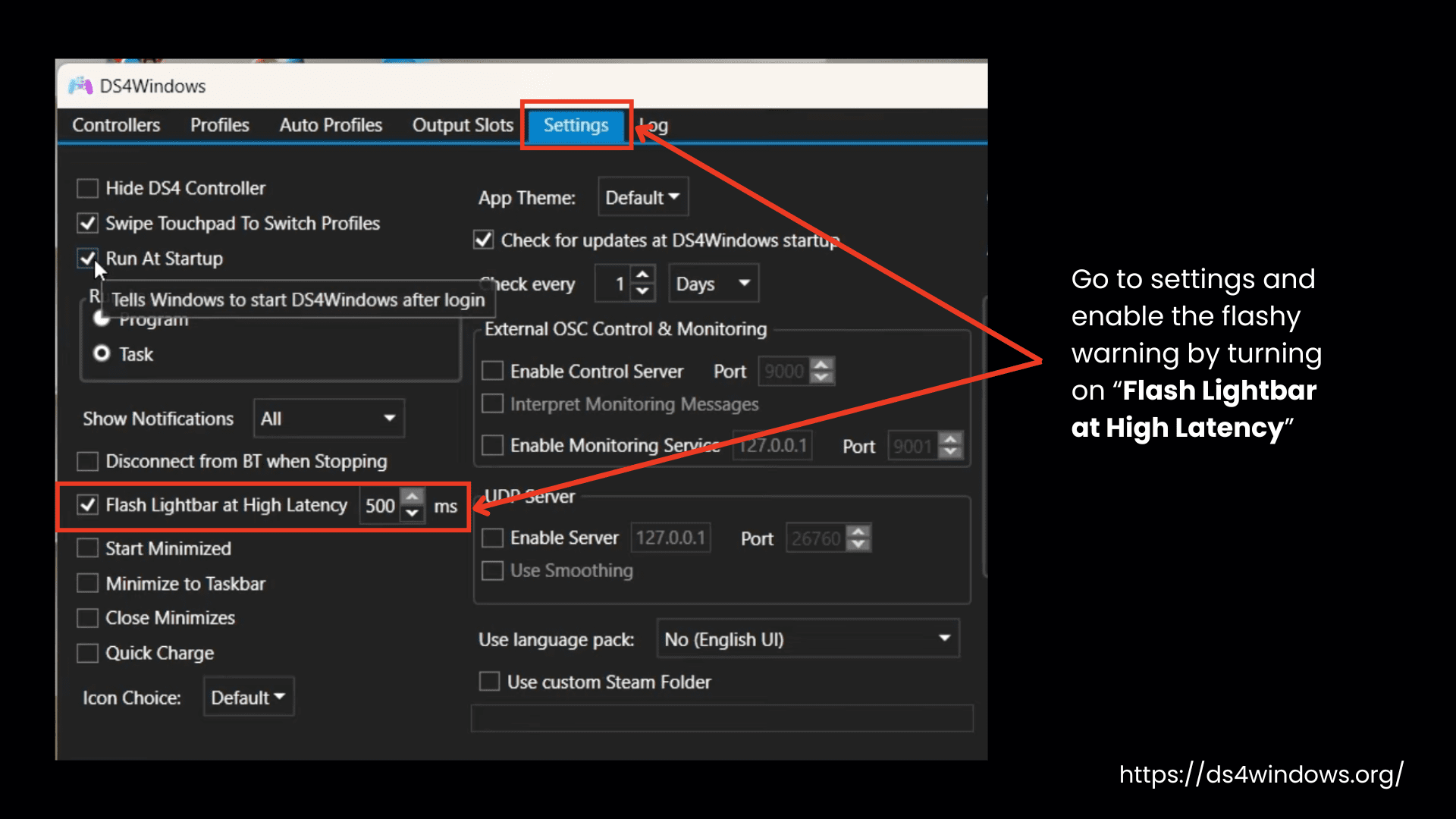
- You can also enable the flashy warning by turning on Flash Lightbar at High Latency in settings. When things get too slow, your controller will start blinking a red light.
Usual Input Delay for Controllers
From the table below, you can get an early idea of where the trouble is coming from. If you are observing a higher delay time than the usual delay, then read the solutions mentioned below to fix it in time.
| Controller | Usual Input Delay | Lowest Possible Delay | Notes |
|---|---|---|---|
| DualShock 3 | ~5ms | 5ms | Works best with BthPS3 + DsHidMini in DS4Windows mode. |
| DualShock 4 | 4ms (Default) | 1.5ms (Max polling rate) | No major difference between v1 and v2 models. |
| DualSense (PS5) | ~3ms | 1ms | Very low latency and good performance. |
| Switch Pro Controller | 16ms | 16ms | Cannot go below 16ms due to hardware limitations. |
| Joy-Cons | ~16ms? | 16ms? | Similar to the Switch Pro Controller, possibly higher. |
Reasons for Controller Lagging on Bluetooth?
- Weak integrated Bluetooth Adapters
- WiFi & Bluetooth Interference
- Too Many nearby Bluetooth-connected Devices
- DS4Windows requires more detailed data from the controller
Potential Fixes to Controller Latency Issues
Using a good-quality Bluetooth adapter, reducing the amount of data transferred via Bluetooth, and using a USB extension cable, etc, can improve your controller response.
If your controller feels unresponsive when connected to DS4Win via Bluetooth, try these quick fixes to solve the issue.
1. Turn Off WiFi to Reduce Interference:
Wi-Fi and Bluetooth both use the 2.4GHz frequency, so they can interfere with each other. Turn off Wi-Fi and see if your controller becomes more responsive.
2. Set Windows to High Performance:
- Set your Bluetooth connections to run at full speed by going to Windows’ Power Settings and then selecting High Performance mode.
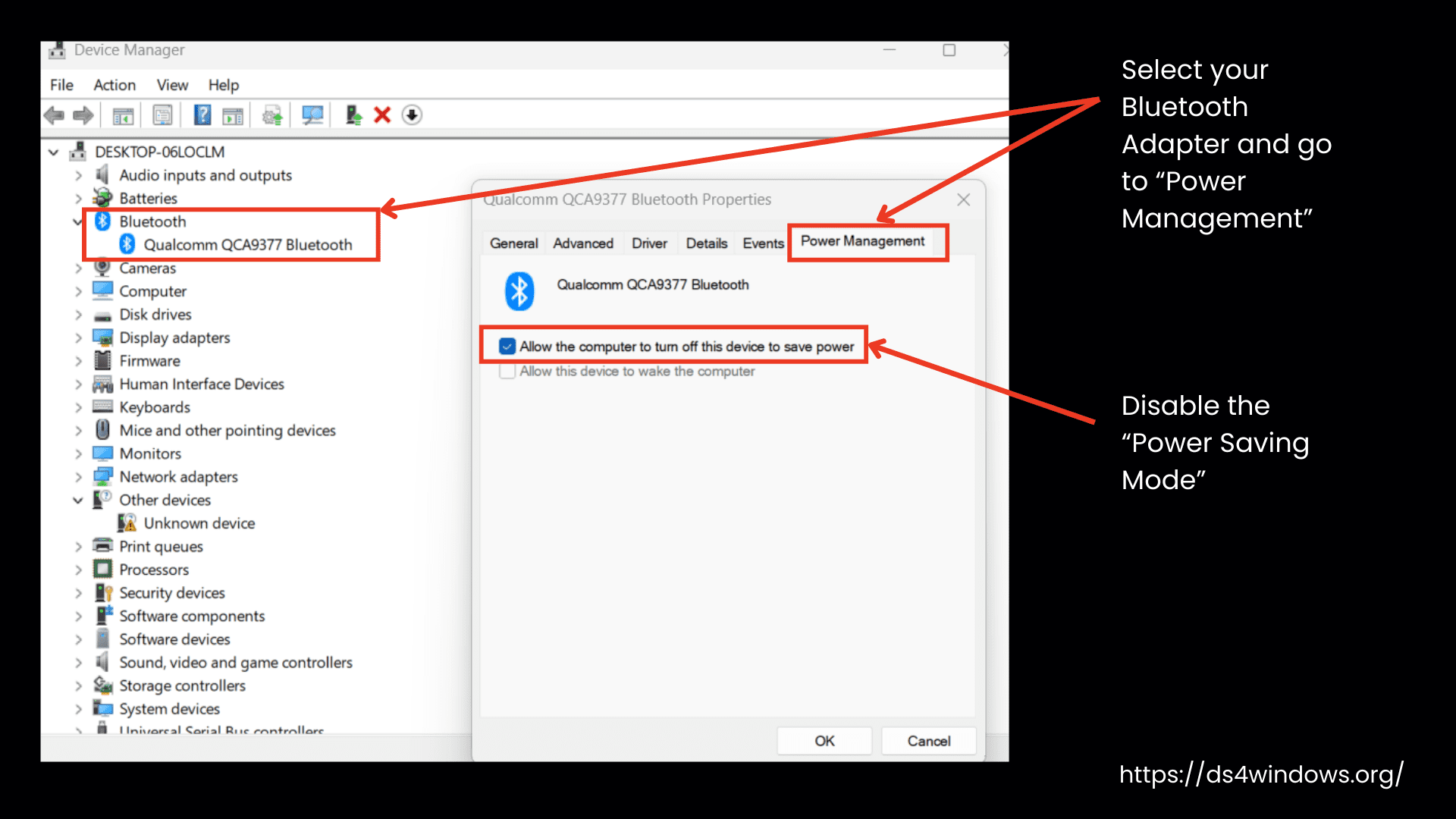
- Open your PC’s Device Manager, find your Bluetooth adapter, and disable power-saving mode under the Power Management tab.
3. Use a Better Bluetooth Adapter:
Disable the integrated, built-in adapter and use an external, strong Bluetooth adapter for better signals.
4. Try a Different USB Port:
Not all USB ports are equal. Experiment with different ports to find the best one.
USB 3.0 ports, usually blue, can sometimes cause radio noise interference.
Your connection will be better if you move your Bluetooth adapter to a port closer to the controller or away from USB 3.0 ports.
5. Use a USB Extension Cable:
If your controller connection drops when you move away from your PC and improves when you move the controller closer, it means your PC is blocking the Bluetooth signal. In this case, use a USB extension cable to move the adapter away from your PC.
6. Lower Bluetooth Polling Rate in DS4Windows:
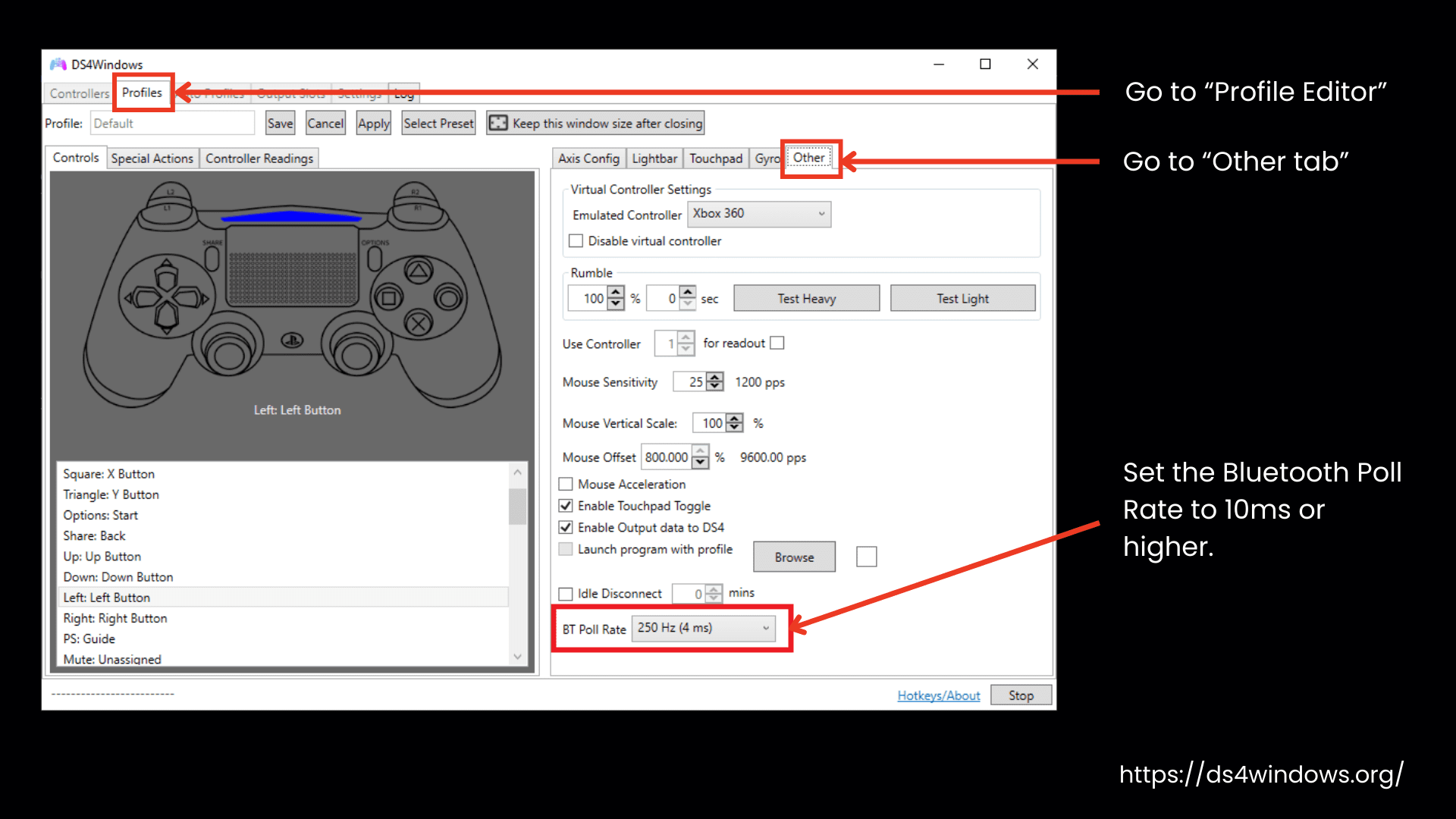
When connecting a controller to DS4Windows via Bluetooth, other nearby devices like TVs, PCs, and Bluetooth gadgets also send signals. This can overload the connection, causing issues. You can reduce the amount of data Bluetooth sends by lowering the polling frequency (increasing the poll rate value).
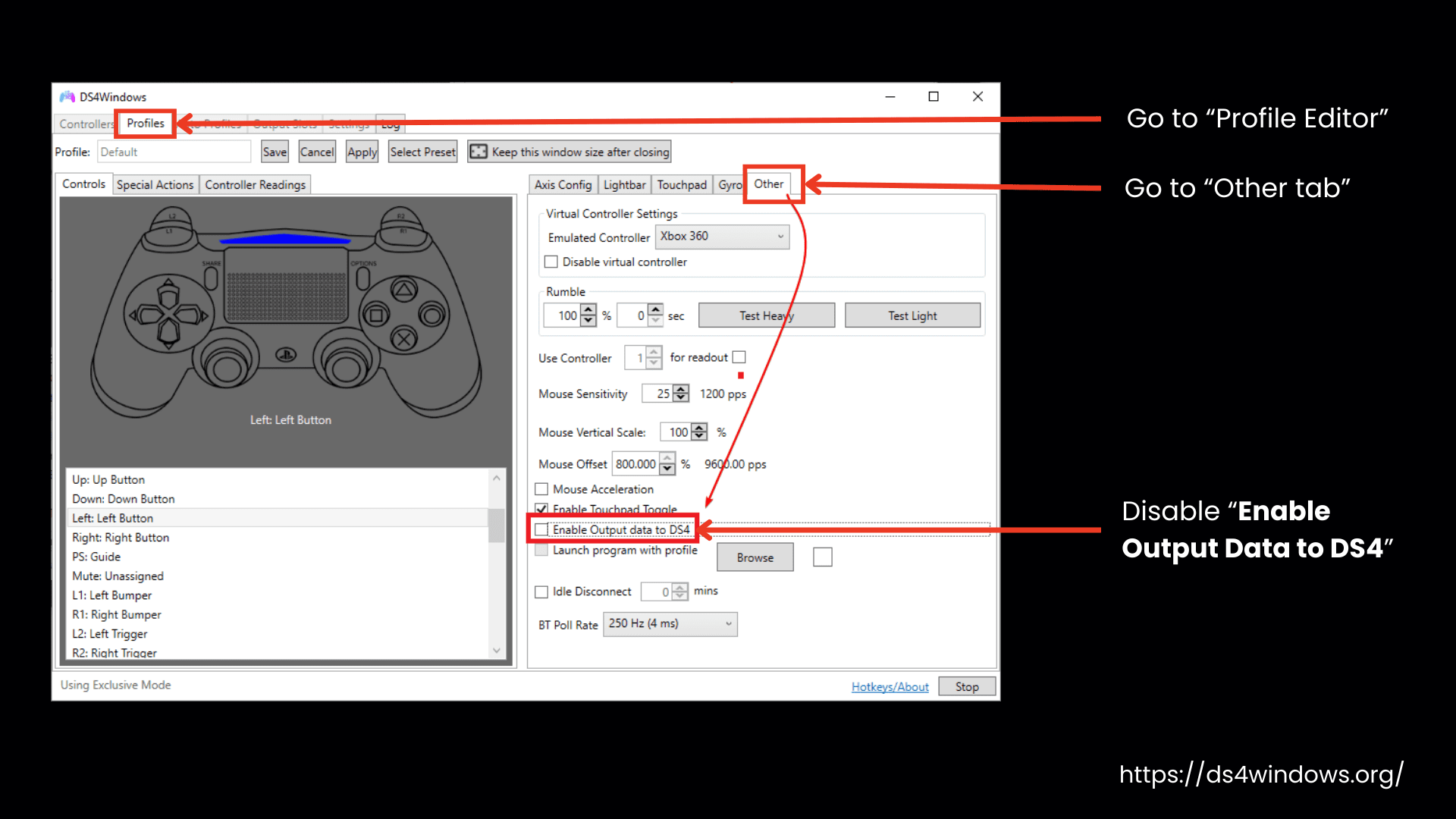
In DS4Windows, go to Profile Editor > Other tab and set the Bluetooth Poll Rate to 10ms or higher.
This helps multiple controllers work even with a weak adapter.
7. Disable Output Data to the Controller:
Another way to reduce the amount of data Bluetooth sends is by disabling extra features like vibration and the light bar.
Go to DS4Windows Profile Settings and disable “Enable Output Data to DS4”.
By disabling this extra data, you won’t feel rumble or see light effects, but the response time and connection stability can improve.