
Getting Started with DS4Windows
Want to run DS4Windows without any issues? Follow this guide for easy steps, from downloading and installing drivers to resolving double-input issues. Learn how to back up, restore, or delete your data, plus tips to fix related problems. Read on to get started!
What is DS4Windows?
DS4Windows is an input mapper that emulates any controller, especially the PS controller, into an Xbox controller. It’s a portable program that you can use to translate the DS3, DS4, and DS5 (DualSense) controllers into Xbox controllers to play PC games on your Windows PC. You can even remap the keys to a keyboard, mouse, joystick, or any other input of your choice to play games that are not designed to be played with controllers. So, with the help of this tool, you can play many games on your Windows PC with better control using PlayStation and Nintendo controllers.
Important Notes
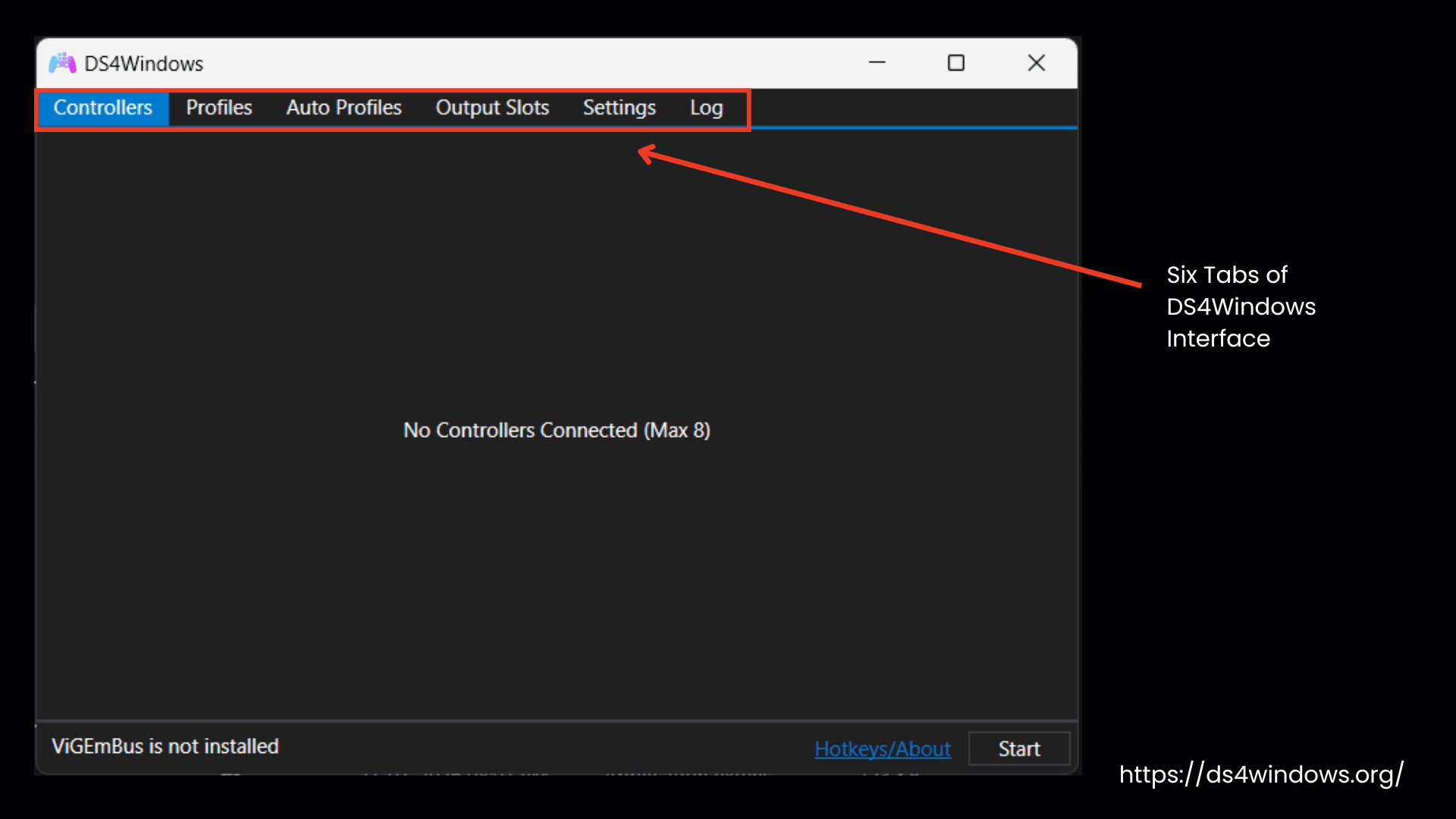
You will see six tabs on the DS4Windows interface, such as the default profile, auto profile, settings, controller, and output slots tabs. Here’s a brief overview of these three main tabs.
About the Default Profile
The heart of DS4Win is the default profile for each game that tricks your computer and games into treating the DualShock 4 or DualSense controller as an Xbox 360 controller.
In this mode, you will use the touchpad on the controller to control the mouse by default. You can turn the mouse control on or off by pressing and holding the PS button, then tapping the touchpad once.
You will have to create multiple profiles with different settings to play different games. Don’t worry, you can easily switch between them.
About DS4 Controller Emulation
The DS4Win program emulates in two ways:
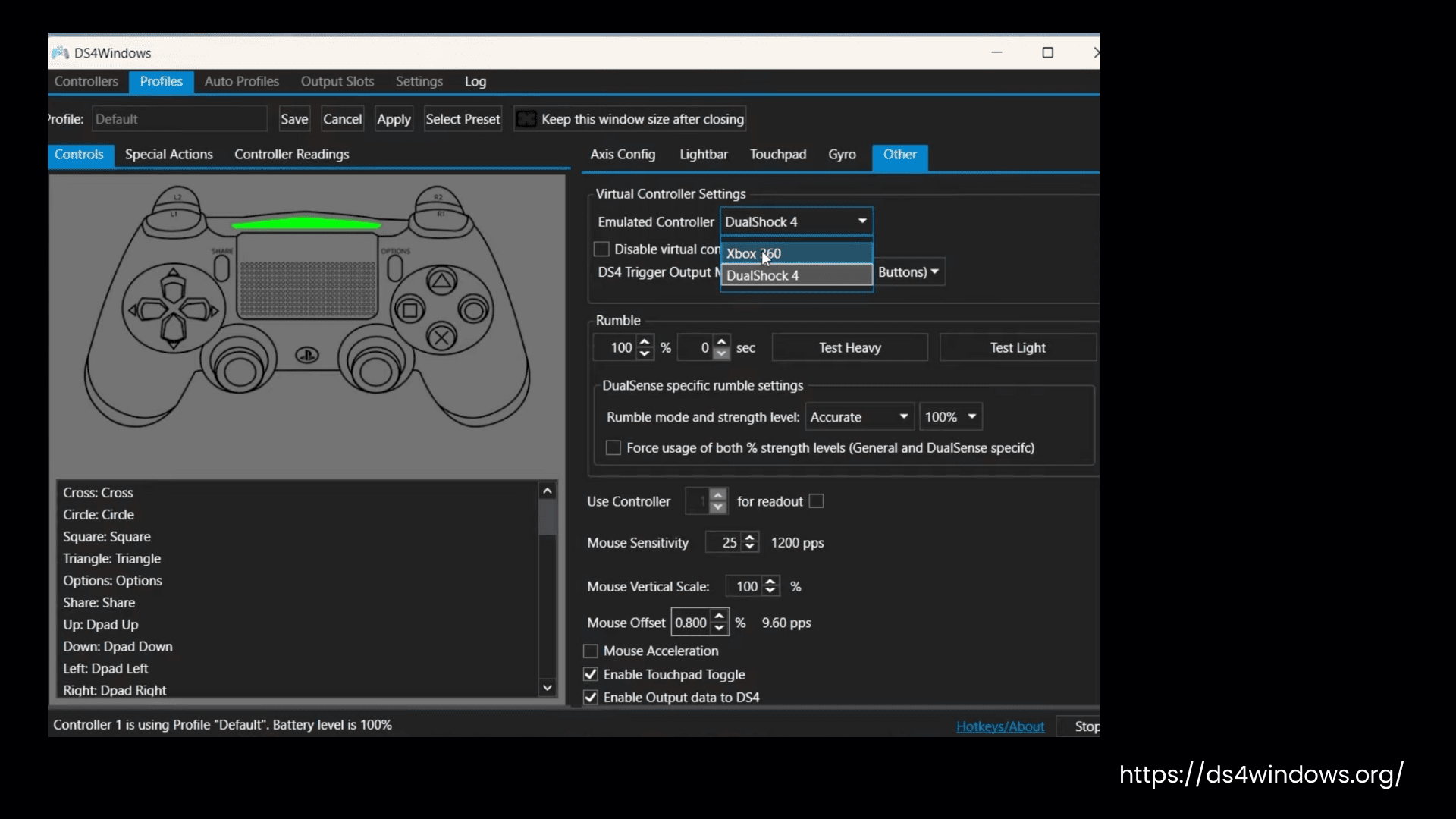
Most games only work with Xbox controllers, but for some games that support DS4 controllers, you can switch to DS4 emulation by creating a new profile or editing an existing one.
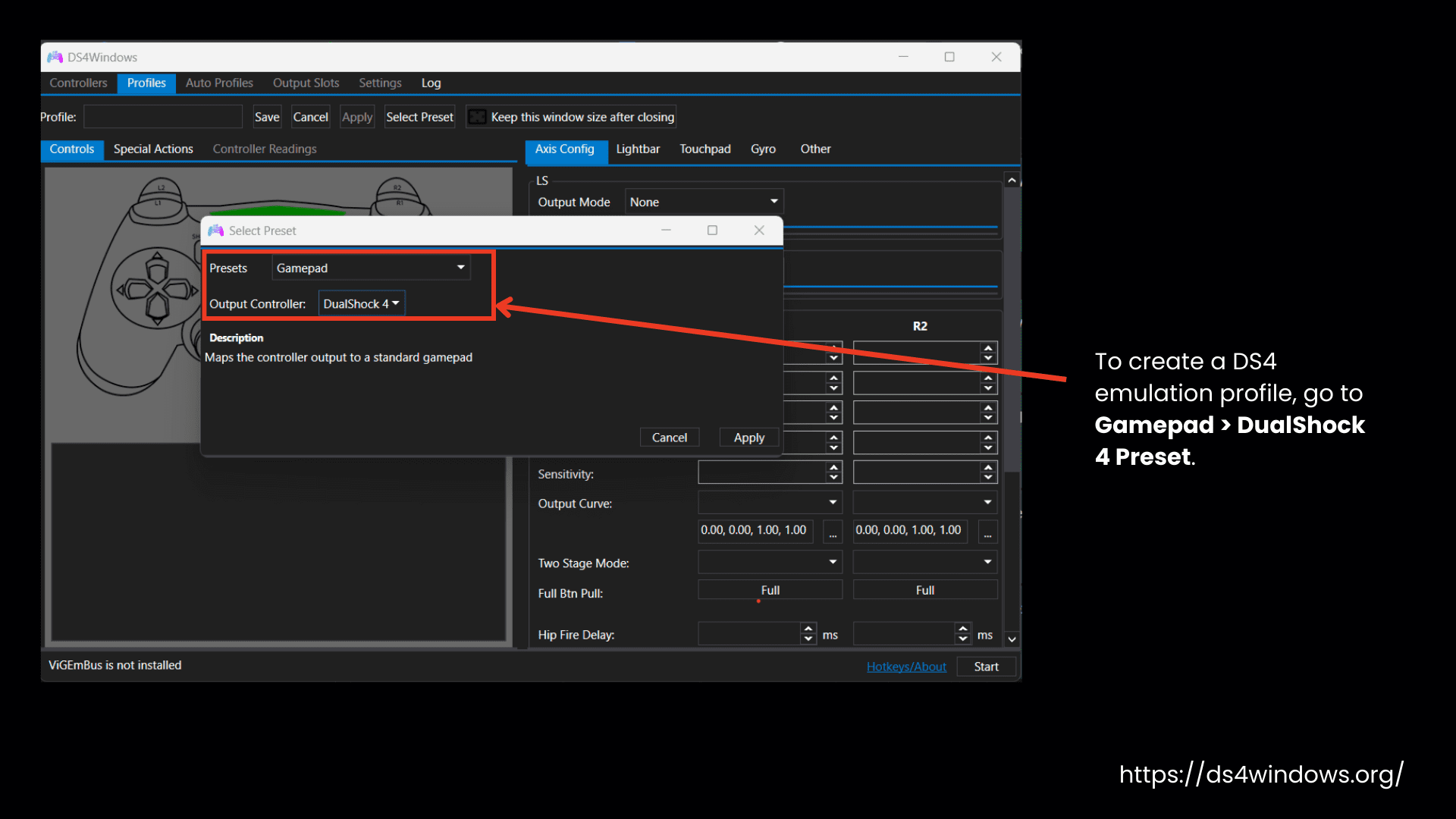
To create a DS4 emulation profile, go to Gamepad > DualShock 4 Preset.
To edit an existing profile, open the Profile Editor, go to the Others tab, and change the Virtual Controller Settings to DS4.
Important Note: You can enjoy the rumble effect of DS4Windows only in Xbox controller emulation. However, if you emulate the DS4 controller, the rumble/vibration feature won’t work.
About The Output Slots Tab (Latest DS4Version)
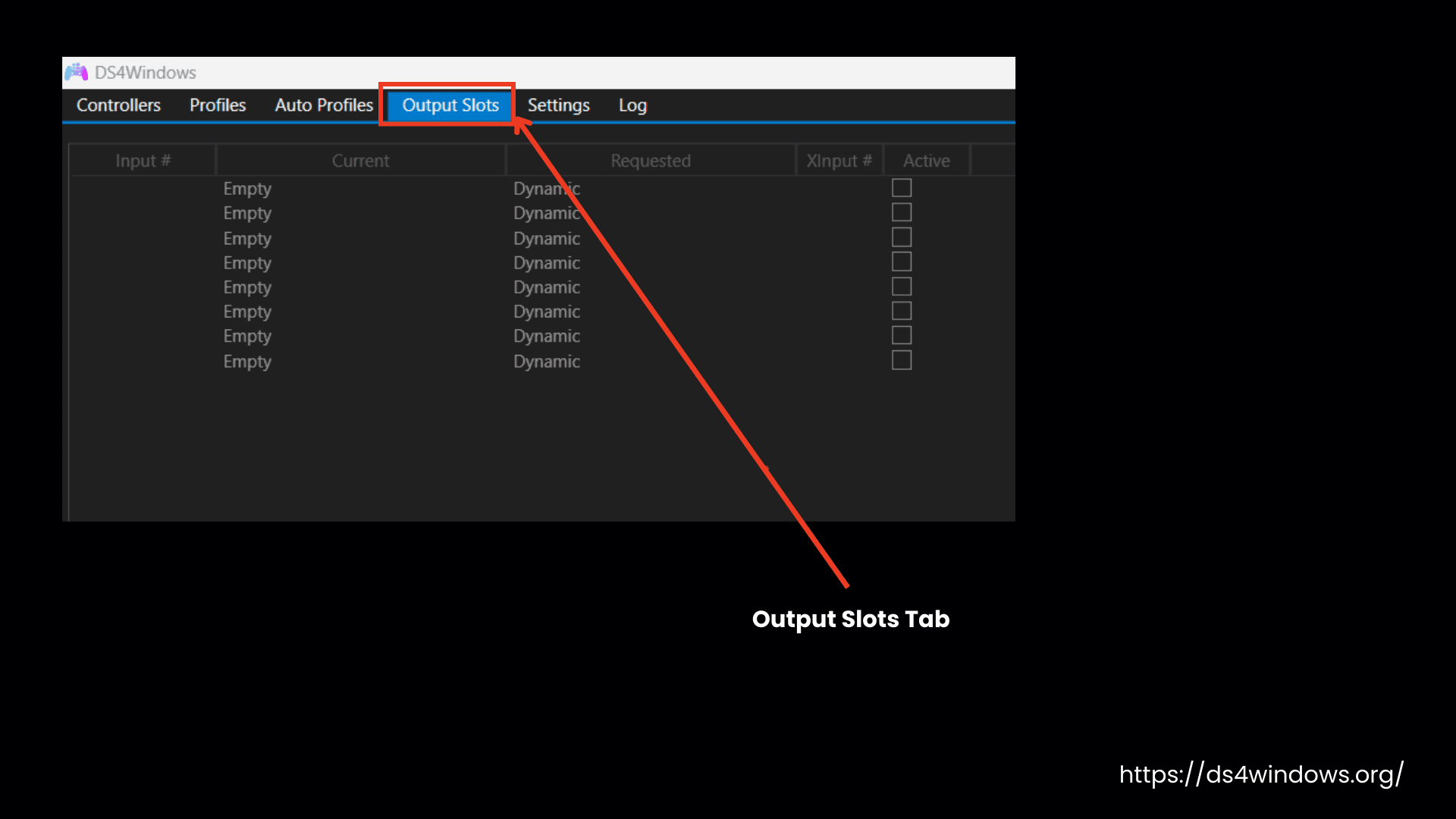
The Output Slots tab is a section in DS4Windows where you can change how the controller works. Unless you know how to make changes here, keep the default dynamic settings unchanged to let everything work automatically. Changing it without knowing can cause problems.
Download, Install & Setup DS4Windows
DS4Windows and its drivers to run this application are not found on the Windows Store, but you can find their download links on this page. If you have a 64-bit computer (x64), then you will find every detail, from downloading and installation to setting up the controllers with this application on this page. If you have a 32-bit (x86) computer, you must download drivers for a 32-bit system.
Requirements
Download & Start DS4Windows
Click here to download the latest DS4Windows x64 package.
You will see two formats, .zip format and .7zip. If you choose the .7zip package, then click here to install 7zip software to open or extract it.
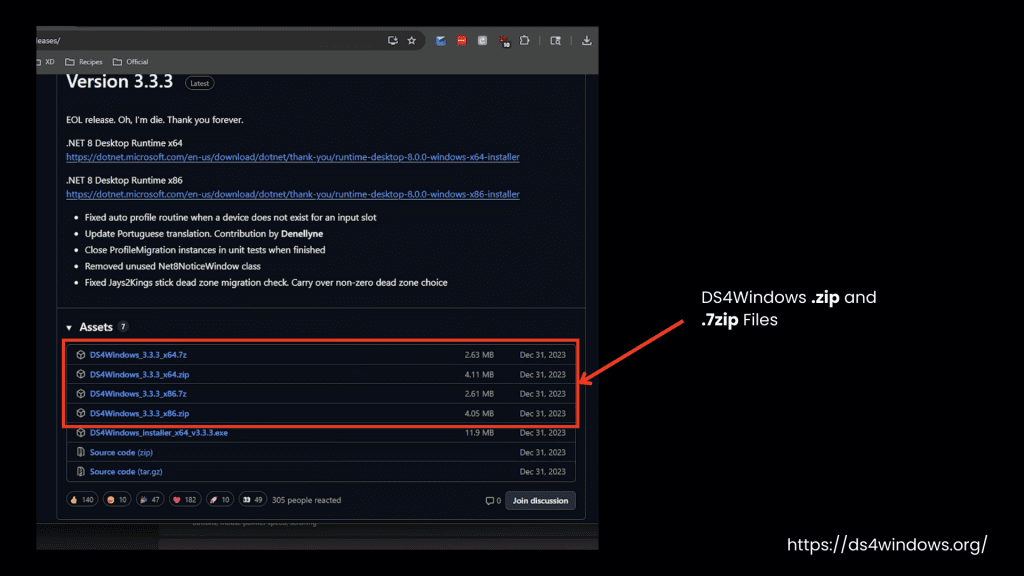
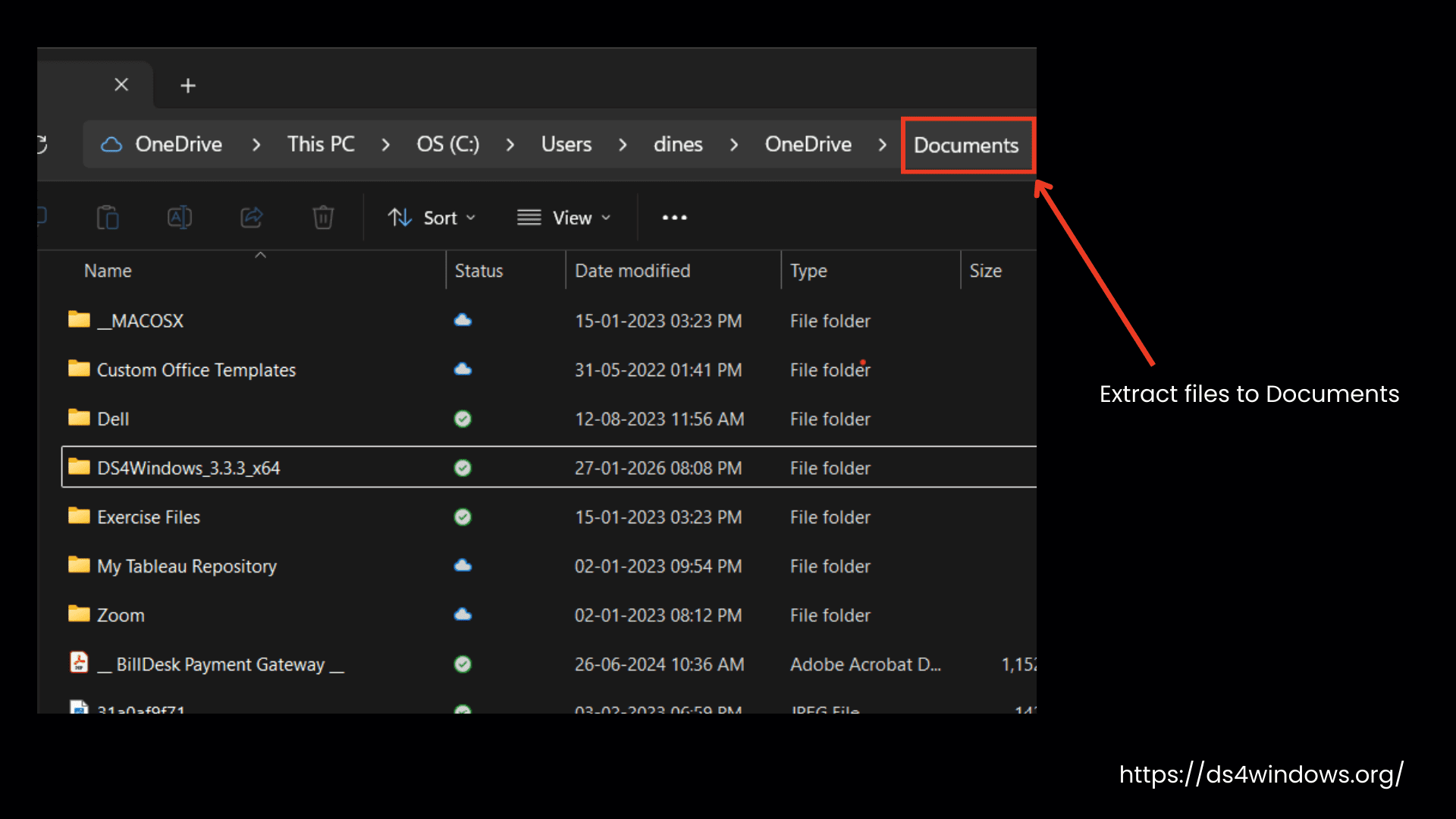
Extract the files to an easy-to-access folder like Desktop, Documents, or Downloads.
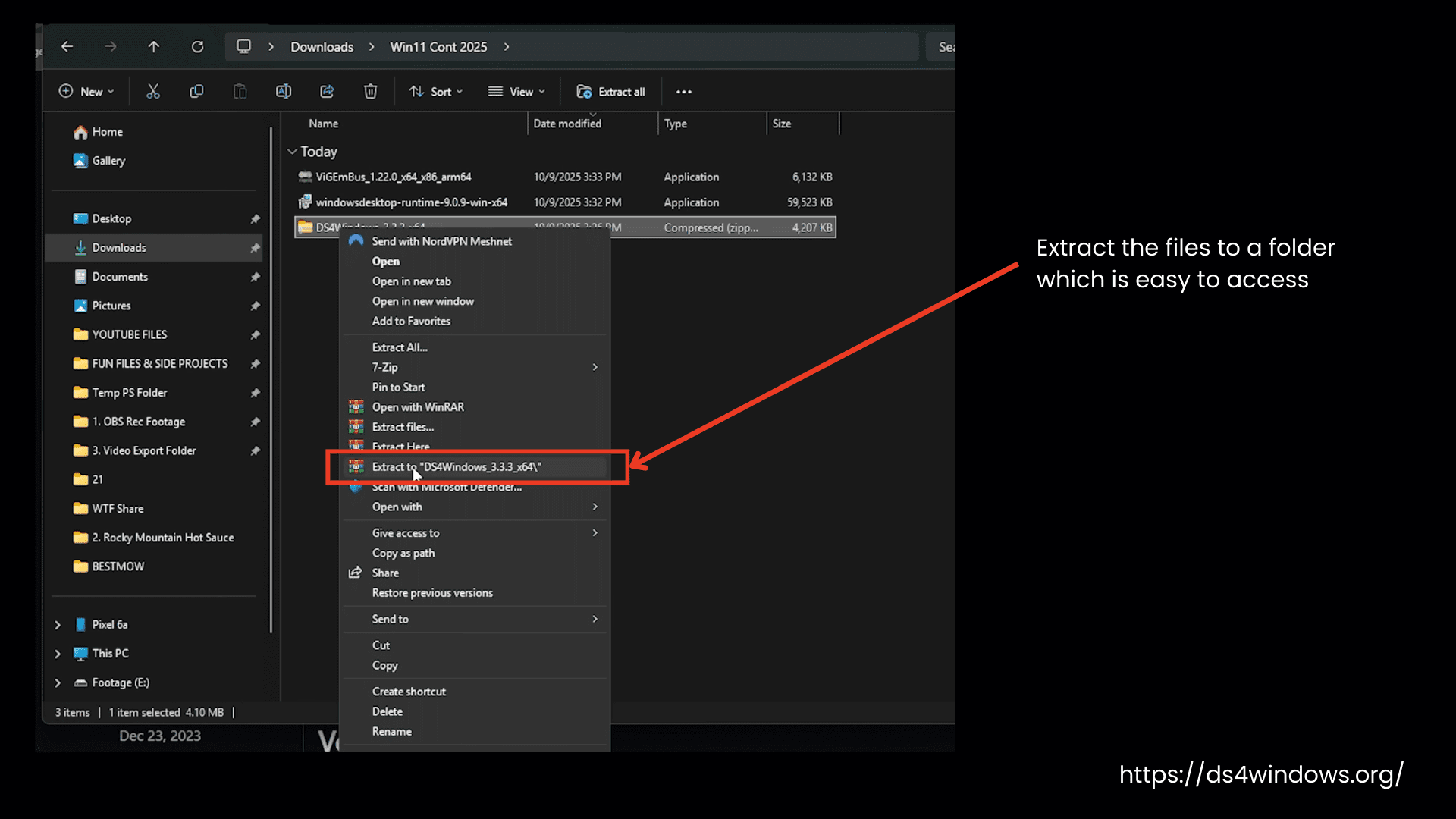
Don’t extract it to folders that require special permission like Program Files or Windows.
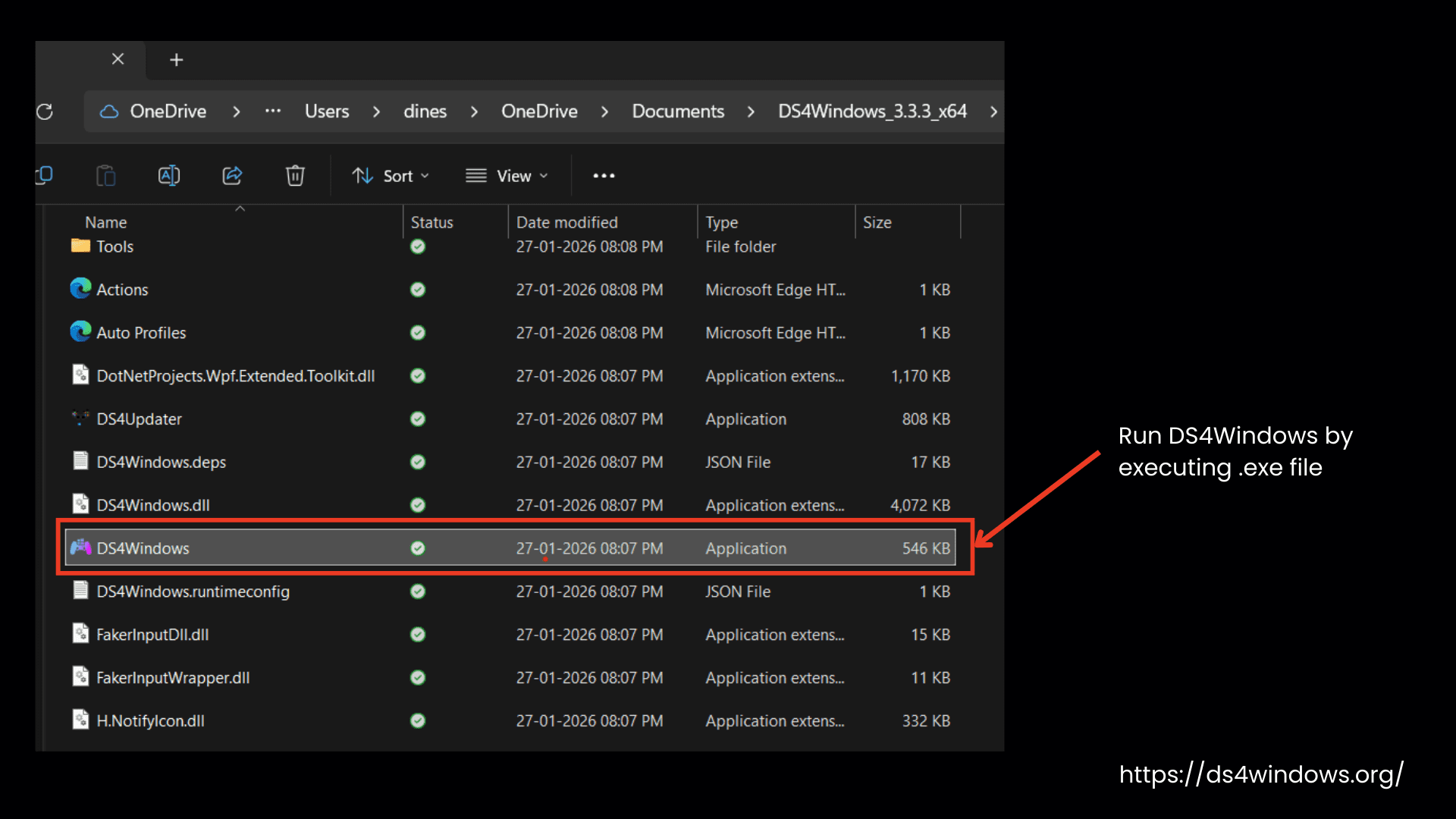
Run DS4Windows by executing the DS4Windows.exe file.
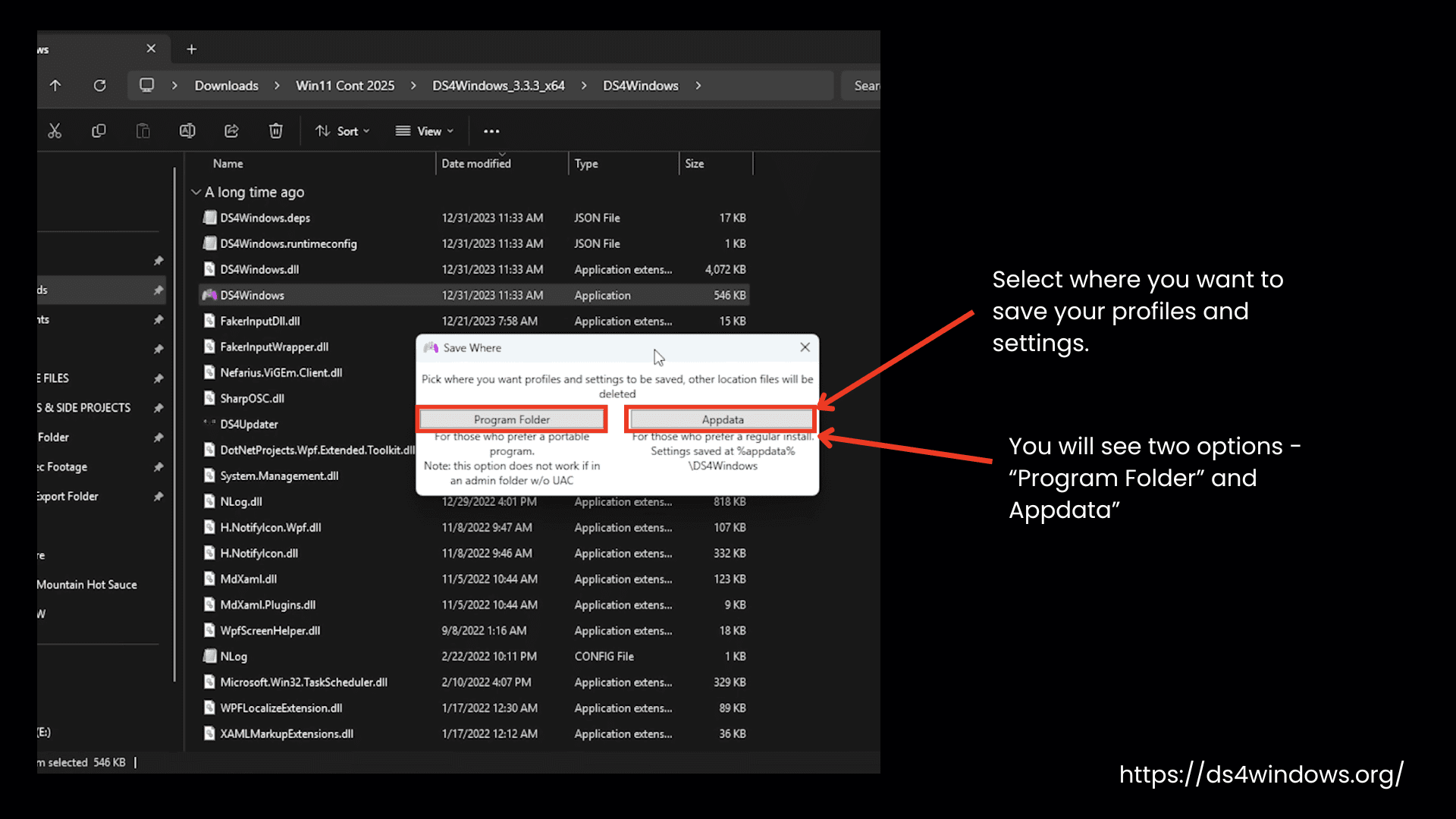
On the first launch, it will ask where to save your settings, either in the program folder or App data.
AppData folder (recommended): It saves data in a special folder that is linked to your Windows account.
Program folder: Saves data in the same folder where DS4Windows.exe is located
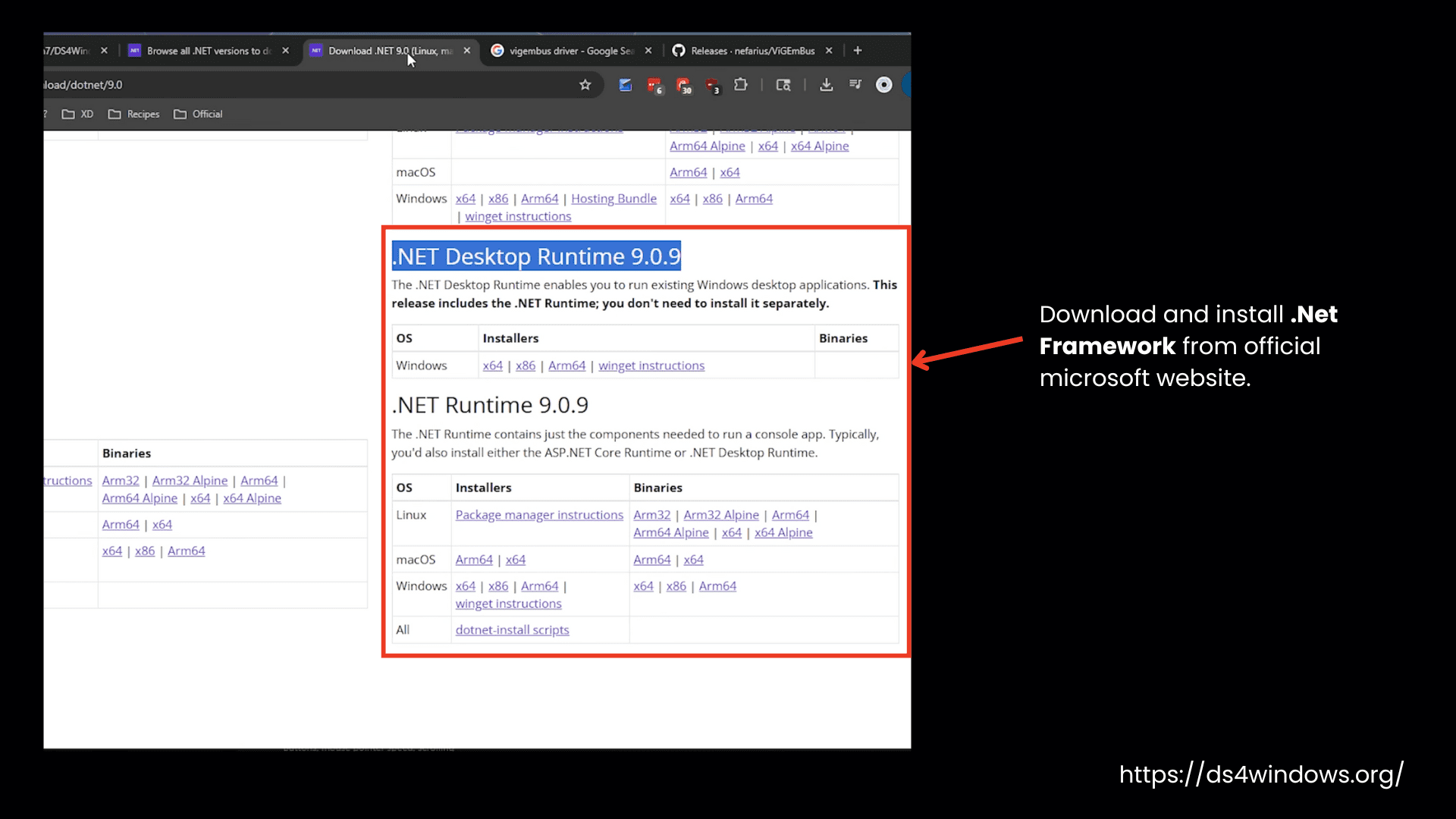
You will also install .Net Framework by double-clicking on the installer and giving all the required permissions.
Download & Install Drivers
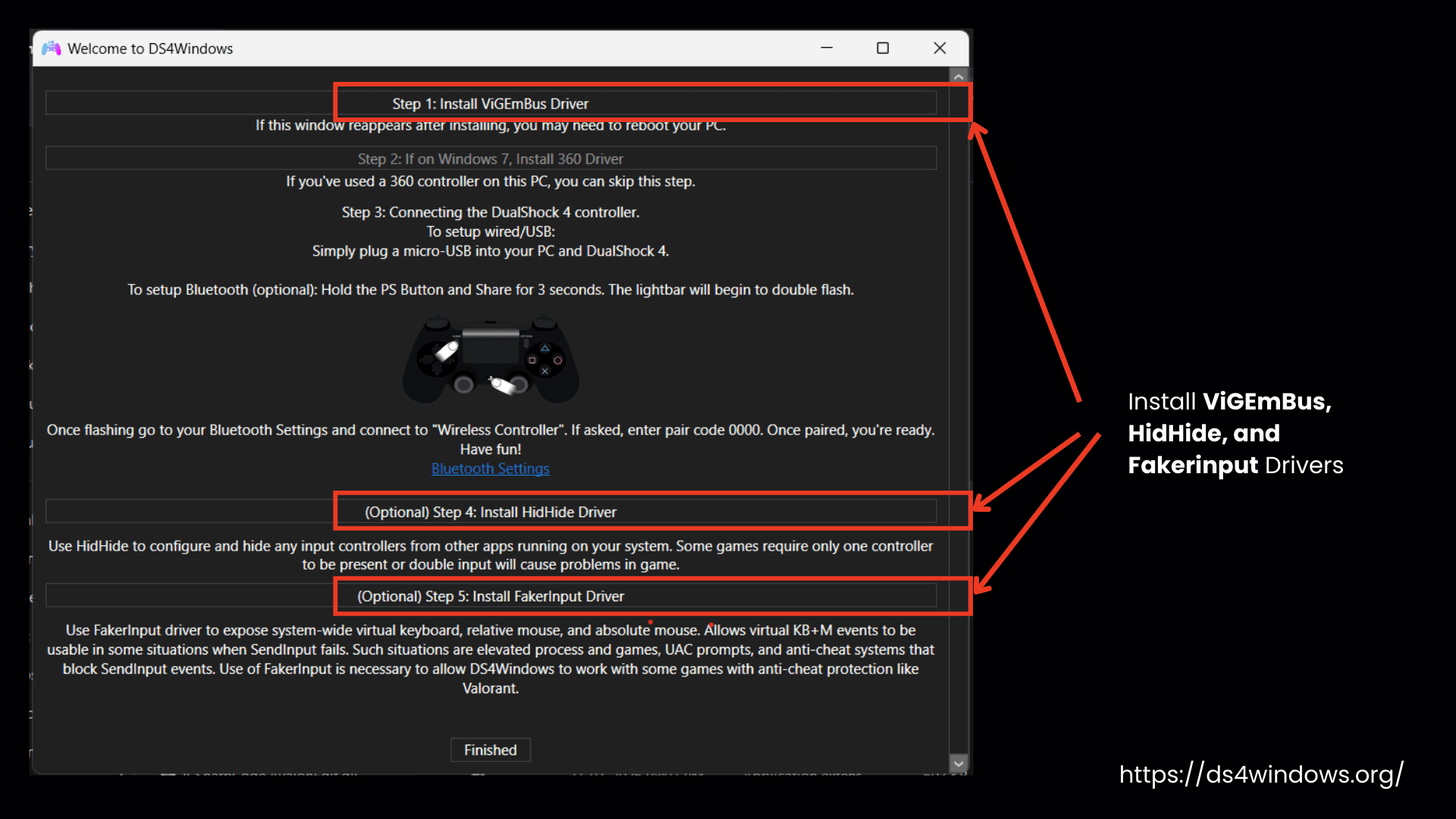
When you run DS4Windows for the first time, it asks you to install some drivers. Usually, you need only one driver to run this app, but for some games, you may need two more drivers. Below are the three drivers you need to play games with controllers on a PC using the DS4Windows app.
| Driver Name | Recommendation | Download Link | Driver Function |
|---|---|---|---|
| ViGEmBUS | Must Required | ⬇ Download | Download the x64 version to create a virtual Xbox to play PC games. |
| HidHide | Optional for Some Games | ⬇ Download | Some games detect both controllers, the real and the virtual Xbox controller. So one button press is counted twice. So it is also recommended to download it on a safer side to hide the actual controller to avoid double input. |
| FakerInput | Optional for Keyboard/Mouse games | ⬇ Download | If you want to play games that require a keyboard and mouse, this driver can perform better than DS4Windows’ keyboard/mouse feature. |
Connect The Controller To Your PC & DS4Windows
After DS4Win and drivers download and installation, you will connect the controller to your PC. If your controller is properly connected to the PC then DS4Windows will quickly detect it. The most reliable connectivity way is to use a USB cable but Bluetooth works almost as well if you have a good-quality Bluetooth adapter and there’s no strong signal interference nearby.
Controller Connection Methods
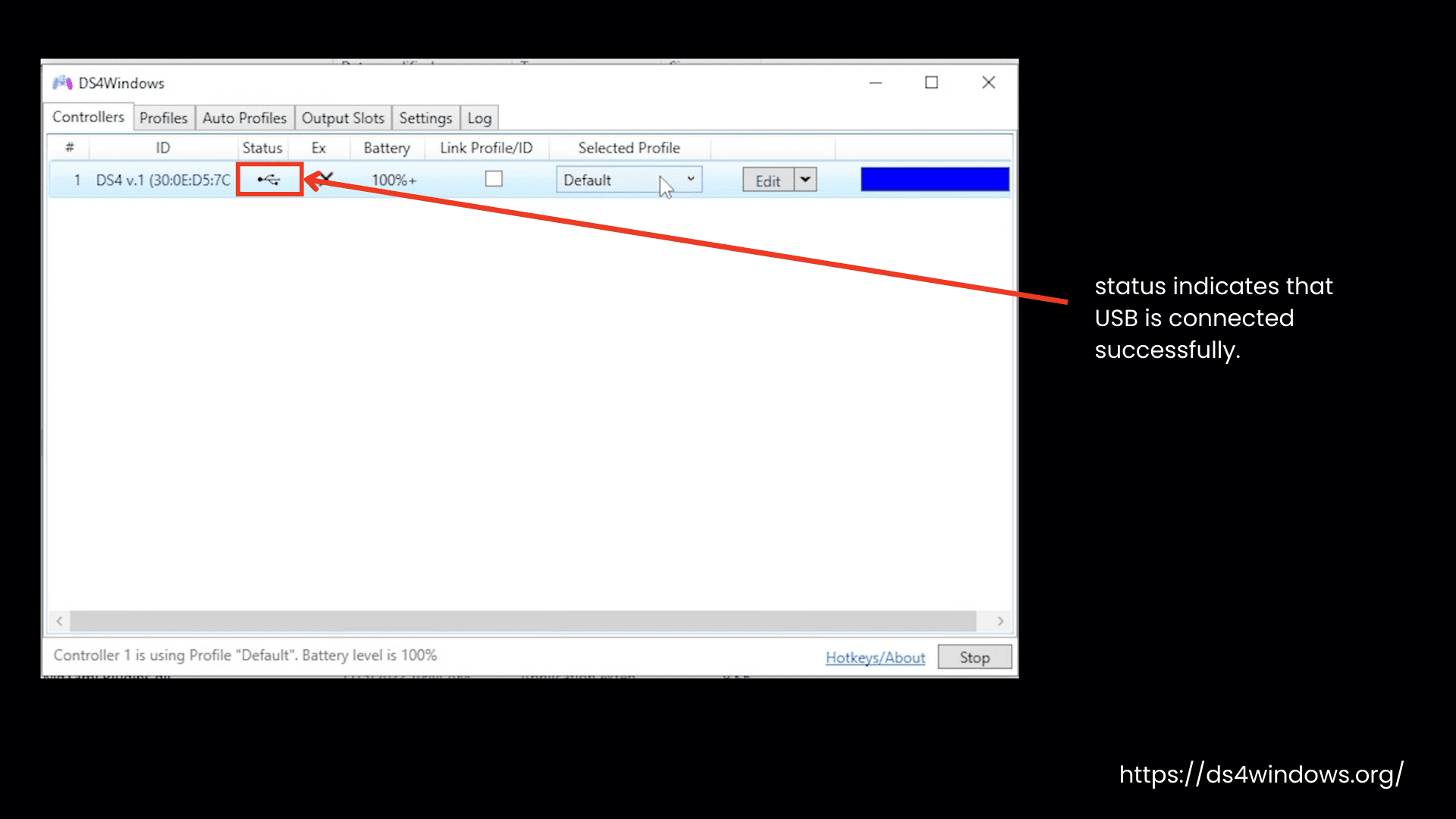
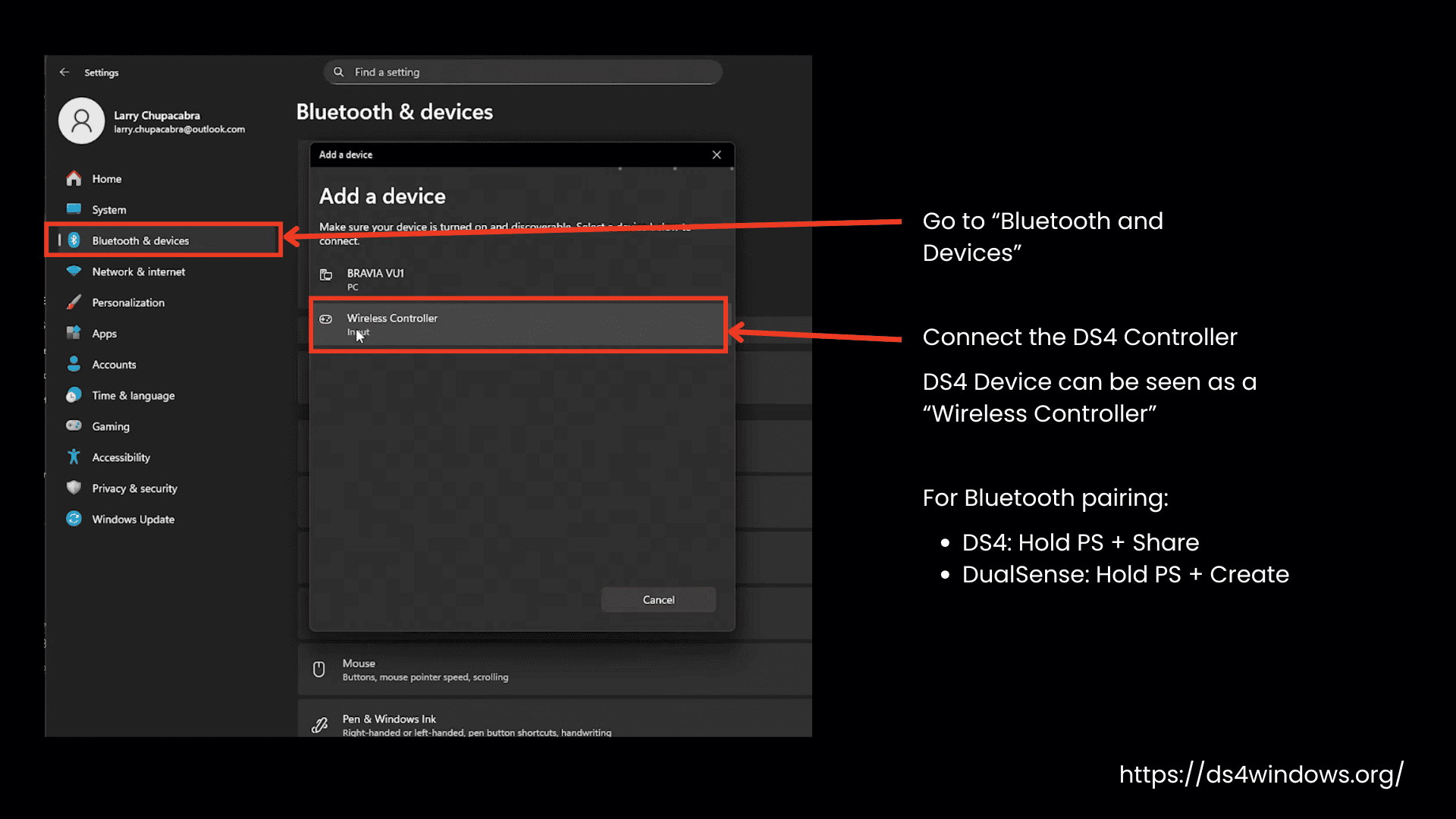
Read the below information to turn on the pairing mode for your specific controller:
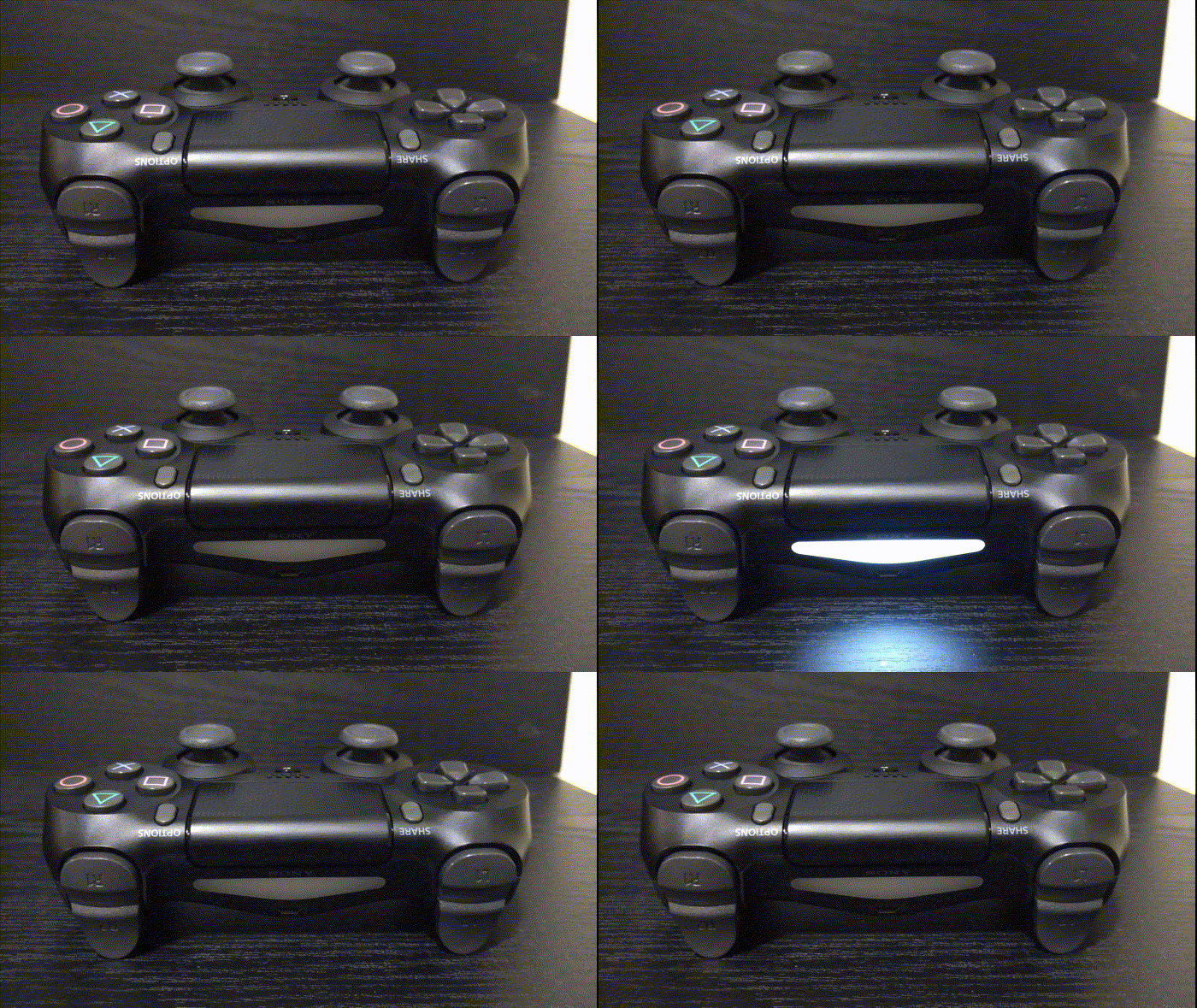

Tip:
Are you done with pairing mode, and is it asking for a PIN? Try entering 0000.
If you have already put the controller in pairing mode and entered the PIN, but it’s still not connecting to your PC, remove it from Windows’ Bluetooth devices list and pair it again
The official Sony Wireless Adapter can connect only one DualShock 4 controller at a time, but you can use the headphone jack wirelessly with it for both audio and mic.
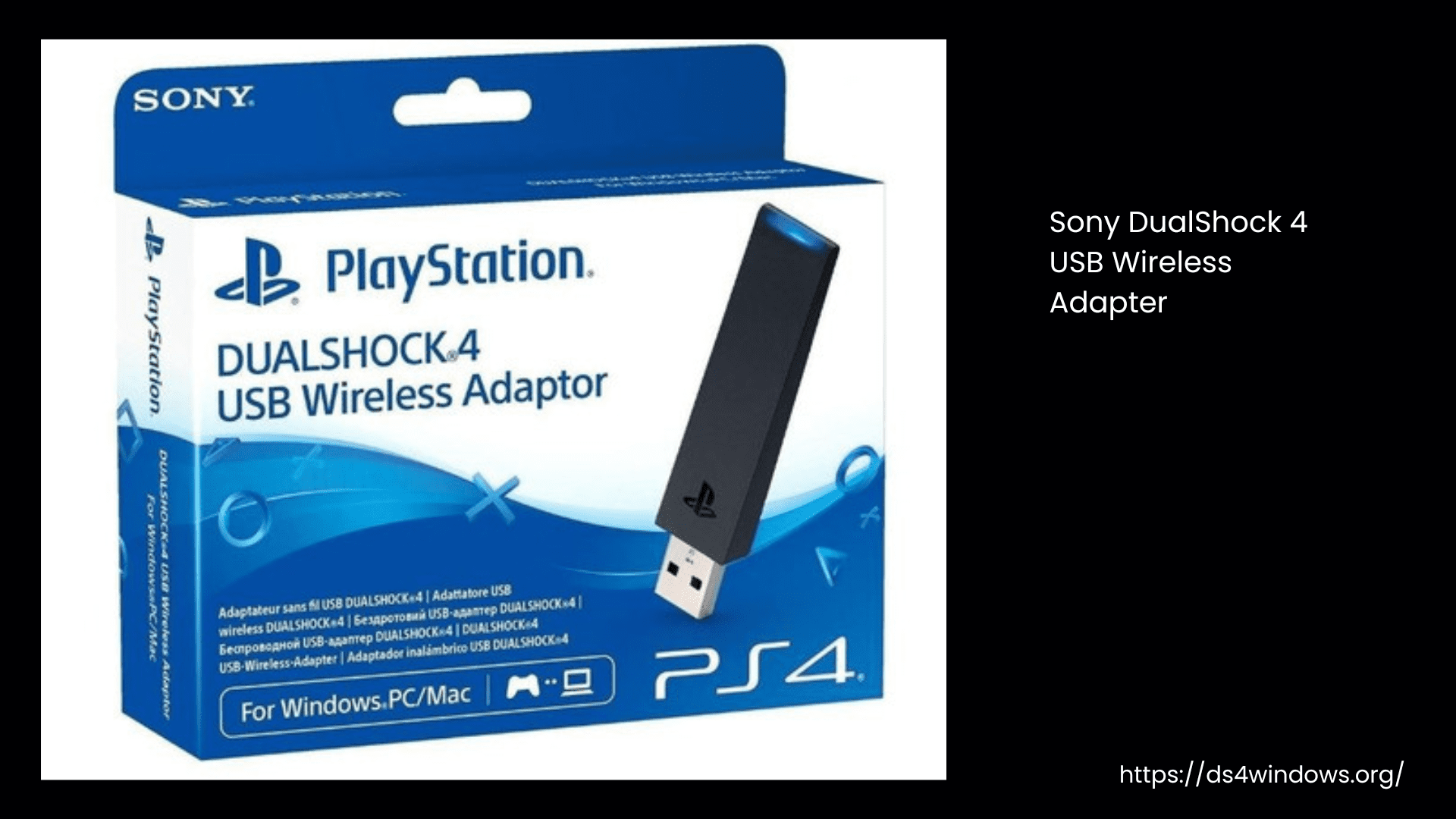
To put the adapter in pairing mode:
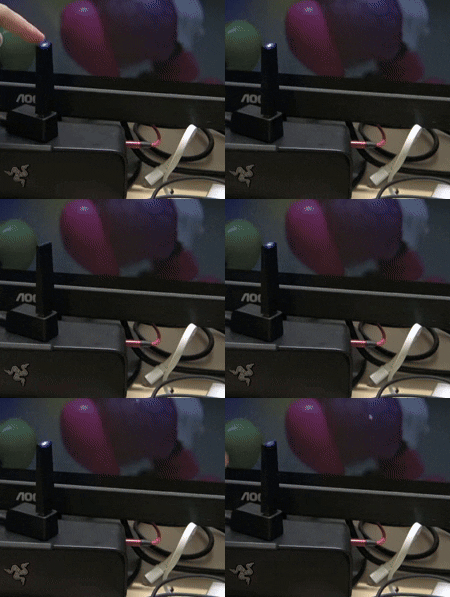
Follow the steps in the previous section to press the PS + Share buttons together until the light starts flashing.
Once both are in pairing mode, they should connect automatically. After that, you can use the controller and headphone jack wirelessly.
How To Use DS4Windows Correctly W/O Any Issues?
If you have followed all the above instructions carefully, then you must have installed DS4Windows, the necessary drivers, and connected the controller to your PC. If all this process is done correctly, then DS4Win starts working automatically.
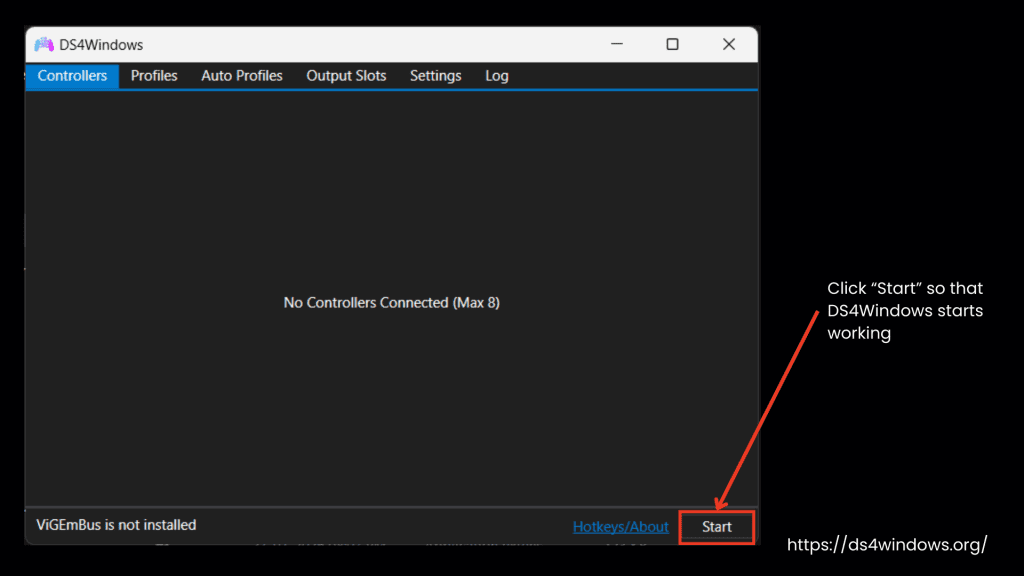
If it’s not starting automatically, press the “Start” button in the software to turn it on. When you connect the controller, the PC detects it automatically. If your PC is not detecting the controller, you may need to troubleshoot.
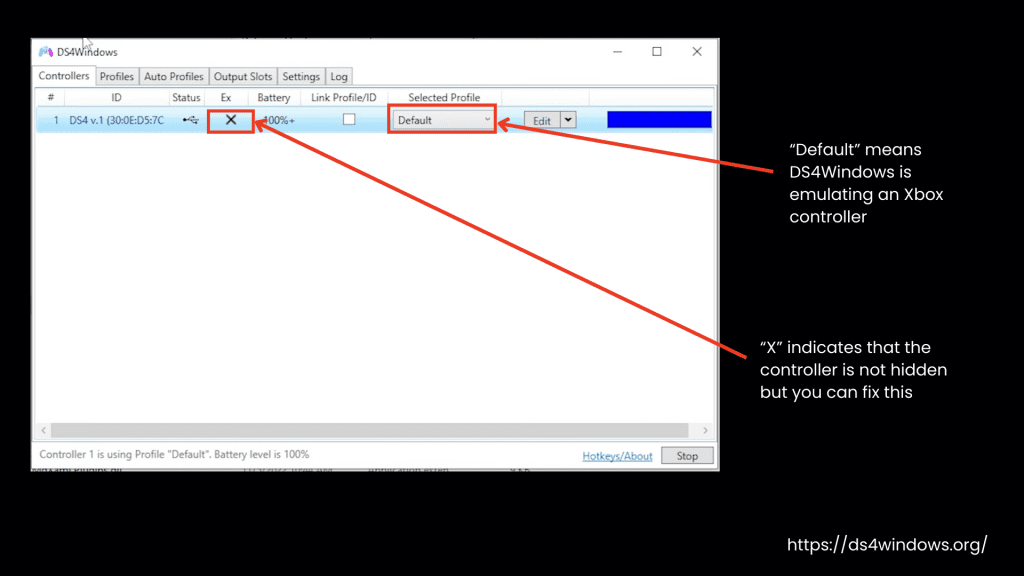
If you’ve installed a driver called “HidHide,” it will hide your real controller from the PC to prevent problems like double inputs and you can see a key icon under the “Ex” option on your screen.
If you see an “X,” under the “Ex” option, it means the controller is not hidden but you can fix this.
If “Default” is showing under the selected profile option, it means DS4Windows is emulating an Xbox controller.
For More Help: Check out our troubleshooting guide on DS4Windows not working properly to fix common issues.
How To Prevent Double Controller / Double Input Issue In Games?
Double Input (Controller) Issue
The purpose of using the DS4Windows program is to emulate PS controllers as Xbox controllers to play PC games on Windows/PC. This is necessary because many games are compatible with Xbox controllers. However, problems arise when DS4Windows is installed and we try to play games that are already compatible with PS controllers.
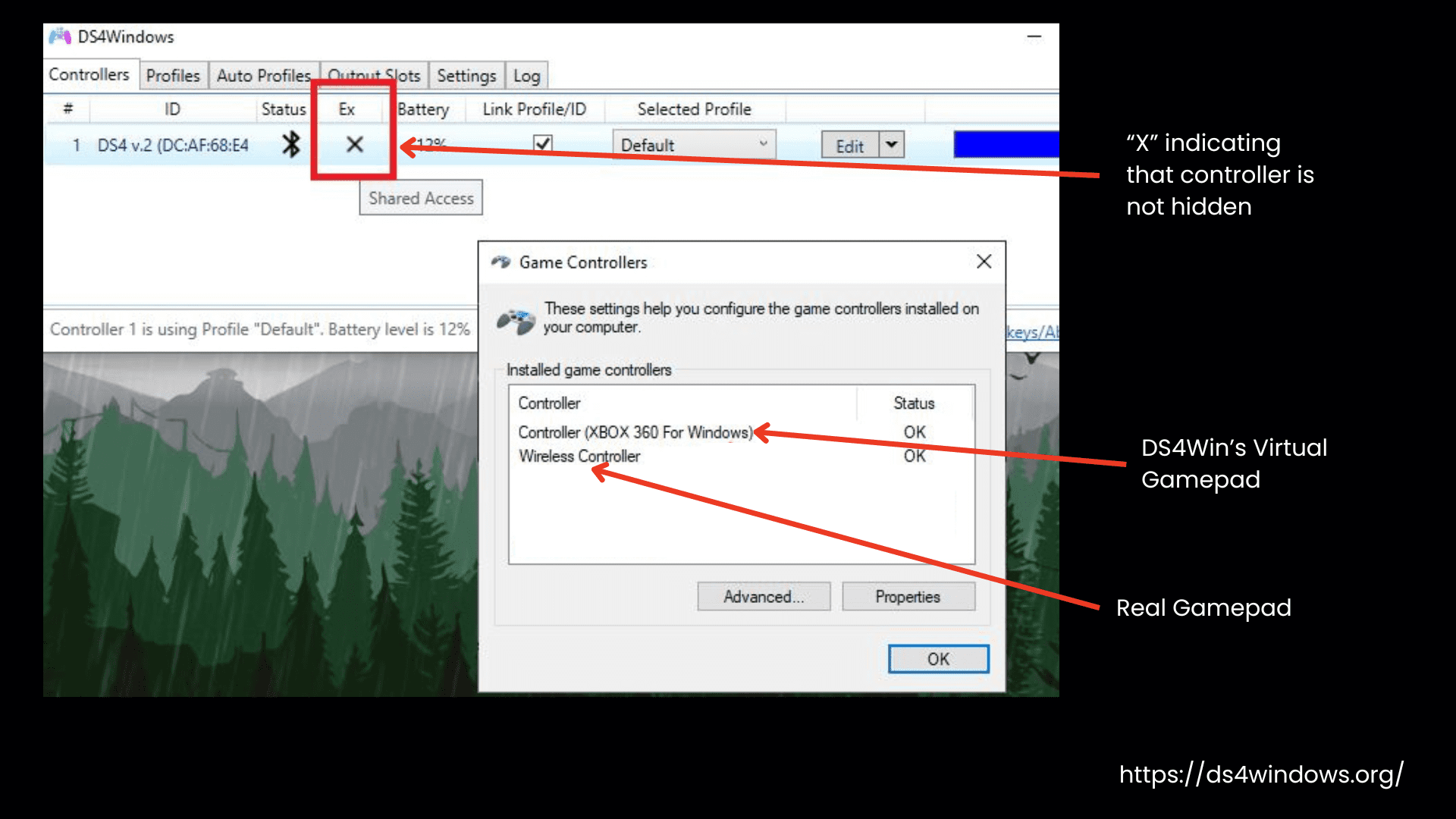
Such games read both controllers, the real one and the virtual Xbox controller. You will see the “X” icon appearing on the screen instead of the key icon, indicating that the real controller is not hidden and that both the game and the app are reading both controllers. When you press a key, it will be counted twice, causing double input from two devices, and you cannot play the game.
As you can see from the image, both controllers are responding to the same command, but they don’t act exactly the same.
Problems Caused by the Double Input Issue:
Best Methods To Prevent Double Input Issues
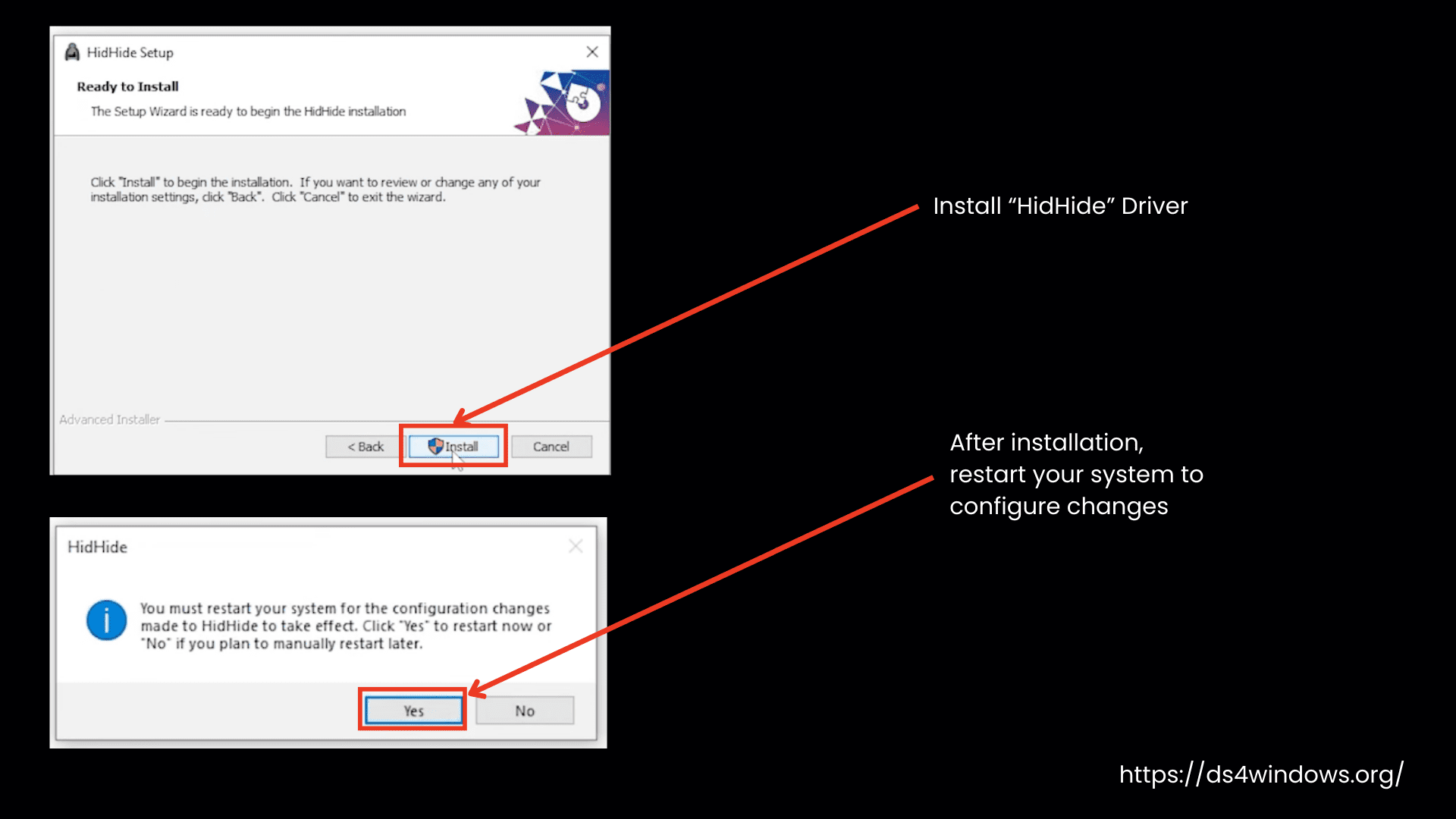
The best way to prevent double-input issues is to hide the real PS controller. You can hide it in two ways:
- By installing the HidHide driver (recommended).
- Using the DS4Windows built-in “Hide DS4 Controller” option (legacy, not recommended).
Installing HidHide Driver
HidHide is a tool or driver that hides your real controllers, like a PS controller, from games so that games and apps only read the virtual Xbox controller.
Important General Tips for Using HidHide
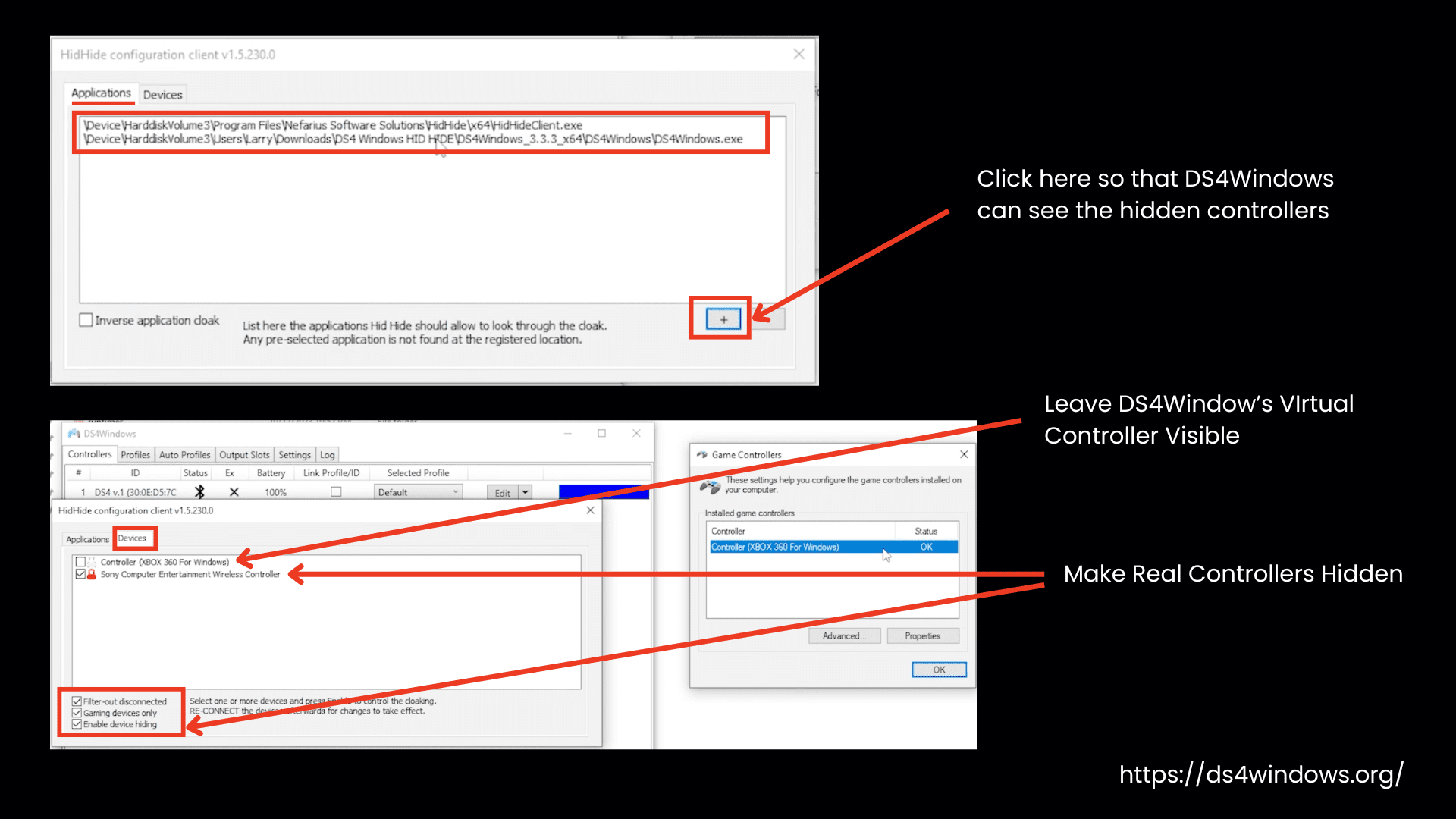
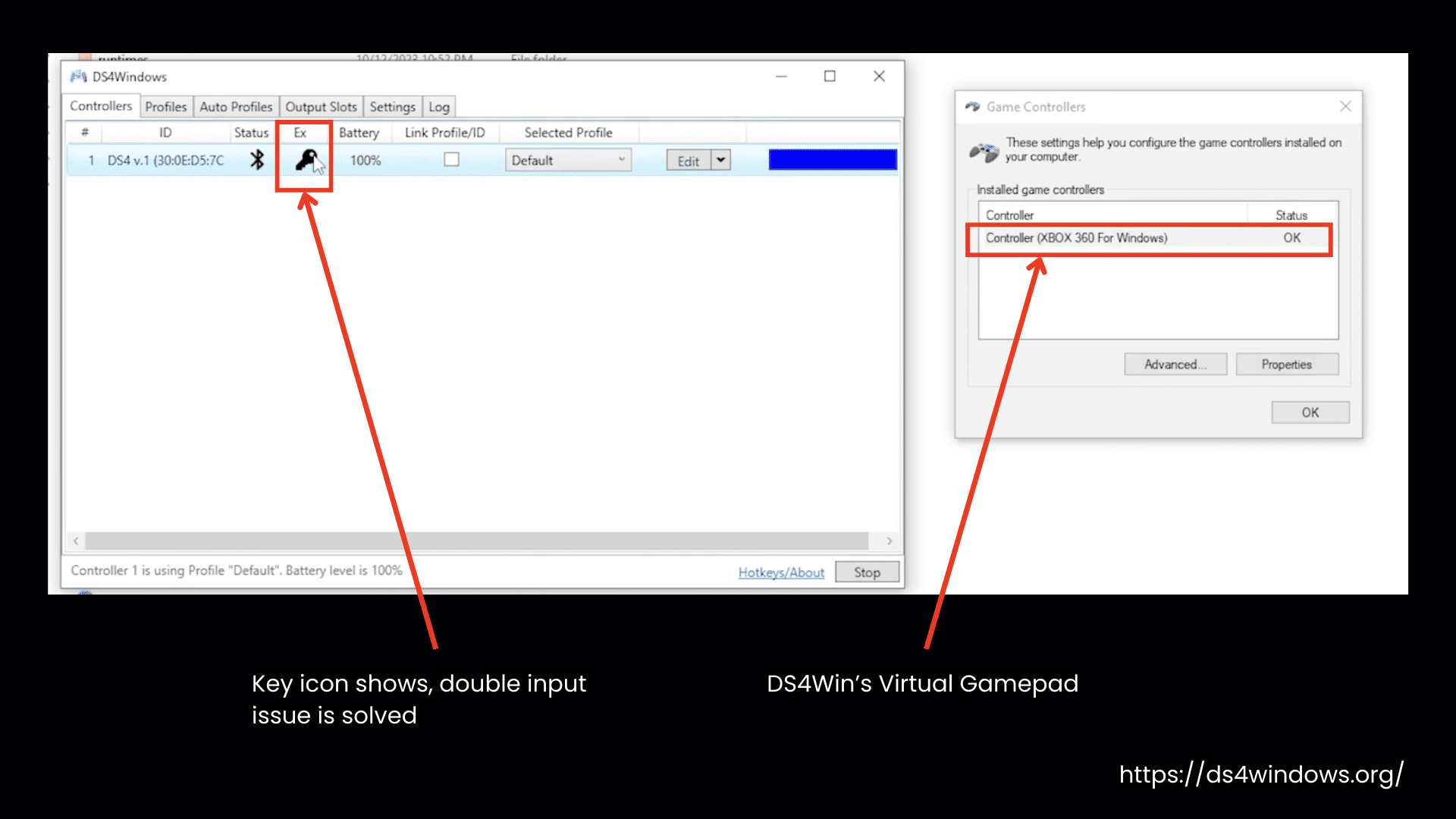
HidHide Configuration Tips
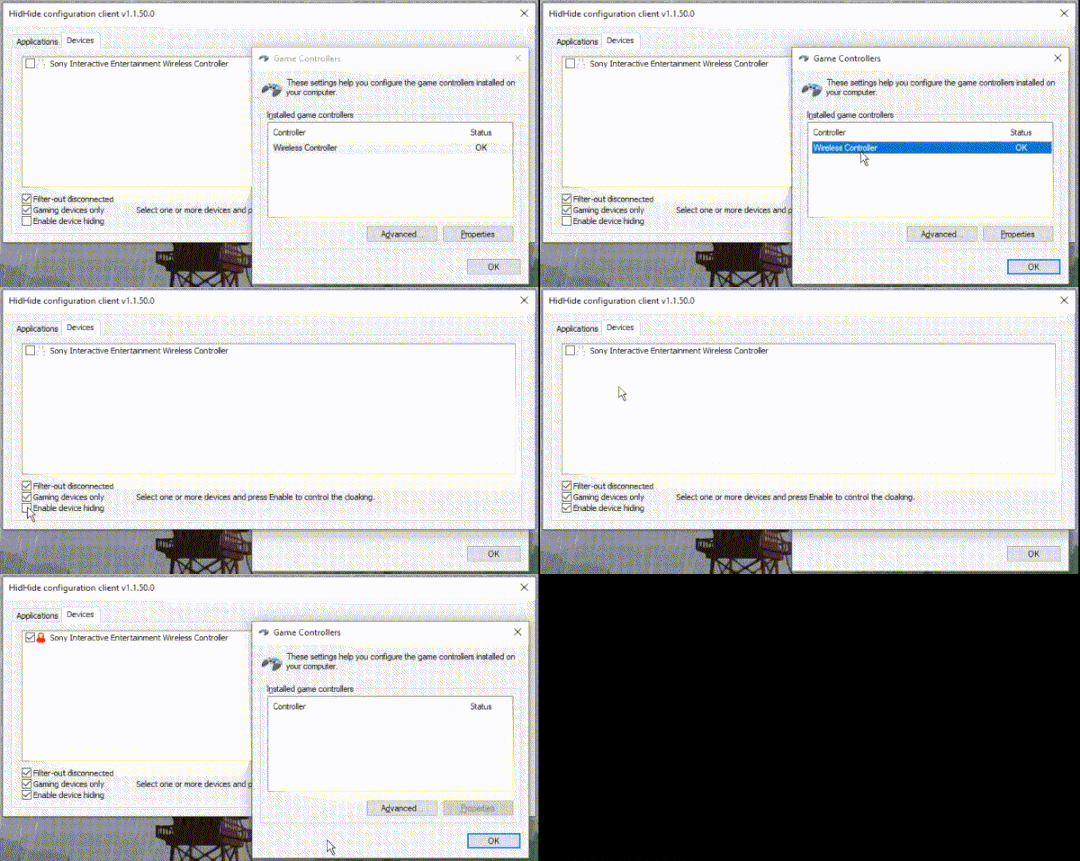
Everything You Need To Know About Axis Config
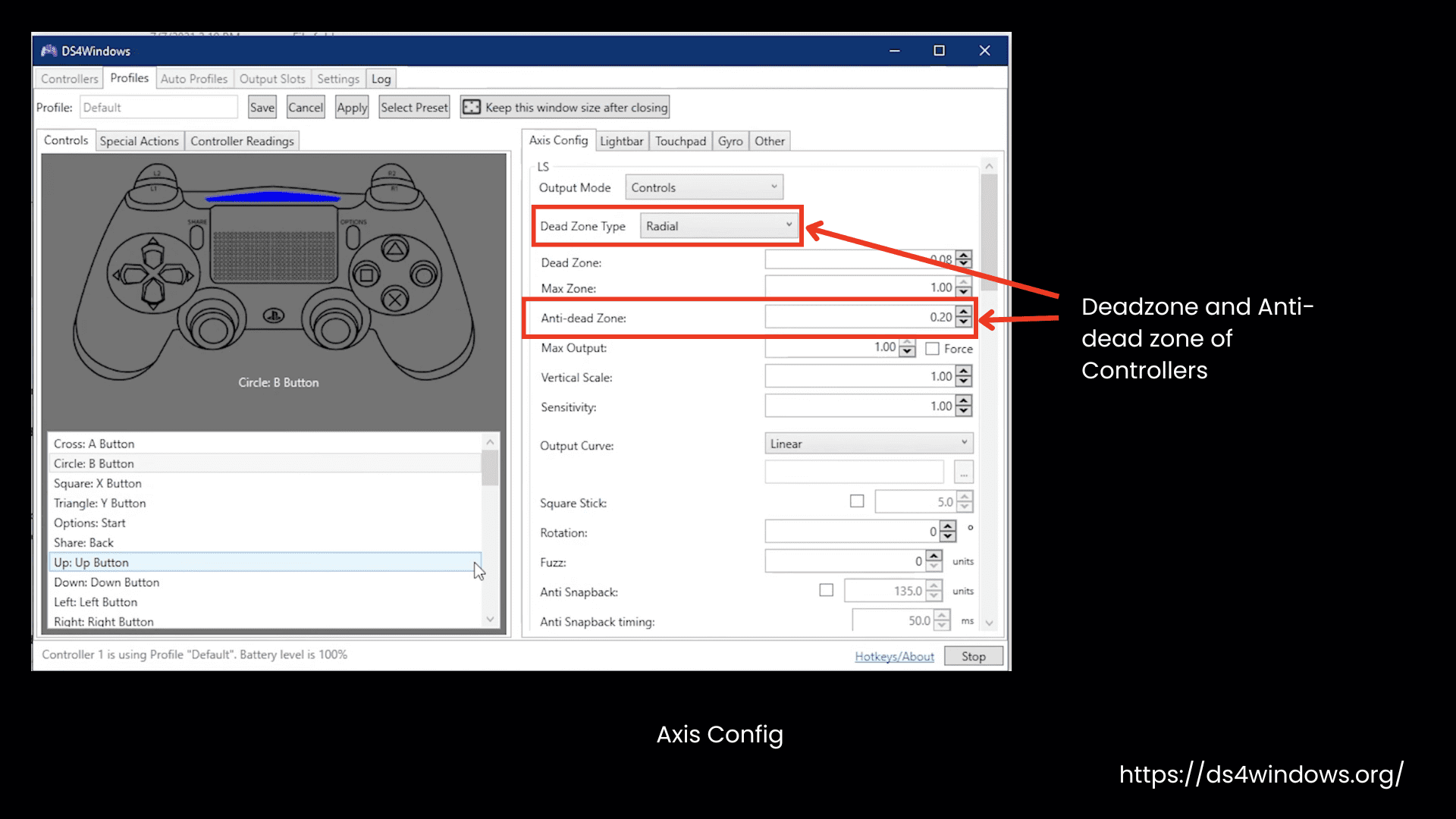
Are you familiar with the Dead Zone and Anti-Dead Zone areas of controllers?
The dead Zone is a small area around the controller stick to avoid accidental movement. This is the area in which the game doesn’t respond to any small movement.
Anti-Dead Zone makes the game respond to even a small movement of the controller stick.
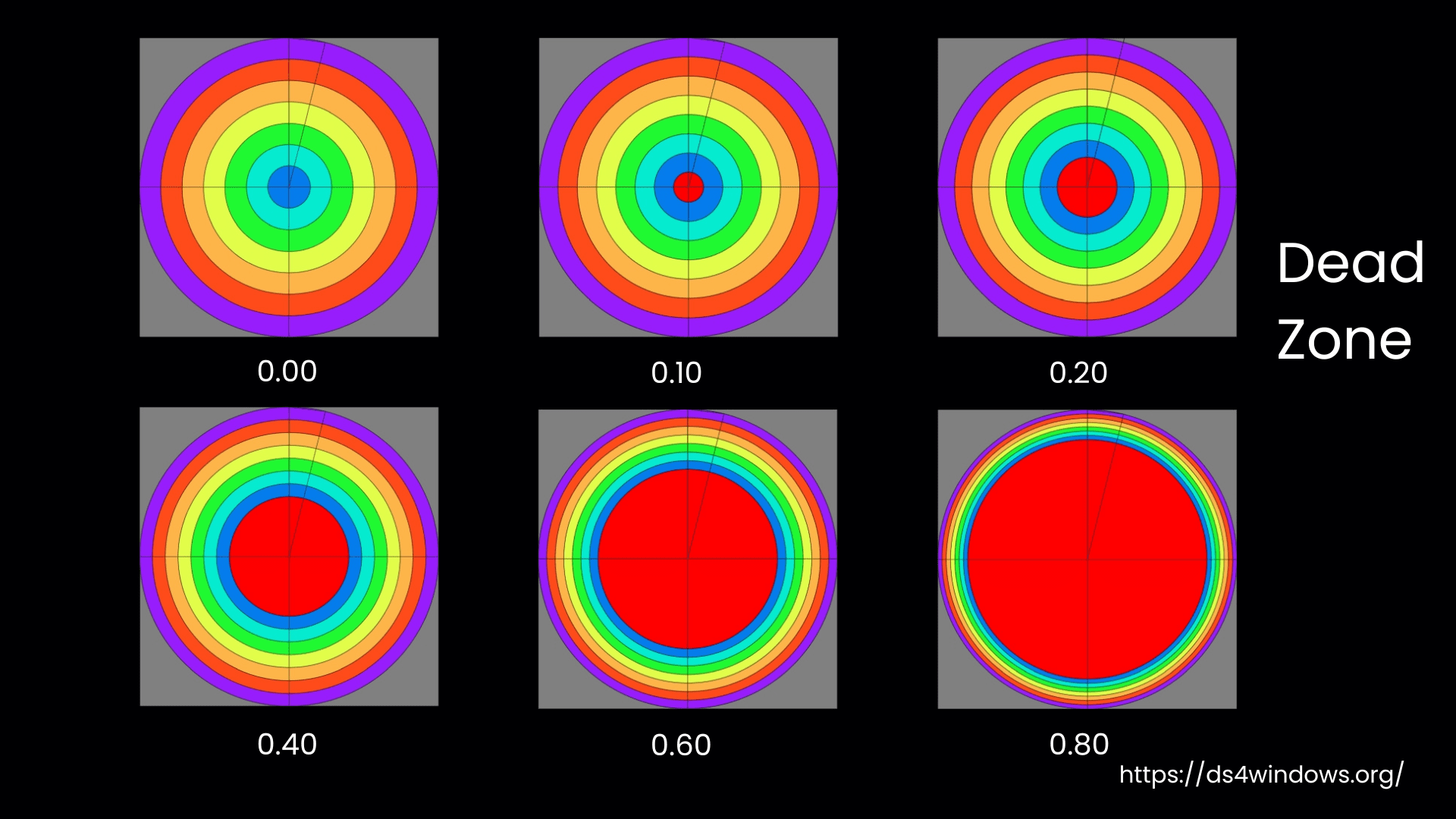
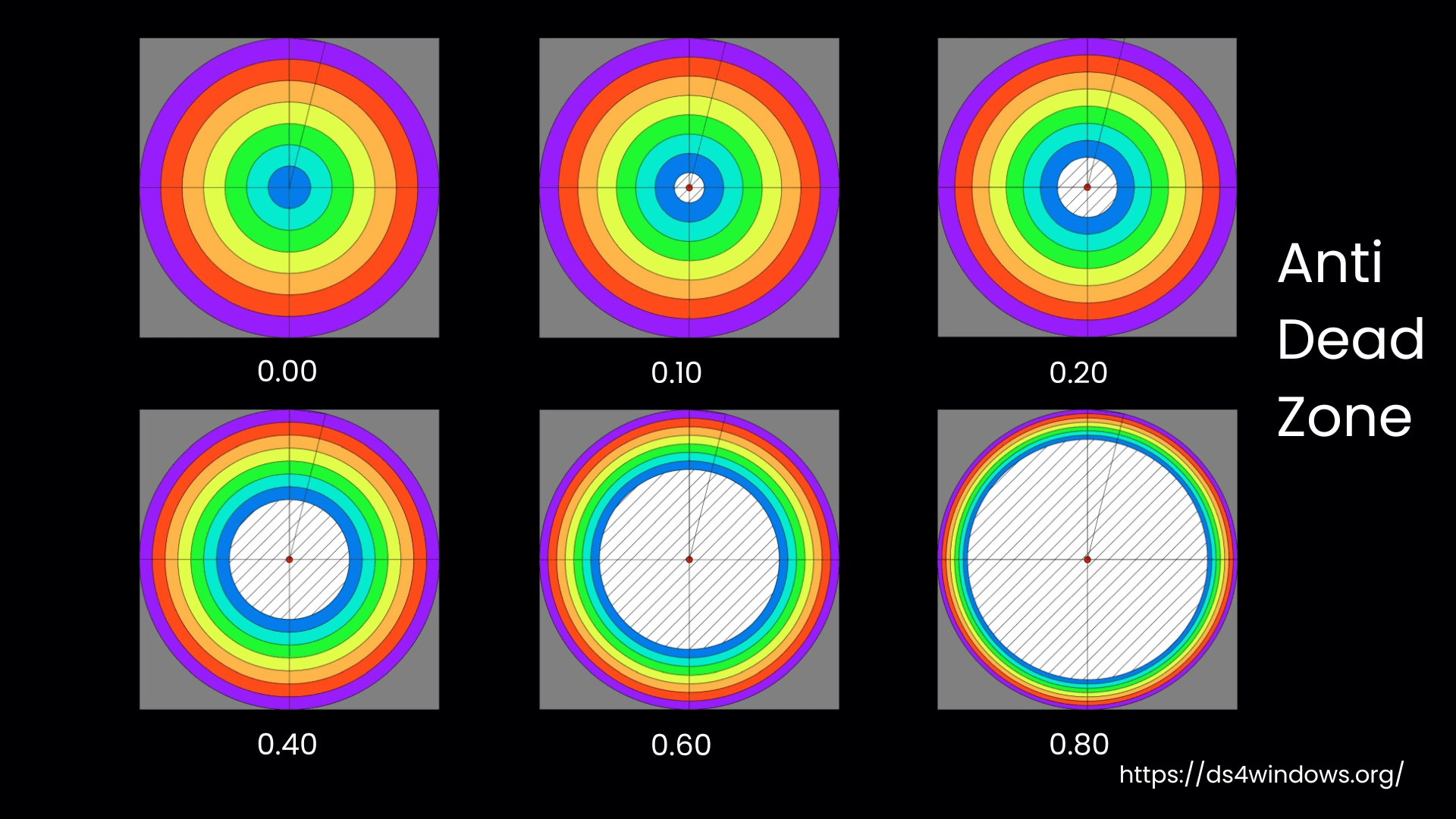
You can check how both zones work for the input and the game response. When the stick is in the Dead Zone (Red Area), the game ignores it, and the output stays centered. Don’t forget to test the Anti-Dead Zones to fine-tune responsiveness.
Managing DS4W’s Installation, Backups and User Data
If you want to take a backup of your data, restore the stored data, or delete some of the settings, first, you must know where your data is stored in the DS4Windows program. Learn to know every detail.
User Data [Files & Folders]
This is the list of important files and folders where the user data is kept:
- Profiles folder
- Profiles.xml
- OutputSlots.xml
- Actions.xml
- Auto Profiles.xml
- ControllerConfigs.xml
- LinkedProfiles.xml
Backup, Restore & Delete
If you want to use DS4Win, the controller emulator, again, then you must take a backup of your system. Here’s how you can back it up, restore it, and delete any data.
To make sure all your settings and profiles are saved, you need to check two places for the files:
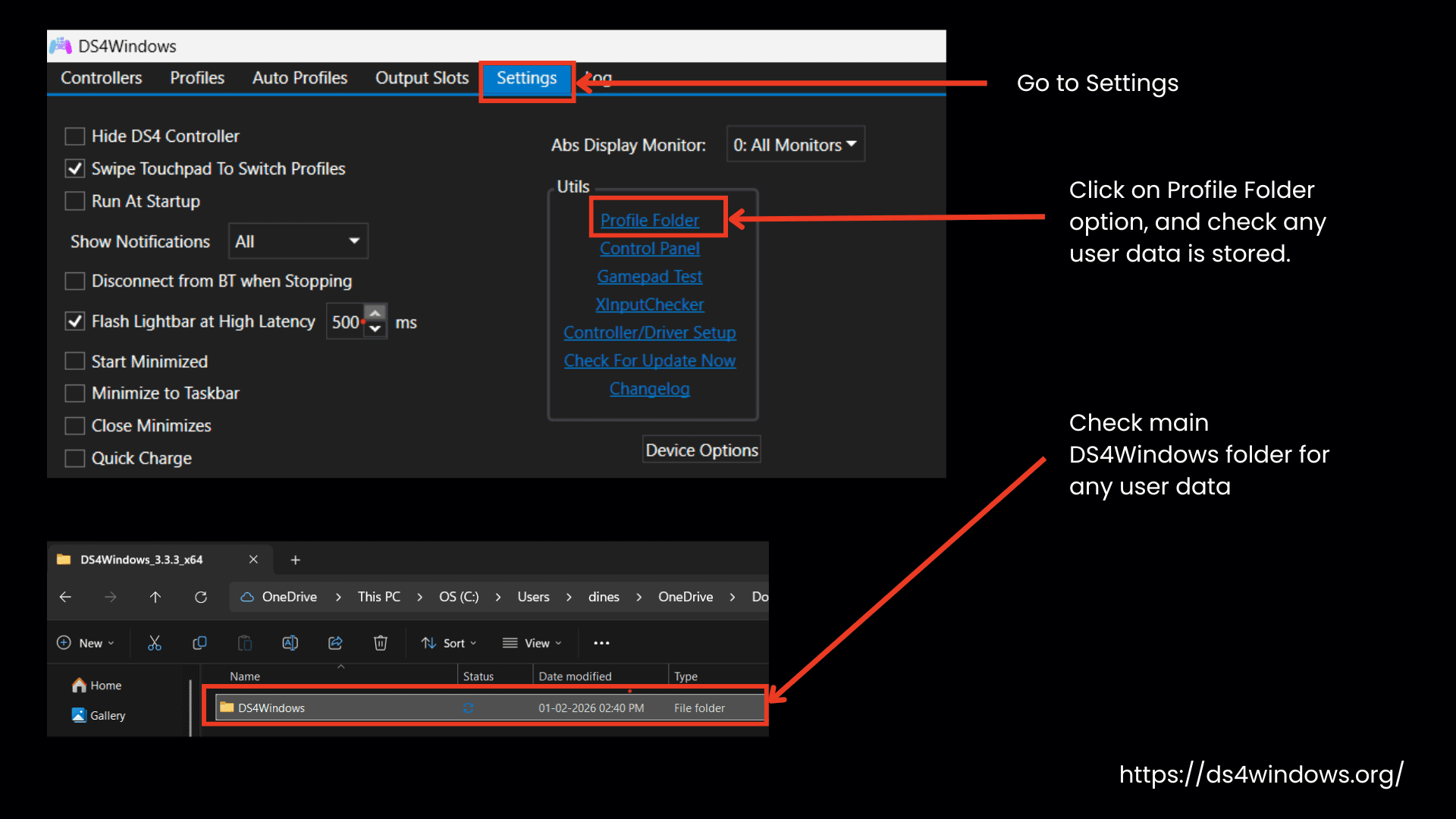
What to do if you find data in both folders:
- Look for a file named Profiles.xml. The folder with this file is where DS4Windows loads the user data from.
For backups:
- If DS4Windows is using the main folder for user data, you can back up the entire folder.
- Otherwise, back up only the files and folders from the location where the user data is stored.
To restore your DS4Windows user data:
- Copy the user data back to either the Profile folder or the main DS4Windows folder, depending on where you mostly use it.
- Restart DS4Windows if it’s already open.
If both locations have user data:
- DS4Windows will ask you to choose which folder to load the data from. After you choose, the data in the unused folder will be deleted automatically.
If you want to delete any of your data, like gamepad configurations or any settings, you will follow these steps.
- Open the folder where your data is stored, choose the files or data, and press delete to remove the selected data.
- By pressing Shift + Delete, you can permanently delete the data.
How To Uninstall DS4Windows & Drivers?
Now we have covered downloading and running DS4Windows, and how to take a backup, restore, and delete any of our data. Now let’s move on to understanding how to uninstall this program.
Steps to Uninstall DS4Windows
- Did you notice that you don’t install DS4Windows? Instead, you just download its portable file and set it to run. So, to uninstall it, simply remove its folder. No need to rack your brain on settings.
- You can use this program again by finding the zip file you downloaded earlier, extracting it, and double-clicking the .exe file to run it again.
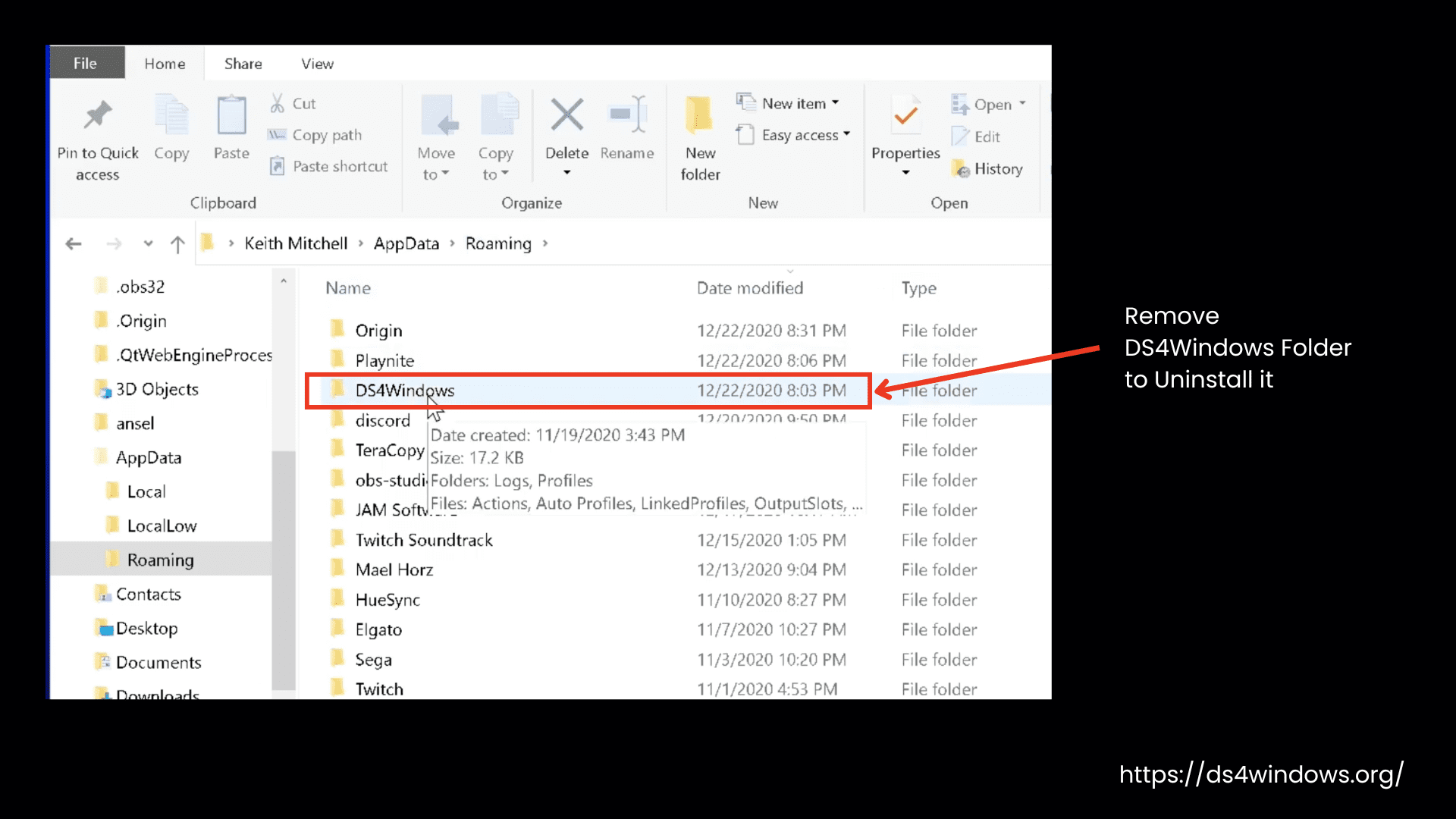
Steps To Remove Settings and User Data
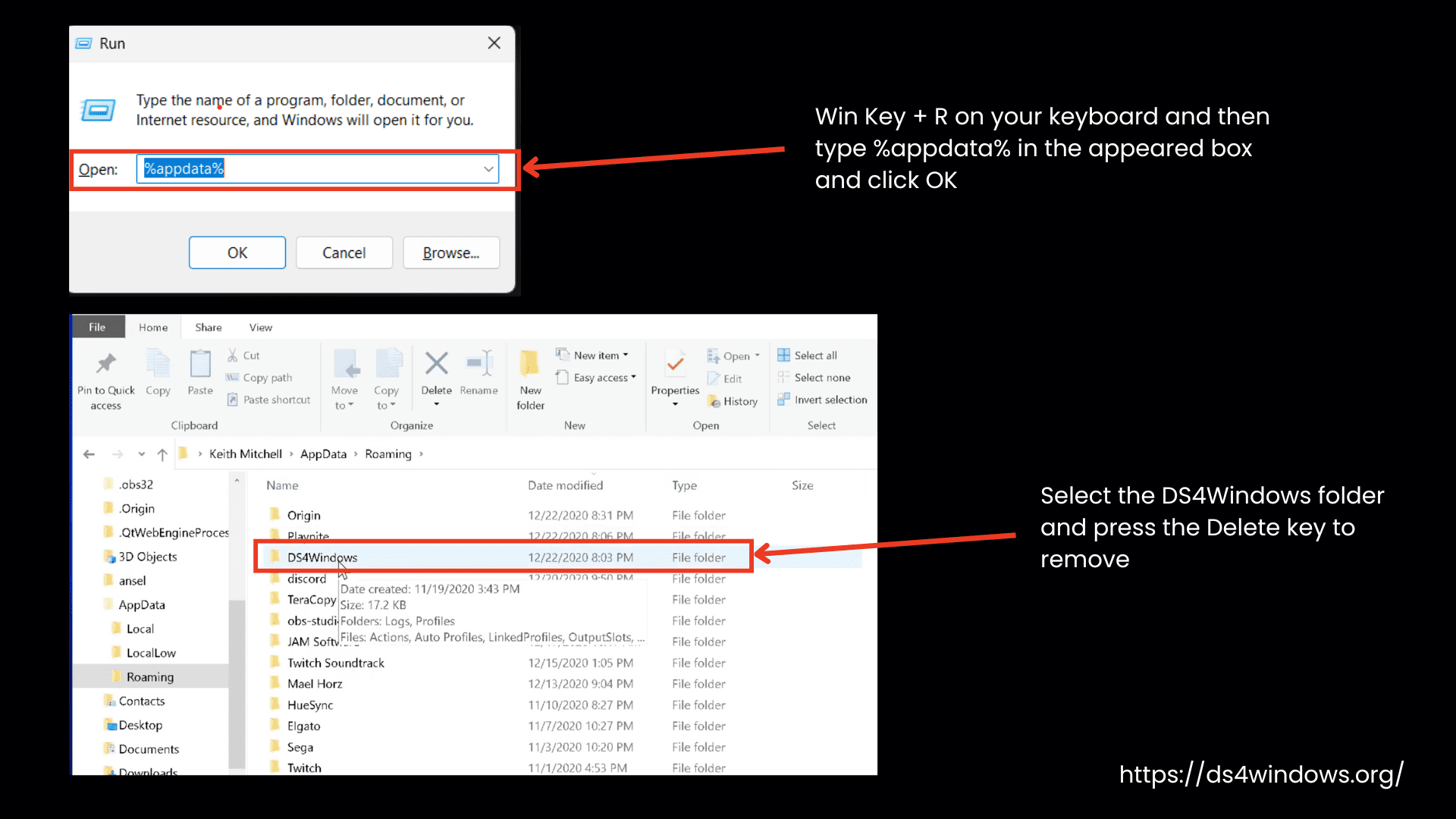
- Start by pressing Win Key + R on your keyboard.
- Type %appdata% in the appeared box and click OK. This will open the Roaming folder inside the AppData directory.
- Look for the DS4Windows folder in this directory.
- You got it? Now select the DS4Windows folder and press the Delete key to remove it. This will clear any leftover DS4Windows data from your system.
Steps To Uninstall the ViGEmBus Driver
- Before uninstalling the ViGEmBus driver, make sure that you are not needing it with any other application on your PC.
- If you are only using this driver for DS4Windows, then uninstall it by going to the program options in your Control Panel. Select Uninstall a Program and then select this driver.
- Simply double-click on it to start uninstalling this program, and keep following the prompts until you finish with it.
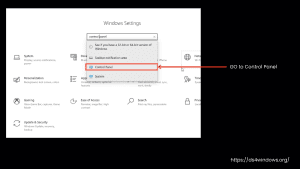
Go to Control Panel 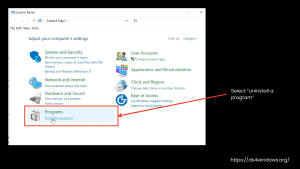
Select “Uninstall a program” 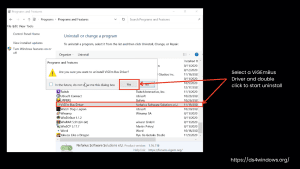
Select ViGEmBus Driver 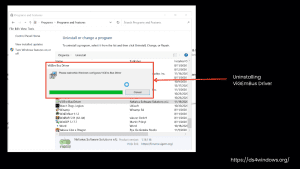
Uninstalling ViGEmBus Driver
Steps To Uninstall HidHide Driver
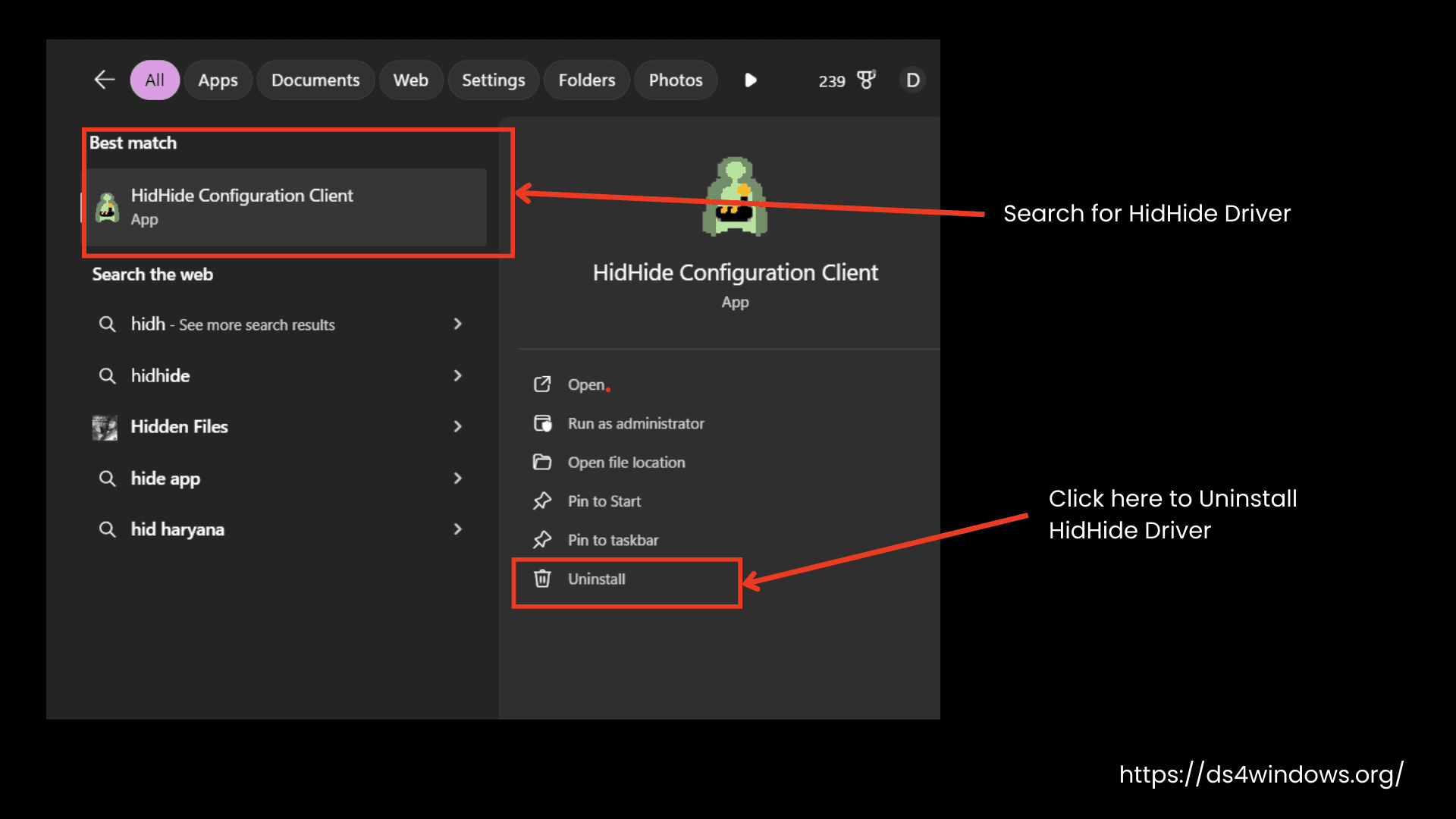
- Open the Start Menu, then the Settings icon » Apps section, and then click on Windows Apps & Features.
- In the search bar, type HidHide and hit Enter.
- When HidHide shows up, click the Uninstall button.
- Reboot your PC to apply the changes.
Steps To Uninstall FakerInput Driver
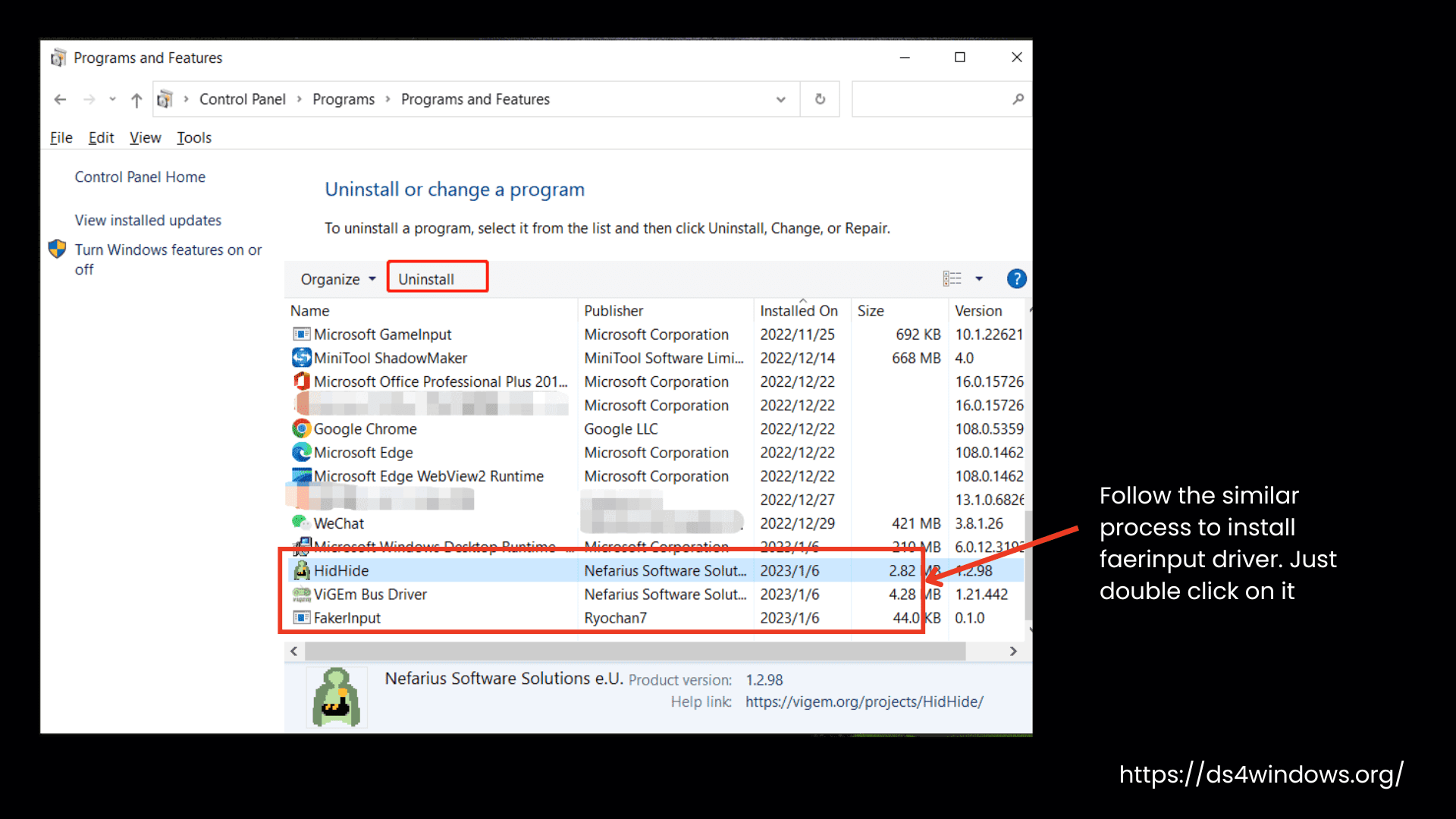
- Just like the above, search for the FakerInput driver in Windows Apps & Features.
- When it shows up, click the Uninstall button.
Steps To Uninstall Legacy Drivers
Now you don’t need legacy drivers with the latest version of DS4Win 3.3.3. However, if you are using them with the DS4Windows older versions, uninstall them to get some space free.
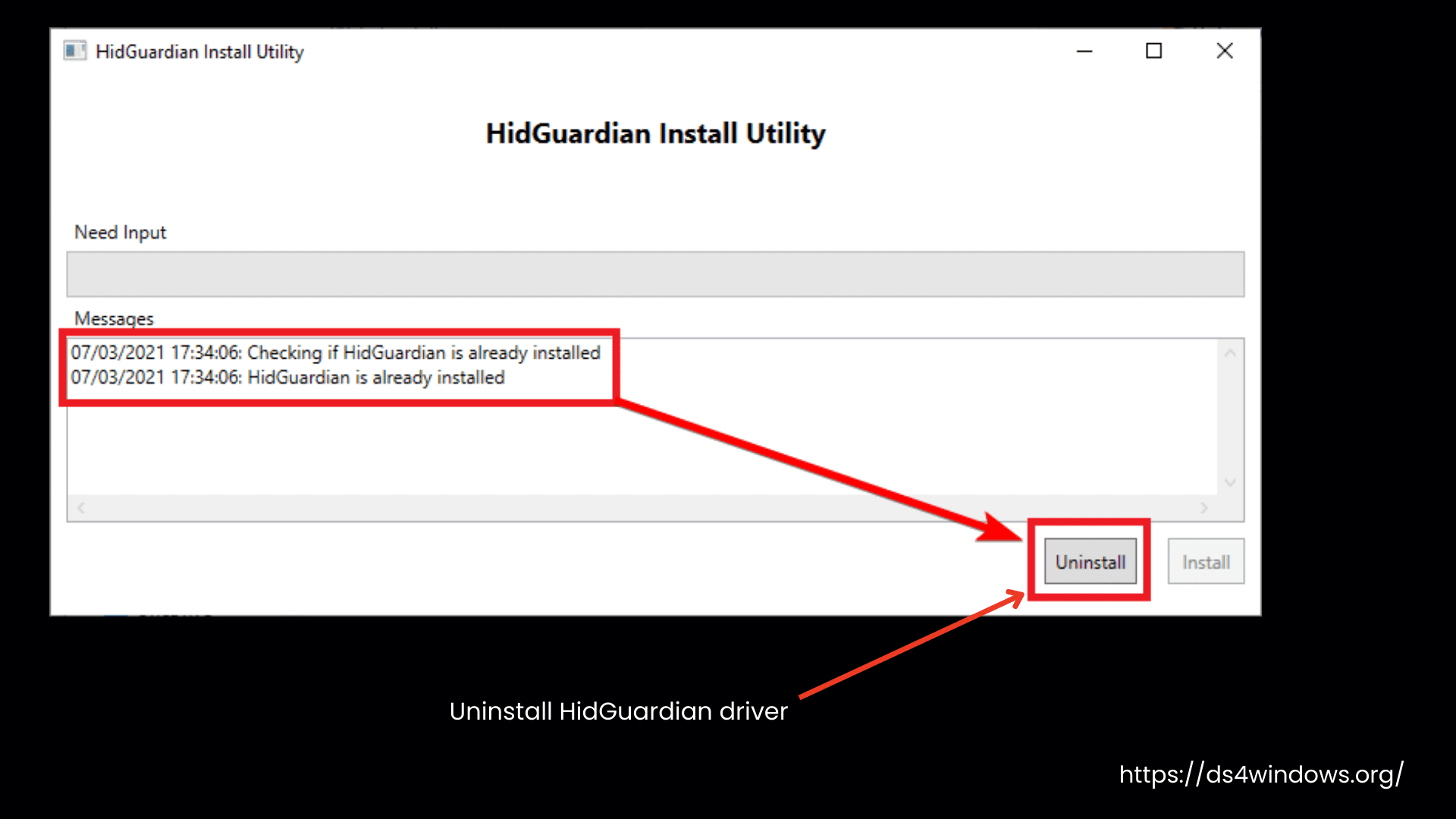
- Go to Control Panel > Programs > Uninstall a program.
- Find the HidGuardian driver, select it, and click Uninstall.
- Similarly, find the ScpVBus driver, select it, and uninstall it as well.
- After uninstalling both drivers, restart your PC.
How To Prevent Conflicts Between Steam and DS4Windows?
Well, if you are already using Steam, you would know that it has excellent features for remapping controllers. But if you run DS4Windows along with Steam, the chances are very high that they both will create confusion in emulating your controller into Xbox. For this, you have to change the setting of one of them.
We recommend you turn off the Steam remapping function and let DS4Windows handle everything.
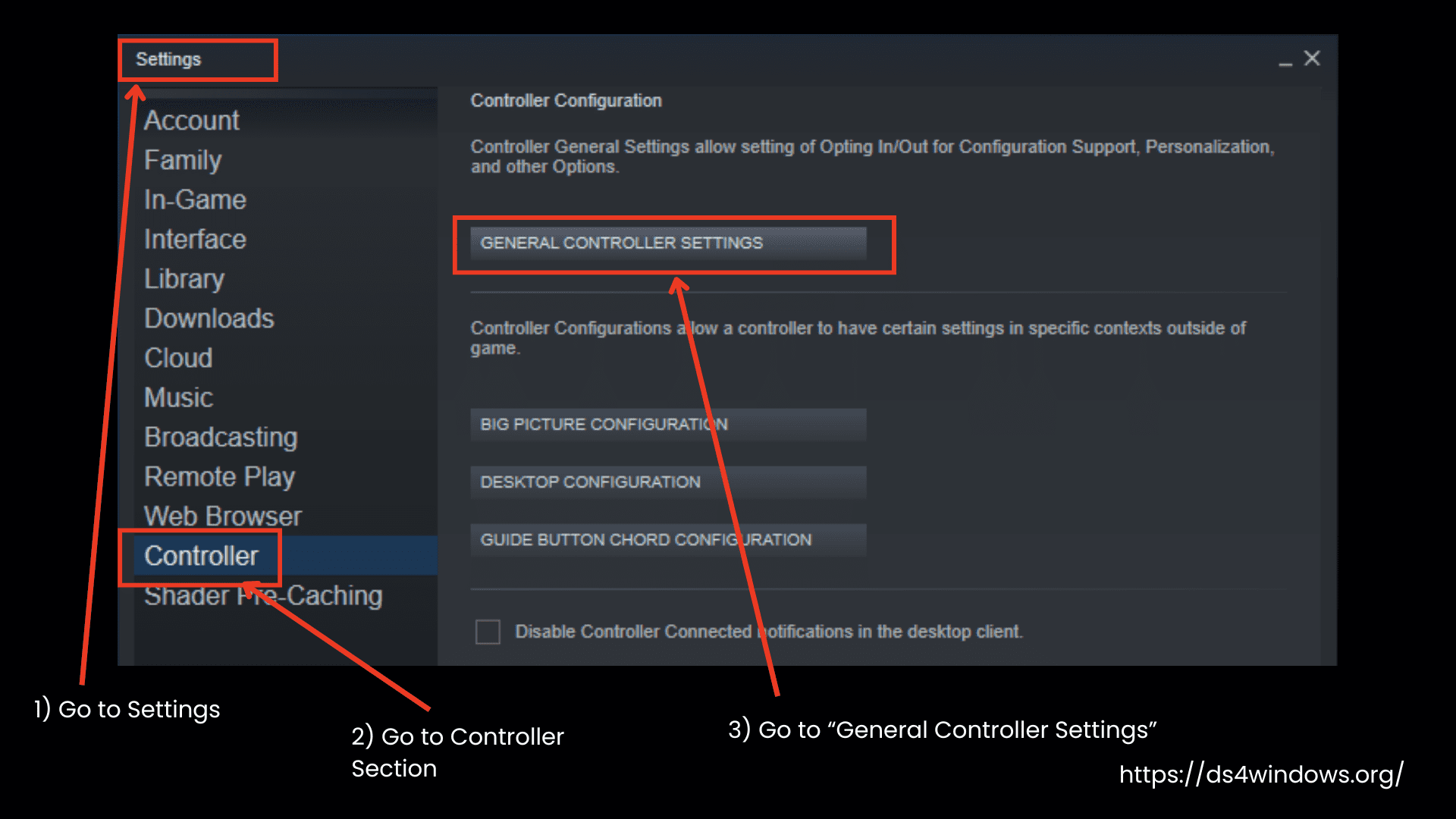
Launch Steam on your PC.
Go to its Settings menu.
In the settings, go to the Controller section.
Click on General Controller Settings.
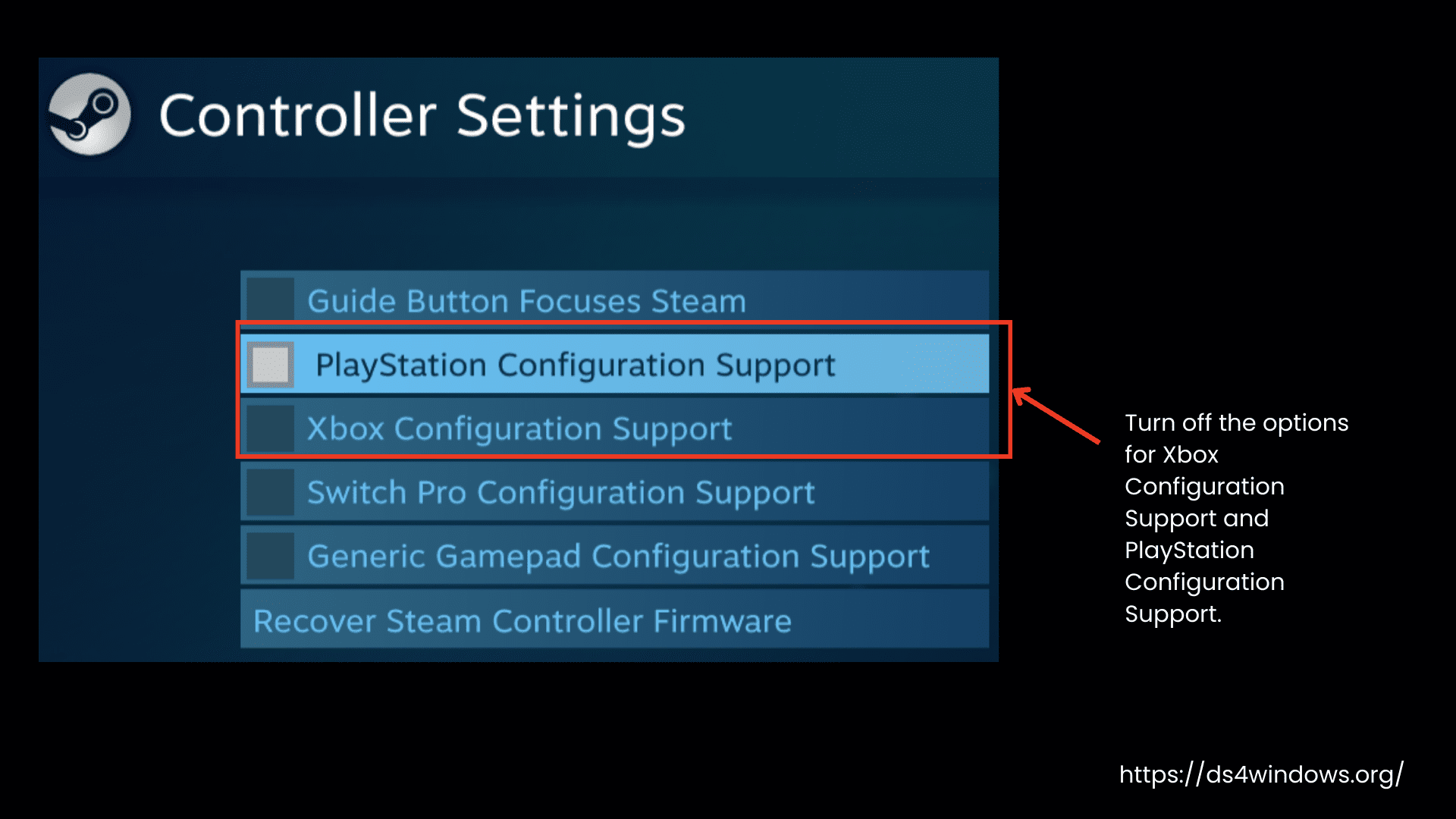
Turn off the options for Xbox Configuration Support and PlayStation Configuration Support.
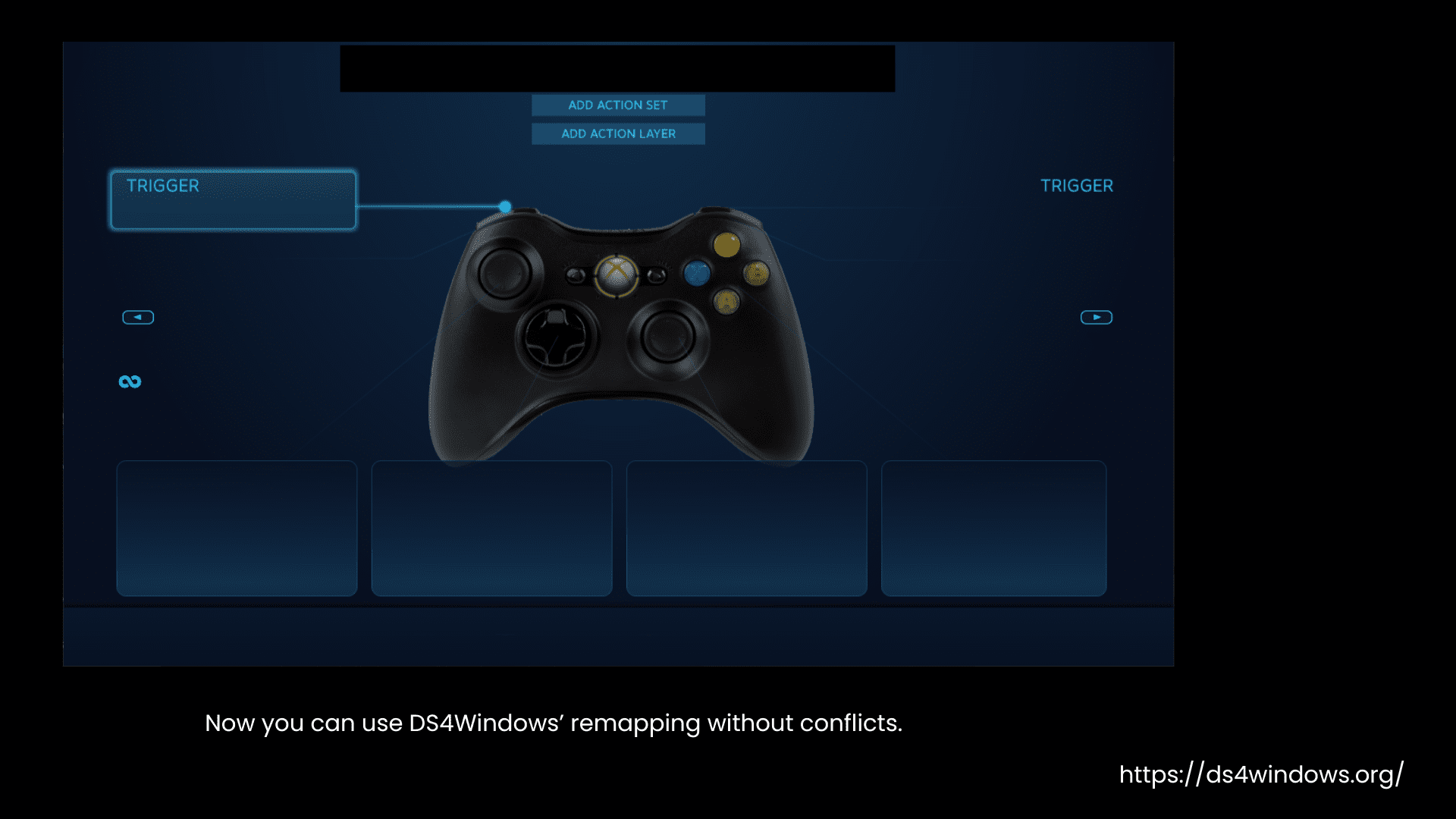
Go back to the Steam settings page and select Guide Button Chord Configuration.
Manually unbind all the settings. You will have to do this two times: once when you will emulate an Xbox controller and again when you will emulate a PS4 controller.
After these changes, restart your PC to make sure everything is applied.
By doing all these steps, you can use DS4Windows’ remapping without conflicts.
Running DS4Windows under a custom “.exe” name
Many of you are urged to use Steam with DS4Windows for Big Picture mode, but often face conflicting issues between these two input mappers. As we have already mentioned, there will be an issue with Steam’s Big Picture mode when using the emulated DS4 controllers. To avoid that and use Big Picture mode properly, it is recommended to run DS4Windows under a custom “.exe” name using the Custom Exe Name option.
How to set a custom “.exe” name?
It’s not only Steam, but other applications also have compatibility issues with DS4Windows. These include Yuzu/Cemu emulators, Shovel Knight, Steam Big Picture, and Steam Input. They can’t work well with DS3, DS4, and DS5 controllers when DS4Win is running.
However, we can avoid these compatibility issues by running DS4Win under a custom .exe name so that it will appear differently from the other applications. Here’s how you can do it.
Open DS4Windows and go to the Settings tab.
Turn off the Run At Startup option if it’s on by default.
In the Custom Exe Name box, enter a new name for the DS4Windows program, like “ds4w” without the .exe extension. With the changed name, the other applications will not detect this program.
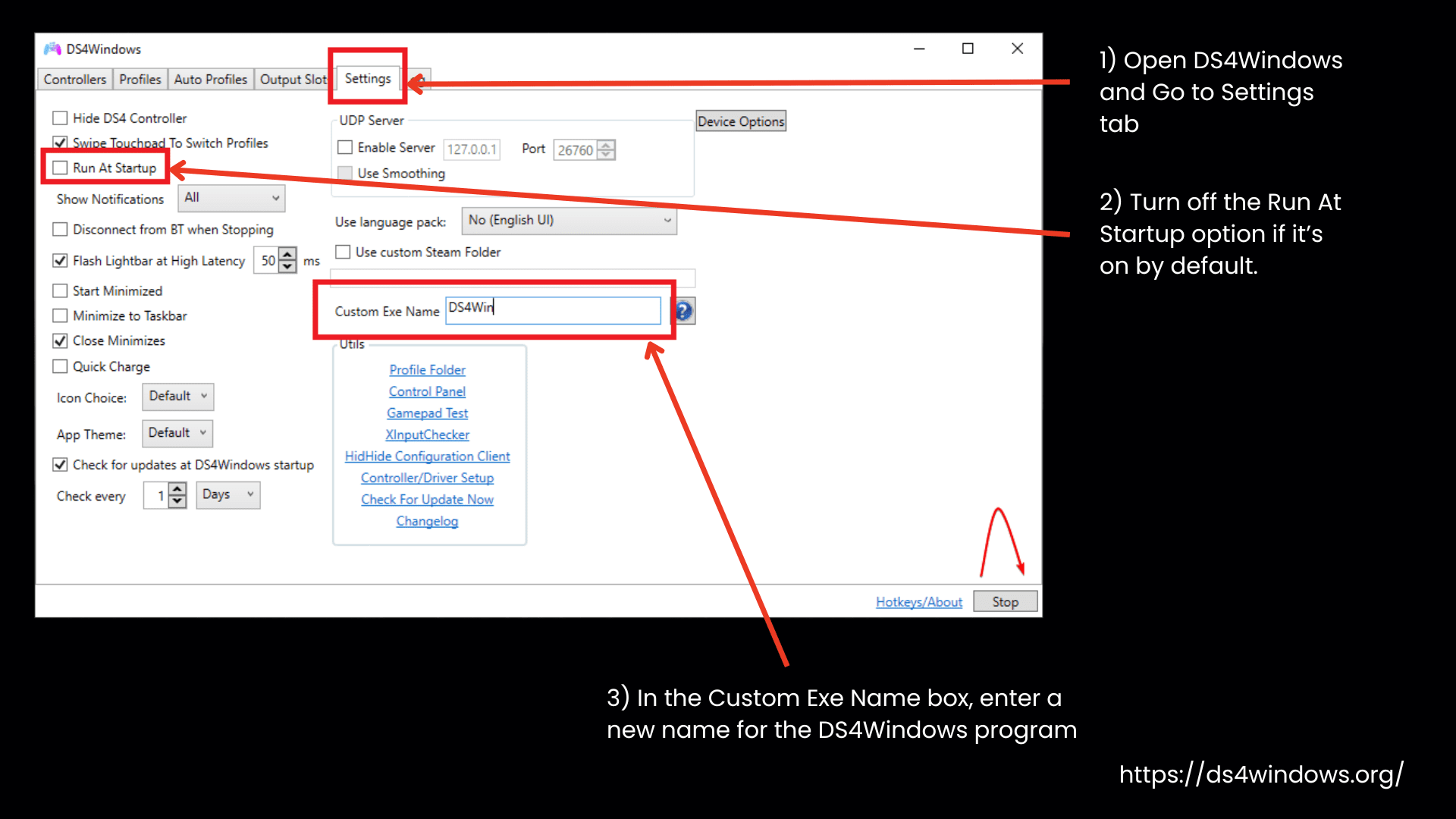
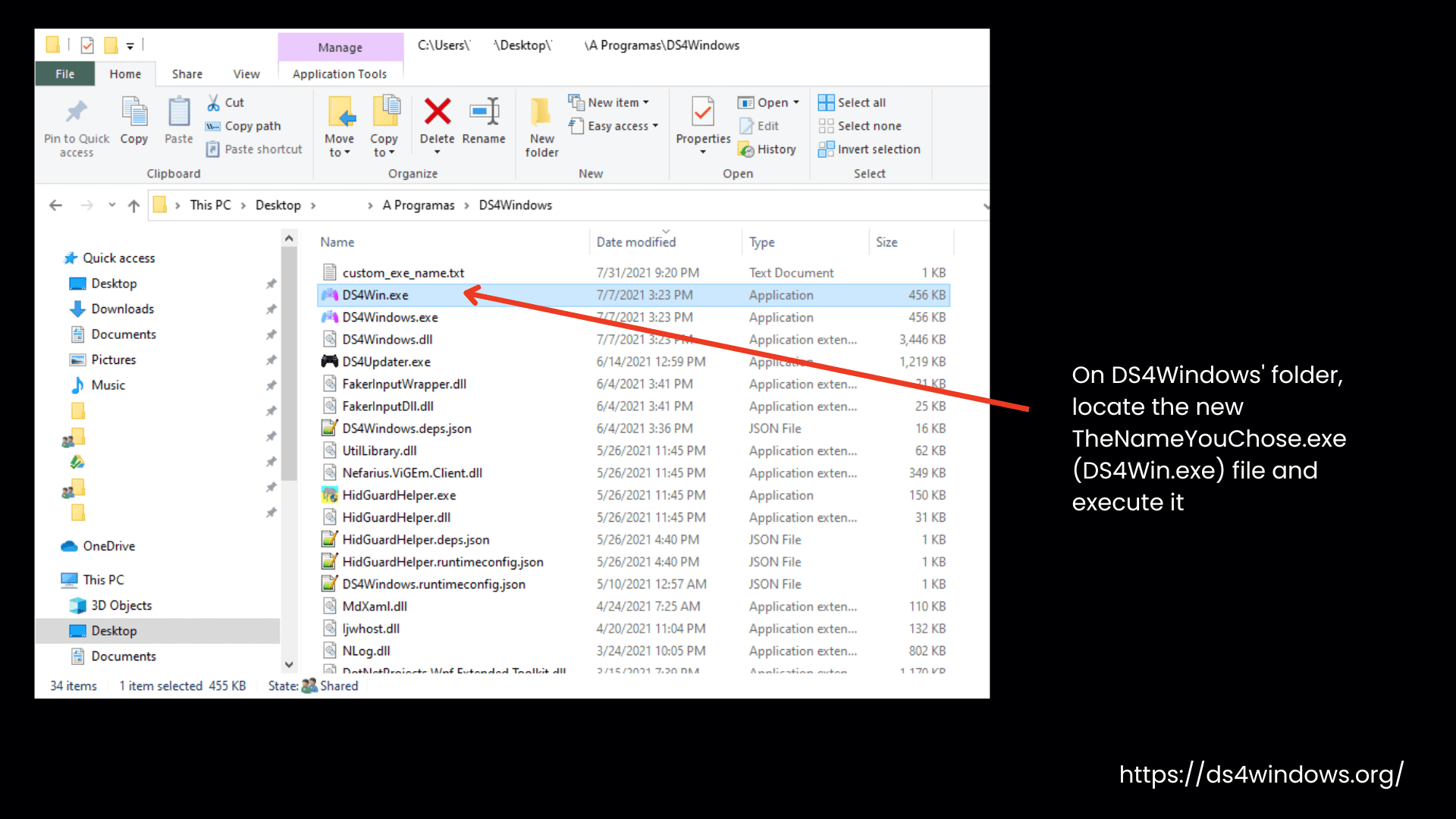
After setting the new name, click Stop at the bottom-right corner, then click Start again to apply the changes. Close the application and relaunch it.
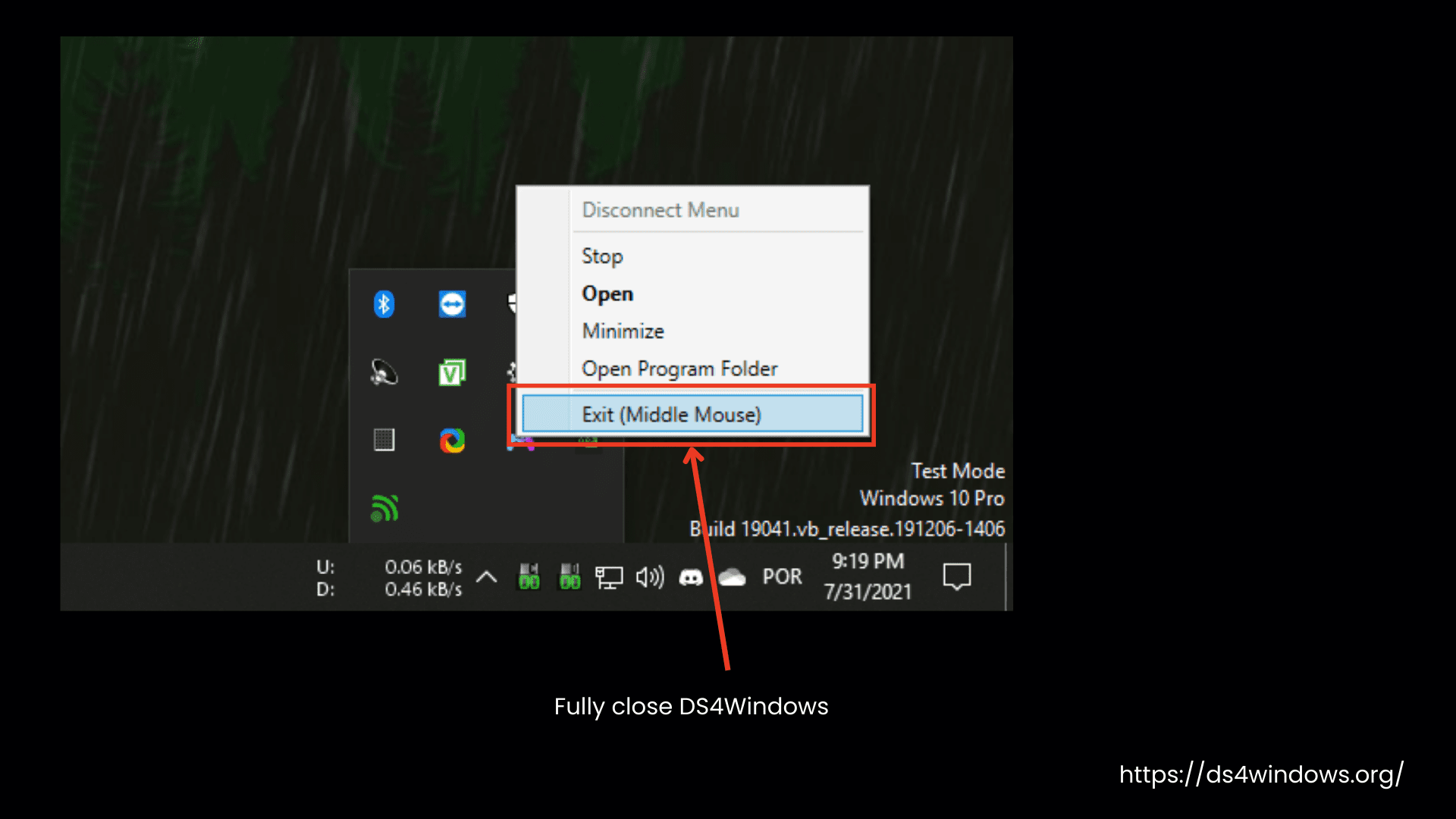
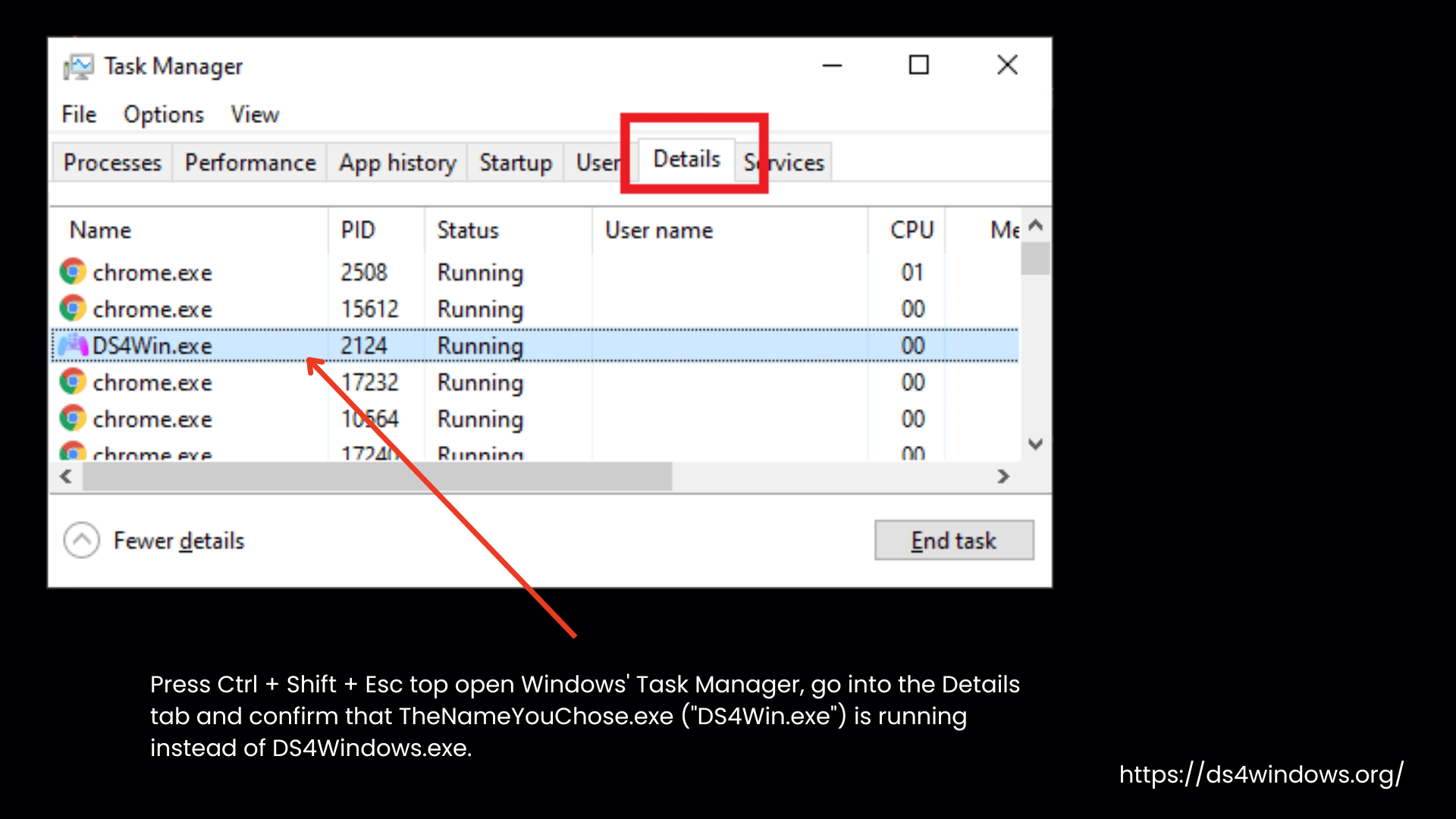
After restarting, make sure the new name is appearing in the Windows Task Manager (press Ctrl + Shift + Esc to open Task Manager). Go to the Details tab and check if the renamed file, ds4w, is running instead of DS4Windows.exe. You can enter any name of your choice.
Now you can turn on the Run at Startup option again that you had turned off earlier.
You can enjoy Big Picture mode by using DS4Windows with other applications for better remapping until you update this program. After an update, you will have to change the name again to make it work without any issues.