DS4Windows Not Detecting Controller
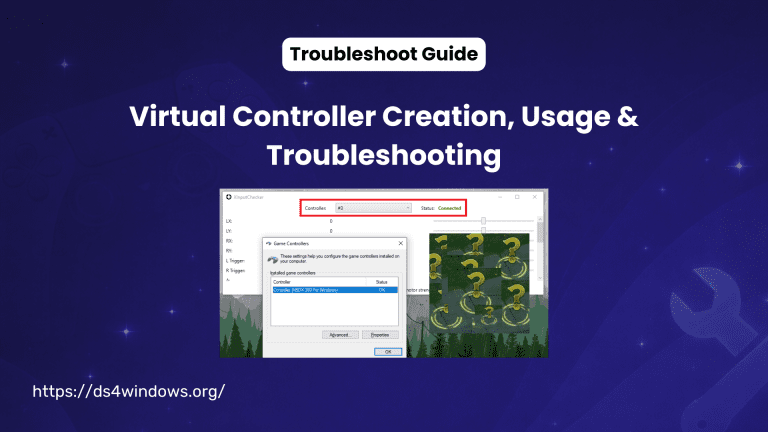
Here is the troubleshooting guide if your DS4Windows is not detecting your real controller connected via USB. In other words, your games are not working because they fail to detect the virtual gamepads.
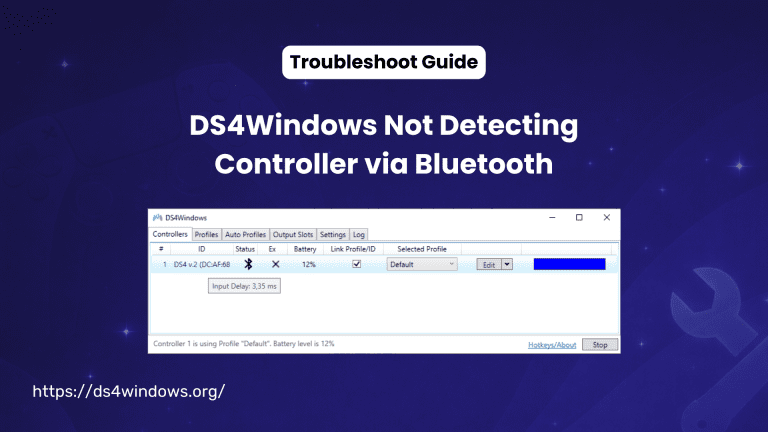
Troubleshooting a controller connection with DS4Windows via Bluetooth needs a different strategy. To learn more, check the DS4Windows Bluetooth troubleshooting guide.
There could be several reasons why DS4Windows isn’t detecting your real controller. We will discuss them in detail. First, try this quick fix to resolve the issue.
Try This Quick Fix First
Work through the following steps, and we bet your controller will be functioning again.
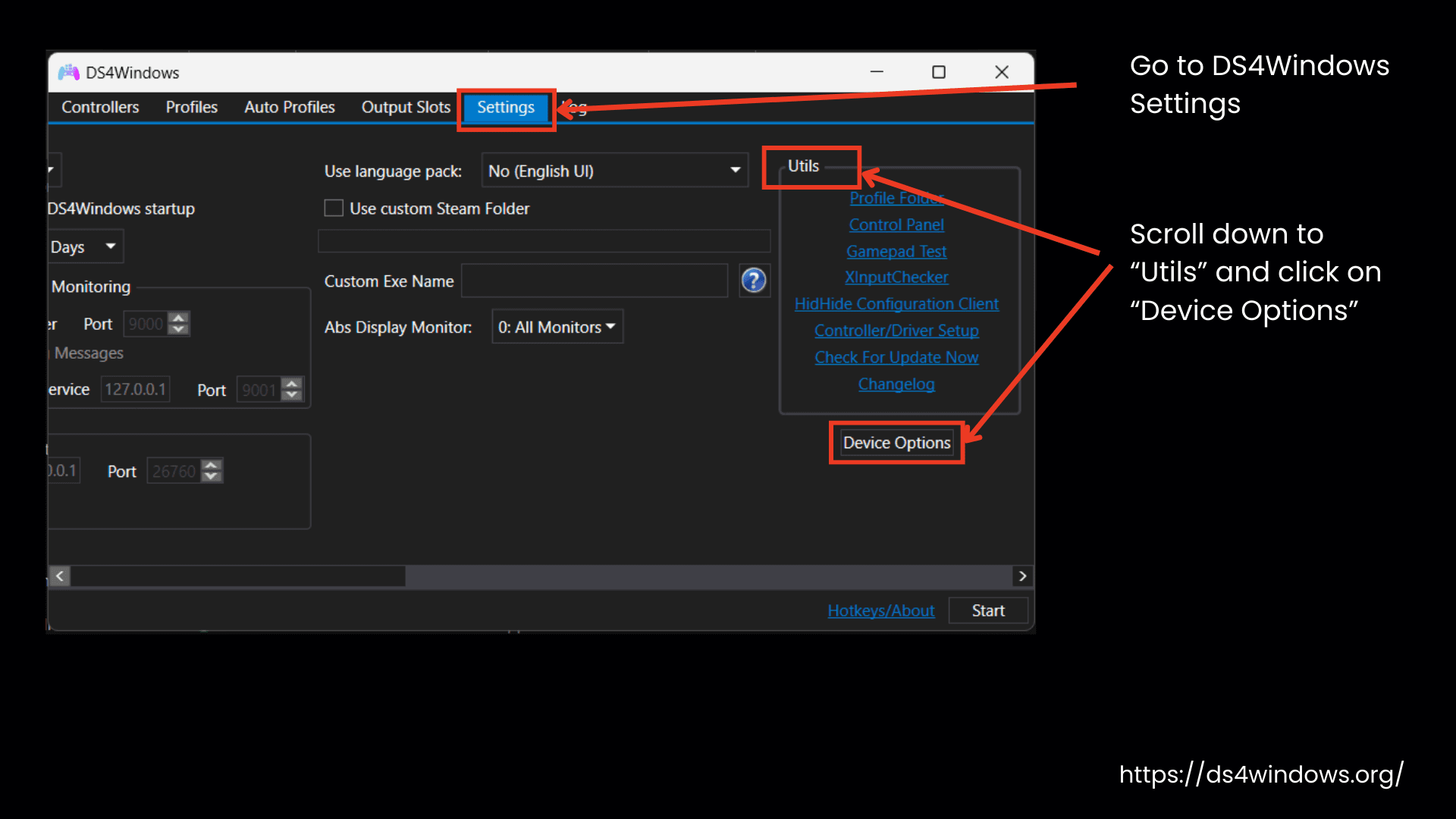
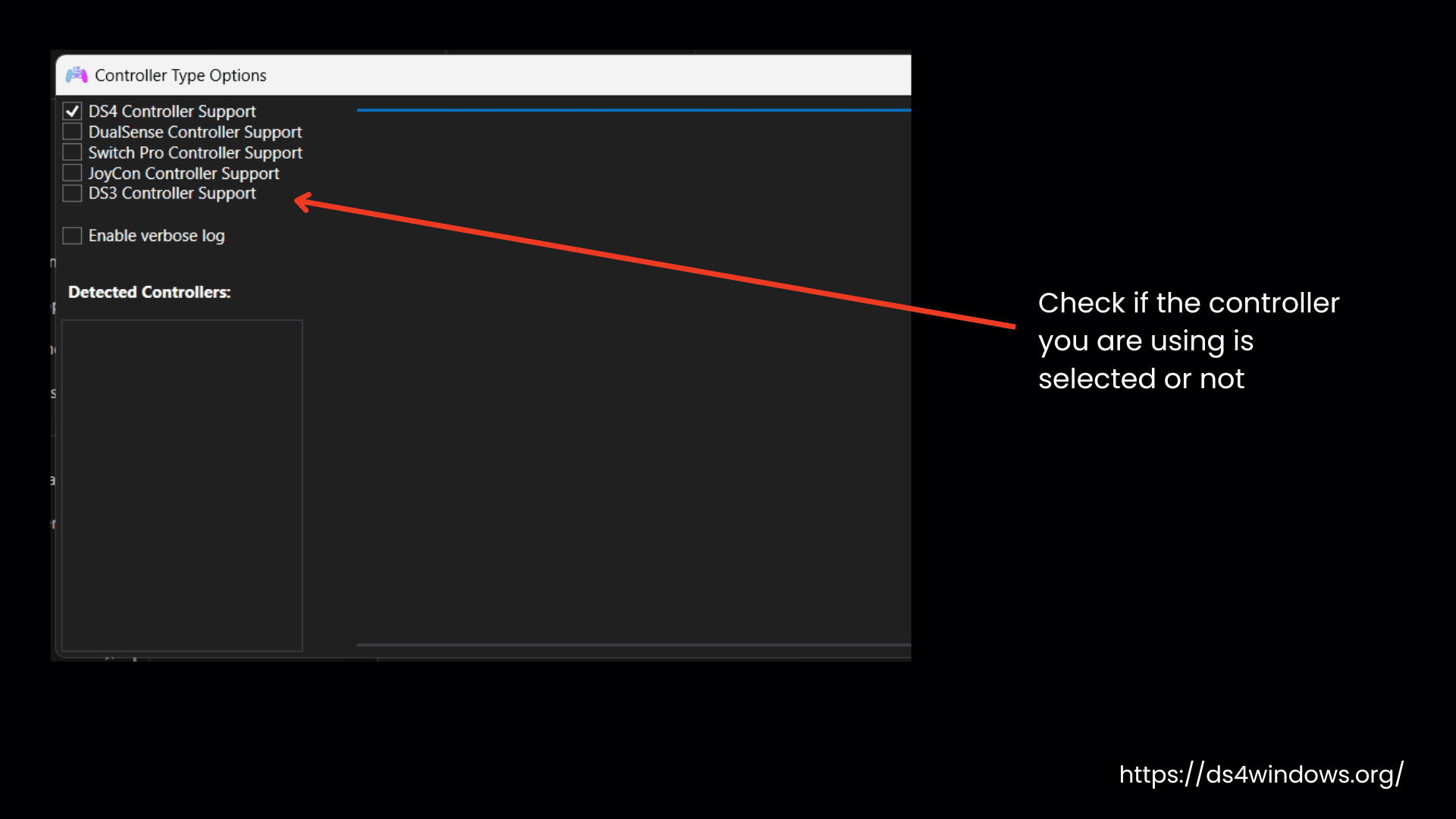
First, directly connect your controller to your PC using its cable, then check if that fixes the problem. If it doesn’t, go to Settings, scroll down to Utils, and click on Device Options. Make sure the controller you are using is selected there. If you make any changes, close it, go back to Controllers, and check if DS4Windows detects anything.
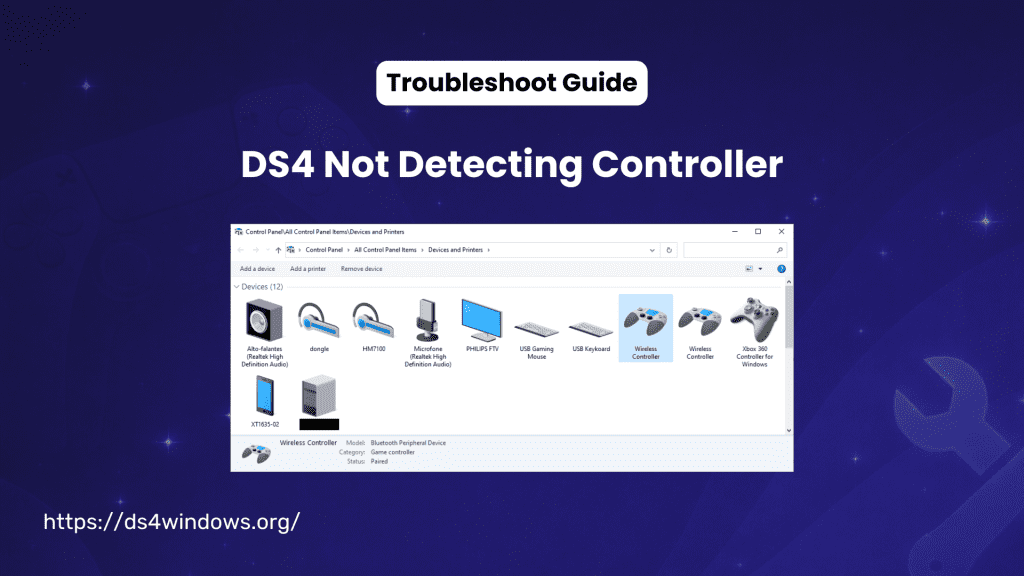
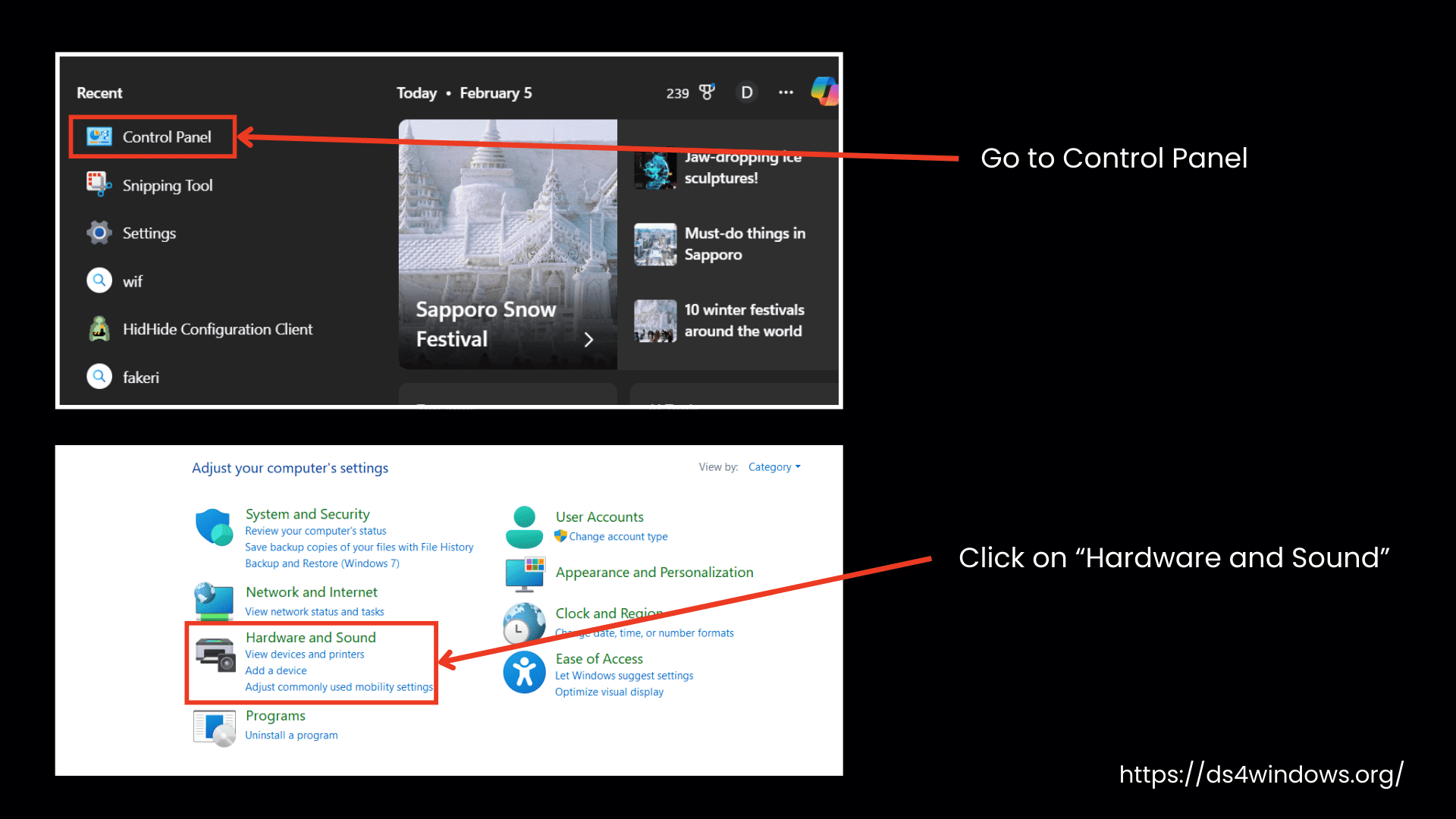
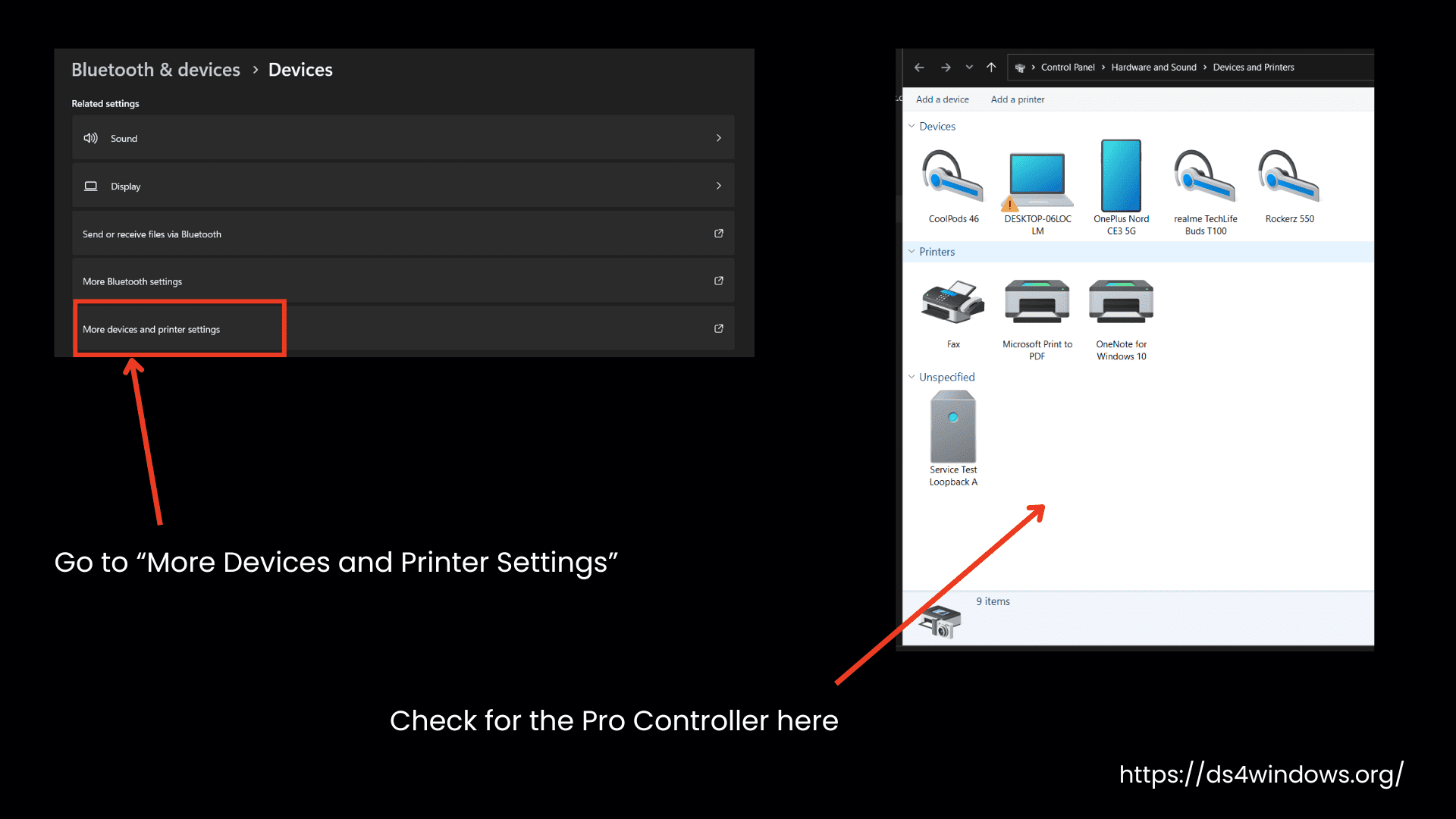
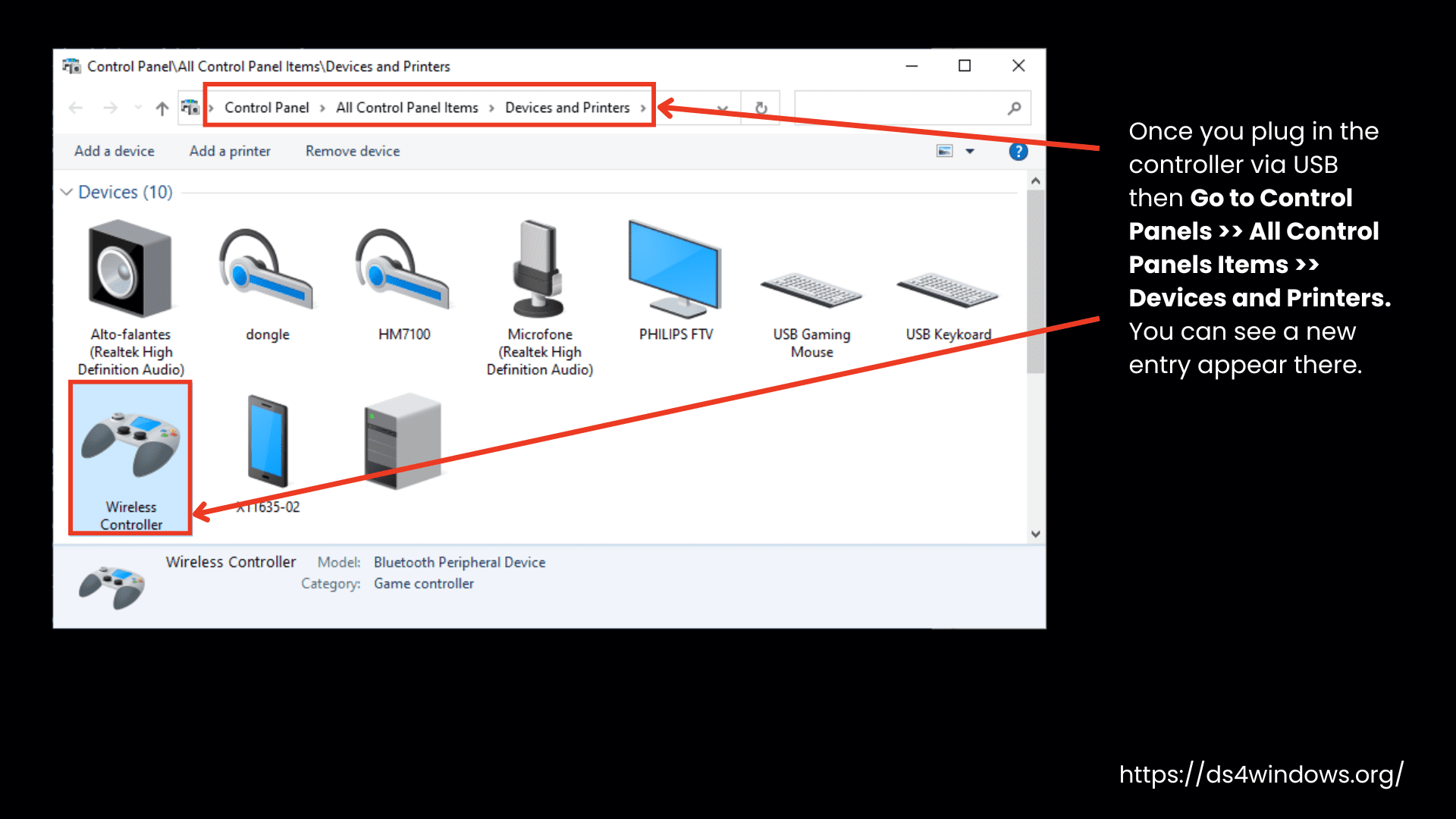
If it still doesn’t work, close DS4Windows and go into Settings. Click on Bluetooth & Devices, then Devices, and scroll down to More Devices and Printer Settings. If you are using a different version of Windows, open the Control Panel, go to Hardware and Sound, then Devices and Printers.
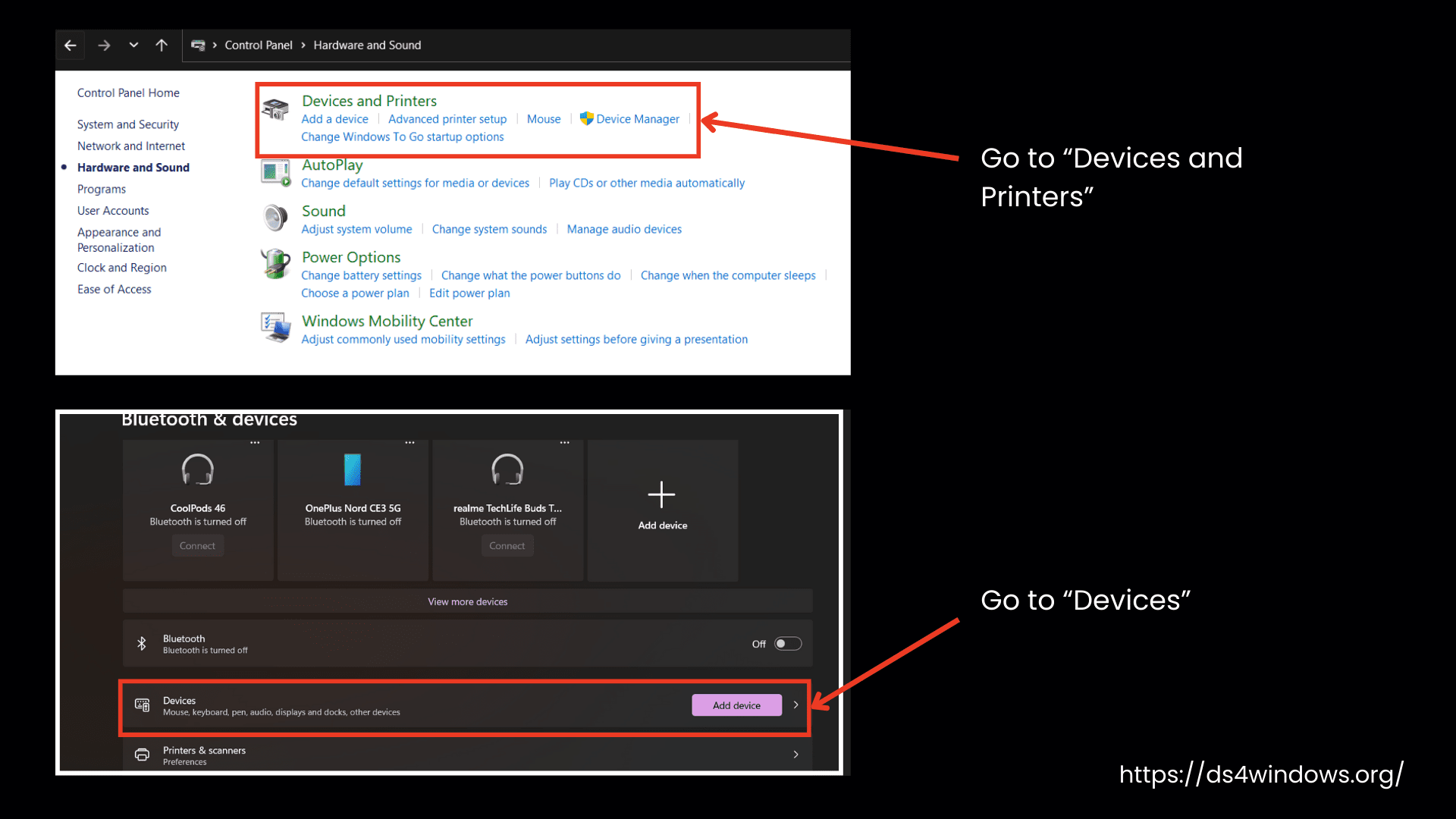
Once you are there, look for the Pro Controller. If it’s not showing, try unplugging and re-plugging it. If it appears, open DS4Windows and check if it gets detected. Press Start, and if it shows up, your problem is solved.
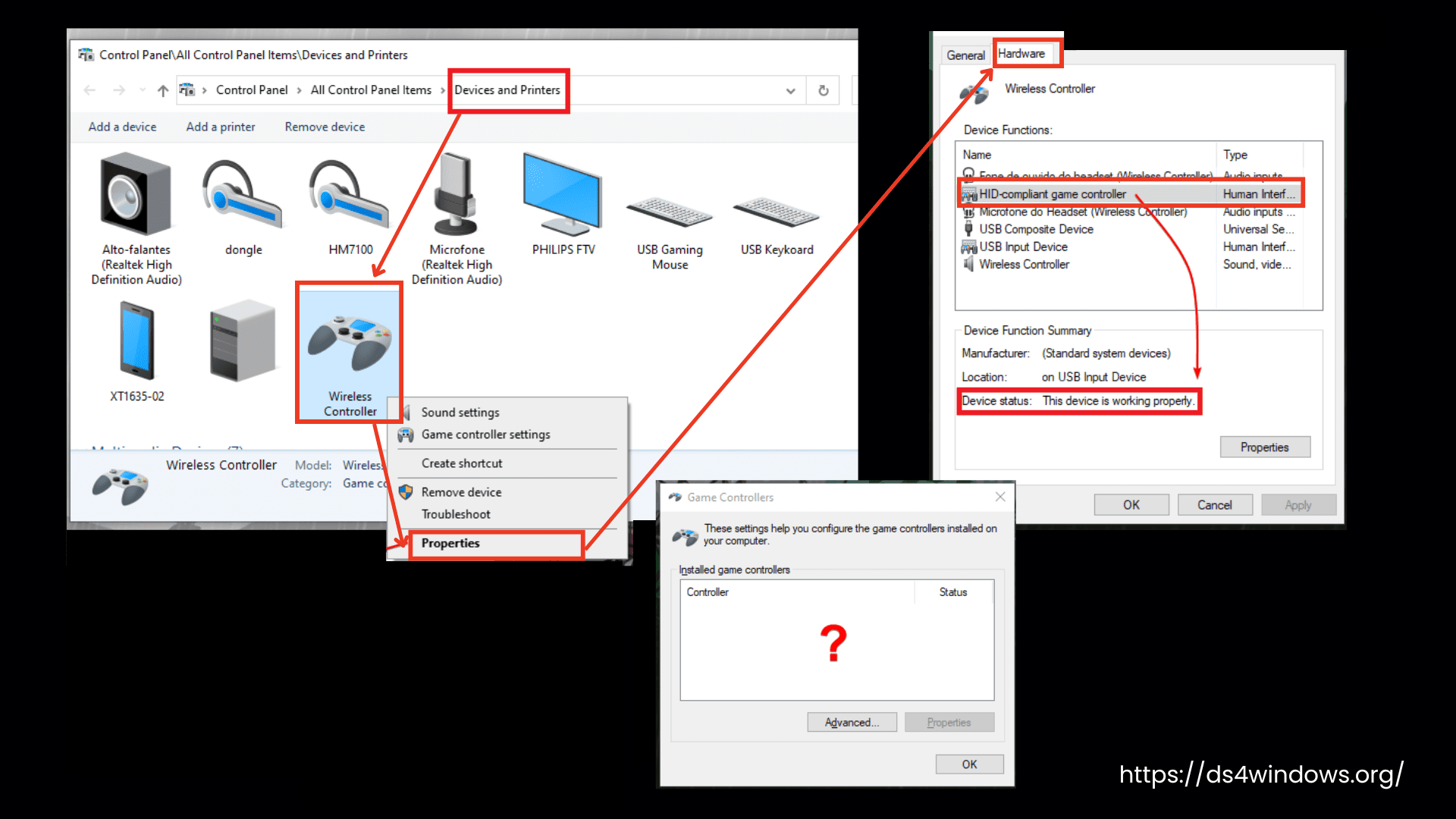
If it’s still not working, right-click on the controller, click Properties, then go to Hardware, and locate HID-compliant game controller. Click on it, then open Properties, select Change Settings, and run it as an administrator. Under Driver, click Uninstall to remove it.
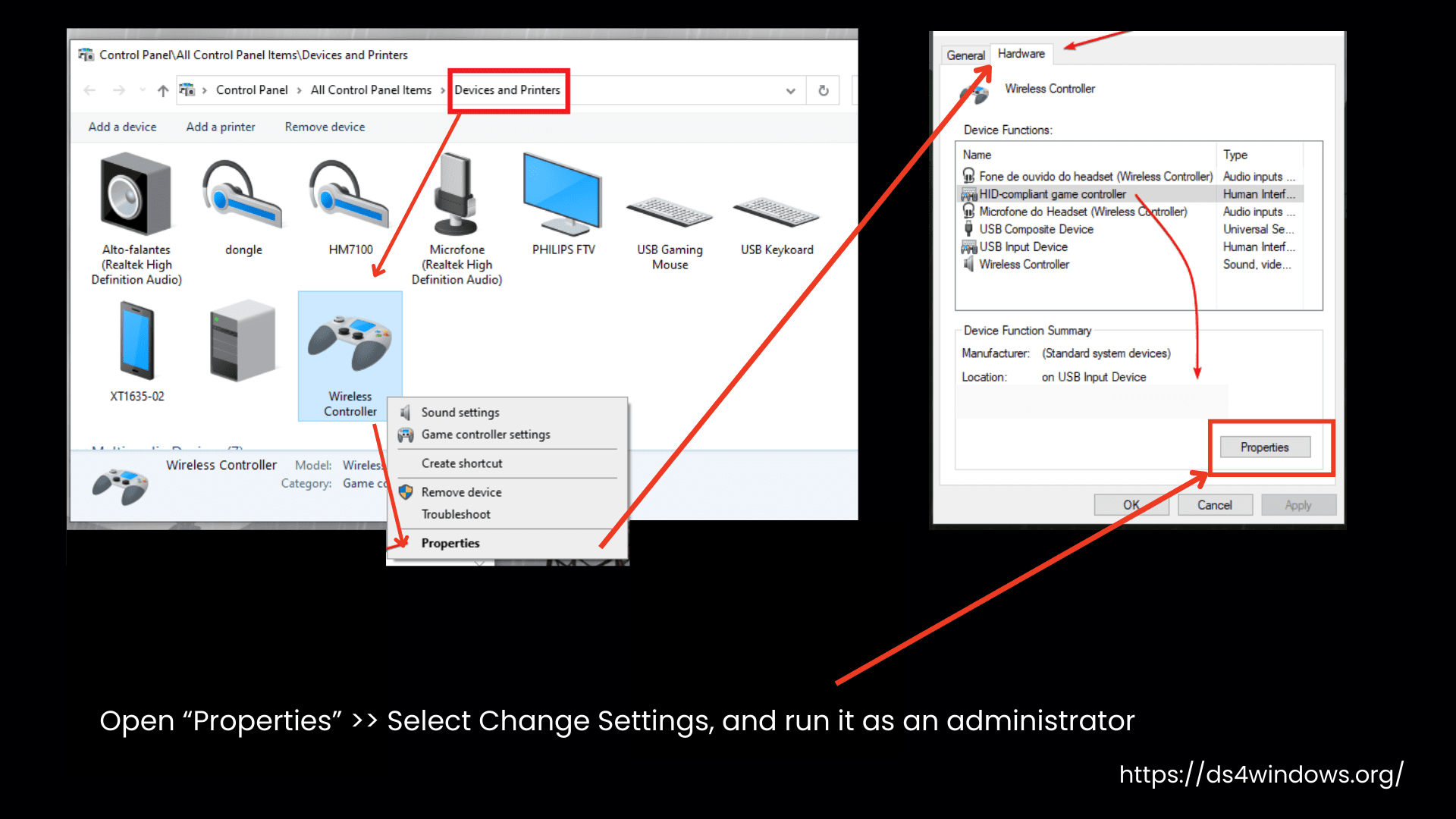
Unplug your controller, plug it back in, and Windows will reinstall the necessary drivers. Wait a few seconds, close the settings, open DS4 Windows again, and press Start. Your controller should now be detected.
If it still doesn’t work, restart your computer and try again.
Situations That Make the Controller Undetectable by DS4Windows
Still stuck? No problem. Keep reading to find out the possible situations where your real controller may become undetectable by the DS4Windows tool.
- You are using an outdated version of DS4Windows.
- DS4Windows is not running or has stopped working.
- Your controller is not connected properly.
- Incorrect Bluetooth pairing
- The controller was accidentally deactivated
- The controller is active but hidden
- You are using a replica controller
- Controller support for your device has been turned off in DS4Windows settings.
1. Check Your DS4Windows Version
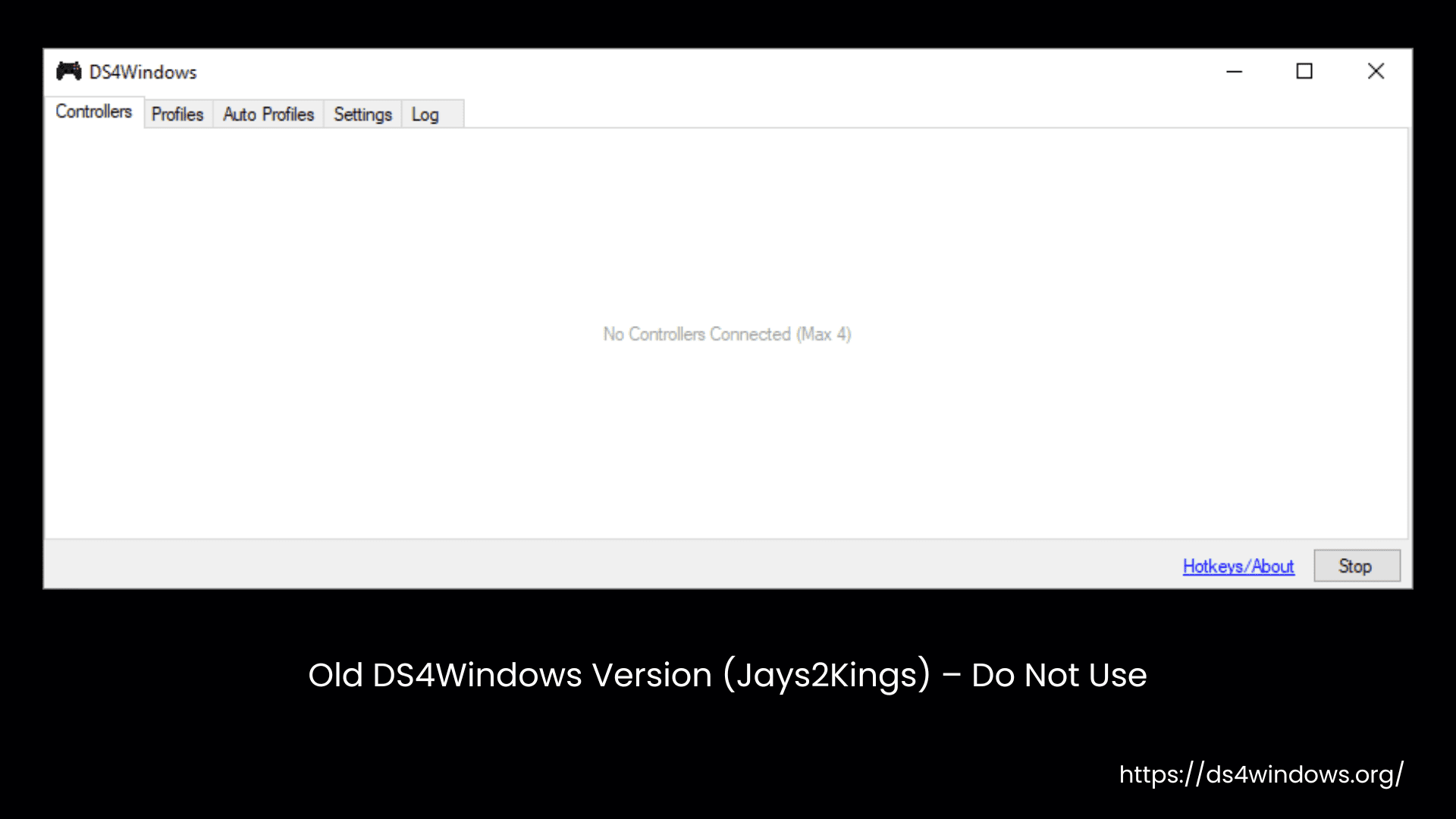
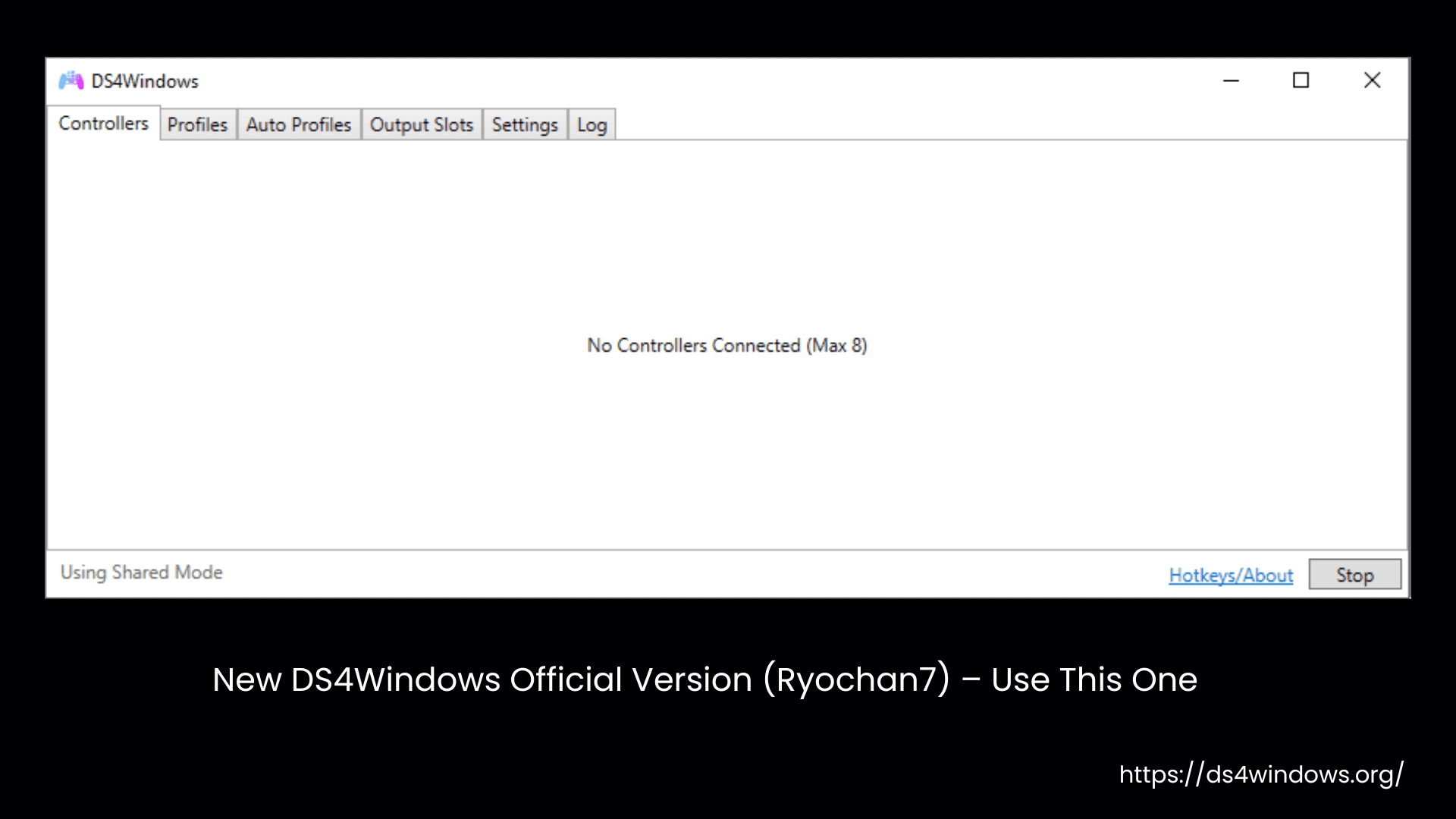
Running an outdated DS4Windows is a top culprit behind controller connection issues. Upgrade to the latest and best DS4Windows by Ryochan7.
If you now type DS4Windows on Google, you will see Ryochan7’s release on the GitHub site. However, a few months ago, Google showed the outdated version by Jays2Kings instead.
People who were not familiar with this outdated version unknowingly downloaded this input mapper. If you also mistakenly downloaded the older version, it will not detect your physical controller, no matter how well you set up everything else.
Old DS4Windows Version (Jays2Kings) – Do Not Use
New DS4Windows Official Version (Ryochan7) – Use This One
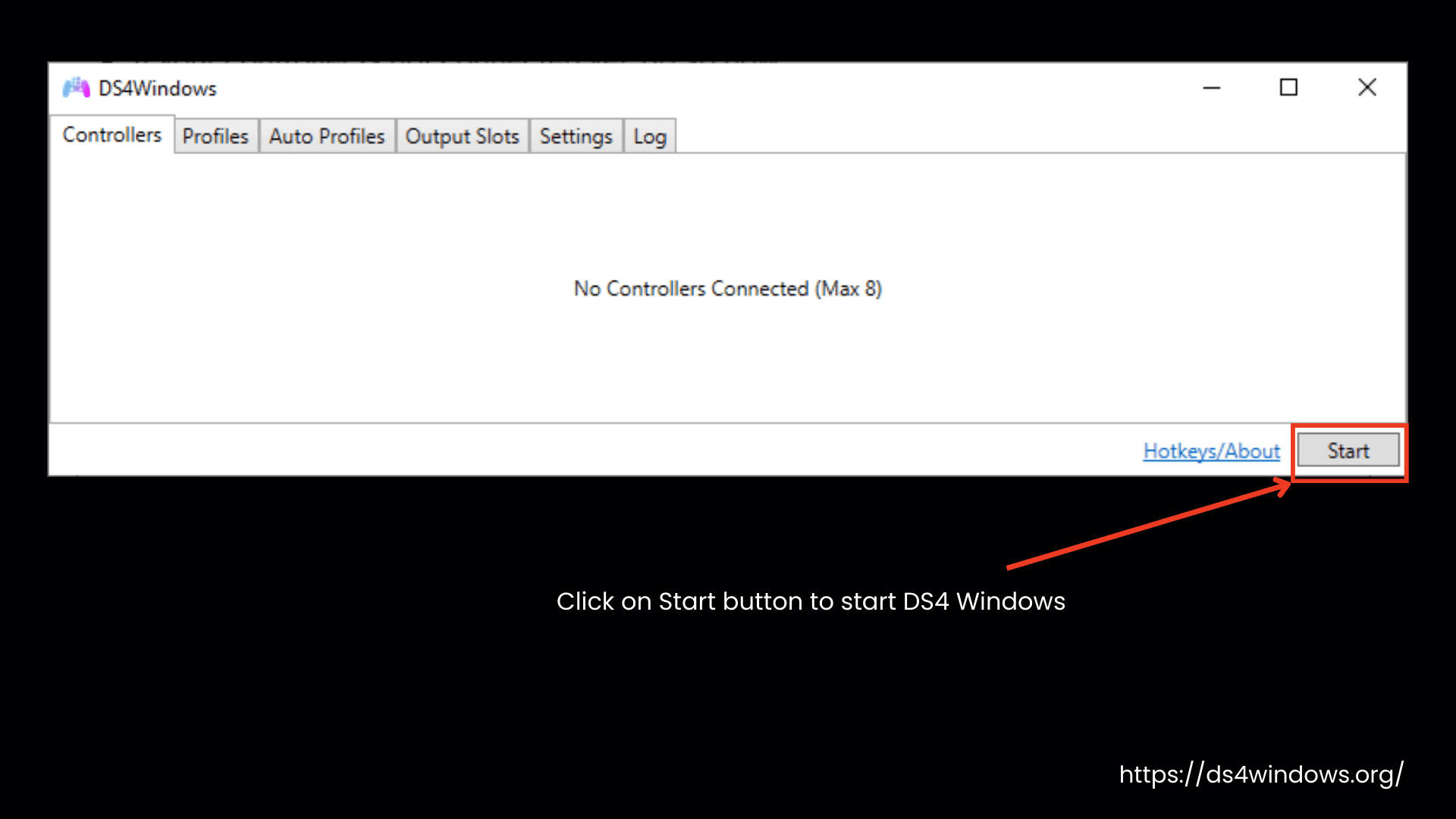
2. DS4Windows is Not Running or Has Stopped Working:
Sometimes, this tool stops working, and you have to start it again. If it’s stopped, simply hit the Start button in the bottom-right corner to get things back on track.
3. The controller is Not Connected Properly
For a USB-connected controller, the issue may be due to a damaged USB port, a faulty PC USB port, or using a USB cable that only supports charging but not data transfer.
For a Bluetooth-connected controller, the process is different. If your controller is connected via Bluetooth, please refer to our separate guide: DS4Windows Bluetooth connection issues.
Whether you are connecting the controller via Bluetooth or USB, DS4Windows won’t detect it if it’s not properly connected. For playing Steam games or using the controller for non-Steam games, whether it’s PS4 or PS5, the connection steps are different. Check out this PS4 controller guide to get everything set up.
USB Connection Troubleshooting
Bluetooth Connection Troubleshooting
DS4Windows will not detect your physical controller connected via Bluetooth if you are using a weak Bluetooth adapter or pairing it incorrectly. There are a few types of Bluetooth connection issues. Find out how to fix those issues in our dedicated guide on DS4Windows failing to detect the controller via Bluetooth.
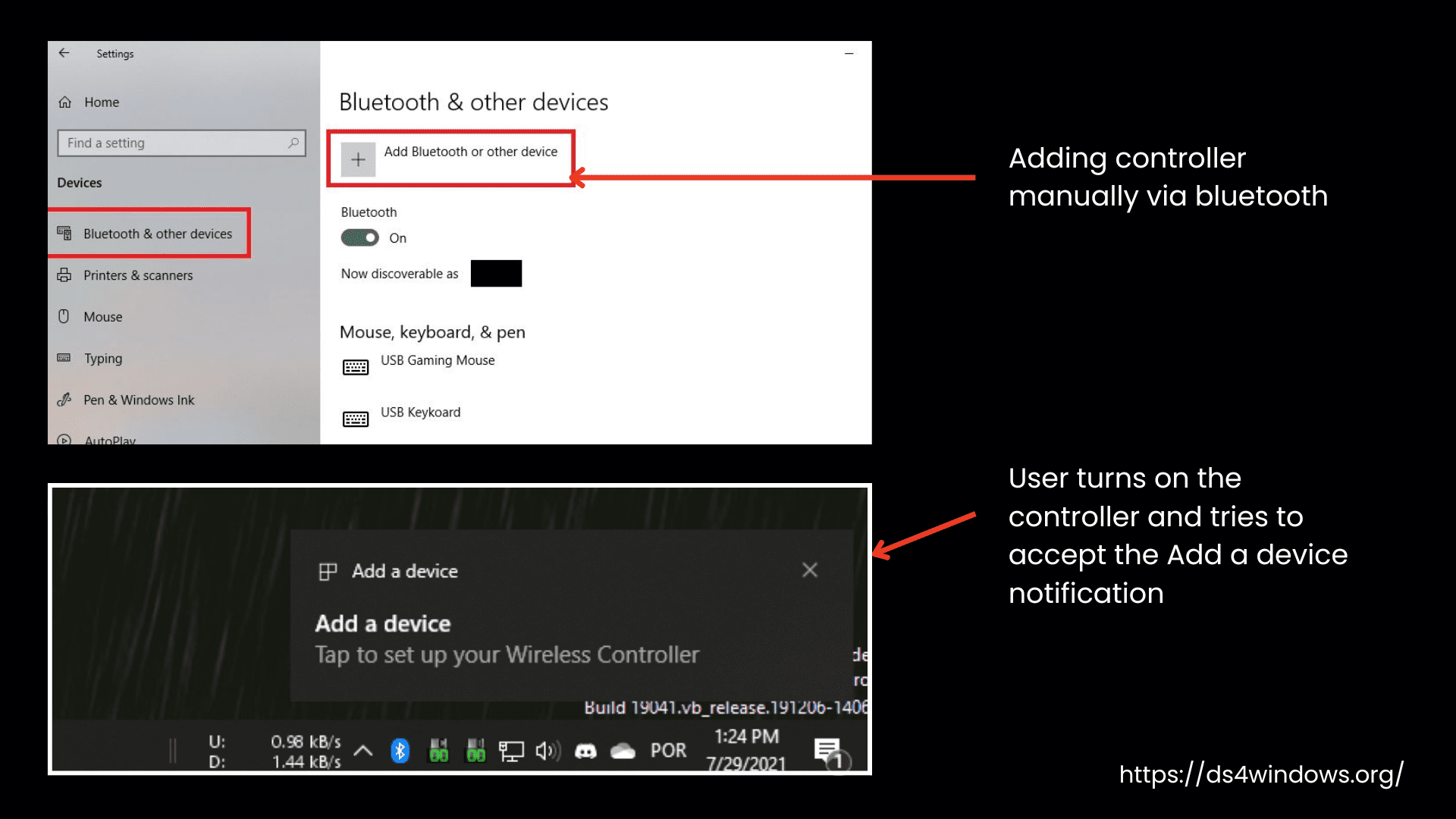
4. Incorrect Bluetooth Pairing
For connecting a controller with DS4Windows via Bluetooth, incorrect Bluetooth pairing will prevent DS4Windows from detecting the controller.
5. The Controller is Accidentally Disabled/Deactivated
If the Hide DS4 Controllers option is turned on, DS4Windows can accidentally deactivate the controller and, as a result, will not detect it. Enabling it manually can fix this issue.
DS4Windows has a feature called Exclusive Mode, with which it takes full control of your real connected controller. For example, if you have connected the controller using another controller mapper like Xpadder or Input Mapper, DS4Windows may sometimes, while using this feature, try to hide the controller but accidentally deactivate it. In such a situation, you have to re-enable it manually.
Check If Your Controller Is Disabled in Windows:
Start by pressing Win + R on your keyboard to open Devices and Printers.
Type control printers and press OK.
Find your controller in the list.
Right-click on it and select Properties.
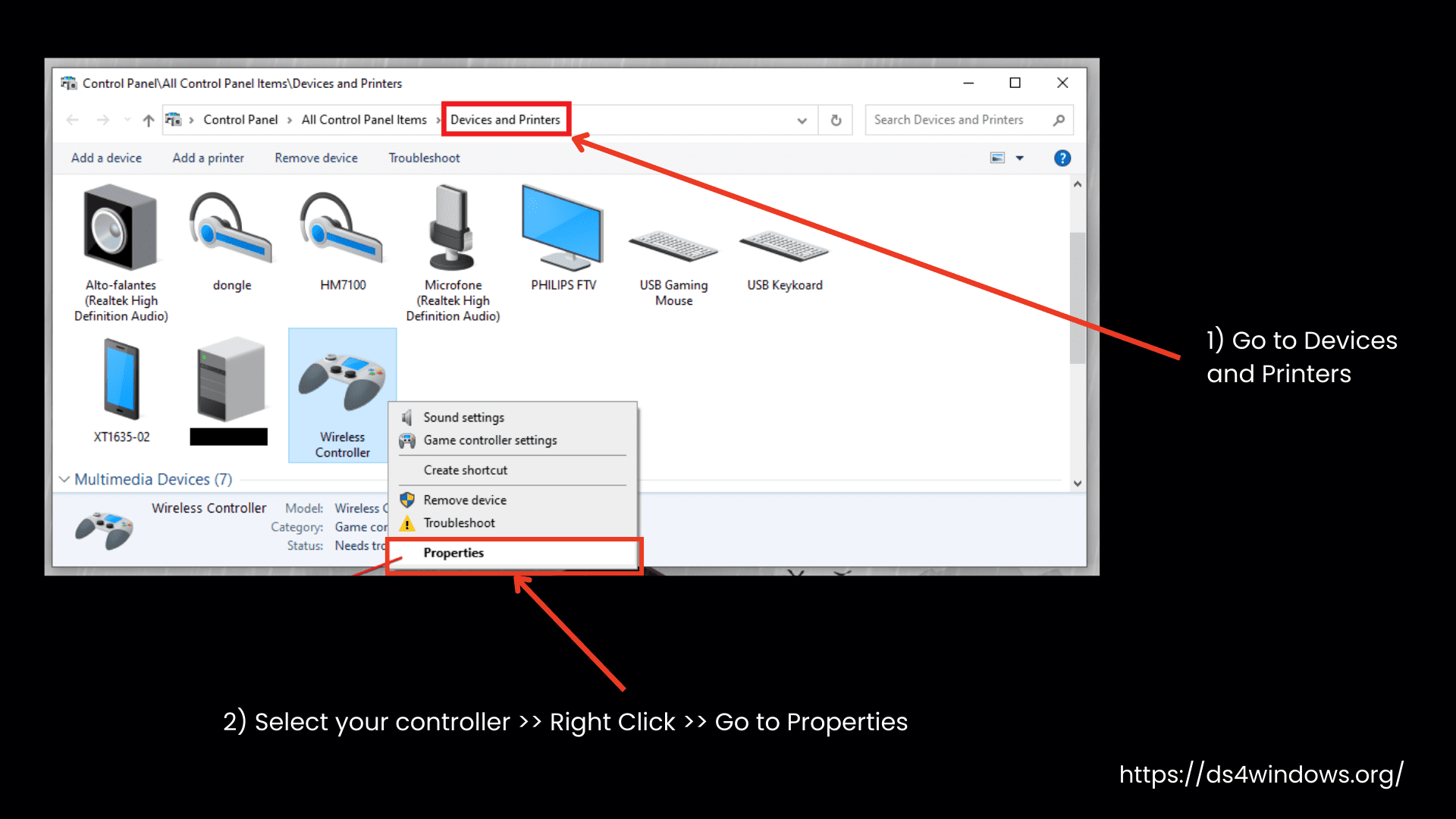
Go to the Hardware tab.
Check the Status of HID-compliant Game Controller. If it’s turned off, go to Properties and click Enable Device.
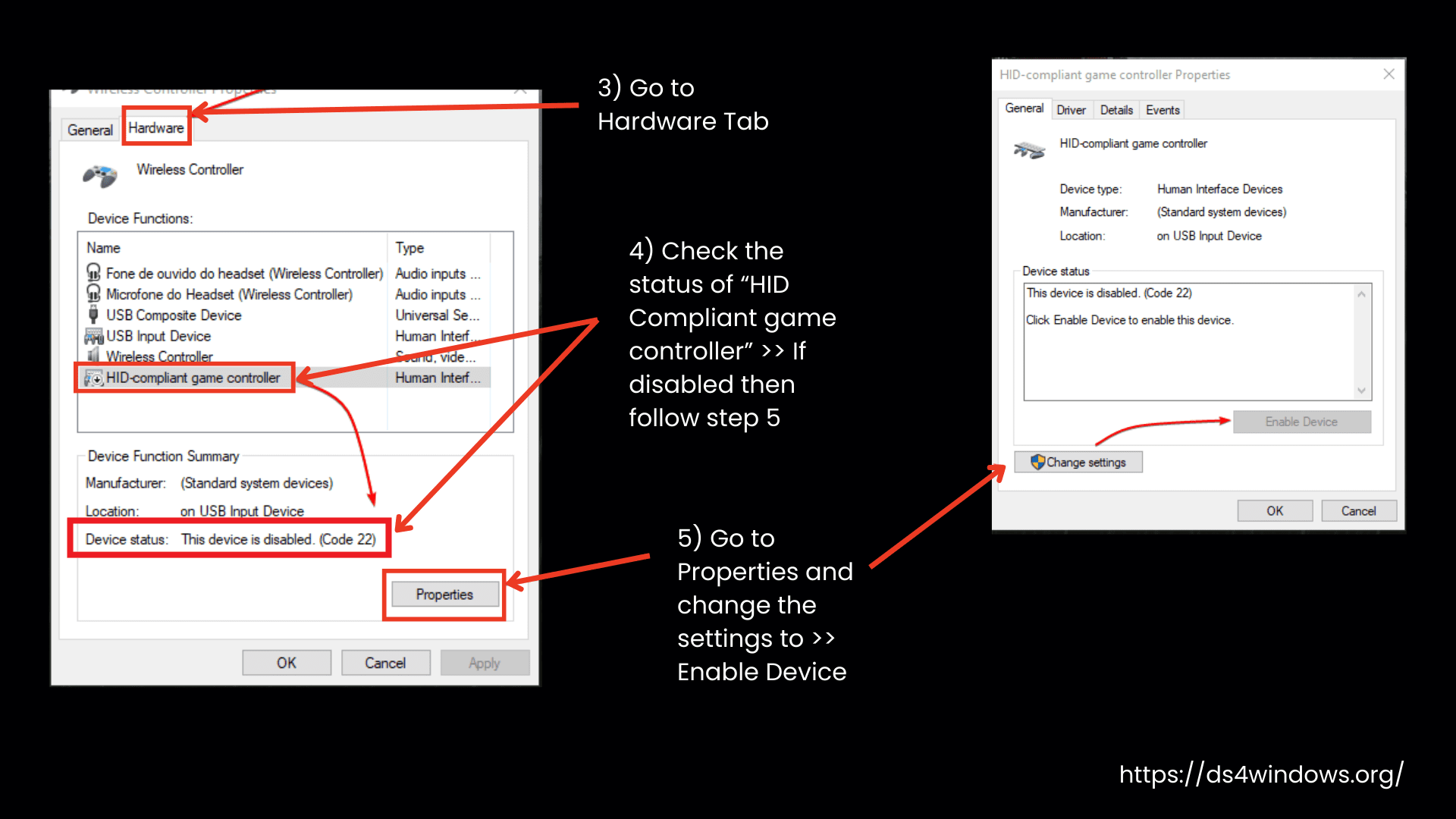
If your controller was turned off, turning it back on should resolve the issue.
6. Controller is Enabled But Hidden
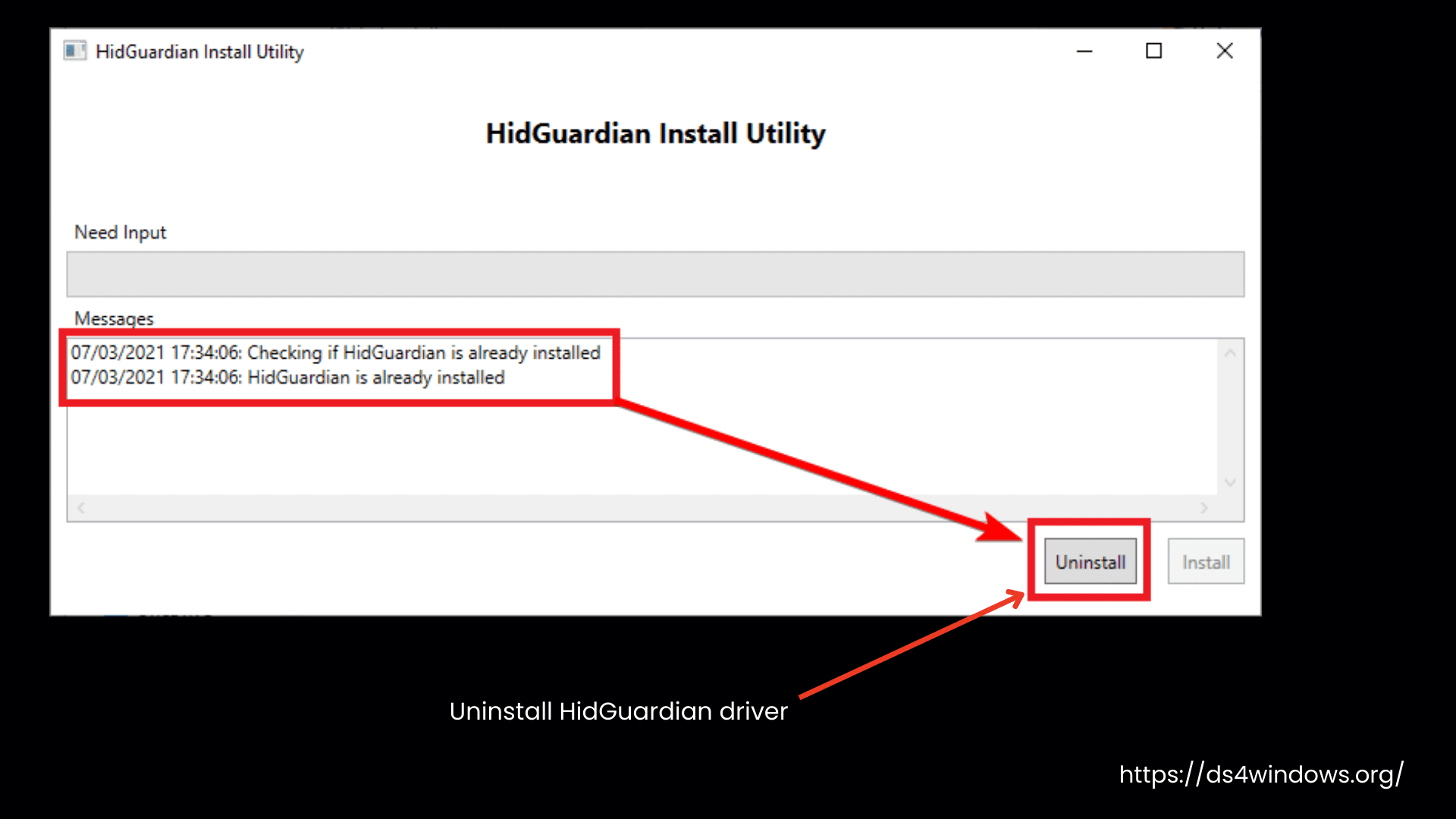
If the controller is properly connected but still not appearing on your Windows, it may be because you are using outdated HidGuardian drivers or the HidHide is malfunctioning. So, your controller is plugged in, NOT disabled, but still you can’t see it in DS4Windows or Windows’ Game Controllers list? Don’t worry, it’s just playing hide and seek.
The Usual Suspects:
This sneaky little driver was once used by DS4Windows to prevent double inputs, stopping games from taking input from both the real and virtual controllers.
But its support was removed because it sometimes hid your controller too well — so well that even DS4Windows couldn’t find it.
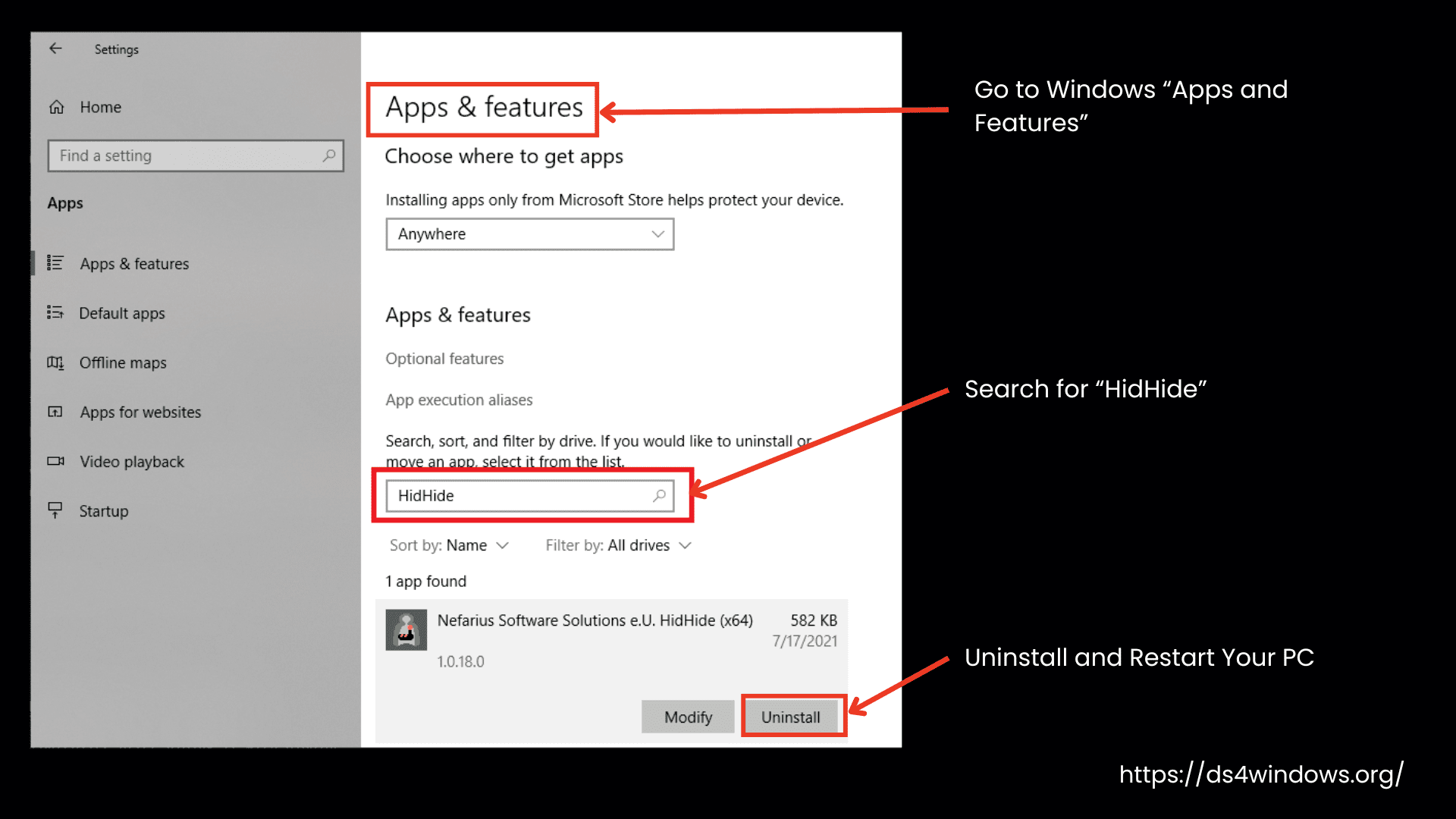
Now, the HidHide driver is used in its place in DS4Windows to prevent double input issues.
How to Fix It:
HidHide is like a VIP list for controllers. It hides them from Windows and only allows certain apps like DS4Windows to detect them. The problem is that if DS4Windows isn’t properly whitelisted (DS4Windows has special permission to detect and use your controller) your controller stays hidden.
How to Fix It:
7. Your Controller is a Copy-Cat/Replica:
If you have connected a replica controller and it fails to perform exactly like the original, DS4Windows will fail to detect it.
8. Controller Support for Your Device Has Been Turned Off in DS4Windows Settings
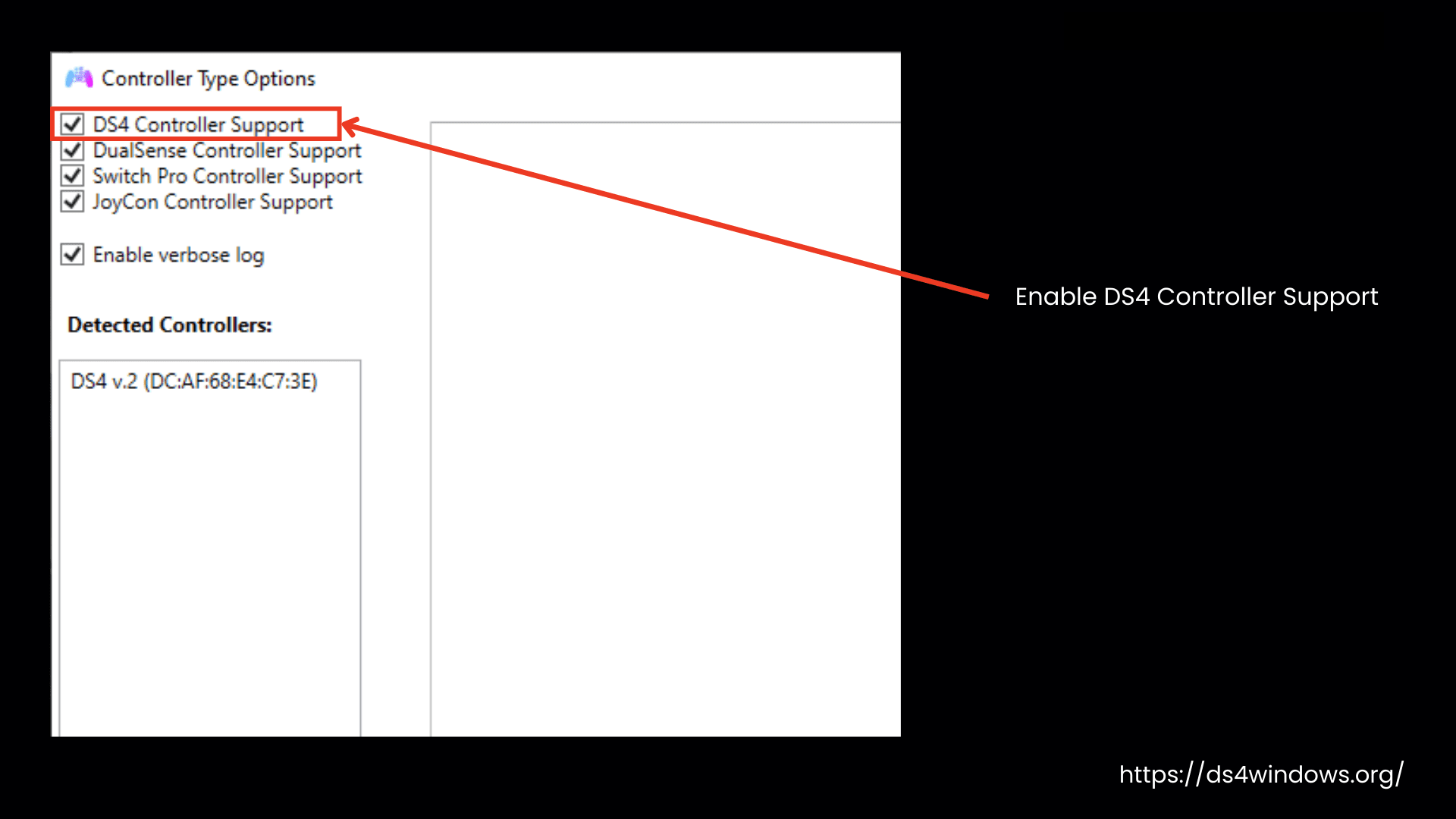
Last but not least, DS4Windows will not detect the controller if you have turned off the option to support your controller in the settings.
In the DS4Windows Settings tab, you can find Device Options. From there, you can turn support for any controller on or off. If your controller isn’t working, check this section to see whether you have selected the controller for support or not.
If you make any changes here, you need to close the Device Options window, then stop and restart DS4Windows for the changes to take effect.
How to Check if Windows is Detecting Your Controller?
You can check if Windows is detecting your controller using:
- The Gamepad Tester website
- Windows’ Game Controllers List (joy.cpl)
- Devices and Printers Menu
- Bluetooth & Other Devices Menu
- Device Manager-The Ultimate Test
There are some prerequisites before you use these controller detectors.
Your real controller will not show up in the Gamepad Tester website or Windows’ Game Controllers list if:
- DS4Windows is running: You will be confused with the virtual controller created by DS4Windows for your real one. To avoid confusion, stop DS4Windows before testing.
- Hide DS4 Controllers option is turned on: This setting makes your controller invisible to Windows.
- You are using HidHide: This driver keeps your real controller hidden from Windows.
- You are using a DualShock 3 controller with DsHidMini in DS4Windows mode: Unlike other controllers, it won’t appear in the Gamepad Tester website or Windows’ Game Controllers list.
Instead, you need to check if it’s detected in the DsHidMini Control Utility (DSHMC.exe), which is specifically designed for managing DsHidMini-supported controllers.
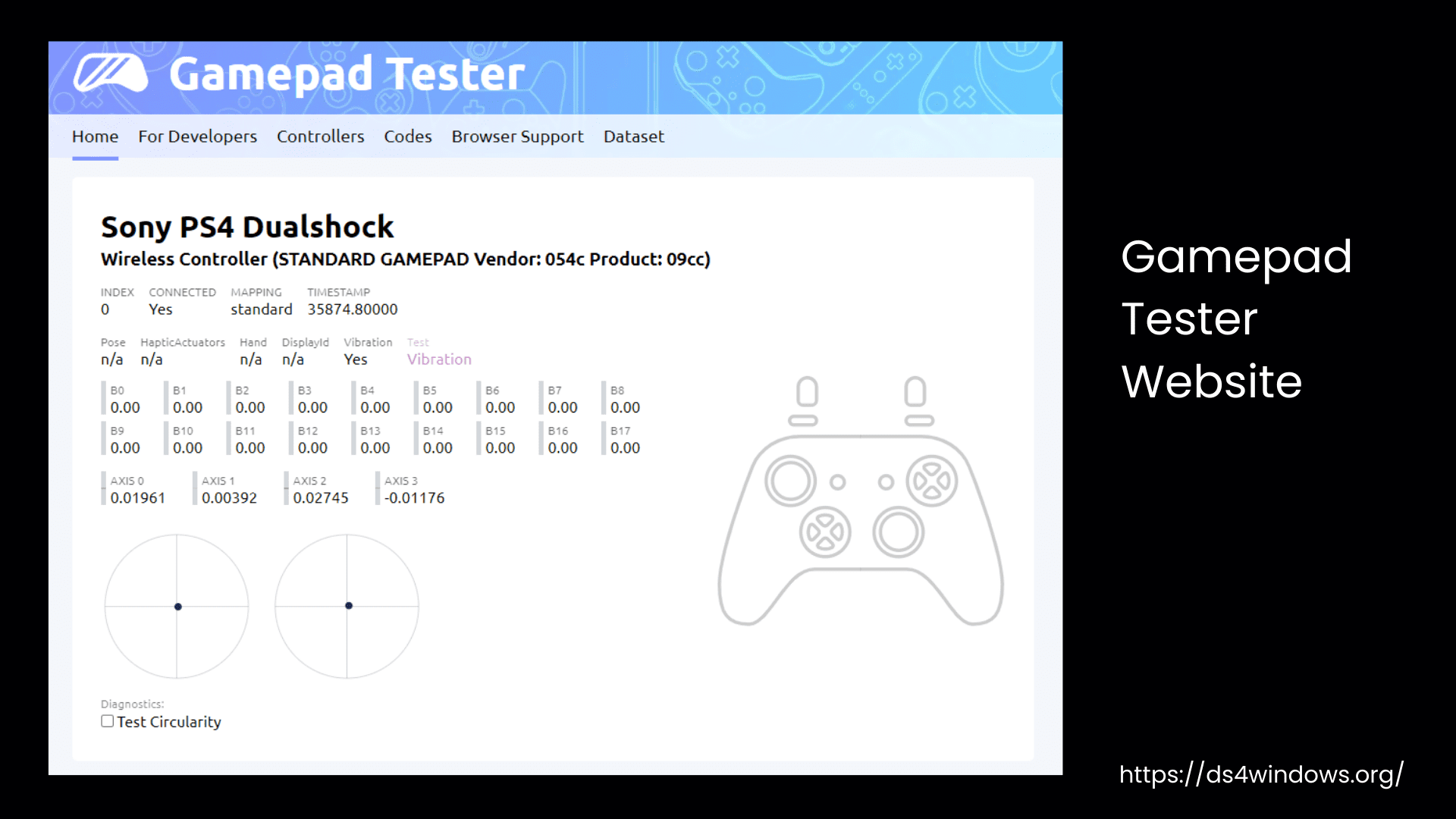
1. Gamepad Tester Website
It’s very easy to verify whether your controller is detected by Windows or not. Just open the Gamepad Tester in your browser, and if your controller is detected, you will see it there along with some extra details like the vendor and hardware ID.
2. Windows’ Game Controllers List (joy.cpl)
Windows has an old-school tool for checking controllers. Here’s how to open it:
- Press Win + R, then type joy.cpl, and hit OK
- Or, you can just search for Game Controllers in the taskbar and open it
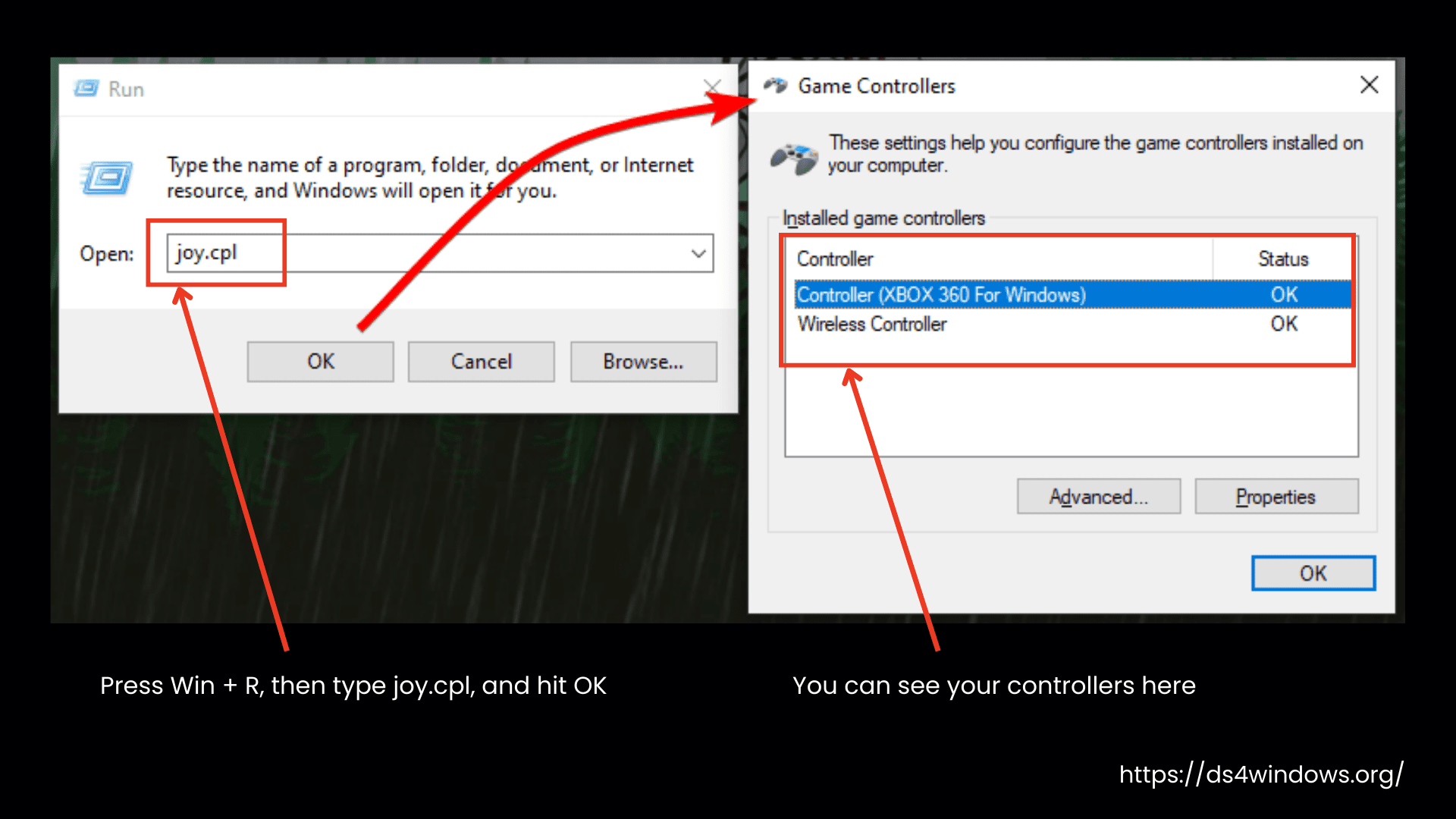
If your controller shows up here, Windows sees it. If not, you’ll need to do some troubleshooting.
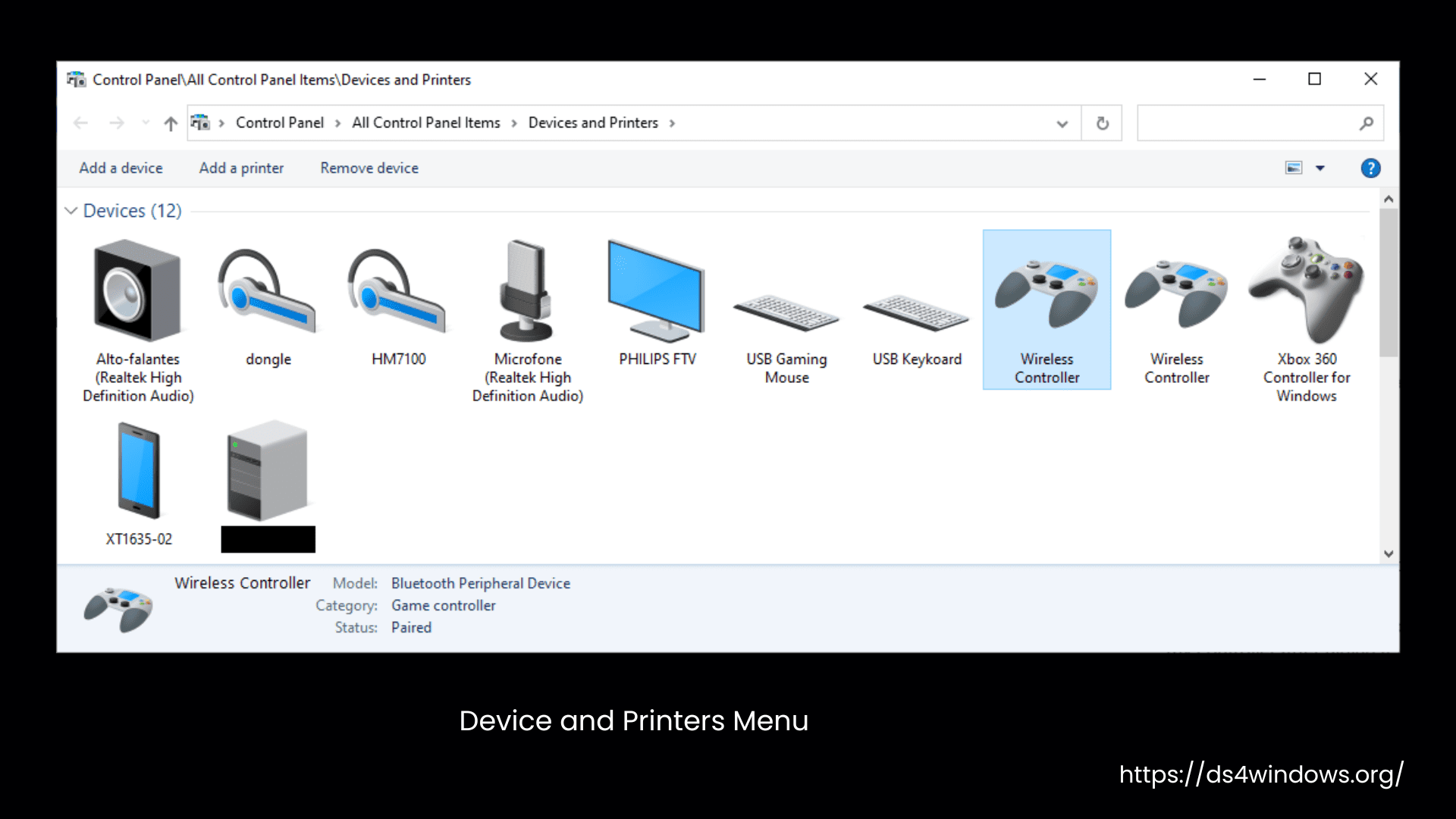
3. Devices and Printers Menu
This is a quick way to confirm if your controller is connected:
- USB users: Unplug and replug your controller to see if anything changes.
- Bluetooth users: Look for your controller in the list and check its status. You can open it either by Pressing Win + R, type control printers, and hit OK Or, open Control Panel and find Devices and Printers
4. Bluetooth & Other Devices Menu
If you are using Bluetooth, this menu will show paired controllers. You can also remove and re-add them if needed. Just go to:
- Settings > Bluetooth & Other Devices
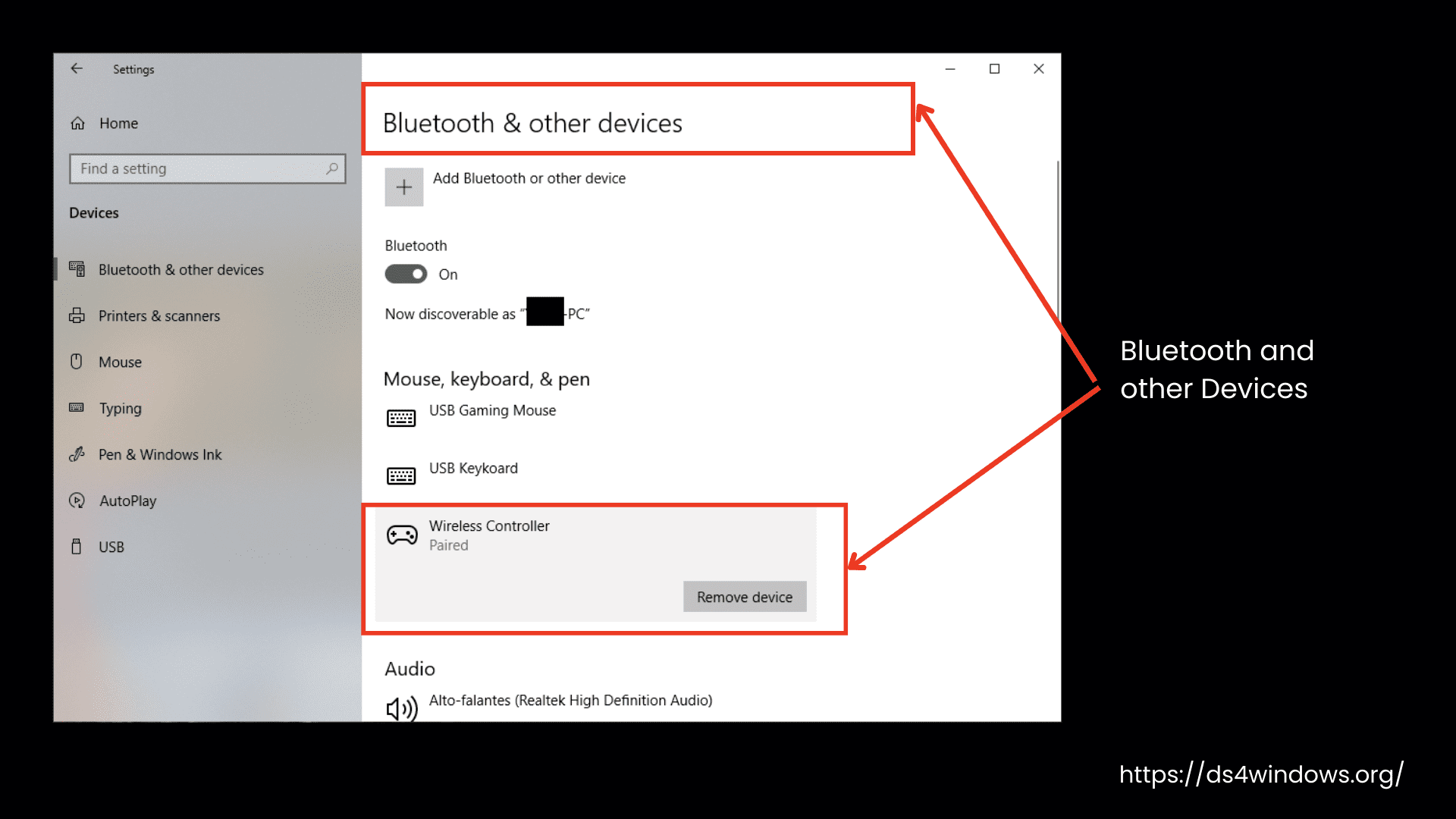
Not super detailed, but at least it shows if your controller is paired.
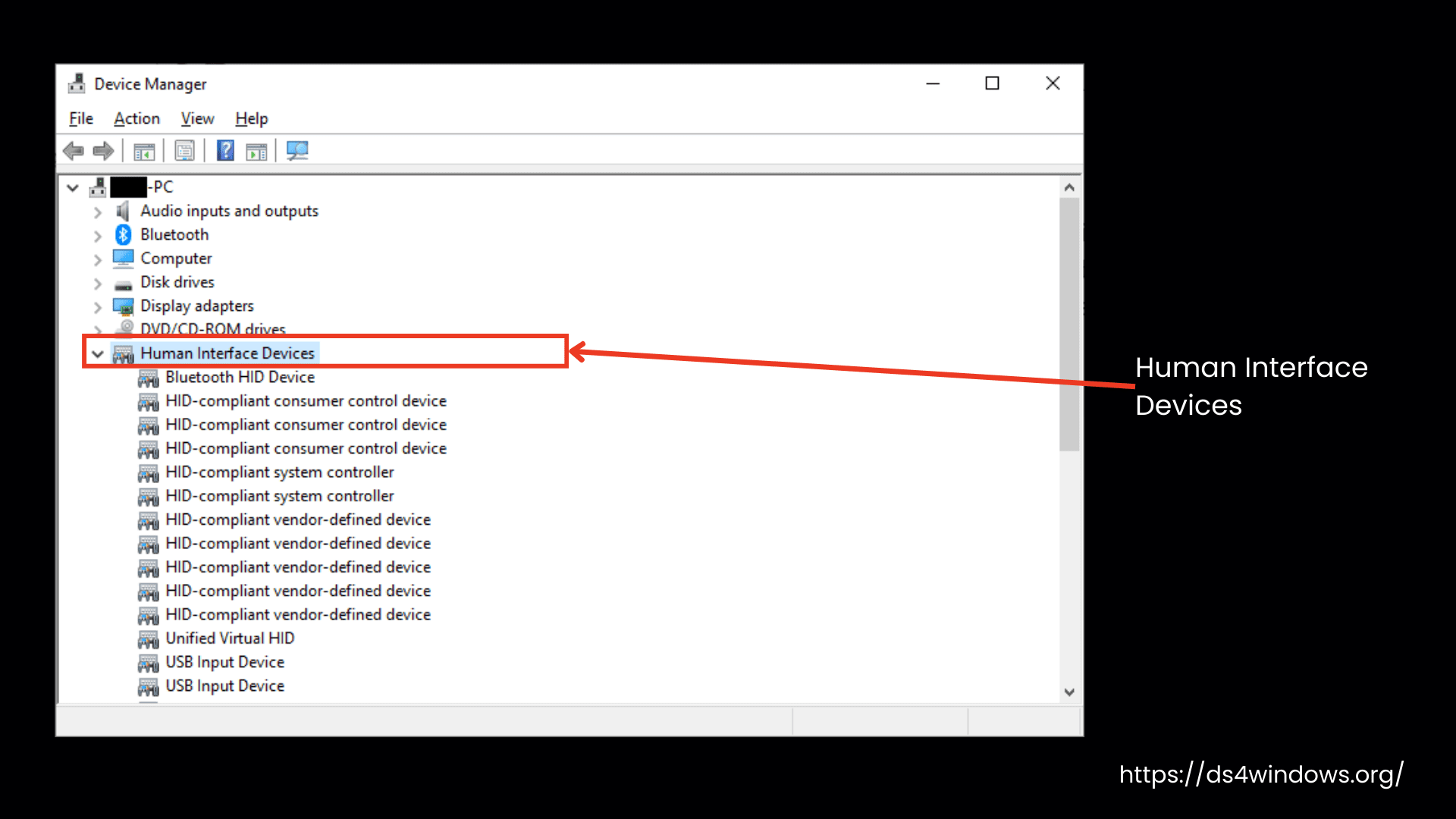
5. Device Manager – The Ultimate Test
This is the most technical method, but also the most reliable. If your controller is anywhere on your PC, it will show up here.
- Hit Win + X or right-click the Start Menu, then select Device Manager from the list.
- Scroll down and check under Human Interface Devices (HID) or Universal Serial Bus Controllers. If your controller is listed, it means Windows is detecting it. If not, then it’s time to do some troubleshooting.
Try these steps and see where your controller shows up. If it’s missing from all of them, then something is definitely wrong.