Controller Not Behaving Correctly In-game
If DS4Windows is successfully recognizing your controller, the log shows no errors, and the virtual controller is showing its presence through the Gamepad Tester, but you are still encountering weird, unwanted actions in your games, don’t worry. Keep reading to find out the reason behind this erratic behavior of the controller and how you can fix it.
Here are the most unusual or unwanted glitches you may experience during gameplay that call for troubleshooting your controller:
- Character moves, or the camera spins by itself
- Buttons or triggers press themselves
- The controller randomly stops working
- The game feels slow or laggy when you press buttons
- Touchpad, lightbar, rumble, gyro, or lights don’t work
So, before we start discussing the reasons behind the unpredictable controller behavior, first confirm that this issue is not caused by double input or a misconfigured profile.
Confirming the Double Controller Issue is Prevented
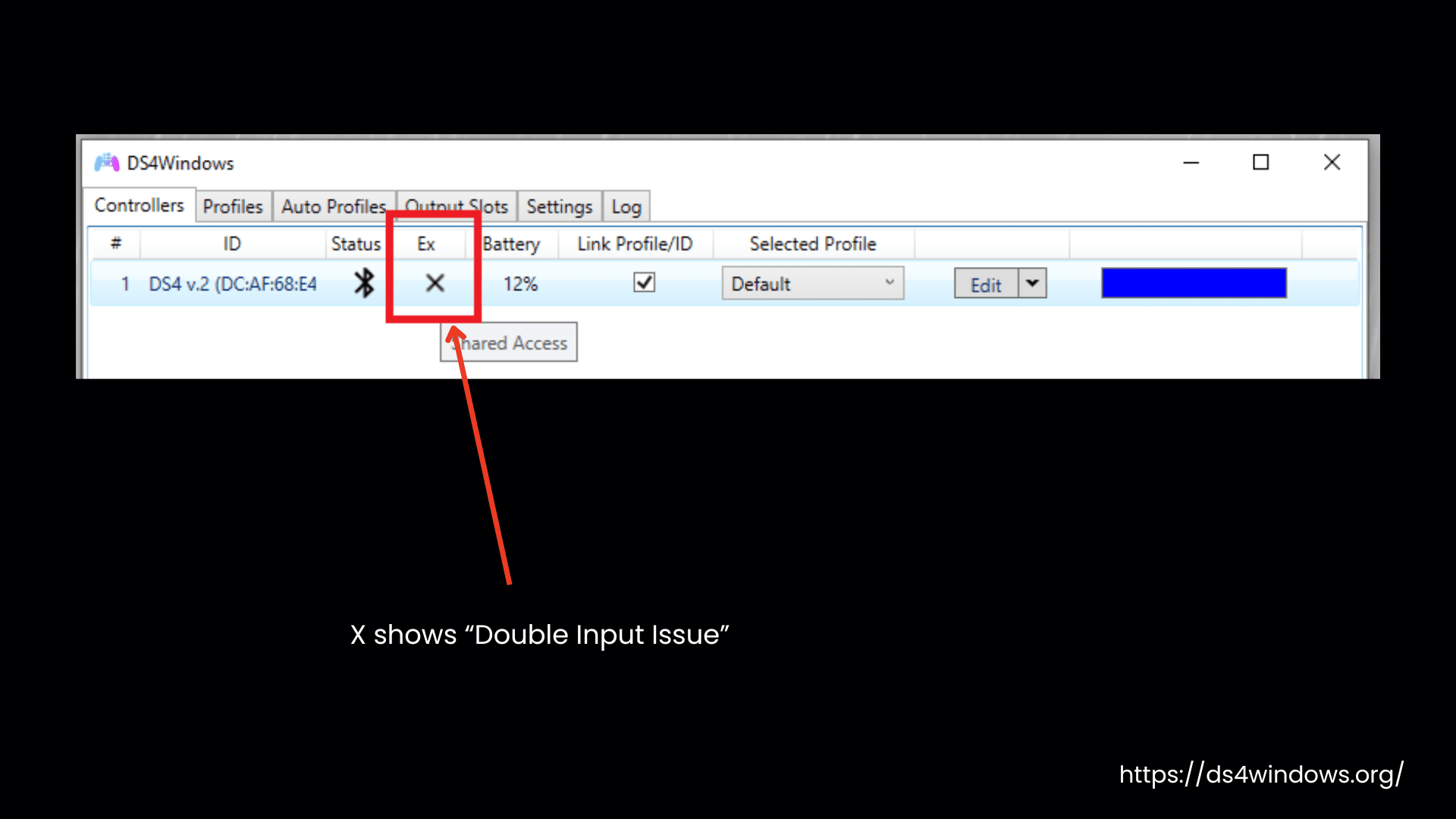
This issue arises when DS4Windows fails to hide the physical controller, and the game sees both the physical and the virtual controller. It takes instructions from both controllers, and hence, the controller starts acting differently.
You can check this from the Controllers tab. Here, in the Exclusive Mode section, it should appear empty. If you see an X icon, it means the physical controller is not hidden. Here is how you can hide the physical controller.
Checking the Profile Setup is Correct
Sometimes, you have incorrectly set up your profile either by accident or due to changes in settings. After confirming that double input isn’t the issue, the next step is to check if your profile is causing the problem.
Here’s how to do it:
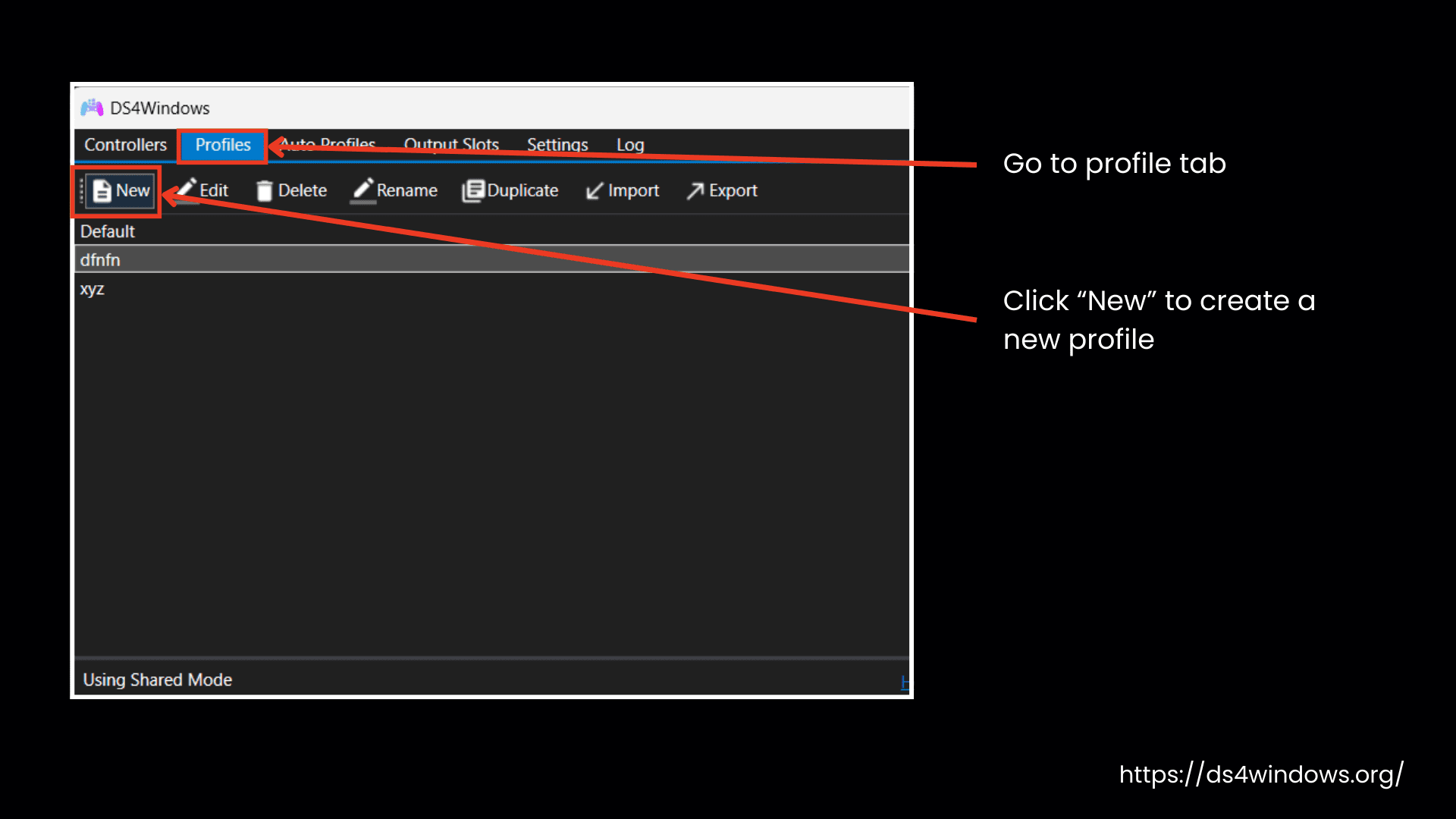
- Open DS4Windows and go to its Profiles tab.
- Click New to create a fresh profile.
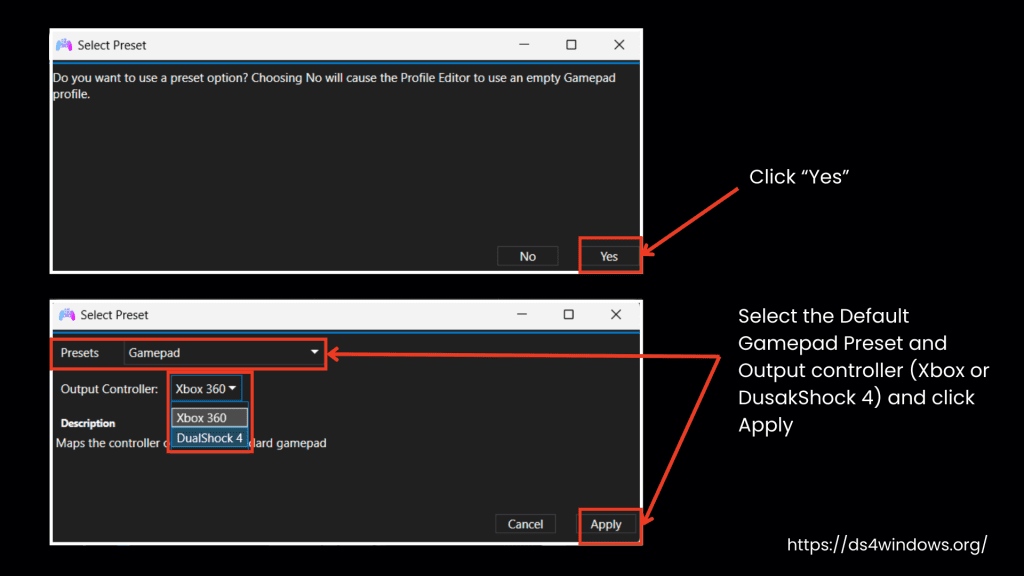
- Choose a Preset, either the Xbox Gamepad or DS4 (DualShock 4) option.
- Set it as your active profile by saving it.
Now, test if your controller still behaves strangely with the new profile. Since we’ve ruled out double input and profile issues, it will now be easier to identify the real cause of the problem.
Keep reading to learn about different issues and how you can fix them.
Issue 1: Character or the Camera Moves by Itself
If your character or camera starts moving on its own while playing a game with your controller, it is most likely because of a stick drift issue.
Stick drift is an issue when the analog stick sends input signals without you touching it, causing your character to walk or your camera to pan in one direction slowly.
What Causes Stick Drift?
Stick drift can occur due to:
- The analog stick is not physically returning to its center position.
- Sensors in the stick are not accurately detecting its position.
- Over time, analog sticks wear out due to repeated use, pressure, or dust and debris inside the controller.
When you push the stick even slightly, DS4Win sends that movement to the game, and the camera or character moves on its own.
DS4Windows gives you fine control over your controller’s behavior, so even if your controller is aging, you can still keep playing comfortably by fixing or reducing it using software settings in DS4Windows this way.
Step 1: Create a Test Profile in DS4Windows
In this step, we will figure out how bad the stick drift is and what’s causing it. Whether it’s due to a software or hardware issue, it can be fixed with dead zone adjustment, or we may need to repair the sensor or clean it, etc.
- Open DS4Windows.
- Go to its Profiles tab.
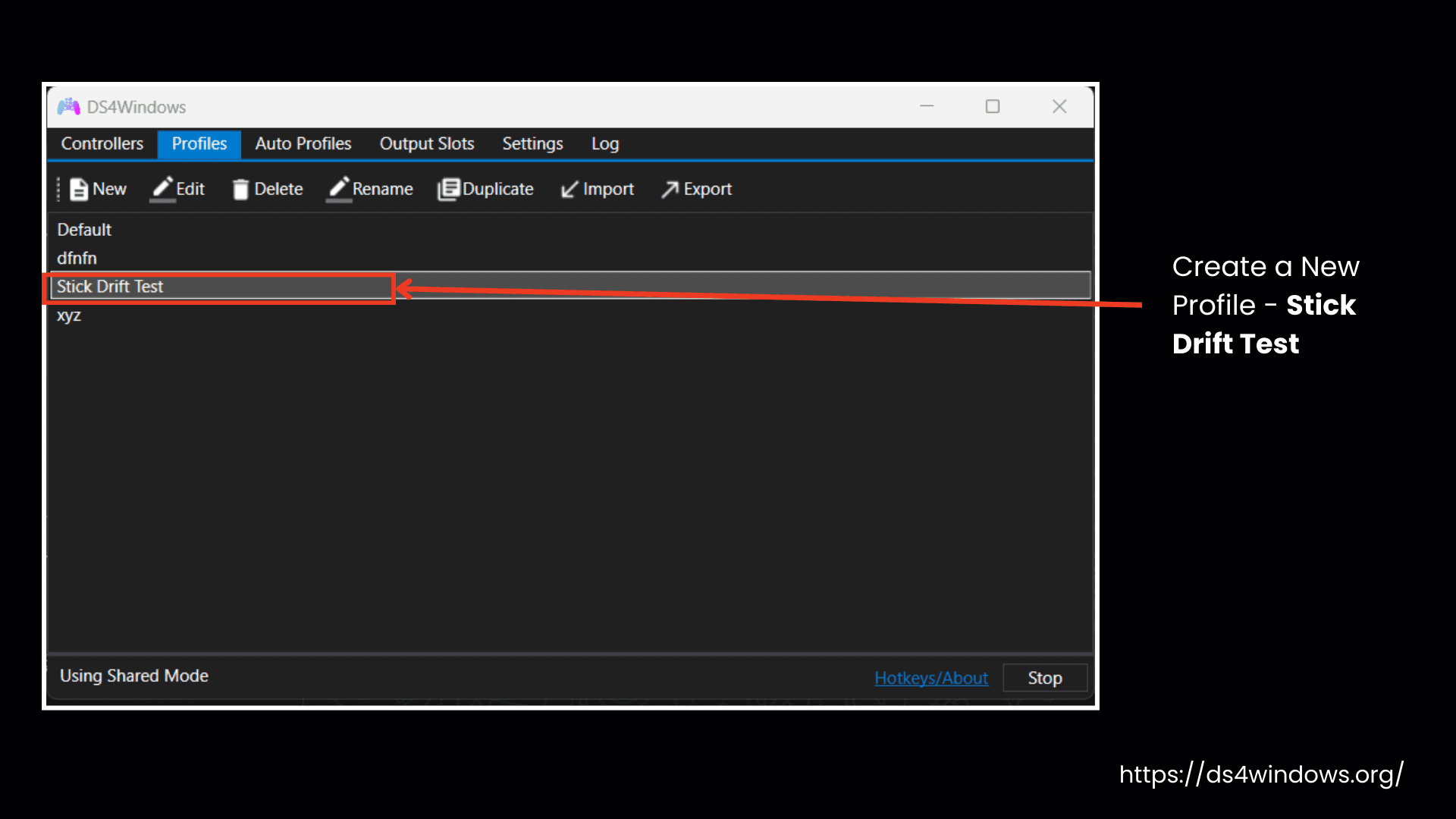
- Duplicate your current profile; better to create a new one.
- Name it something like: “Stick Drift Test”.
- In this profile:
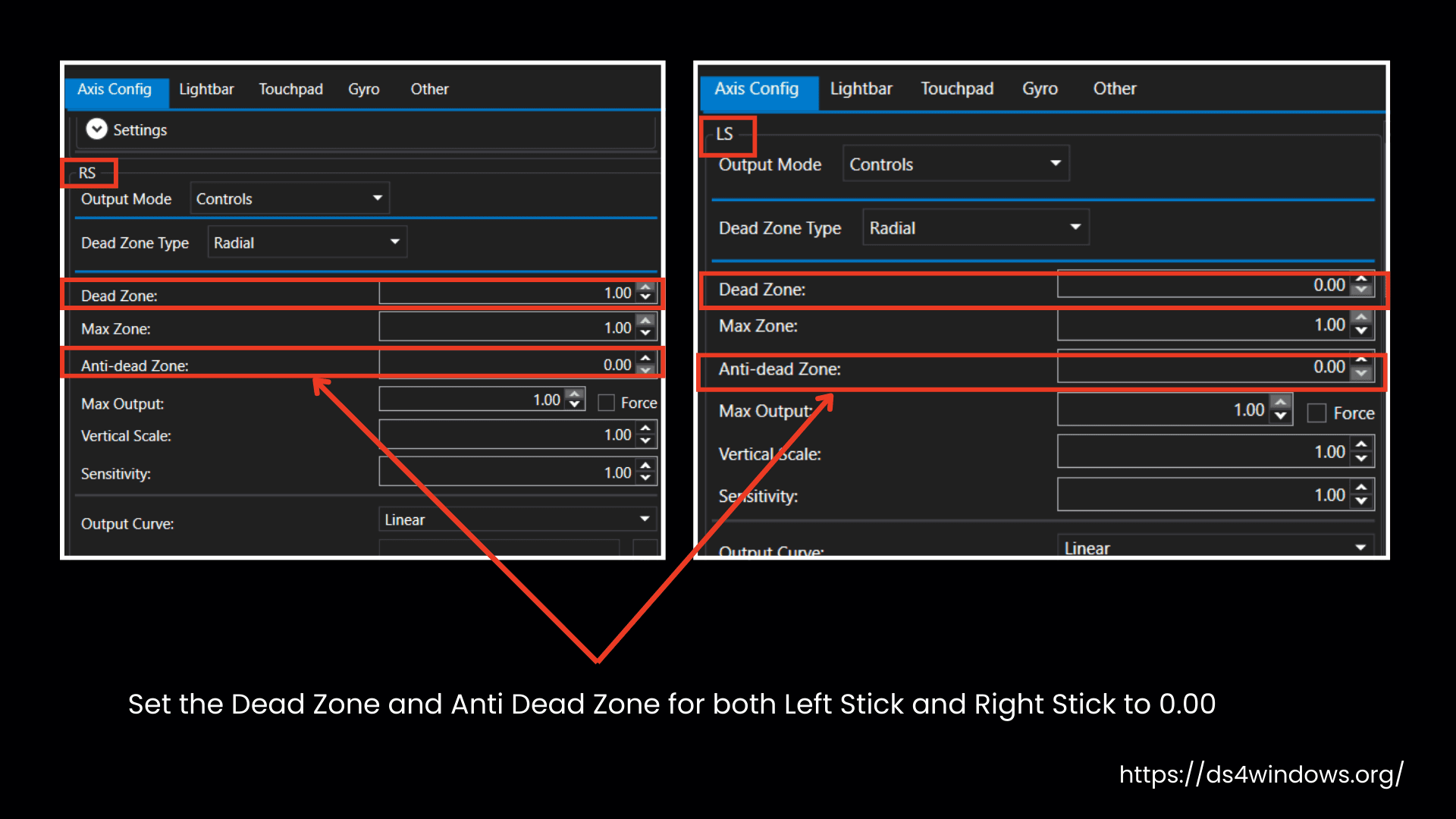
- Set the Dead Zone for both Left Stick and Right Stick to 0.00.
- Set the Anti-Dead Zone for both sticks to 0.00 as well.
- Save the profile.
Step 2: Test the Sticks Using Gamepad Tester
- Open Gamepad Tester website.
- Select your new “Stick Drift Test” profile in DS4Windows.
- Without touching your controller, check if the analog sticks show any input on the tester.
- Now, slowly move the sticks in a cross, up-down, left-right, and circle motion to see if the movements are smooth and return to the center accurately.

- If the stick moves even when untouched, or it’s showing erratic movement that doesn’t match your actual stick movement, or it’s not returning in the center properly, you have a stick drift issue. Values above ±0.08 are often enough to trigger unwanted movements in games.
- Repeat the test at different times — sometimes drift appears randomly. Testing multiple times helps confirm whether the issue is consistent.
Step 3: Fix Stick Drift with Deadzone Settings
If the drift is minor, you can try fixing it using Dead Zone settings in DS4Windows.
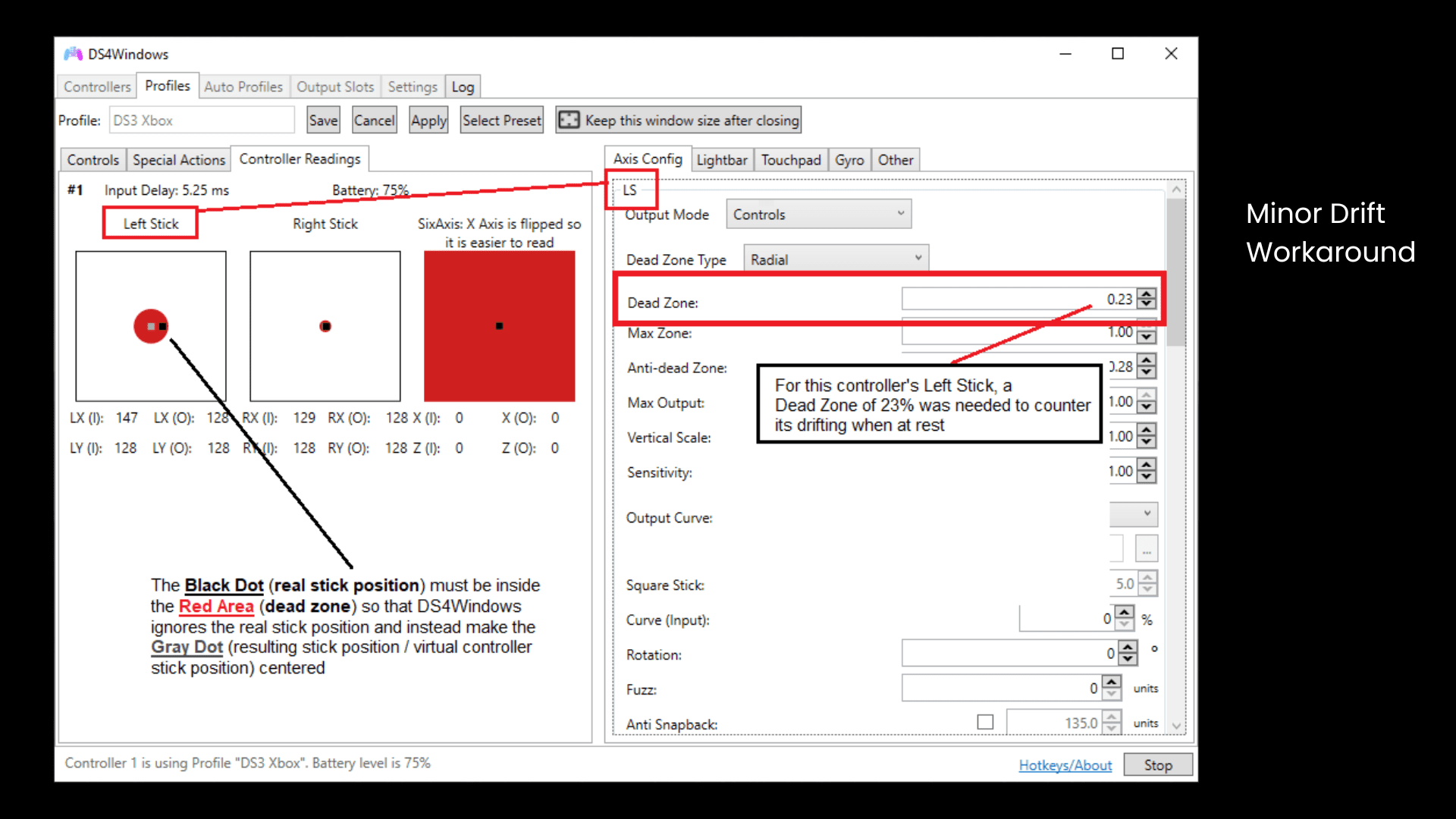
The dead zone is the area around the stick’s center position where small movements are ignored. If you increase this dead zone area, DS4Windows will ignore tiny, unintentional movements, which can stop small drifting from affecting your gameplay.
You can try this fix when the drift:
- Is small and centered,
- Doesn’t cause major movement in games,
- And still allows normal movement when you fully push the stick.
However, if your stick shows strong or erratic behavior even when you set the dead zone to 0, it’s likely a hardware problem. In that case, you should clean the controller, or you need to repair or replace the stick sensors.
How to Fix Stick Drift with Deadzone Settings in DS4Windows
Here is how to Fix PS4, PS5, & Switch Controller Stick Drift with DS4 Windows on PC.
1. Open DS4Windows and Duplicate Your Profile:
- Launch DS4Windows.
- Go to the Profiles tab.
- If you are using the default profile, right-click it and duplicate it.
- Name the new profile something like “Stick Drift Fix”.
- Click Edit on the new profile.
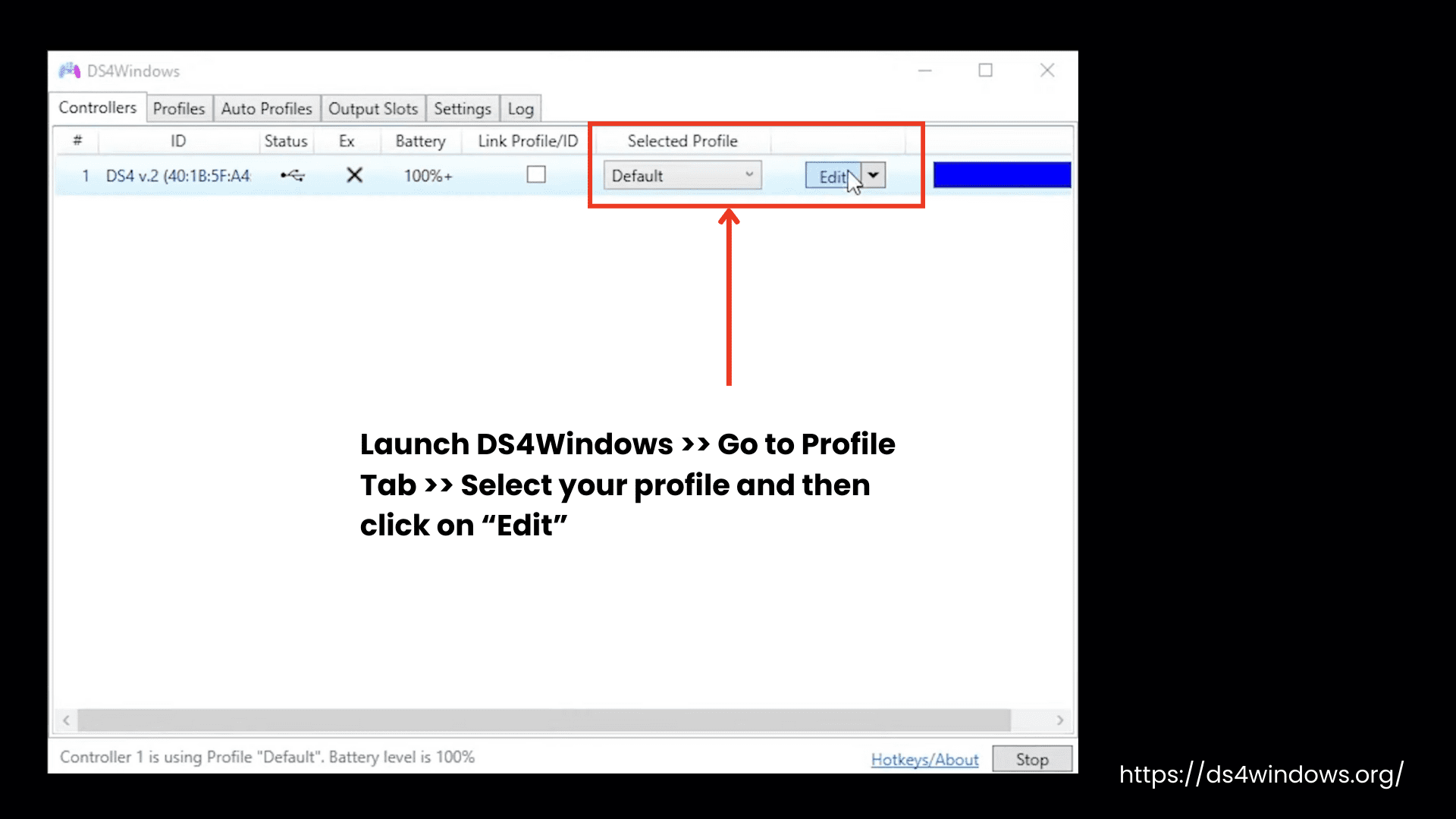
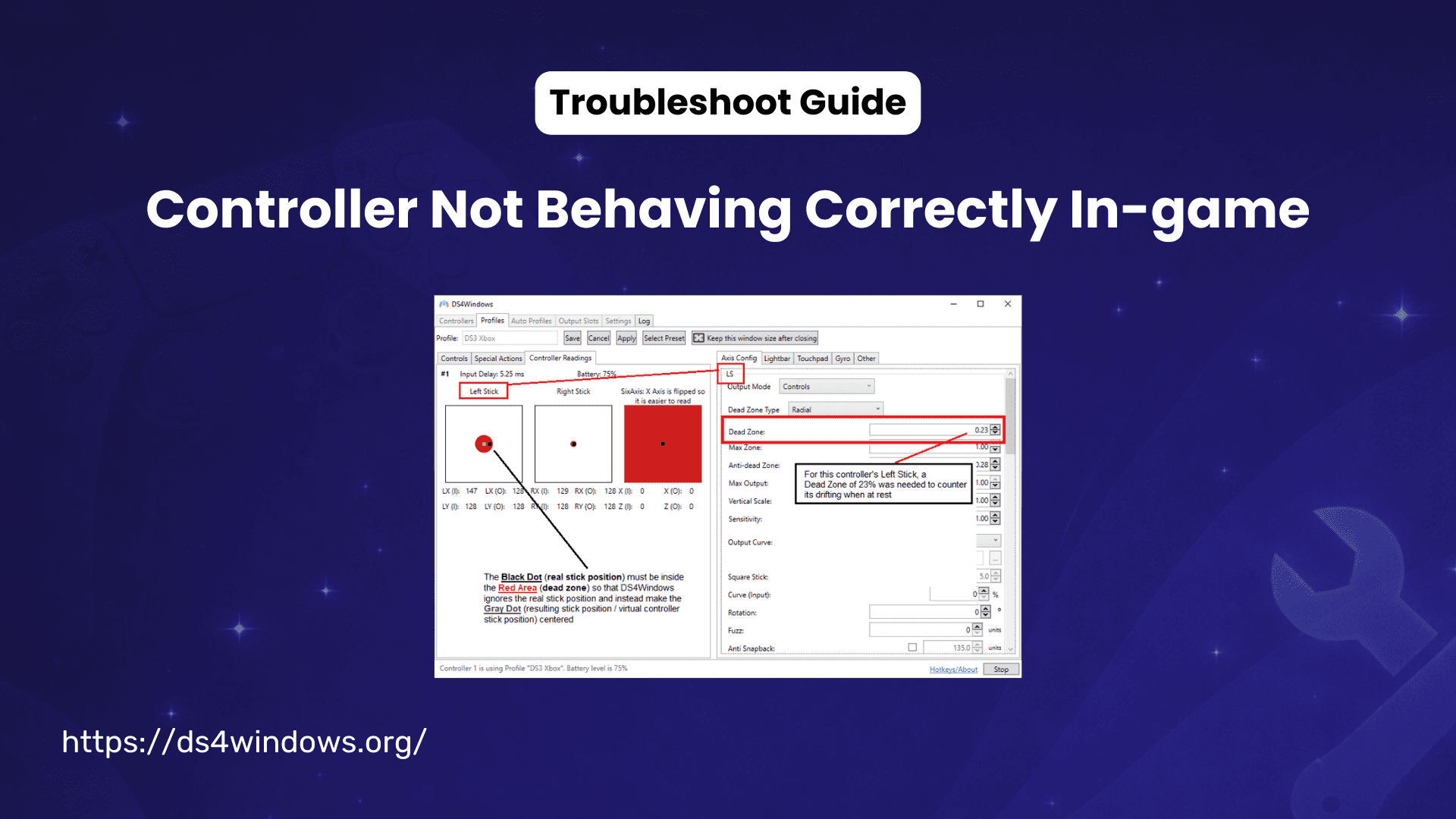
2. Use the Controller Readings Tab:
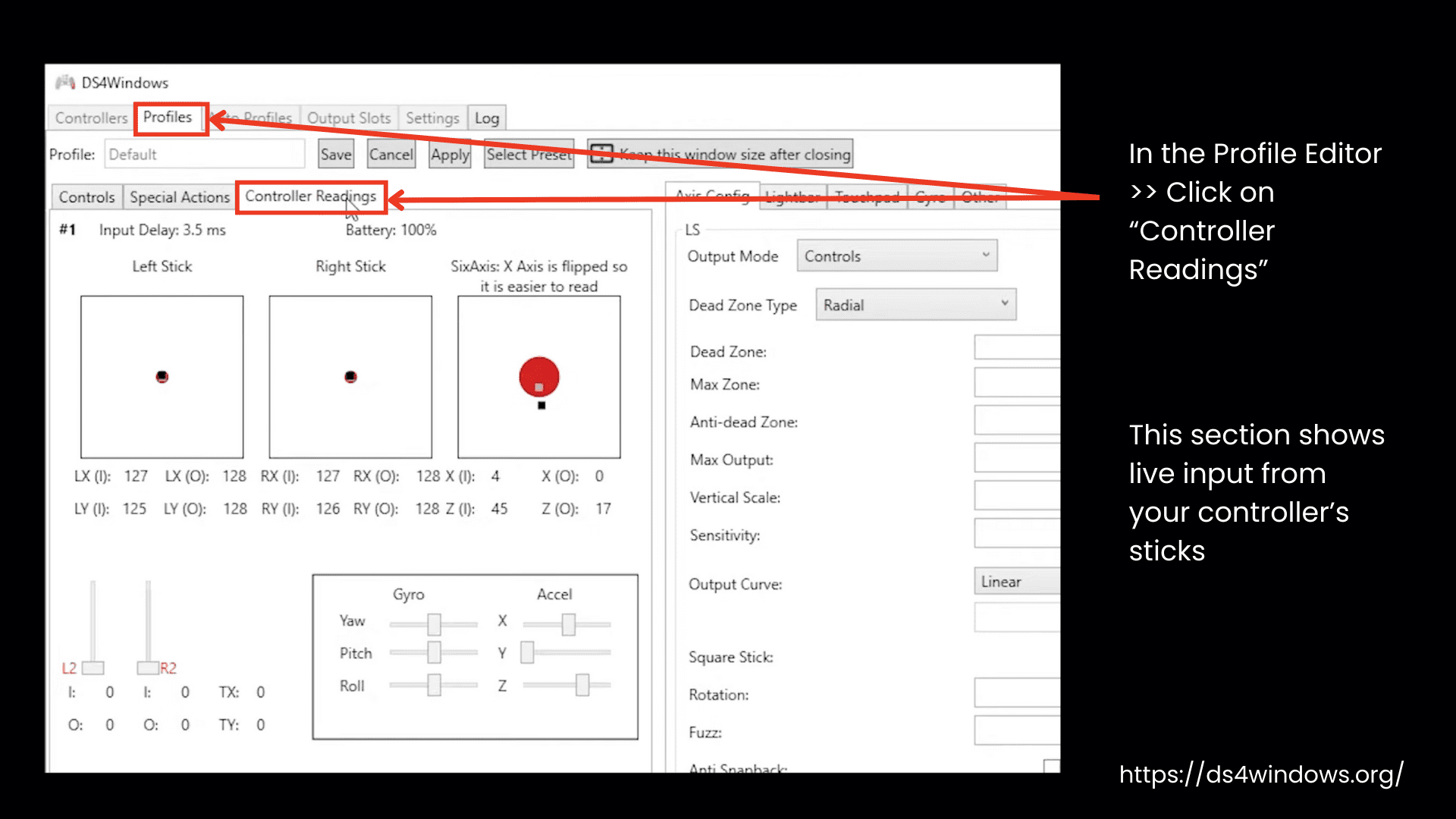
- In the profile editor, at the top above your controller image, click the “Controller Readings” tab.
- This section shows live input from your controller’s sticks.
3. Look for Stick Drift:
- Set your controller down without touching it.
- Watch the little black dot that shows the stick’s position.
- If the black dot moves around on its own, that’s stick drift.

4. Adjust the Dead Zone:
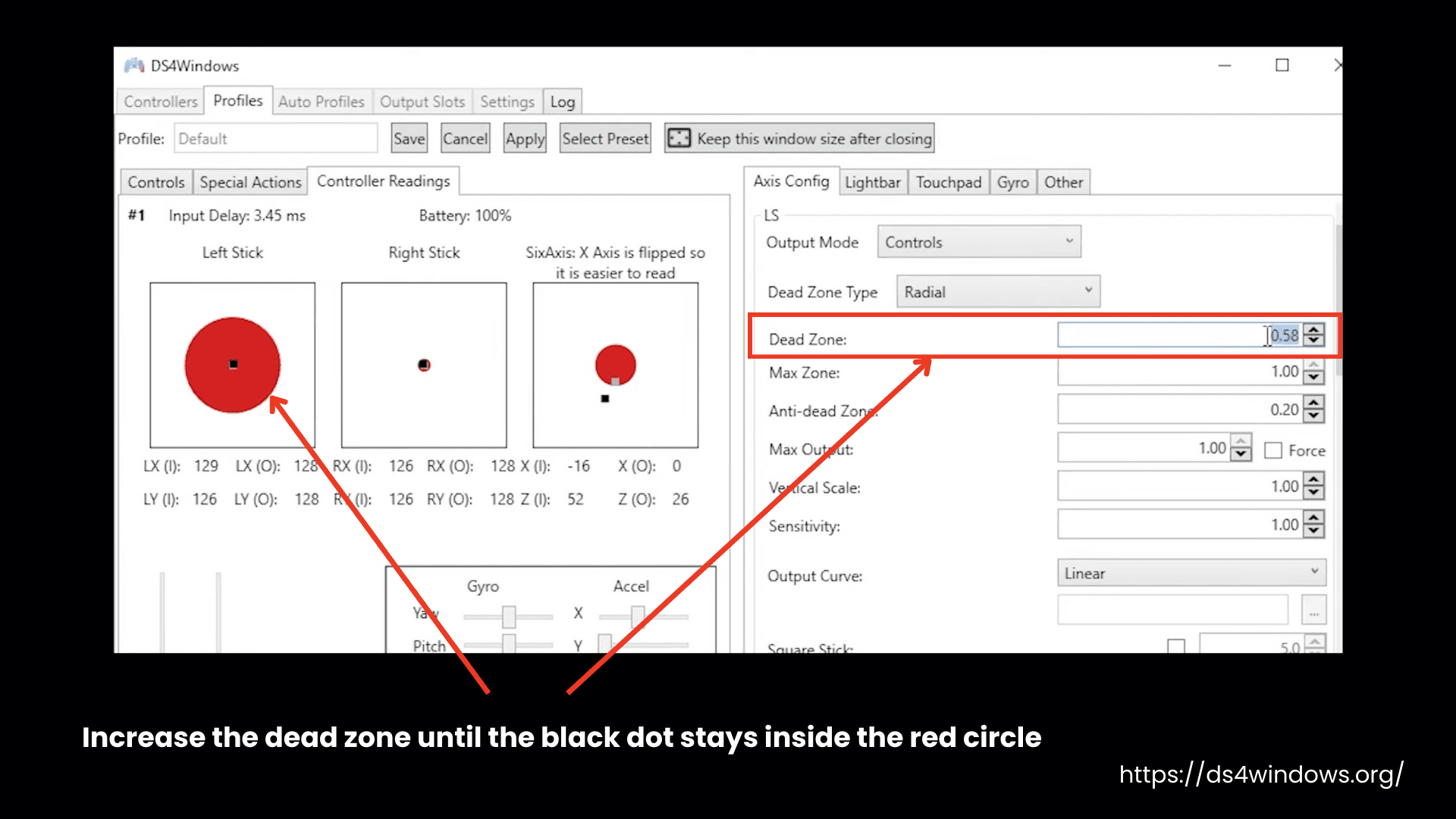
- Go to the LS (Left Stick) or RS (Right Stick) section depending on which stick is drifting.
- Find the Dead Zone setting.
- The default is usually 0.08, but if drift continues:
- Increase it slightly (try 0.12, then 0.16, and so on).
- Keep increasing slowly until the black dot stays inside the red circle when you are not touching the stick.
- The red circle is the “dead zone.” Movement inside this circle will be ignored.
5. Make Sure Your Movements Register:
- After adjusting the dead zone, ensure that your stick still registers input when you move it.
- Push the stick and confirm that the dot exits the red circle smoothly and without difficulty.
6. Save and Use Your New Profile:
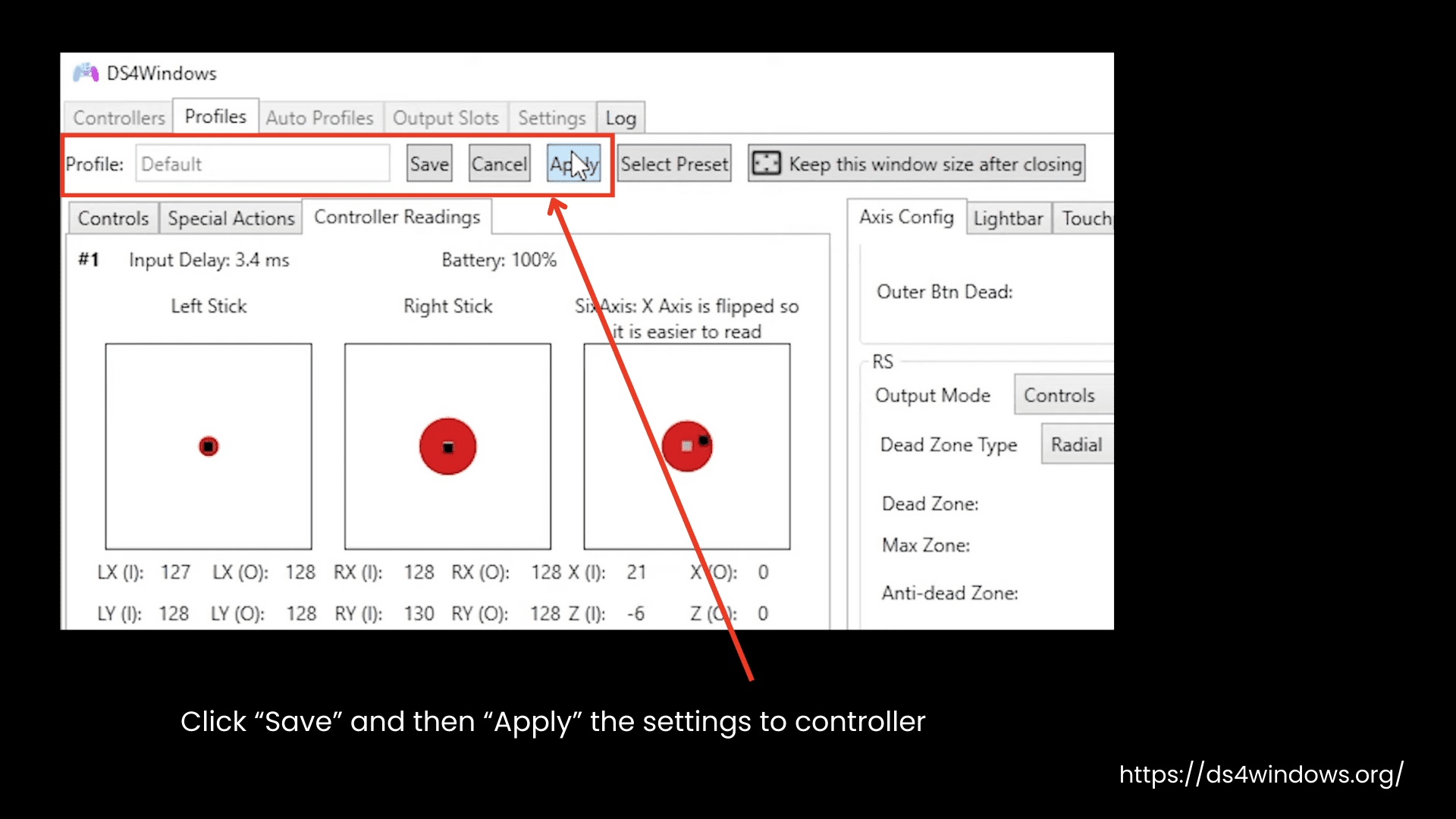
- Click Save to store the new profile.
- Go to the Controllers tab and apply the Stick Drift Fix profile to your connected controller.
- Test it in-game and confirm the automatic movement has stopped.
Step 4: Hardware Cleaning or Replacement (For Major Drift)
If the drift is too severe or major and can’t be fixed with software settings:
- Try cleaning the analog stick base with isopropyl alcohol.
- Further, you should try to clean the resistor meters inside the stick.
- If cleaning also doesn’t help, the stick might need to be replaced by a repair service.
| Drift Severity | Controller Behavior | Fix |
|---|---|---|
| Minor Drift | Slight movement without touching the stick |
Increase the dead zone in DS4Windows. – Set dead zone values slightly higher (e.g., 0.12, 0.16) |
| Major Drift | Random erratic movement without input. | Clean the stick with alcohol; consider repair. |
| Severe Drift | Constant erratic movement | Replace the stick sensor or seek repair. |
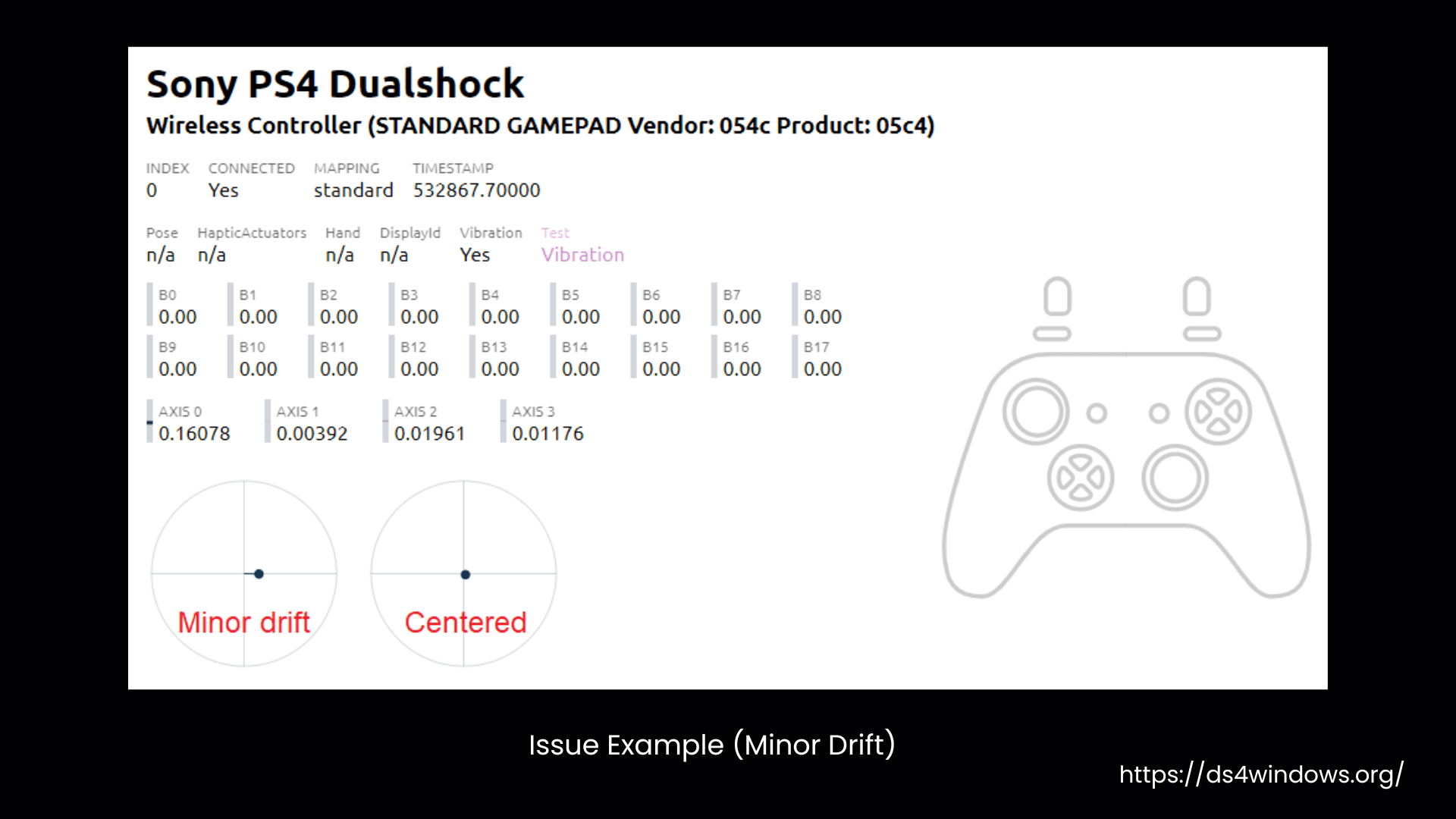
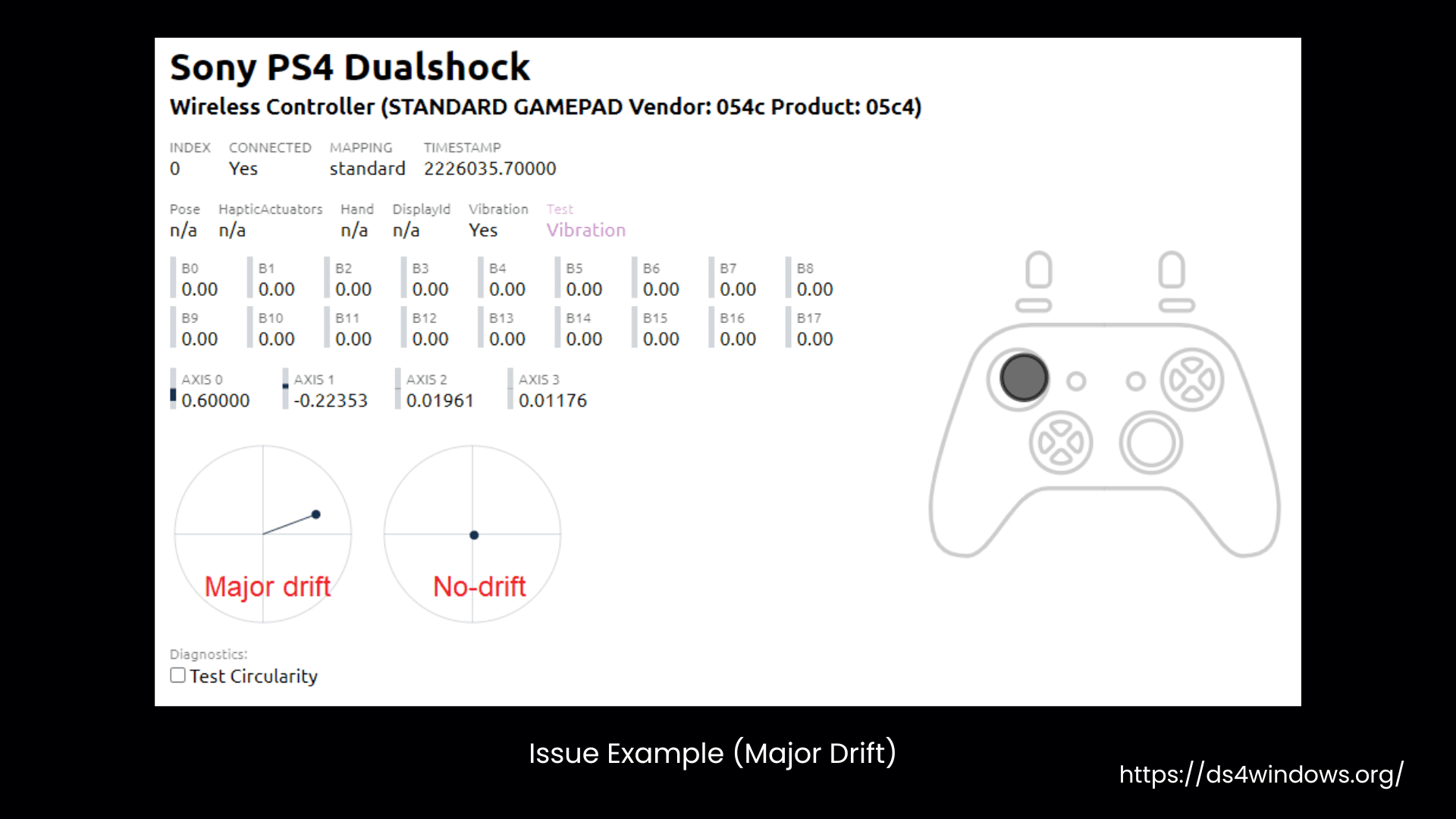
Example of how proper functioning sticks moves like

Issue 2: Controller’s Buttons or Triggers Press Themselves
Random button presses are mostly due to a faulty controller, not because of DS4Windows or other drivers.
- If the triggers, the buttons you press to aim or shoot, are activating automatically, try adjusting the dead zone. By doing this, you make the sensor less sensitive, so you will need to press harder for the input to register, which may fix the problem.
- To check if the buttons are causing random presses, create a new profile in DS4Windows that switches to another profile when you press a specific button. Then, leave the controller on and see if the profile switches on its own. You can also try gently touching the buttons to test their sensitivity.
With this test, you can determine whether the buttons are being accidentally pressed because they are too sensitive. If the profile switches without you pressing anything, it means the controller is likely malfunctioning.
If the problem still continues, it is best to take your controller to a repair service.
Issue 3: The Controller Randomly Stops Working/ Responding
If the USB cable or port is faulty, or if input latency is higher due to increased signal interference, the controller may stop responding randomly.
Another issue experienced by gamers is when the controller suddenly stops responding to inputs. Below are the steps to troubleshoot and fix this unpredictable controller behavior using DS4Windows.
Step 1: Check for DS4Windows Crashes or Freezes
- First, check whether it’s a problem with your controller or DS4Windows. If your window says “Not Responding,” it means the problem is with the software. Restart DS4Windows. If it’s still not responding, then reinstall it.
- If DS4Windows isn’t crashing, then most likely this issue is related to your controller’s cable, USB port, or Bluetooth connection.
Step 2: Check the Controller’s USB Cable & USB Port
- First, try to plug your USB cable into a different USB port on your PC, because ports often become faulty over time. Also, make sure to connect it directly to your PC rather than through a USB hub.
- If it’s still not responsive, then inspect the USB cable for any visible damage or wear. Try a different USB cable to rule out any issues.
Step 3: Bluetooth Settings
So far, the above fixes are for wired connections.
- If you are using Bluetooth, then a delayed response might be due to input latency. This is a delayed input issue that can occur if there is too much interference or if your Bluetooth drivers are outdated.
- Ensure that Bluetooth drivers are up-to-date, and place the controller or PC away from devices that could cause interference, like routers, etc.
Step 4: USB Driver Glitches or Controller Recognition Problem
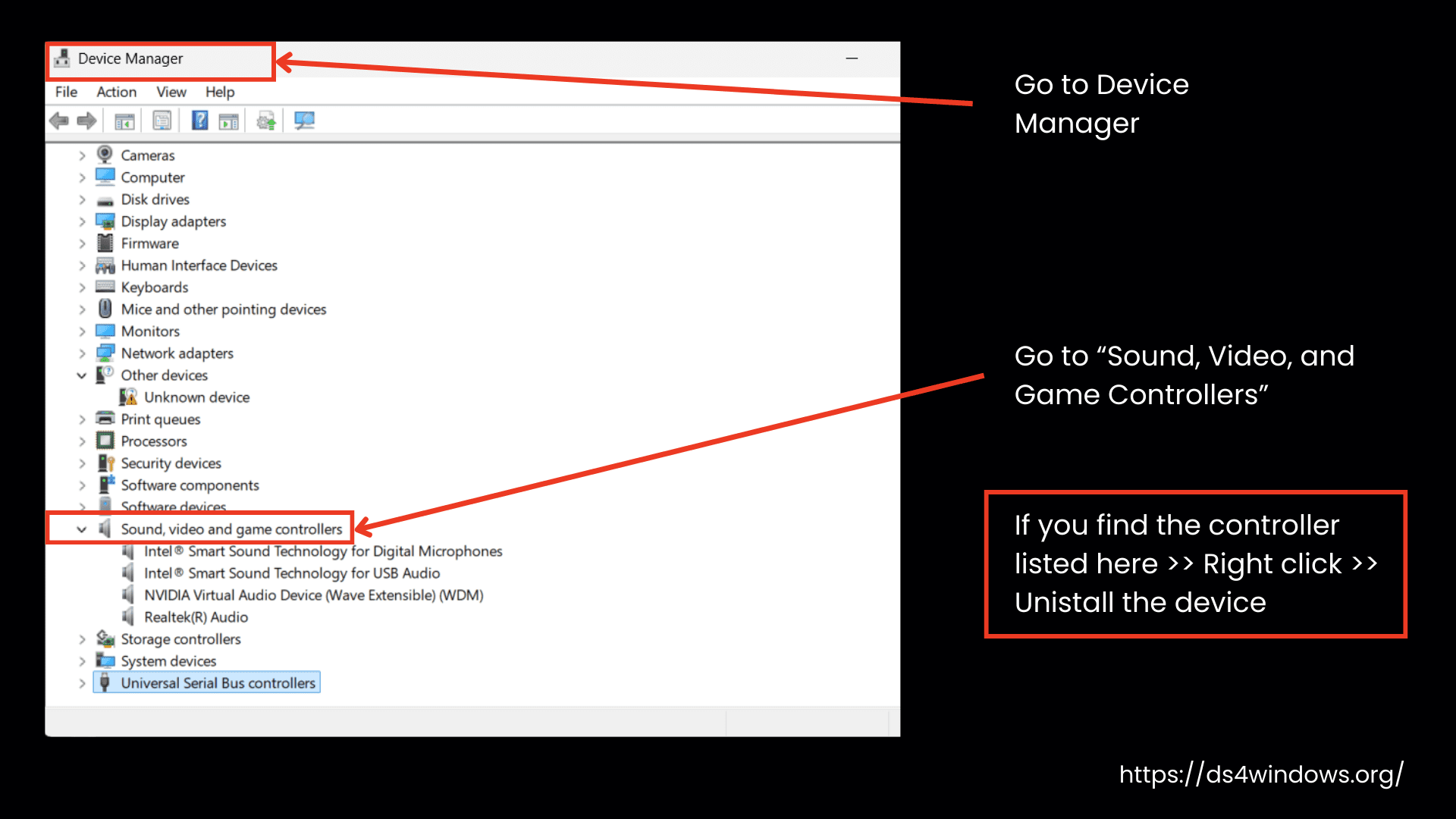
- If your controller randomly stops working, it may be due to a USB or driver issue. First, open Device Manager from the Start menu. Plug in your controller and look for it under Human Interface Devices or Sound, Video, and Game Controllers. If you find it listed, right click on it and uninstall the device. Then restart your PC. Windows will automatically reinstall the driver on startup.
- If the controller does not appear there, check under Other Devices or Universal Serial Bus Controllers for any device that appears unknown or unnamed. Uninstall those as well, then restart your computer. This refreshes the USB connection and often helps Windows recognize the controller properly again.
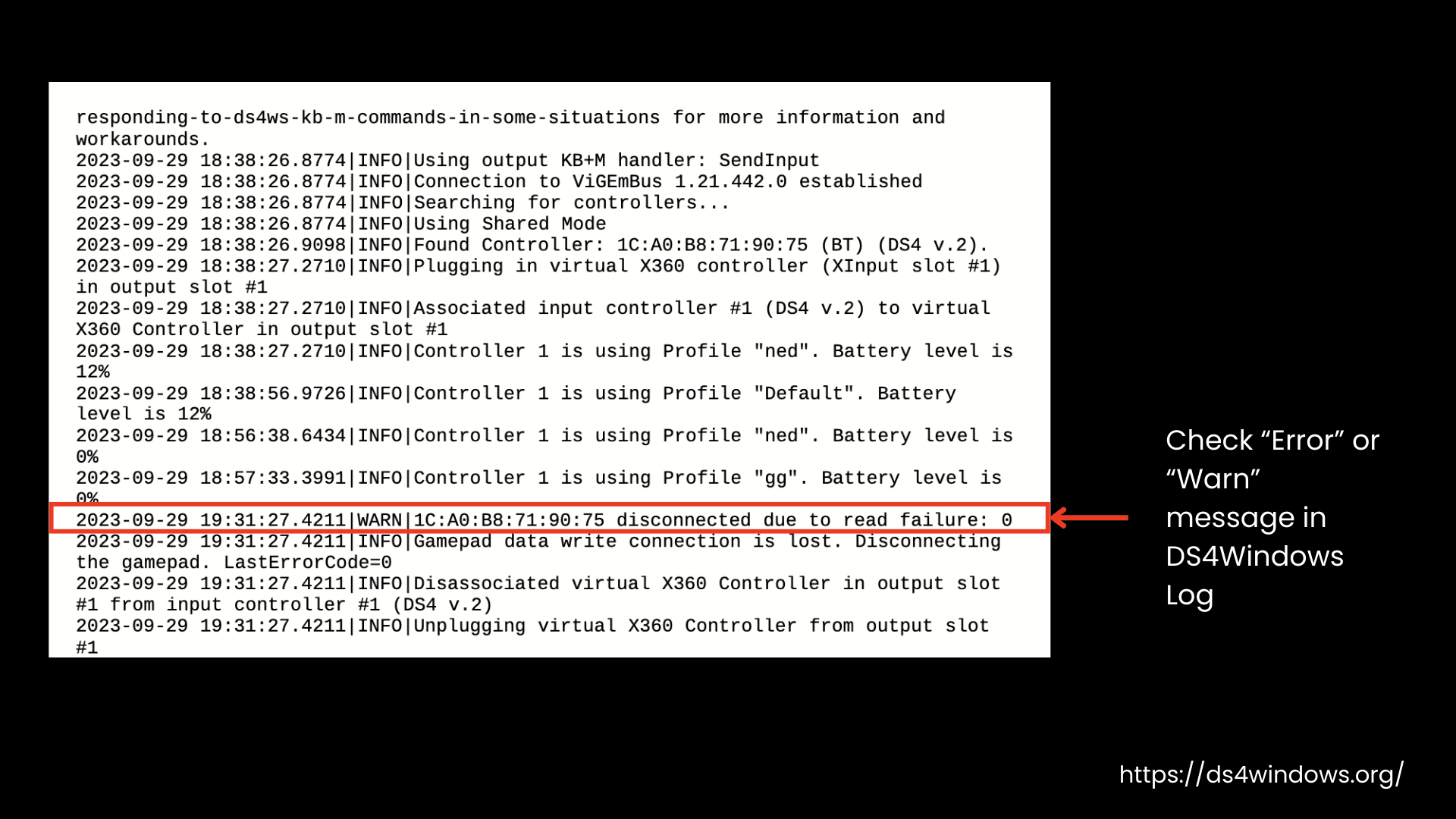
Step 5: Use the DS4Windows Log
- If the problem persists, open the Log section of DS4Windows and check for any error messages or issues. This can provide useful information to help pinpoint the problem.
Step 6: Test the Controller in Other Applications
- And lastly, if DS4Windows is working fine and it’s not showing any type of “not responding” message, but your controller still isn’t responding properly, test the controller in another application or game to see if the issue is related to DS4Windows specifically or if it’s a broader controller problem.
Issue 4: Game Responds Very Slowly To Commands
If your game feels very laggy or does not respond quickly when you press buttons on your controller, the issue may not be with DS4Windows or the controller. It could be related to the game itself or possibly HidHide, especially when using a virtual DS4 controller.
- If every single game is lagging, the issue is likely with your controller or its connection.
- If only one game responds slowly, then the game might be the problem, not your setup.
Once you have got a sense of what’s going on, try the following fixes. Most of the time, you can solve it within no time:
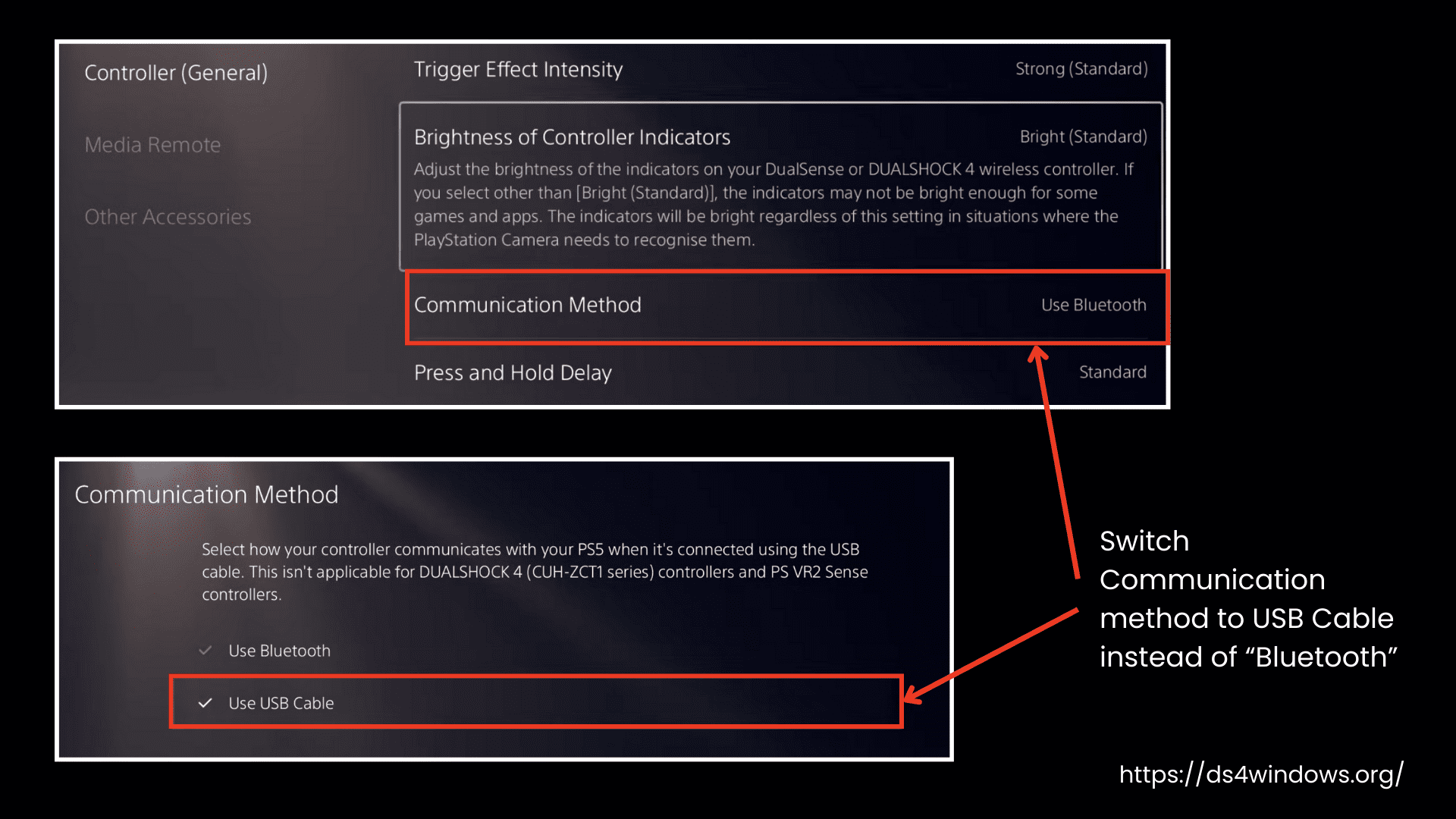
1. Use USB Connection:
If you are using a wireless, Bluetooth connection, then often the controller feels responding slowly or the game feels laggy because of input latency issues.
This issue is actually the delayed instruction because of signal interference from the surrounding or other nearby devices. So, try switching to a USB connection and observe whether it is still lagging.
2. If You’re Already Using a USB Connection:
If you are already using USB and still facing lag, then either the USB cable or the port may be faulty.
Change the cable and try plugging the controller into a different USB port.
If You Are Using a Virtual DS4 Controller
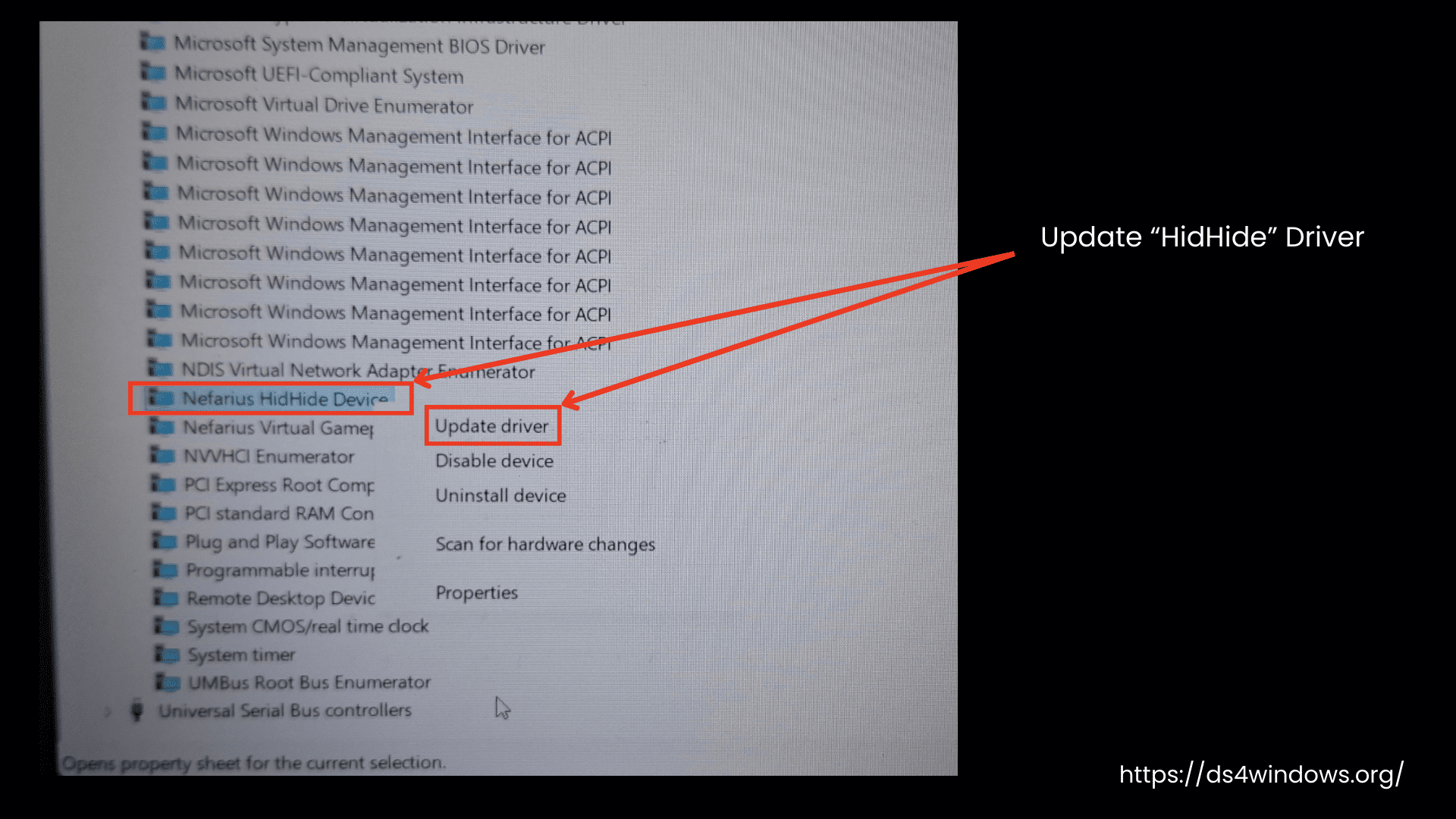
When you are using a virtual DS4 controller and games are responding slowly, it may be due to an outdated HidHide driver.
Here’s how to fix it:
- Update the HidHide Driver to the latest version.
- Once updated, restart your PC and test the game again.
- If it still feels slow even after updating, the issue may be that the game itself is not well optimized, or you may need to tweak some settings. You can do this by visiting the game’s Help or Support forum.
- Look for posts about input lag or controller delay, and see what settings other players have changed to fix it.
Issue 5: DS4’s Rumble, Motion, Gyro, lightbar, and/or Touchpad Not Working
If rumble, gyro, lightbar, motion, and the touchpad features are not working, it means either the game is not natively supporting these features or you are using an older version of DS4Windows.
In the older versions, these features were not working with the ViGEmBus driver, so they were turned off. But in the latest version of DS4Windows, they are back.
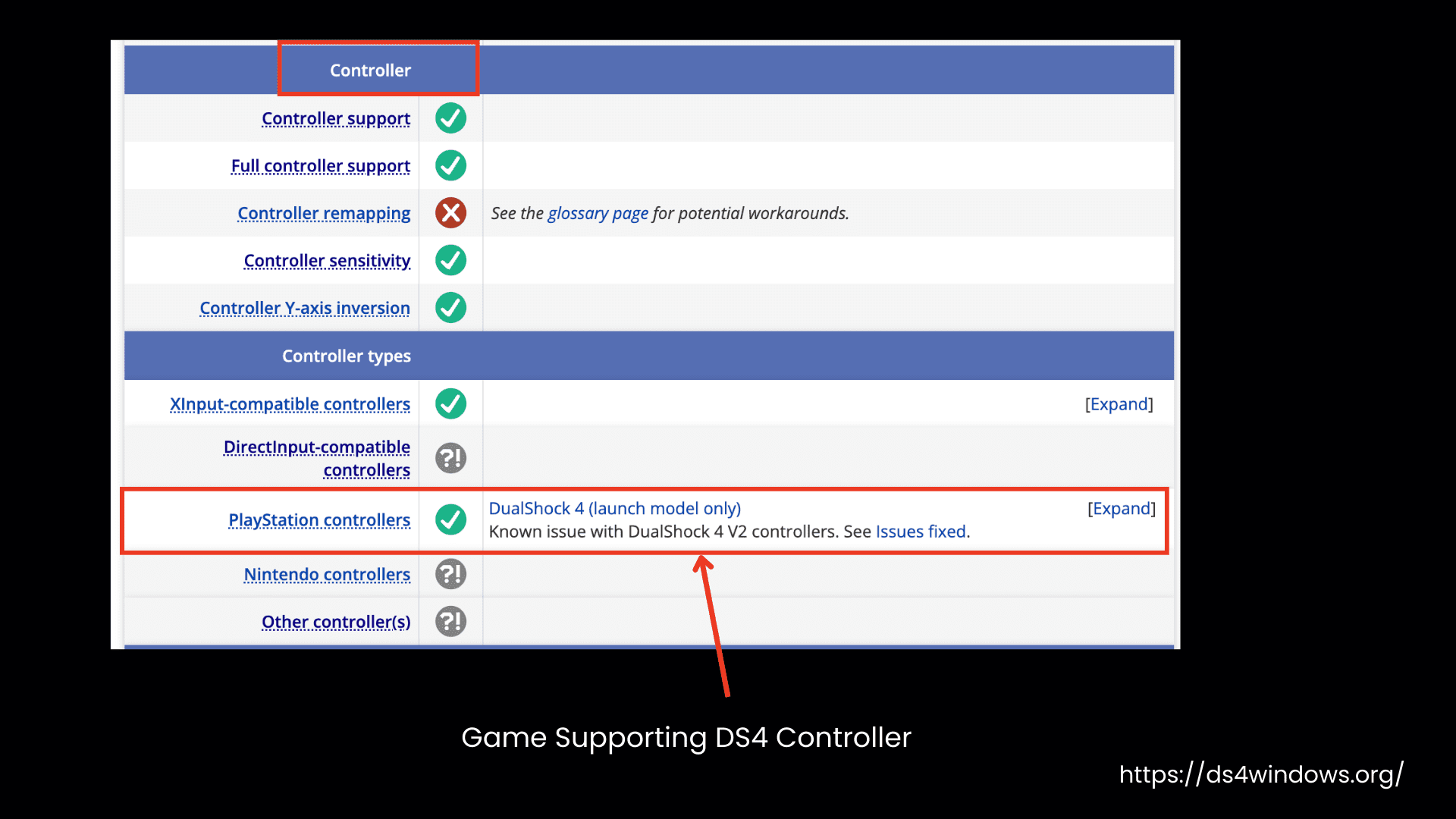
1. First, check your game’s native support for those features.
- Simply go to PCGamingWiki, search for your game by name, or select it from the homepage.
- Scroll down to the Controllers section and check whether it supports DS4 and its features. If it is not supported, try playing a different game.
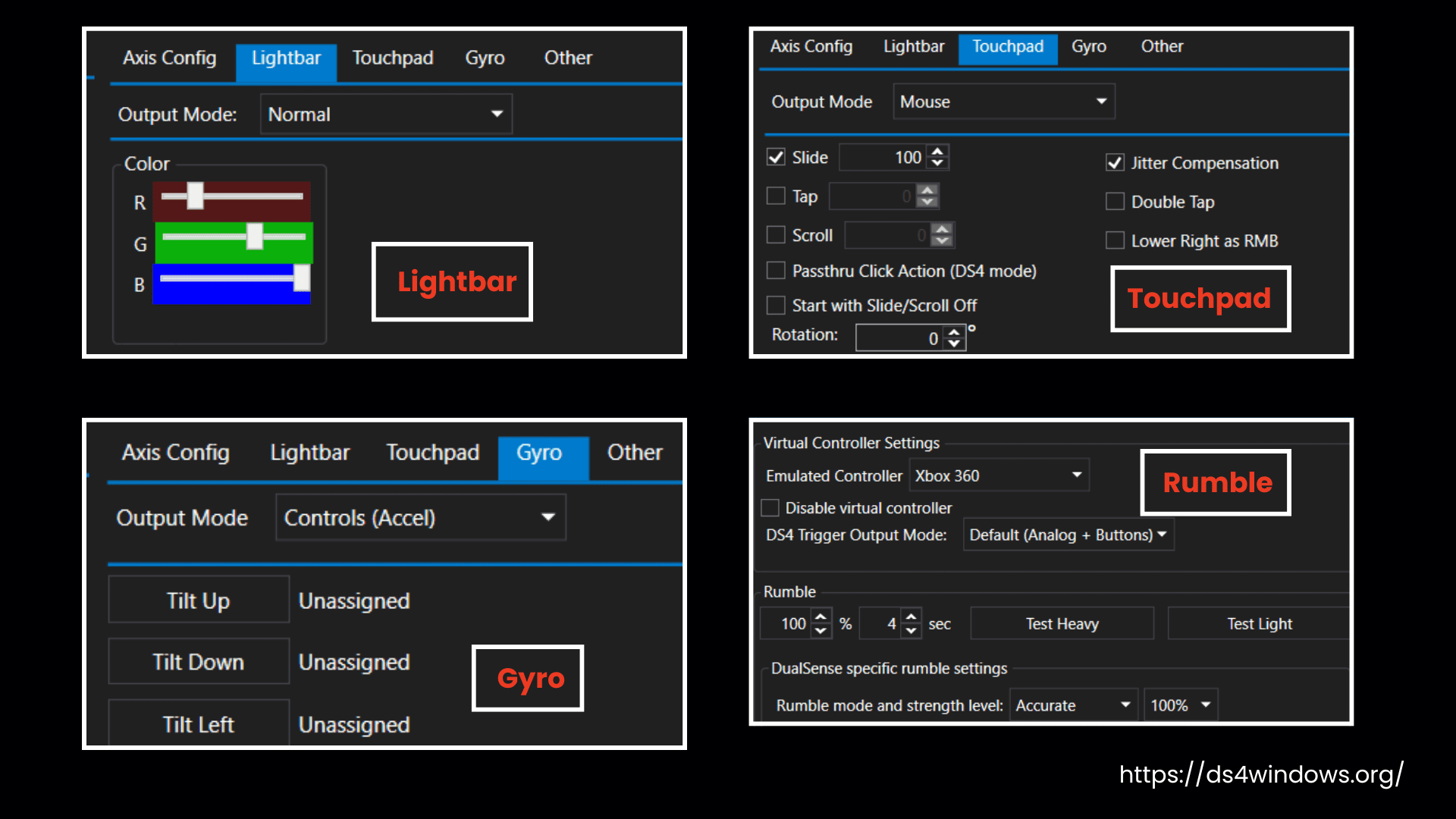
2. If the features still are not working, check whether you have enabled these features in the DS4Windows profile settings.
- Open DS4Windows and check your profile.
- Make sure: rumble, gyro, touchpad, lightbar, and other features are turned on.
- If they are not, enable them and save your profile.
- Then reconnect your controller and test it again.
3. For games you play through Steam, these features will not work unless Steam Input is enabled and active.
Here’s how to do the steps:
- Open Steam
- Go to Settings > Controller and in the General Controller Settings, ensure that
- PlayStation Configuration Support is checked.
- Then, launch the game again and test
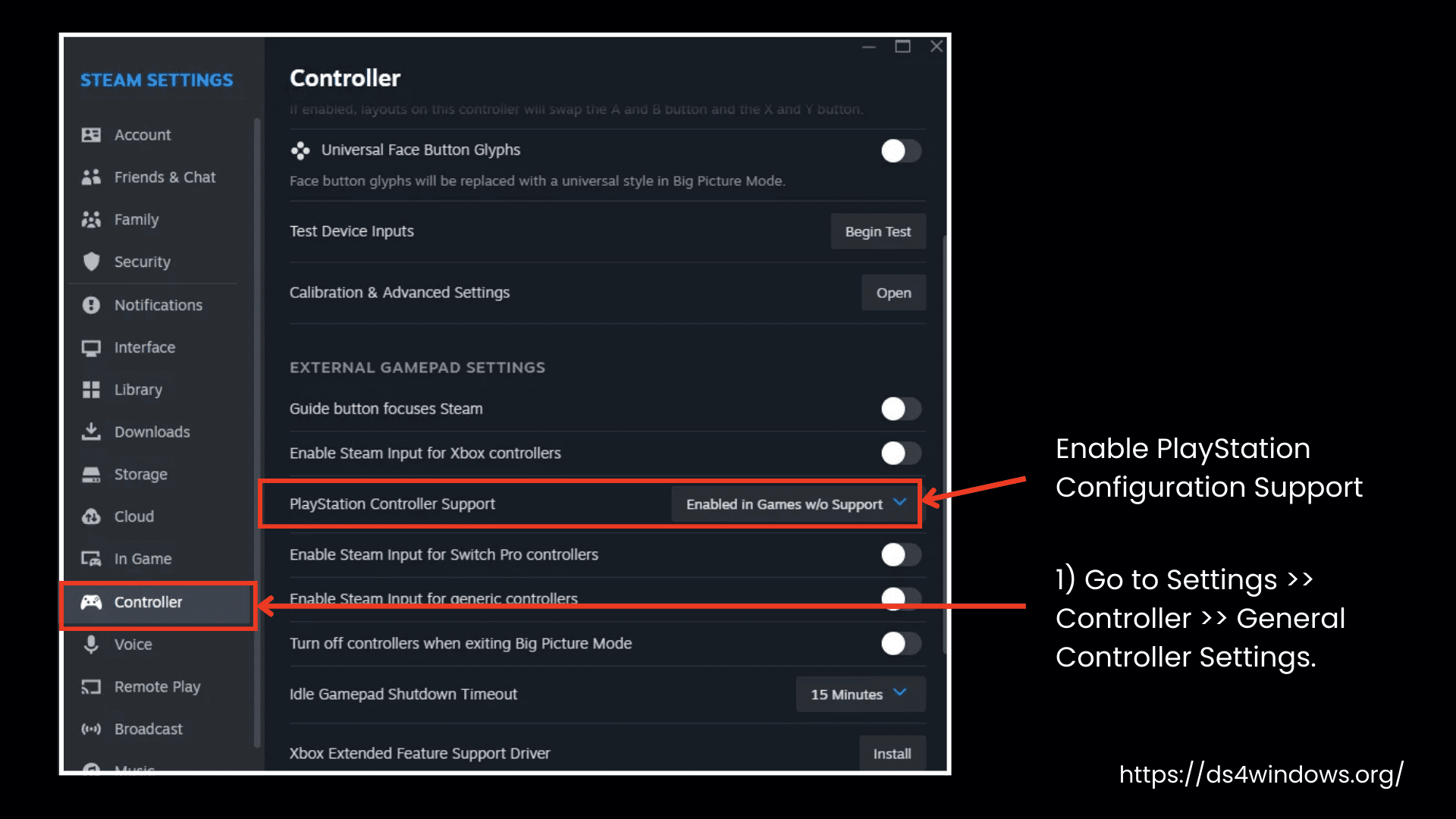
Once Steam recognizes your DS4 controller and you have enabled support, the extra features like gyro and lightbar should start working.
Still No Rumble? Here’s What Else to Know
Even if you have enabled everything correctly in the DS4Windows profile and Steam, the rumble feature might still not work due to a few more reasons:
1. Rumble is Disabled in DS4 Emulation Mode:
- In recent versions of DS4Windows, rumble and the Lightbar passthru mode is disabled when you use DS4 emulation due to an issue with the ViGEmBus driver.
- Because of this bug, the controller may keep vibrating or use incorrect vibration patterns, so DS4Windows disables rumble to prevent these problems.
- The last version where rumble worked with DS4 emulation was v3.0.10, but it is unstable and no longer recommended.
2. Some Games Only Support Xbox Controller Rumble:
- Many PC games are optimized only for Xbox controllers.
- Even if they show DS4 support, rumble might only work when you emulate an Xbox controller in DS4Windows.
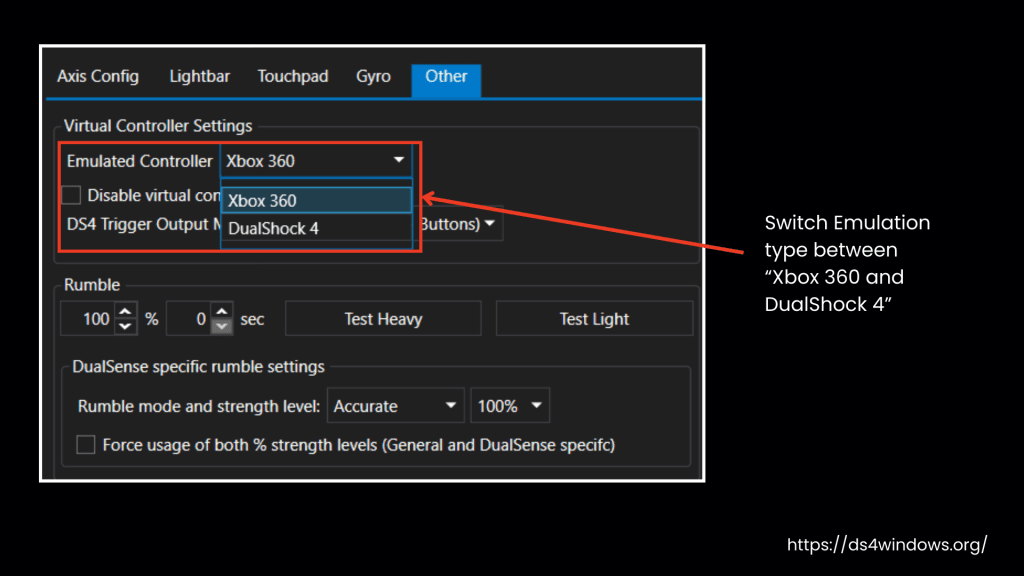
- Try switching the emulation type from DualShock 4 to Xbox 360 in DS4Windows and test the game again.
3. Check If Rumble Motors Actually Work:
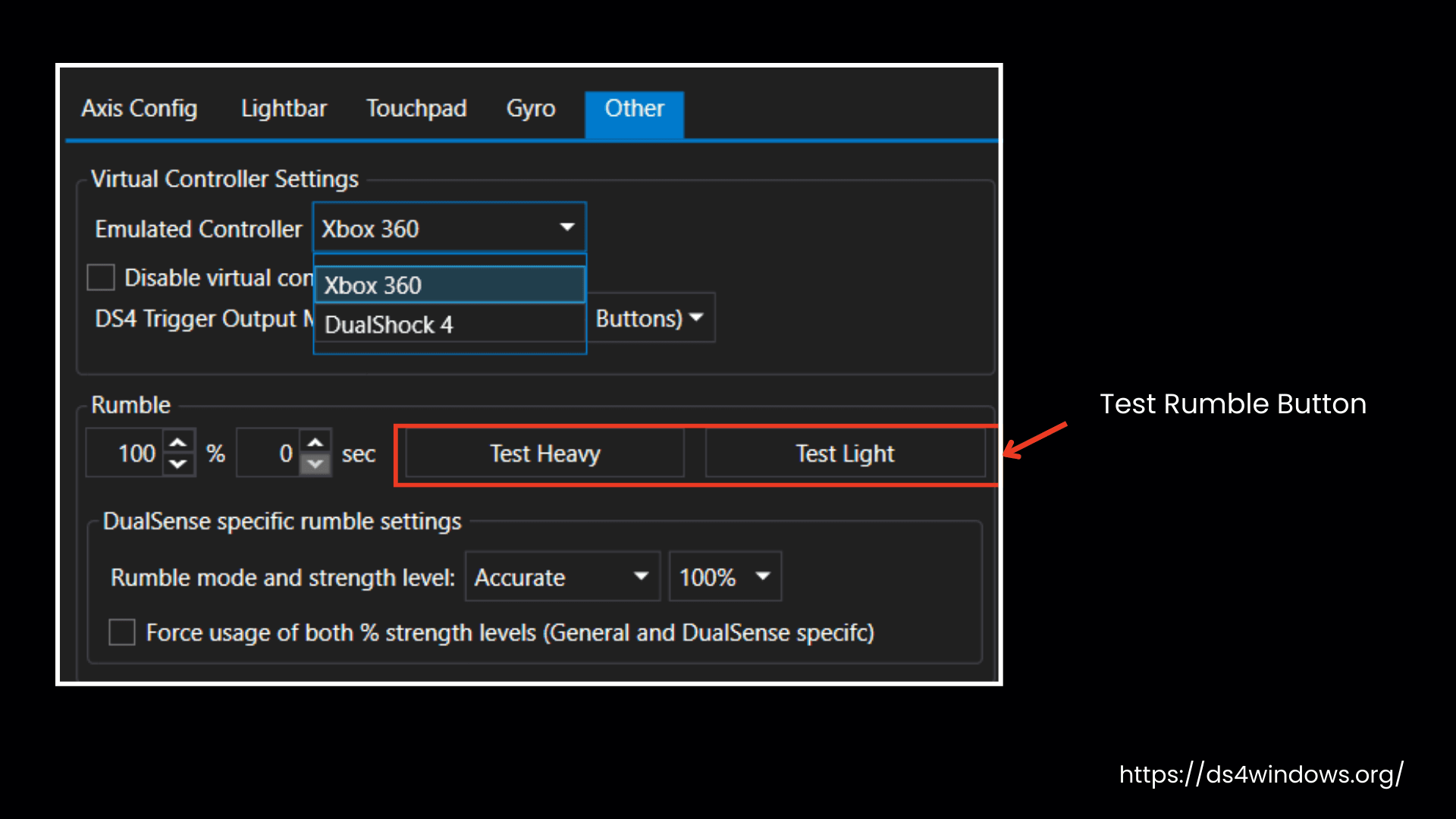
- Open DS4Windows > Profile > Other tab.
- Use the Test Rumble button for left and right motors.
- If still nothing is happening, your controller may have:
- A hardware problem
- Or it’s a third-party/clone controller without working rumble
If rumble works in some games but not in others, don’t worry, it’s probably not an issue with DS4Windows. It usually comes down to how that specific game handles controller feedback. Some games just don’t support rumble for DS4 controllers, or they manage it differently.
To avoid these problems, use Steam Input along with Xbox 360 emulation mode in DS4Windows. And make sure to check the game’s settings too. Some games have a separate option to enable or disable vibration. If that’s turned off, rumble won’t work even if everything else is set up correctly.