DS4Windows Mic and Headphone Issues
Some PS4 and PS5 controllers, like the DualShock 4 and DualSense, actually have a headphone jack built in, which you can use for sound or voice chat on your PC, but only if a few things line up the right way.
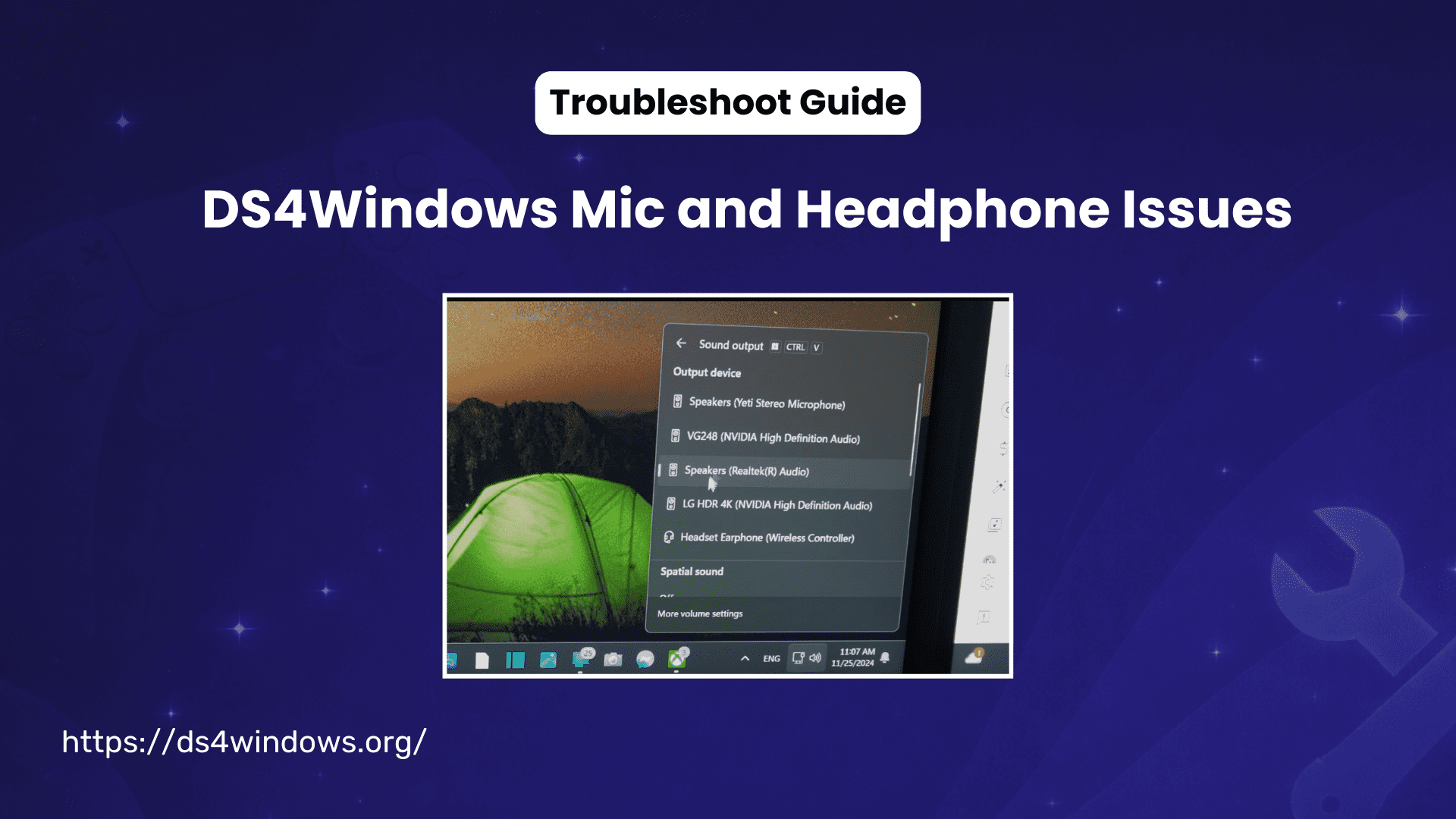
The trouble starts when you plug your controller into your computer, especially with a USB cable. Windows assumes that you want to use the controller’s headphone jack for all your audio, so it quickly switches over without asking. After this, suddenly, your regular headphones or mic stop working.
It is because the PC chose the wrong one for audio and switched to the controller’s audio jack instead. And if we connect the controller through Bluetooth, the controller jack will not work at all because Windows doesn’t support audio output through the controller over Bluetooth. So, if you want to use the controller’s headset port, you should connect it with a USB cable.
PlayStation Controllers That Support Input/Output Audio on PC
No PS controller supports audio if you connect it through Bluetooth. They only support headphones or mics when you connect them through USB and in the right way:
How to Switch Between Audio Devices on Windows and Applications
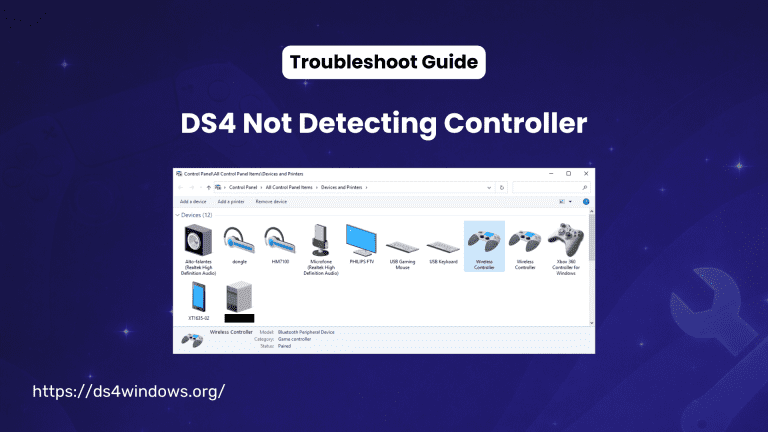
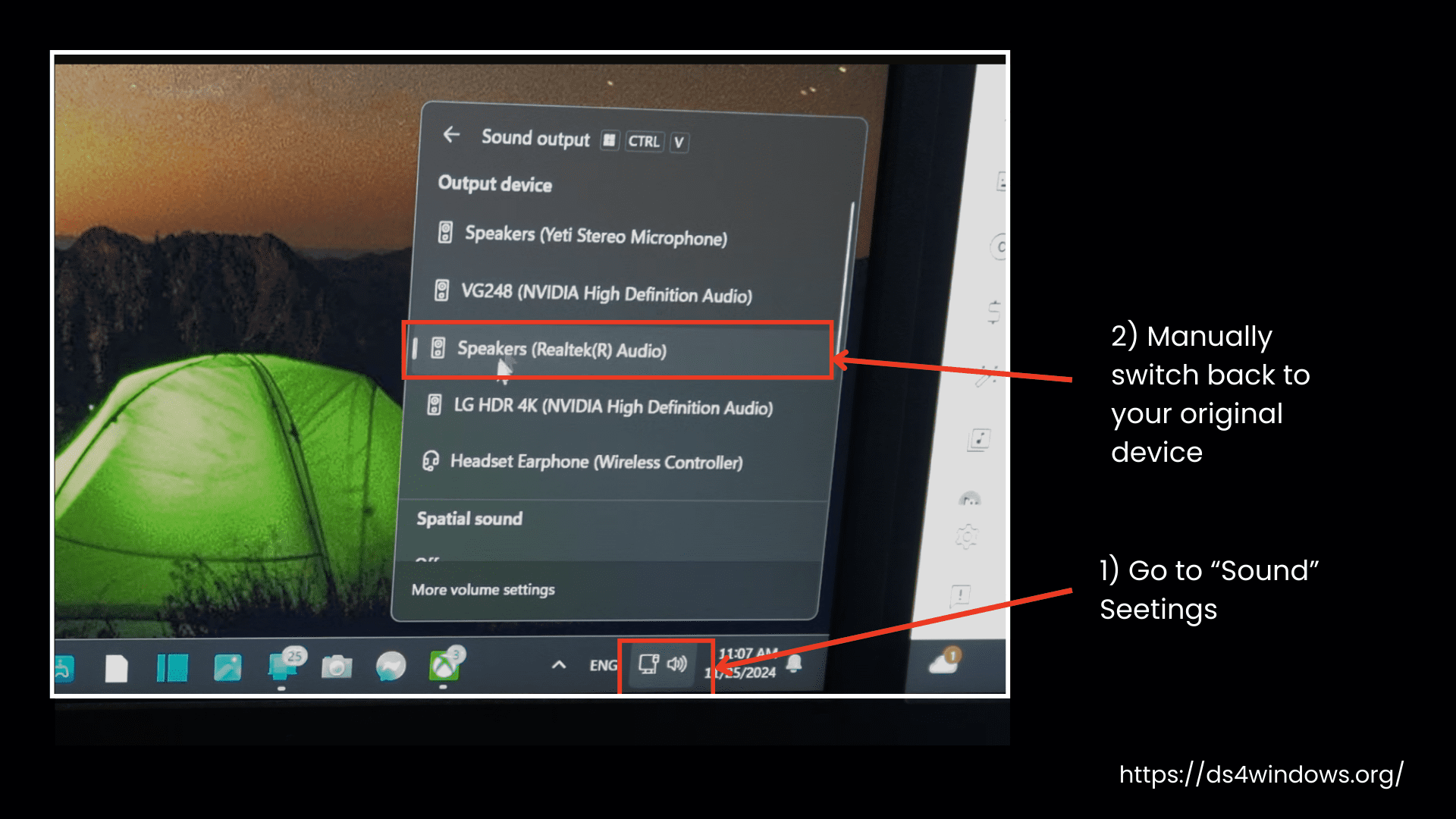
To fix audio issues with both headphones and mic, right-click the Sound icon, open Sound settings, and set your preferred headphones and mic as the default devices.
If your sound or mic isn’t working after connecting a controller, Windows probably changed your default device without asking.
Here’s how to fix it:
Quick Switch from Taskbar (for Headphones/Speakers)
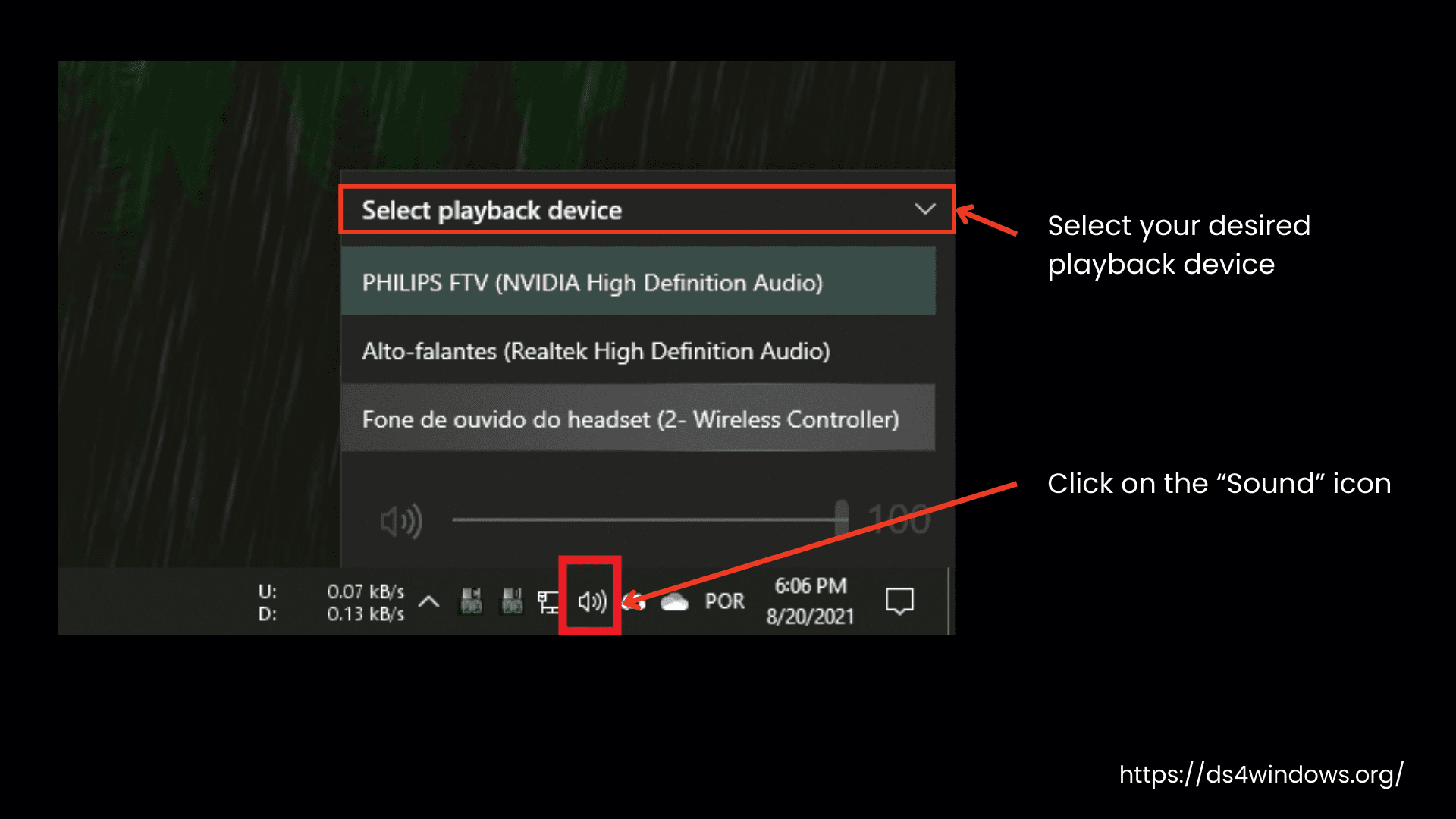
- Right-click on the Sound icon that is shown in the bottom-right corner of your desktop/screen.
- Opt to choose either Open Sound settings or Playback devices.
- From here, you can choose your preferred headset or speakers from the list and set them as the default device.
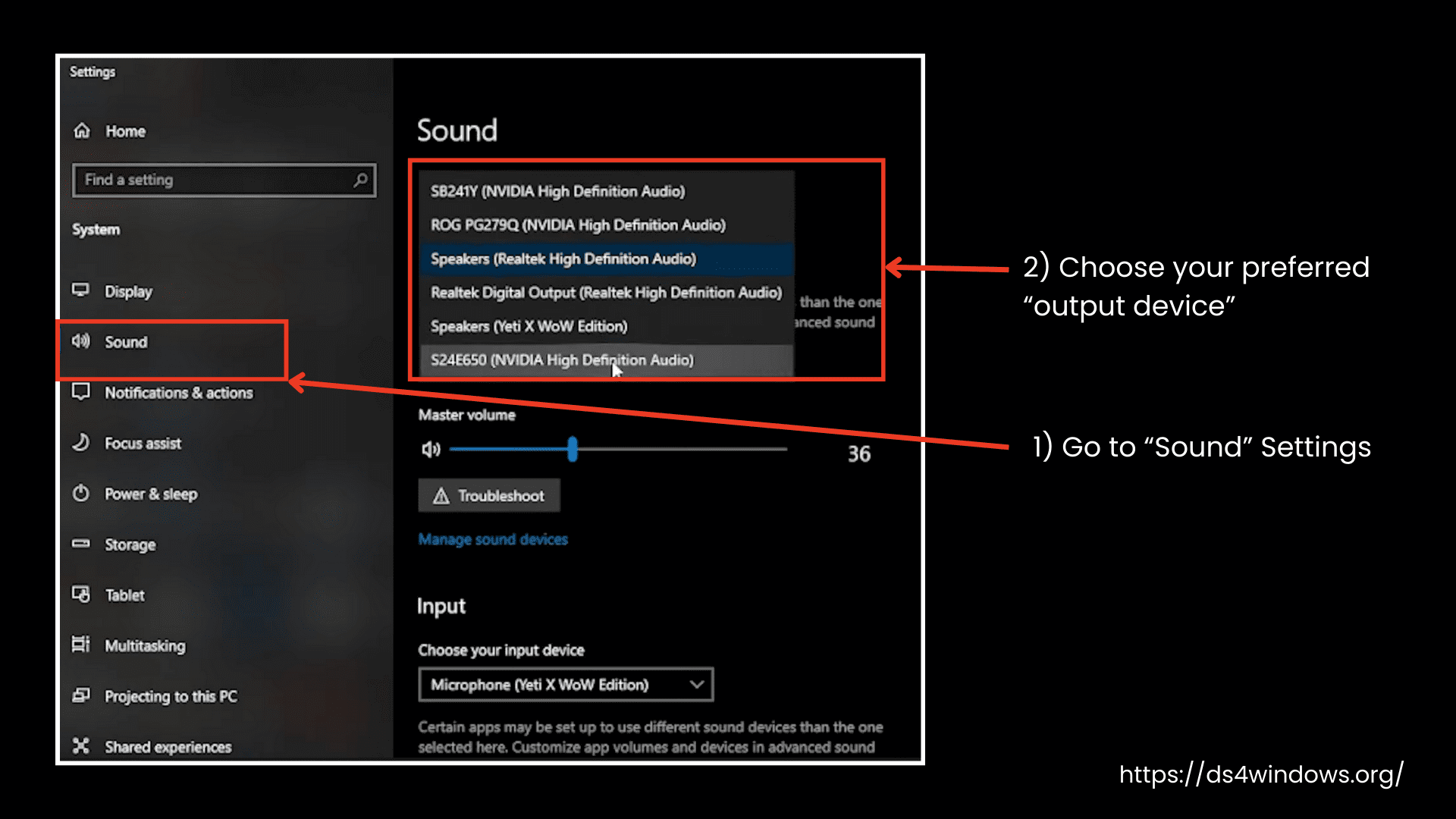
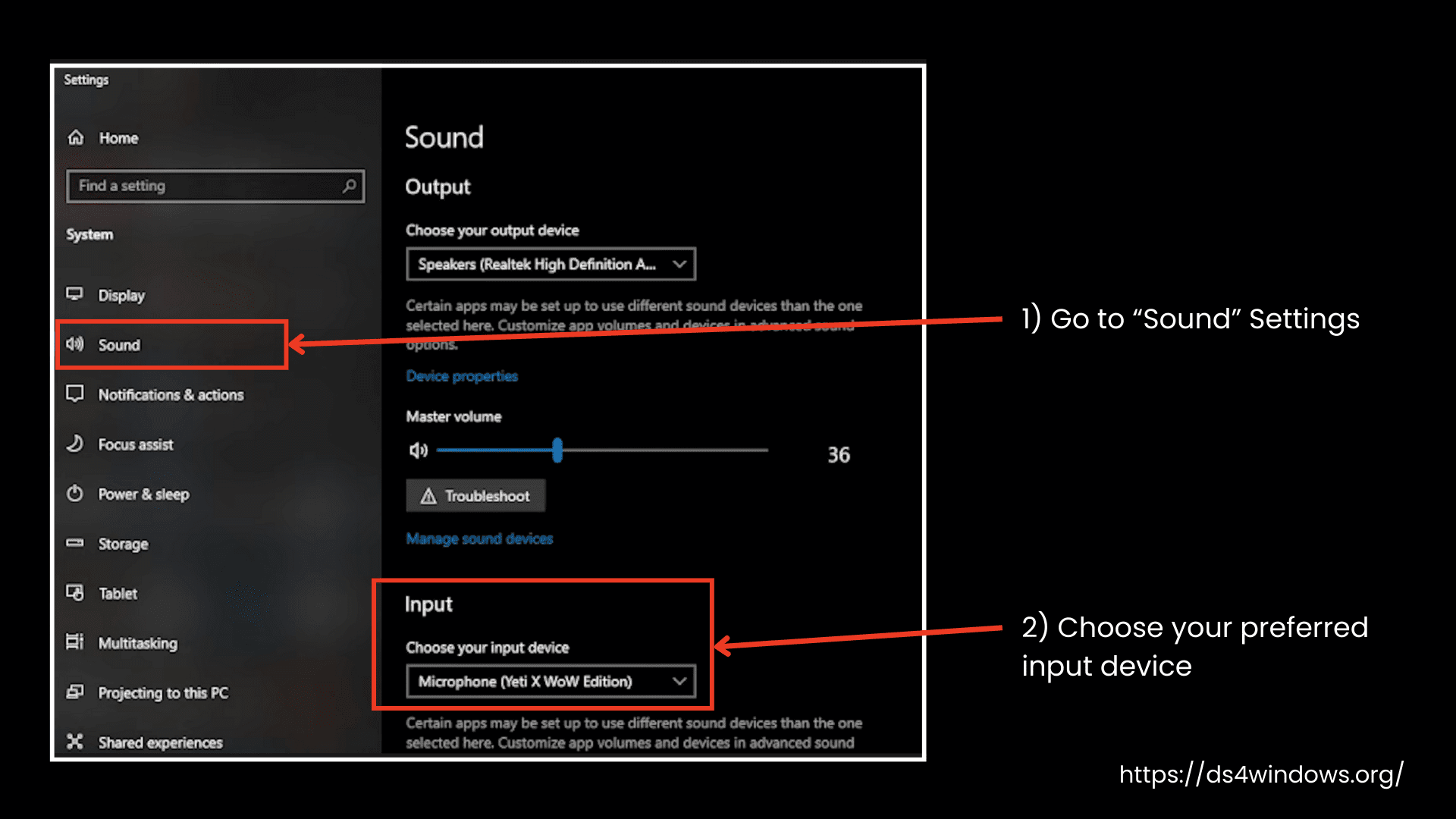
For Microphones
- Right-click the Mic icon, or you can open Sound settings.
- Look under the Input section.
- Now you can choose your preferred mic and set it as the default.
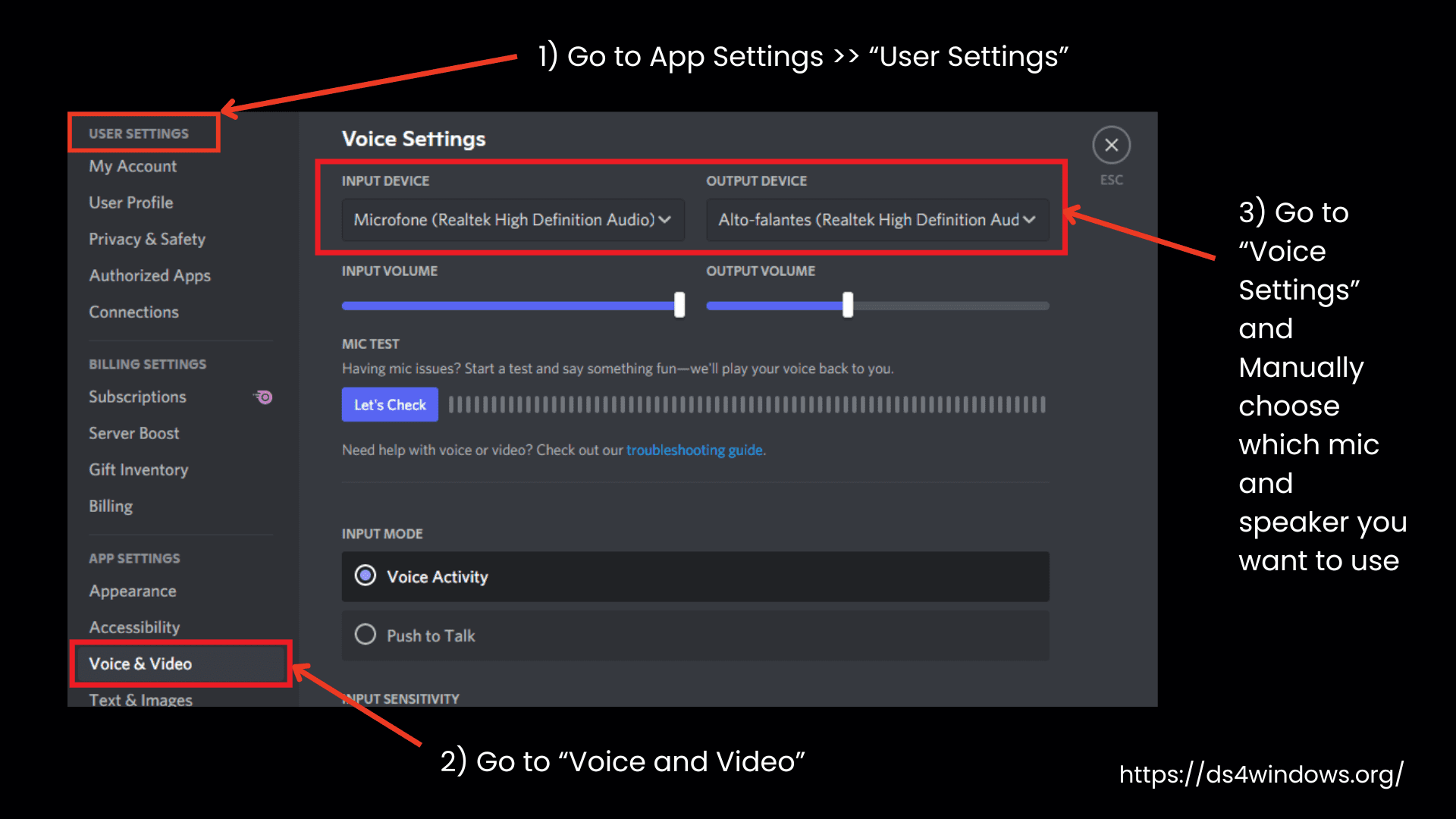
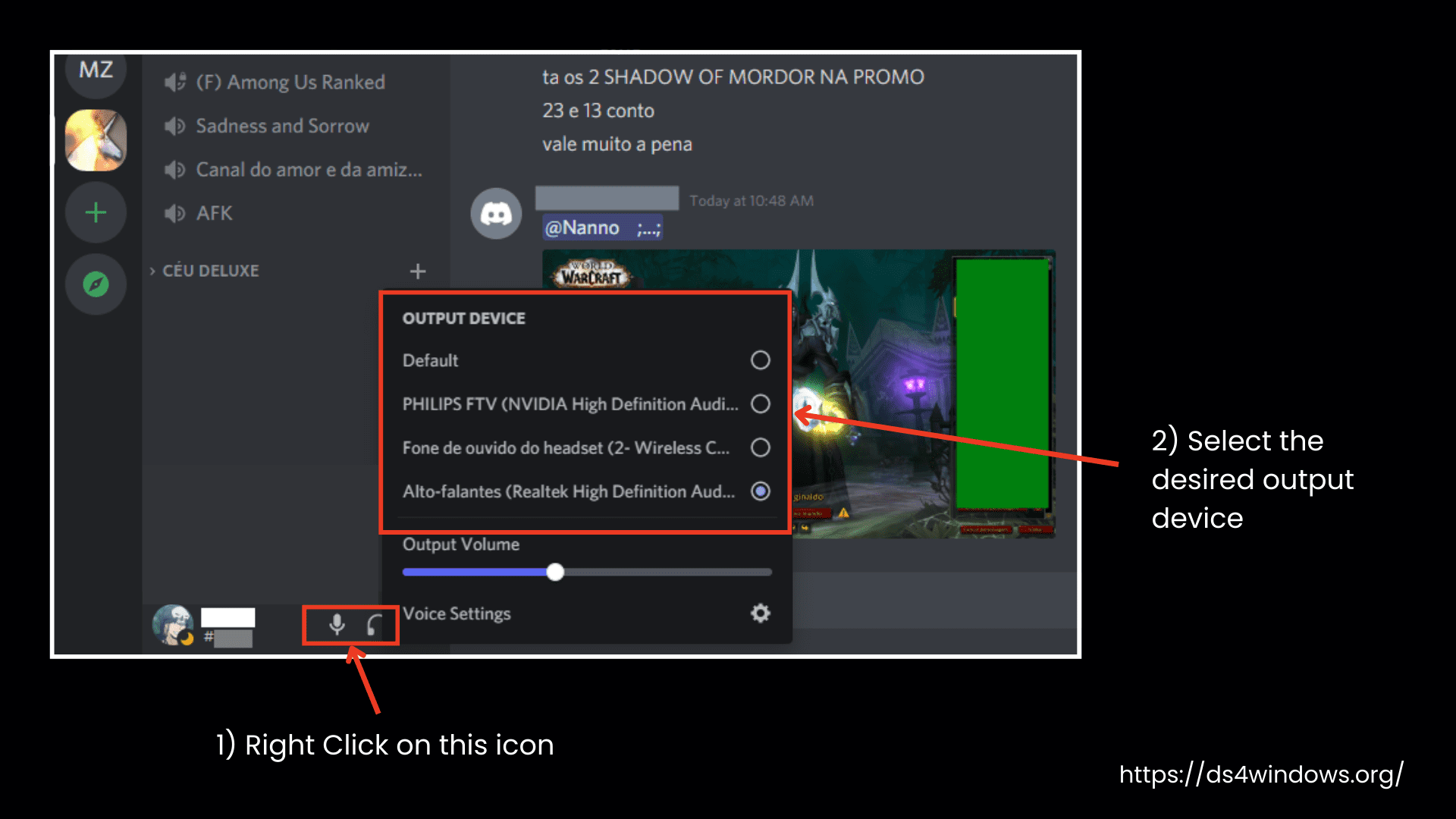
In Apps Like Discord
- Go to the app’s Settings.
- Open the Voice & Video section.
- Manually choose which mic and speaker you want to use; don’t leave it set to Default.
Common Problems and Fixes
Problem 1: PC’s Built-in Mic or Headset Stops Working After Connecting PS Controllers
That’s because Windows automatically switches the sound to the controller’s headphone jack. Just go to your sound settings and manually switch it back to your regular device, as mentioned earlier in this guide.
Problem 2: Headphone or Headset doesn’t Work when Connected via the Gamepad
Check these things:
- Are you using a controller from the list above?
- Are you connected using USB (not Bluetooth)?
- Did you set the controller’s audio jack as the active device in Windows or your app?
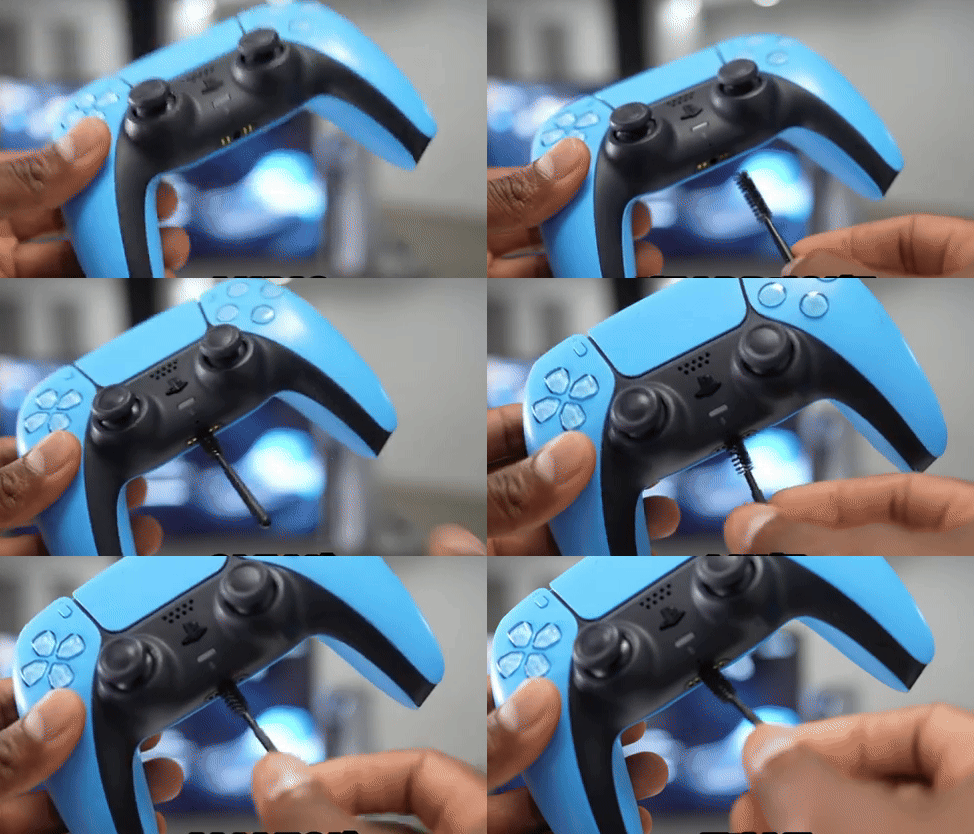
- If everything looks right but still doesn’t work, check your controller’s headphone jack or headset cable for any damage.
Why Audio Over Bluetooth Doesn’t Work for DS4/DualSense on Windows
The controller’s headphone jack doesn’t work when connected through Windows Bluetooth because it’s not supported. Currently, this feature hasn’t been added in DS4Windows, and in our opinion, it will not be added unless a new developer decides to work on it.
Here’s why:
- DS4Windows is free and open-source, made by a few people in their spare time.
- Adding audio support over Bluetooth is really complex and takes a lot of testing and time.
- The developers focus on features that improve gameplay first. Audio through a controller is a very niche request.
If you want wireless audio, it’s easier to use a dedicated Bluetooth headset instead of trying to route it through the controller.