How to Connect PS4 Controller to PC, PS4, PS5, Steam, iPhone/iPad, and Android
Whether you are gaming on your PC, Steam, PS4, PS5, iPhone, iPad, or Android, make your PS4 controller versatile to roll on any device with both wireless and USB connection options, ready to game anywhere.
How to connect a PS4 controller to a PC
When it comes to connecting your PS4 controller to a PC, you have three solid options.
- If you play Steam games on your PC, then it’s very easy to connect a DualShock 4 to Steam.
- For non-steam games, you have to get a DS4Windows download, and
- If you are craving wireless gaming, then you have to connect through a Bluetooth adapter to get a comfy gaming vibe.
No matter how you roll, these are the three key ways to hook your PS4 controller to your PC. Let’s start with connecting with Steam.
Steam Connection – The Easiest Way
Steam has great built-in drivers, and with the June 2023 update, they added even more features to level up your gaming experience. It supports the controller right out of the box.
When you play games on Steam, you don’t need any extra software. Just plug in the controller, and you are good to go.
Let’s walk through how to use your PS4 controller on Steam, making it the controller of choice.
- Grab your PS4 controller and a USB cable.
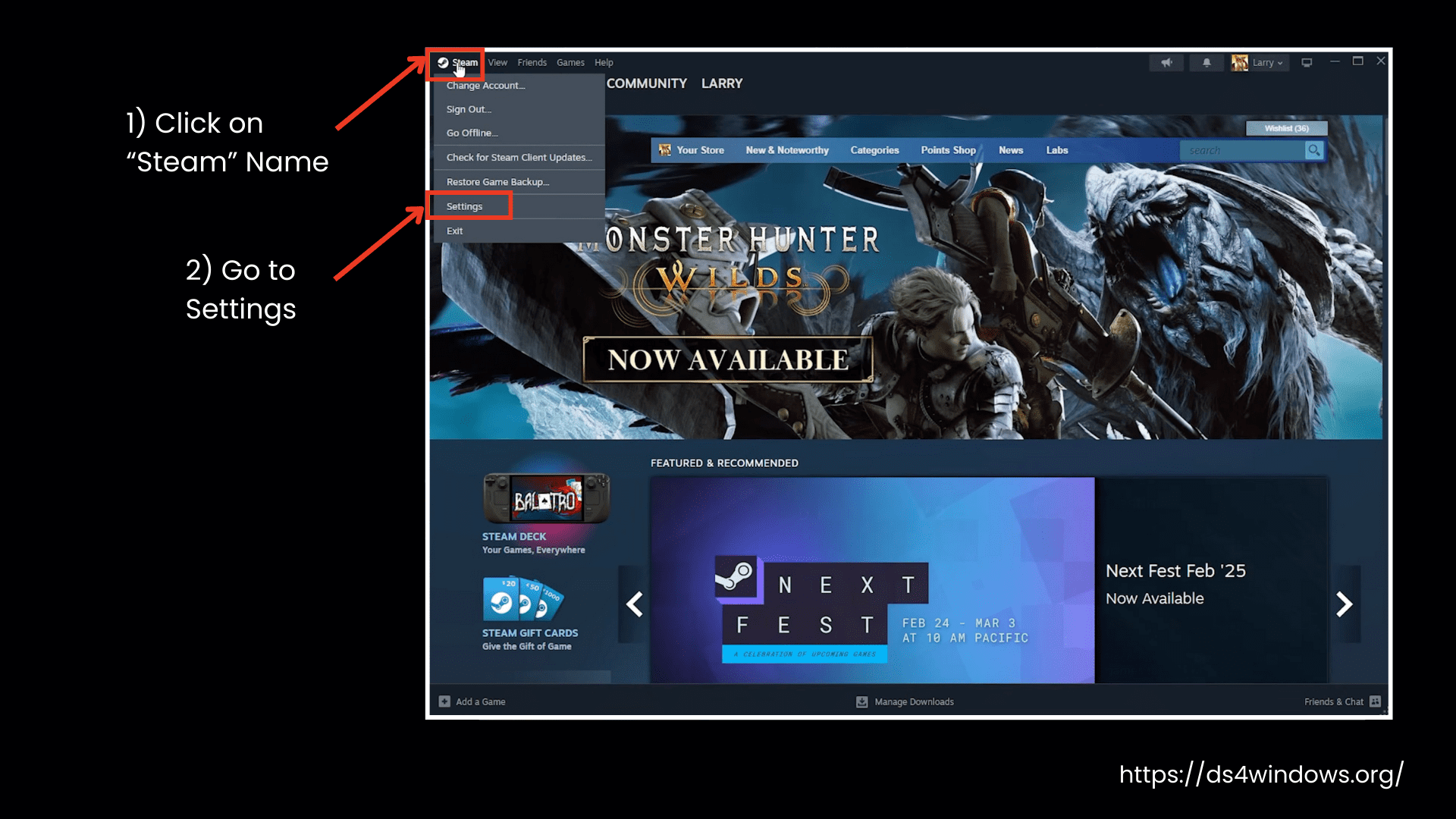
- On Steam, click on the Steam name in the top-left corner, then go to Settings.
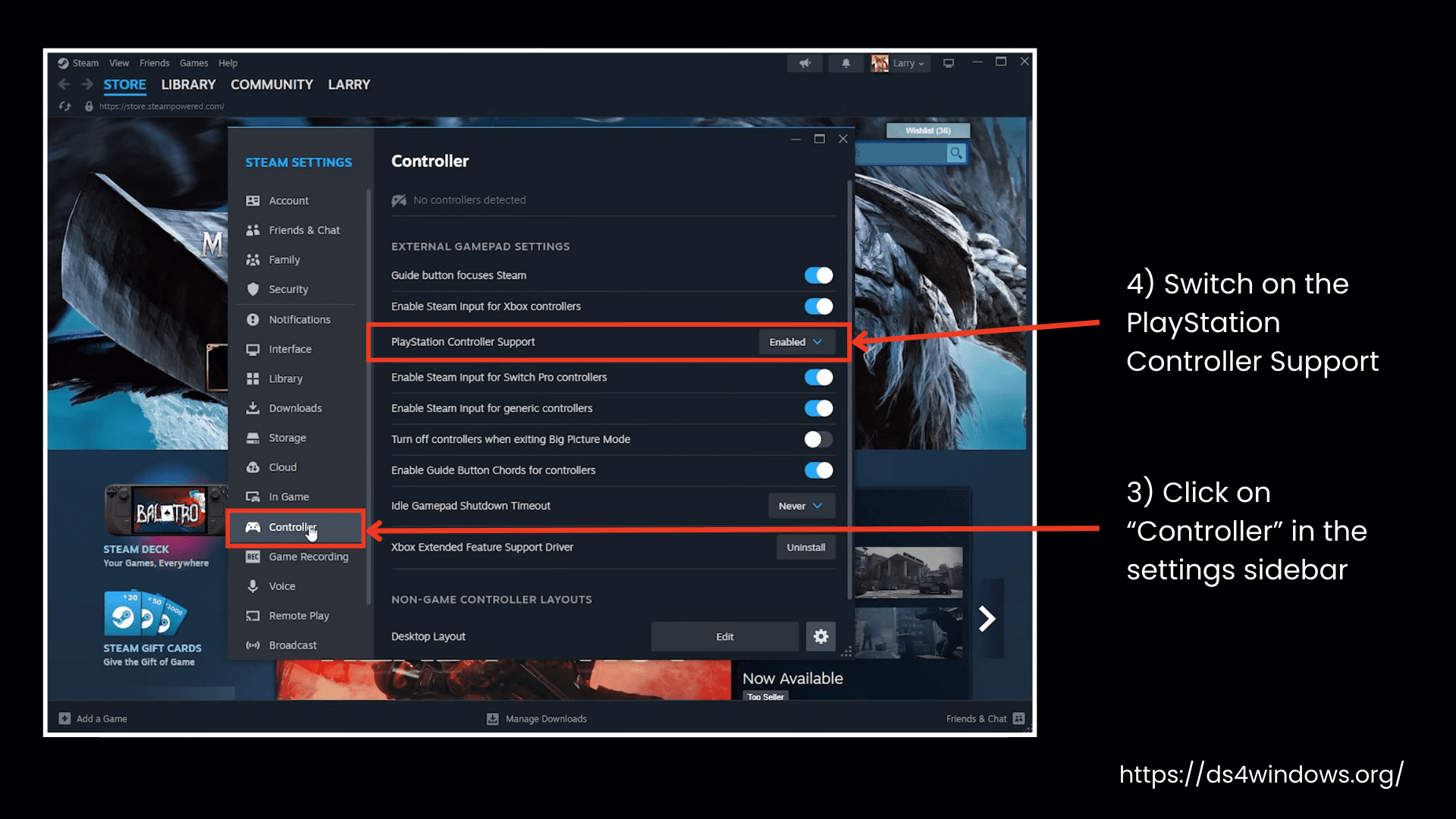
- In the settings sidebar, click on Controller.
- Switch on the PlayStation Controller Support shown under the list of available controller options.
- Plug in your PlayStation controller. Once connected, Steam will recognize the controller and ask if you want to enable features like the game Rumble.
Here you can customize the settings:
- You can customize your controller’s button layout to match the Nintendo controller setup (A, B, X, Y).
- Test your controller to make sure all buttons and the touchpad are working properly.
- If your controller has stick drift or needs recalibration, Steam has a built-in tool to fix it easily.
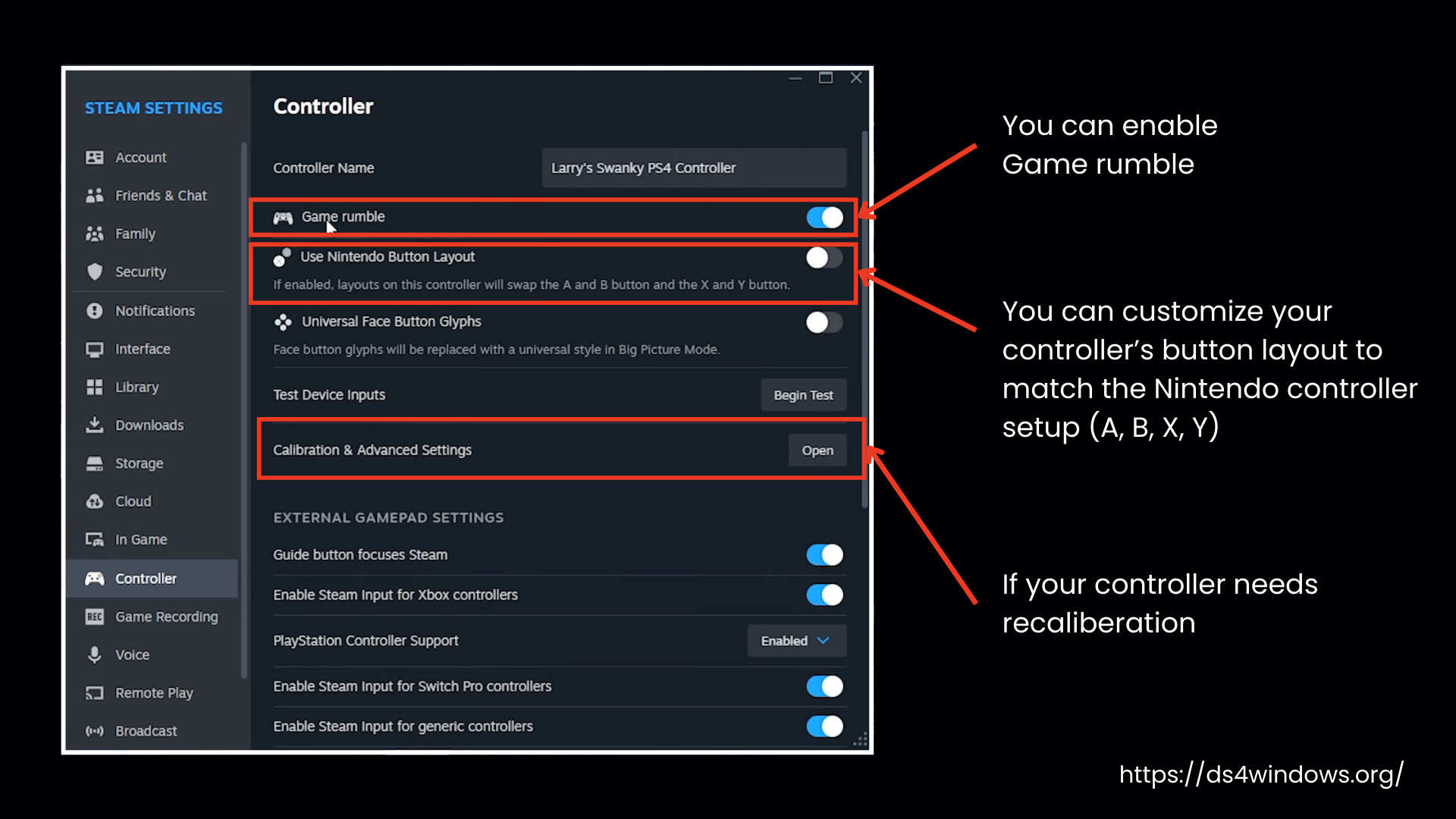
- You can enable or disable the game rumble to add extra feedback during gameplay.
- You can also customize the back LED color of your controller through the advanced settings menu in Steam’s controller settings.
- If your controller has motion sensors, even with steam, you can recalibrate them.
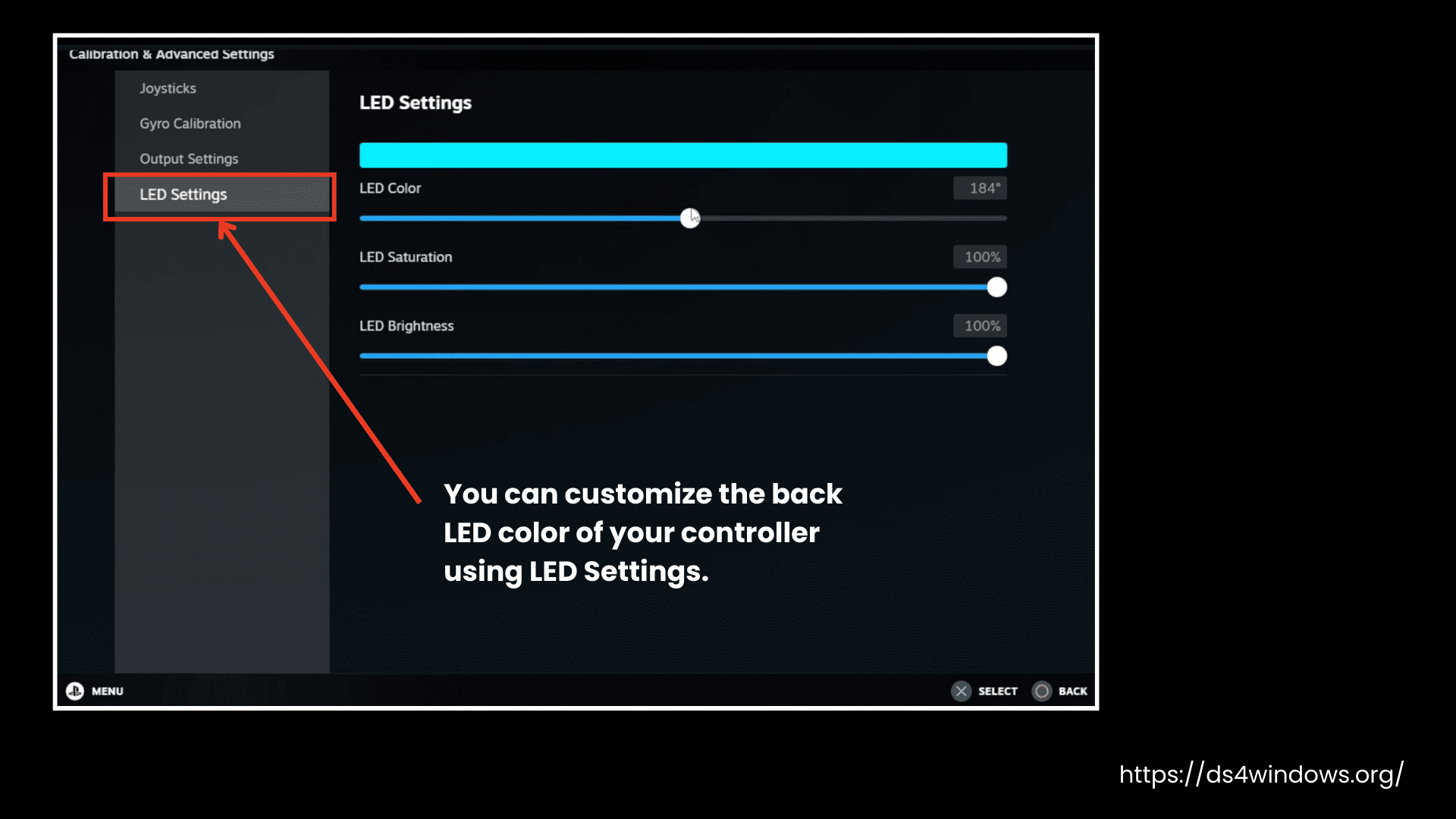
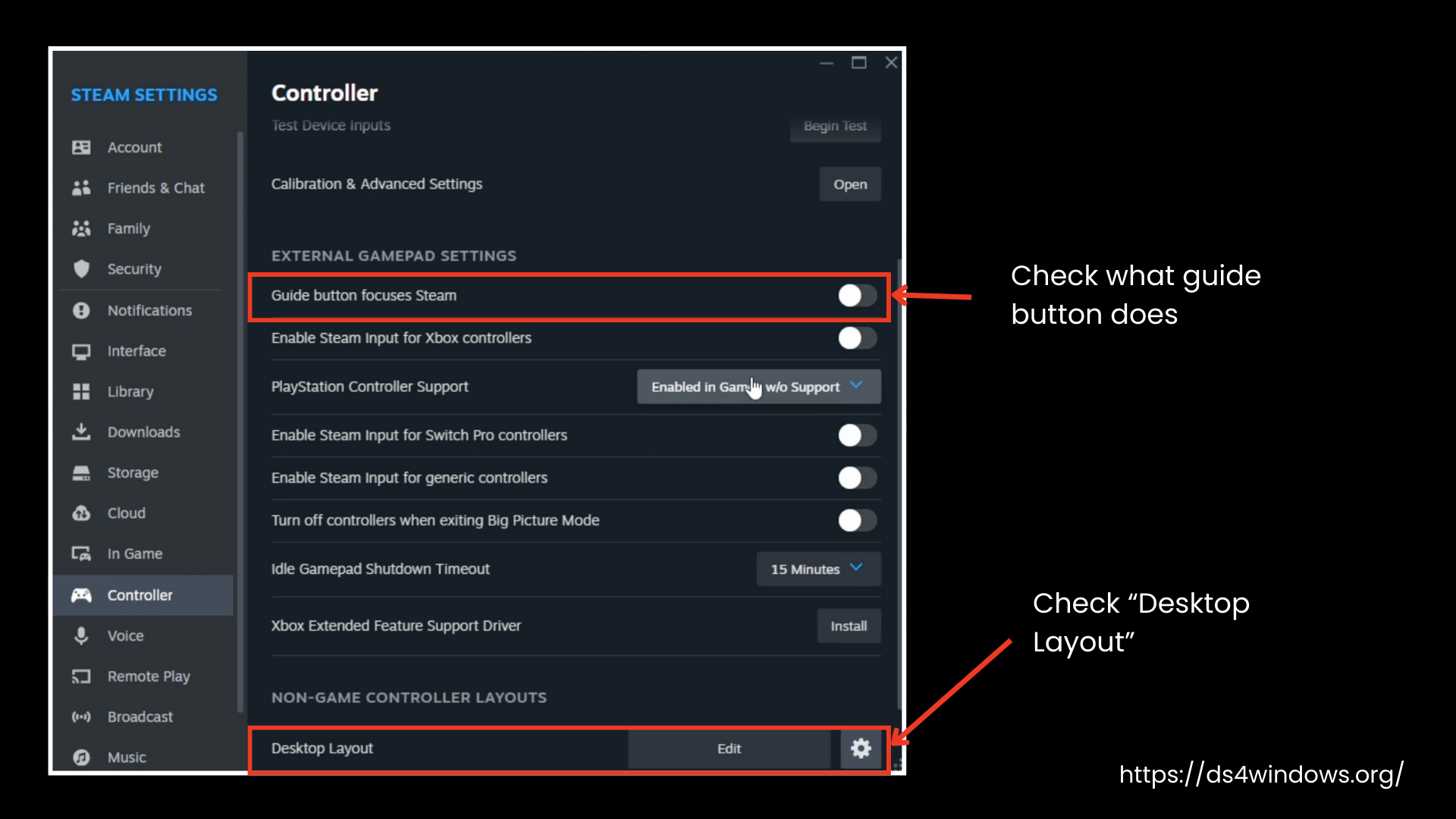
- Set how your controller works when you are on the desktop and not playing a game.
- Change what the guide button does.
- You can use the controller as a mouse, but most people don’t. Adjust it only if you need to.
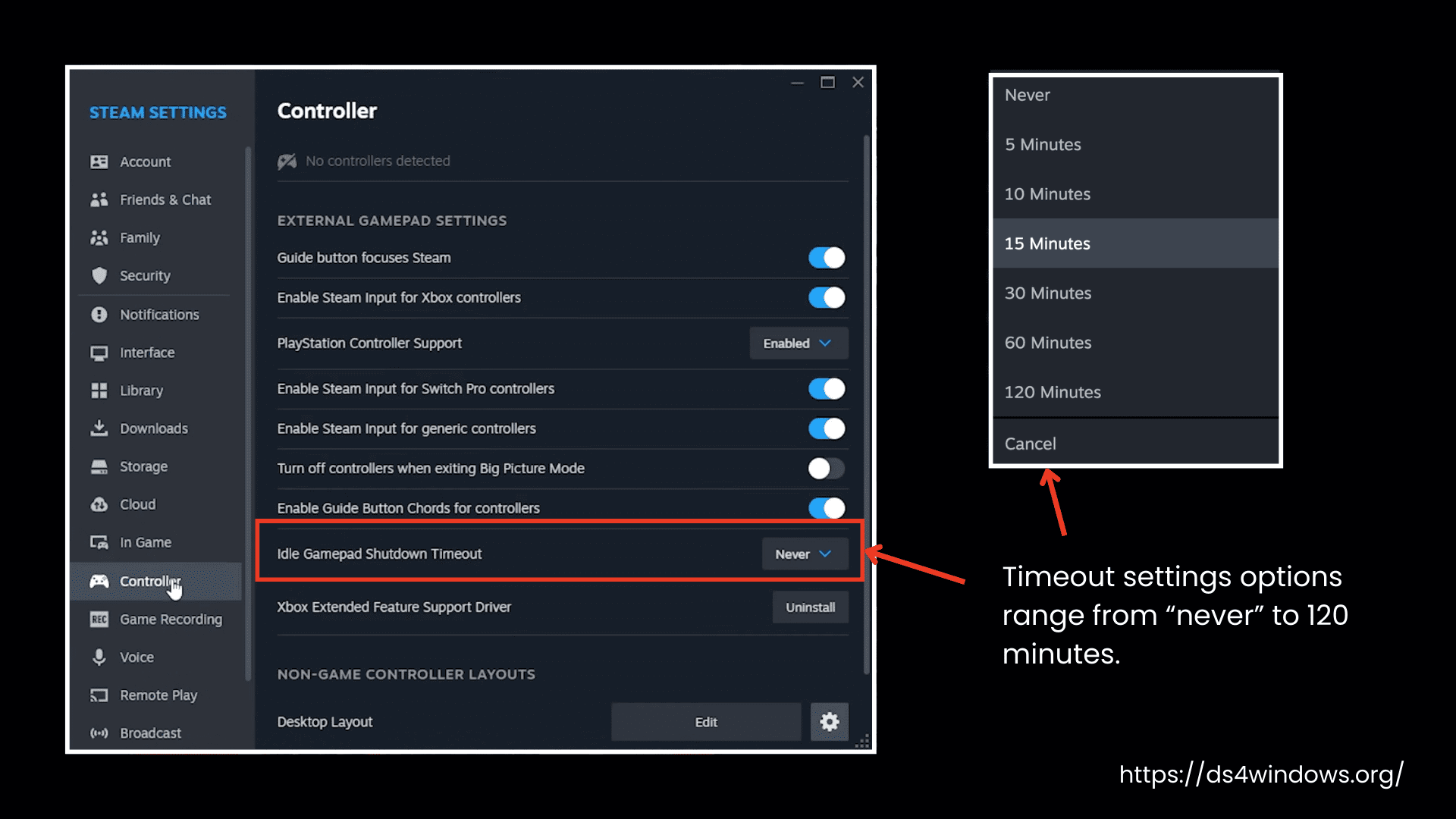
- Adjust how long the controller stays on before going to sleep in Shutdown. Timeout settings options range from “never” to 120 minutes.
- Steam makes your PS4 controller act like an Xbox controller, and you can even tweak it a bit more to make it work just right. Since most games are built to support Xbox controllers, this setup should work perfectly for almost any game you play on Steam.
Connecting PS4 Controller to PC for Non-Steam Games
If you want to connect a PS4 controller to your PC to play non-Steam games, your PC will not recognize the PS4 controller automatically. For this, you have to download and install DS4Windows. This software helps your PC speak the right language for the PS4 controller to work with games that don’t have native support. With this, you can map the buttons and mimic everything to feel like a normal gamepad.
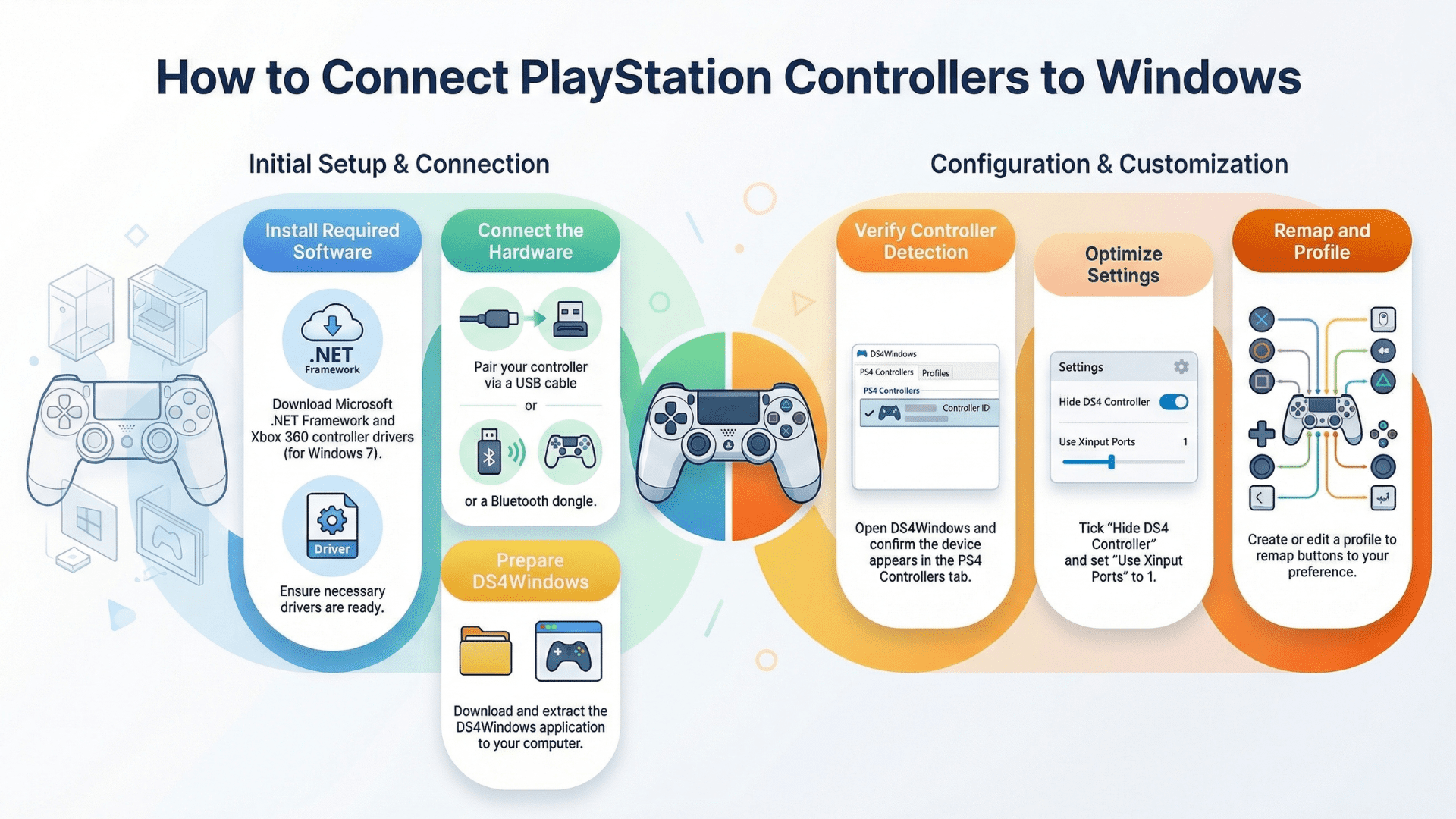
- Download Microsoft .NET Framework and Xbox 360 controller driver (for Windows 7).
- Connect the controller via a USB cable or Bluetooth dongle.
- Download and extract DS4Windows.
- Open DS4Windows and check the connection in the PS4 Controllers tab.
- In the Settings tab, you will tick Hide DS4 Controller and change Use Xinput Ports to 1.
- Create or edit a profile and remap buttons as desired.
Connecting DS4 with PC Wireless
A lot of you probably don’t like being stuck in one spot while gaming; you would rather move around by connecting your controller wirelessly. Use a DS4 USB Wireless Adapter to connect your PS4 controller to your PC wirelessly. With this, you can customize other cool features like light bar effects, rumble, and audio through the PS4 headphone jack.
Here’s how to connect:
- Hold the Share + PS button of your controller until you see the light bar flashing.
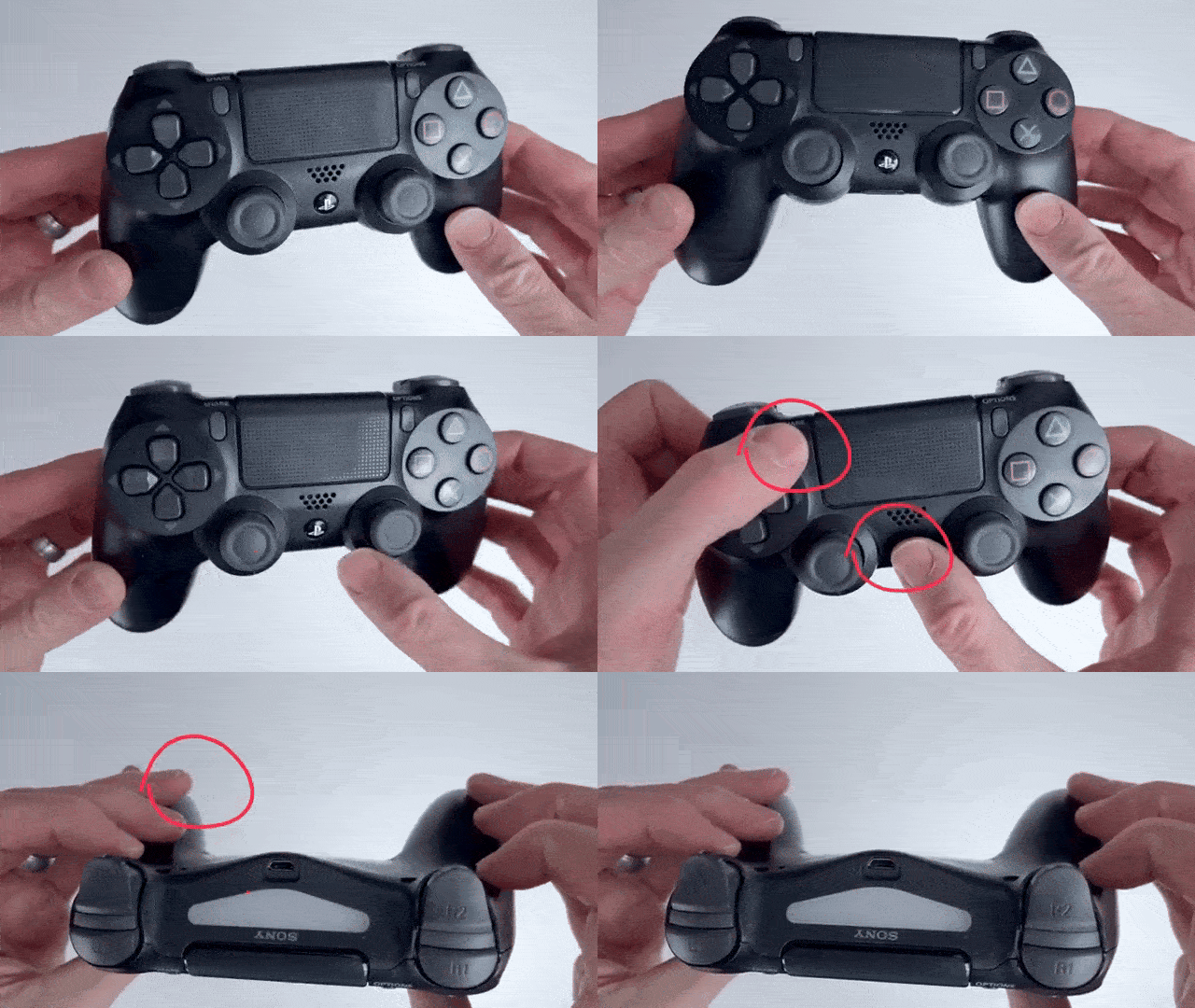
- Then, press the button on the USB Wireless Adapter until it also starts flashing.
- When both are flashing, they are paired up and ready to go.
As long as you don’t unplug the adapter, your controller will usually automatically reconnect when you hit that PS button.
How to Connect a PS4 Controller (DS4) to a PS4
You can sync your PS4 (DualShock 4) controller to your PS4 in two ways:
- Wired syncing or syncing with a USB cable.
- Wireless syncing
The most reliable way to connect your controller is by using a USB cable, particularly if you are using a new controller or if that is not connected to any console.
Here’s how to do it step by step:
Wired Syncing or Syncing with a USB Cable
This is the easiest and most reliable way to sync your PS4 controller.
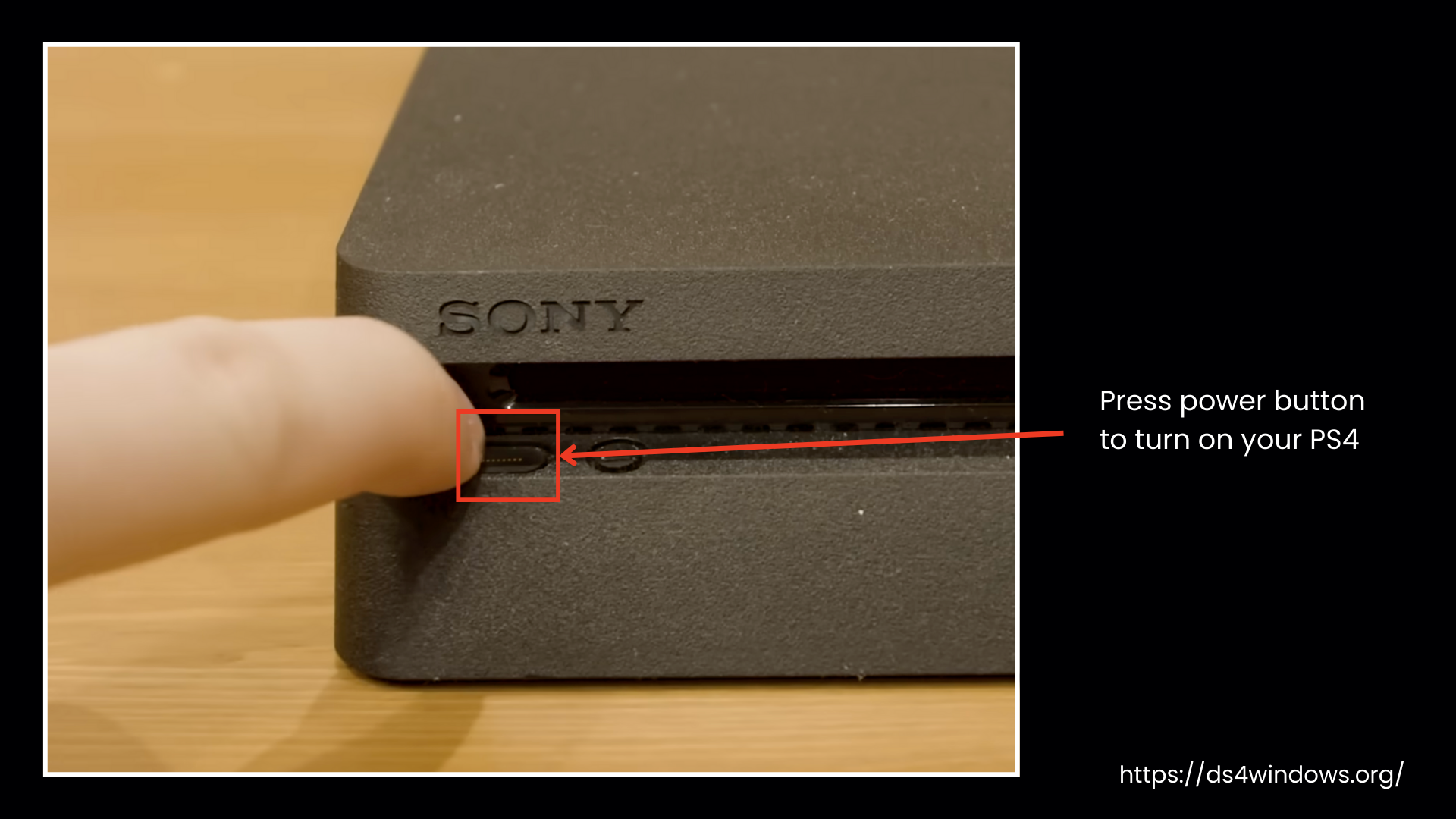
- Press the power button on your console to turn on your PS4.
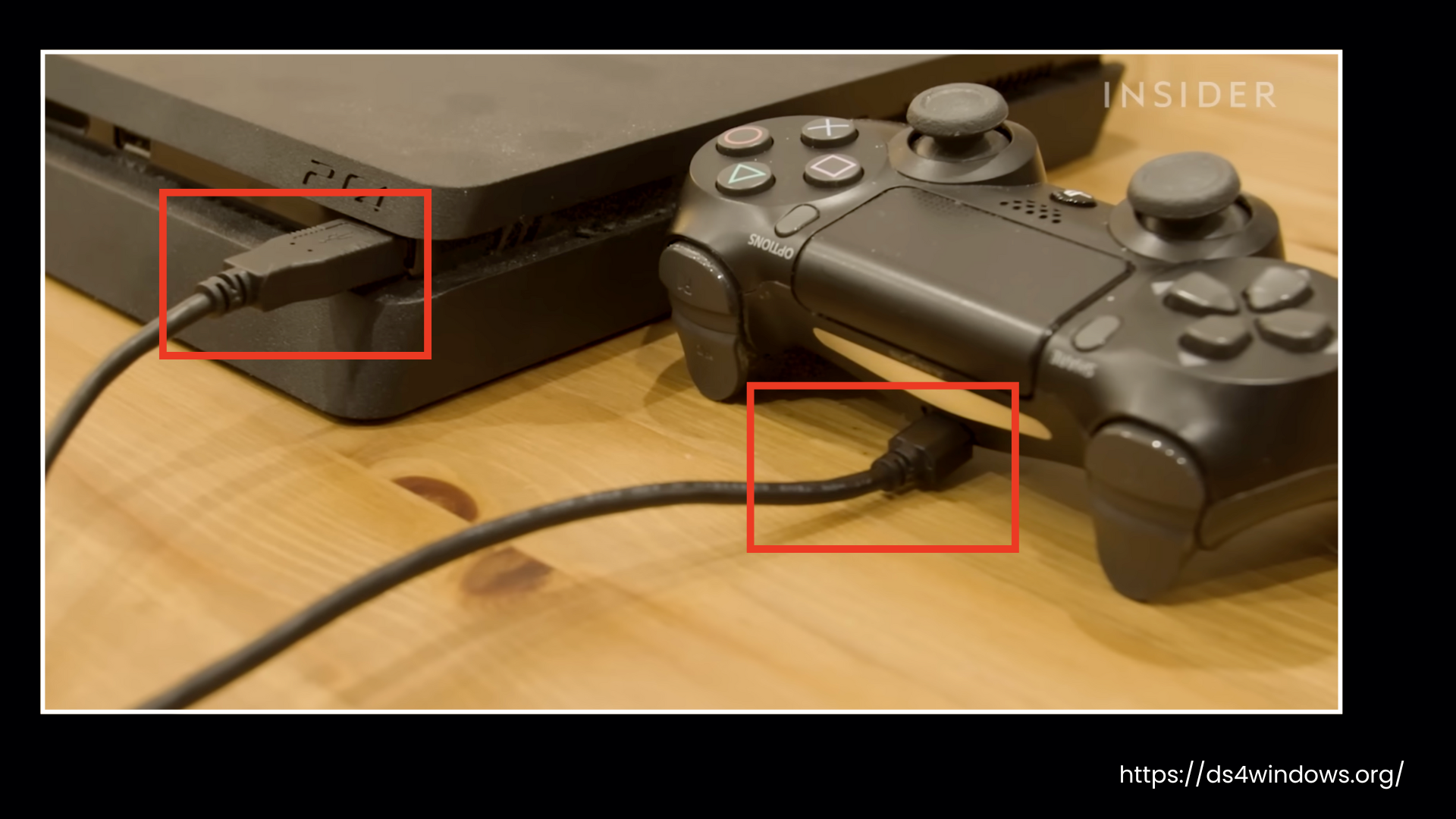
- Grab a USB cable that you use for charging the controller and plug the controller into the PS4.
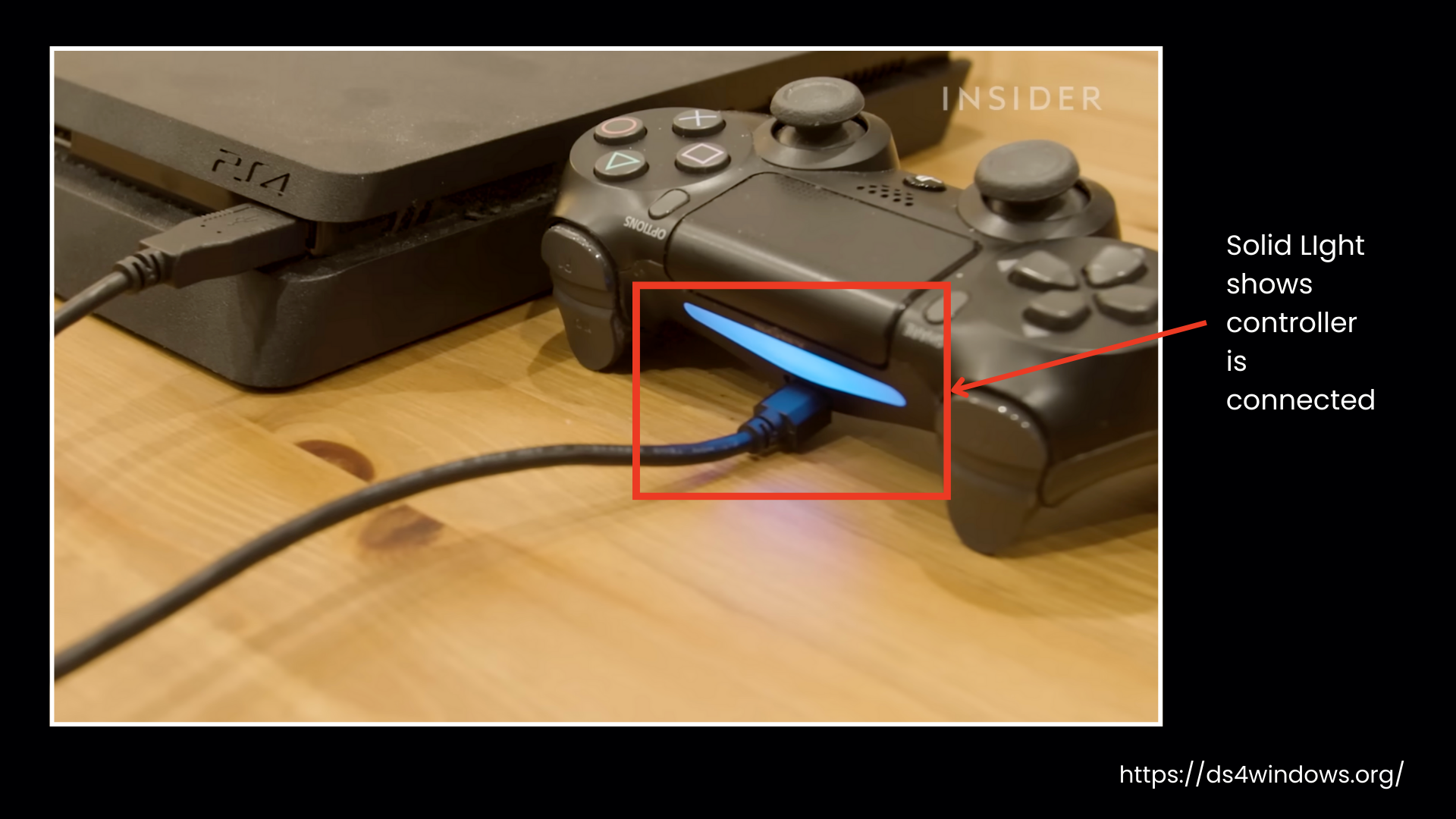
- Now hold on to the PS button in the center of the controller.
- It will sync after some time, showing the light bar on the controller starting to blink and then turning solid, indicating it’s connected.
Wireless Syncing (If Already Paired with Another Device)
If your controller was connected to another PS4 or device, you will need to manually sync it.
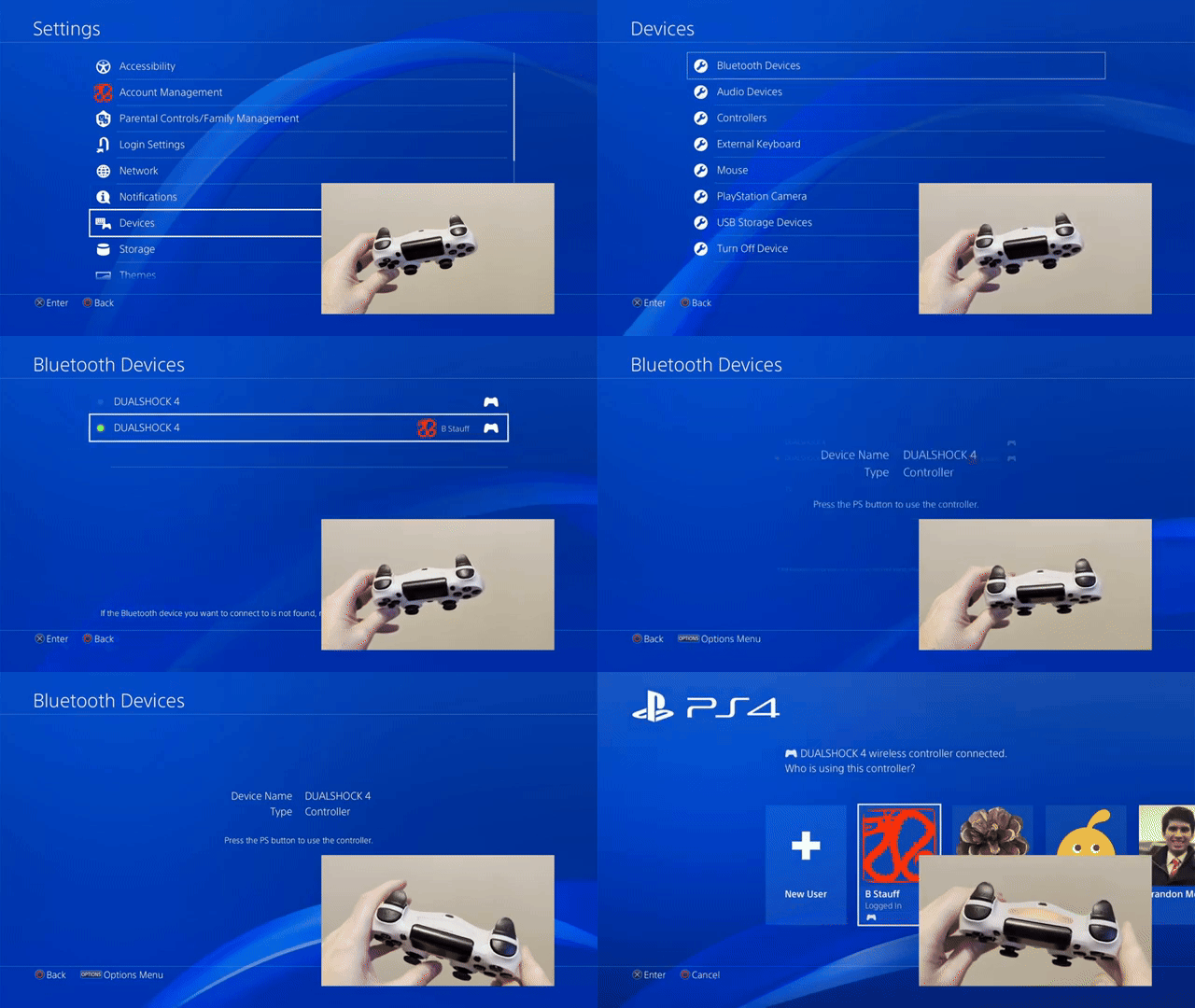
- Turn on your PS4 and head over to Settings.
- Proceed to Devices > Bluetooth Devices.
- Long-press the PS + Share button for about 5 seconds until the light bar starts flickering.
- A prompt for a Wireless Controller will pop up. Just select it to pair and connect the DualShock 4 wirelessly with your PS4.
Troubleshooting PS4 Controller
Just when you are ready to start gaming, your controller may betray you because of a little tech glitch. Check out these common controller problems and their quick fixes for PS4 controller troubleshooting.
Why is my PS4 controller not connecting?
If your controller is not connecting to the console, it might be acting up for one of these sneaky reasons.
- Dead battery
- Faulty USB cable
- Recently paired with another device
- Too far from the console
- Power Save mode turned it off
- Malfunctioning or broken buttons
- Plug it in and charge it.
- Use another USB cable or port.
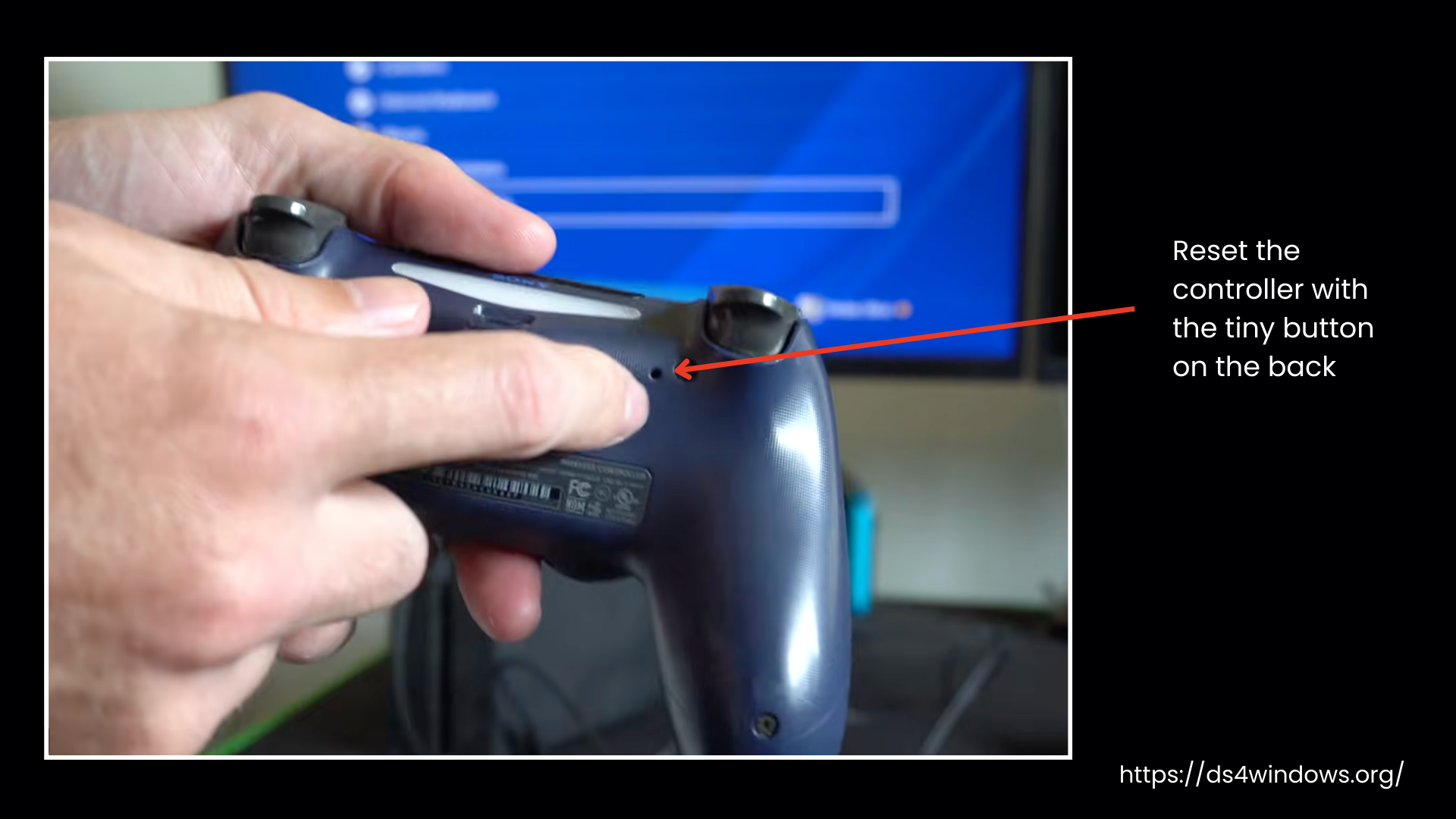
- Reset the controller with the tiny button on the back. The detailed guide is in the coming section.
- Reconnect via Bluetooth: Settings → Devices → Bluetooth.
- If all else fails, try a different controller.
PS4 Controller Not Connecting to PS4
For the PS4 controller not connecting to the PS4, it can be solved by re-pairing it with the console using a soft reset. Don’t fret, just follow the steps.
- Head to the PS4 Settings section. Then further to Devices and the Bluetooth Devices section.
- Spot the non-working controller. It will be showing without a green dot.
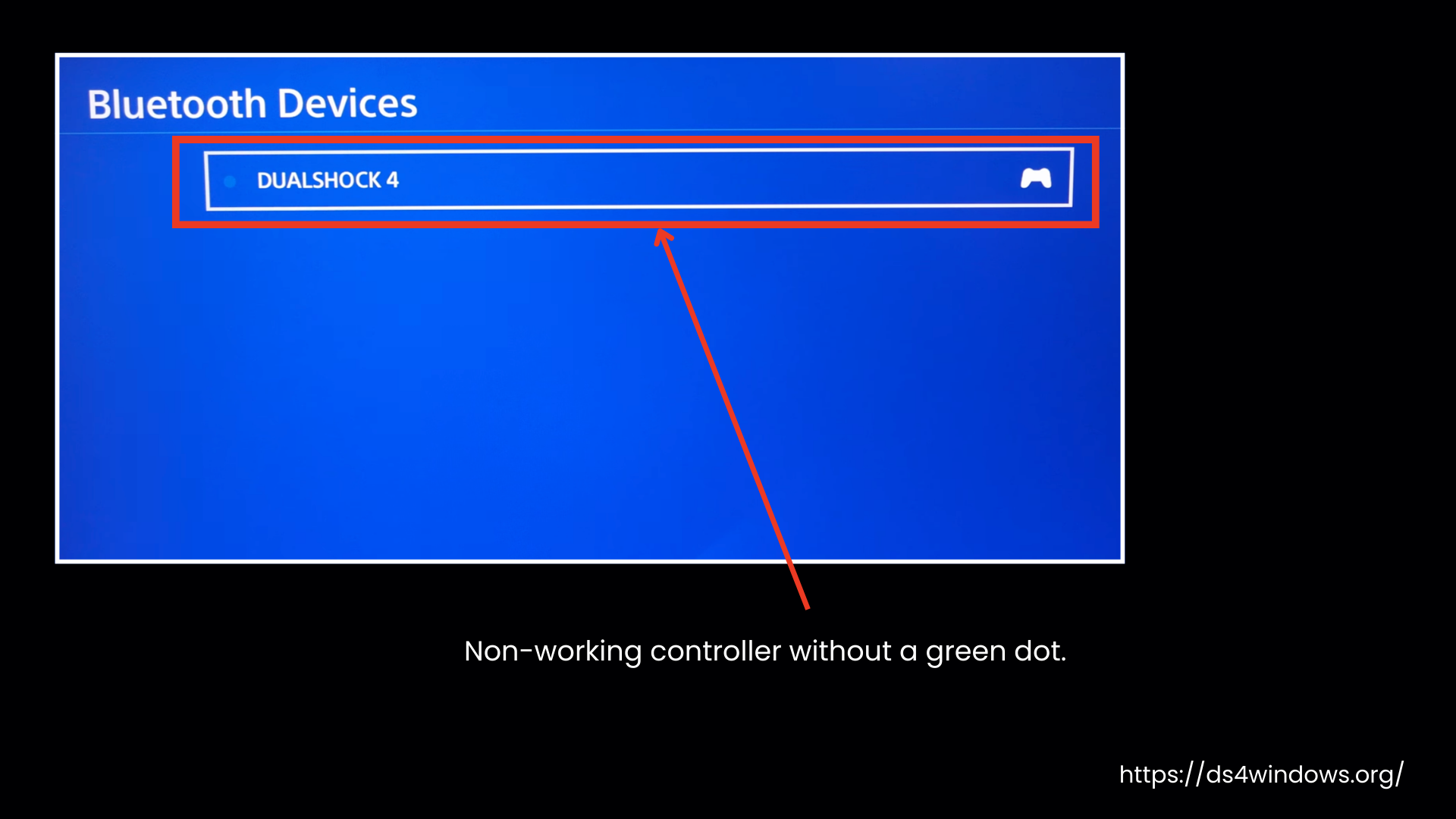
- With the working controller, highlight the inactive one, click the Options button, and tap Forget Device.
- Turn off your console completely.
- Connect the malfunctioning controller to the console with a USB cable, then turn the console back on.
- Hit the PS button on the controller and log in.
The PS4 Controller is Not Working
Now you may connect the controller to the console, and it is recognized, but still not working. Most probably, your console may need a software update.
- Go to Settings > System Software Update.
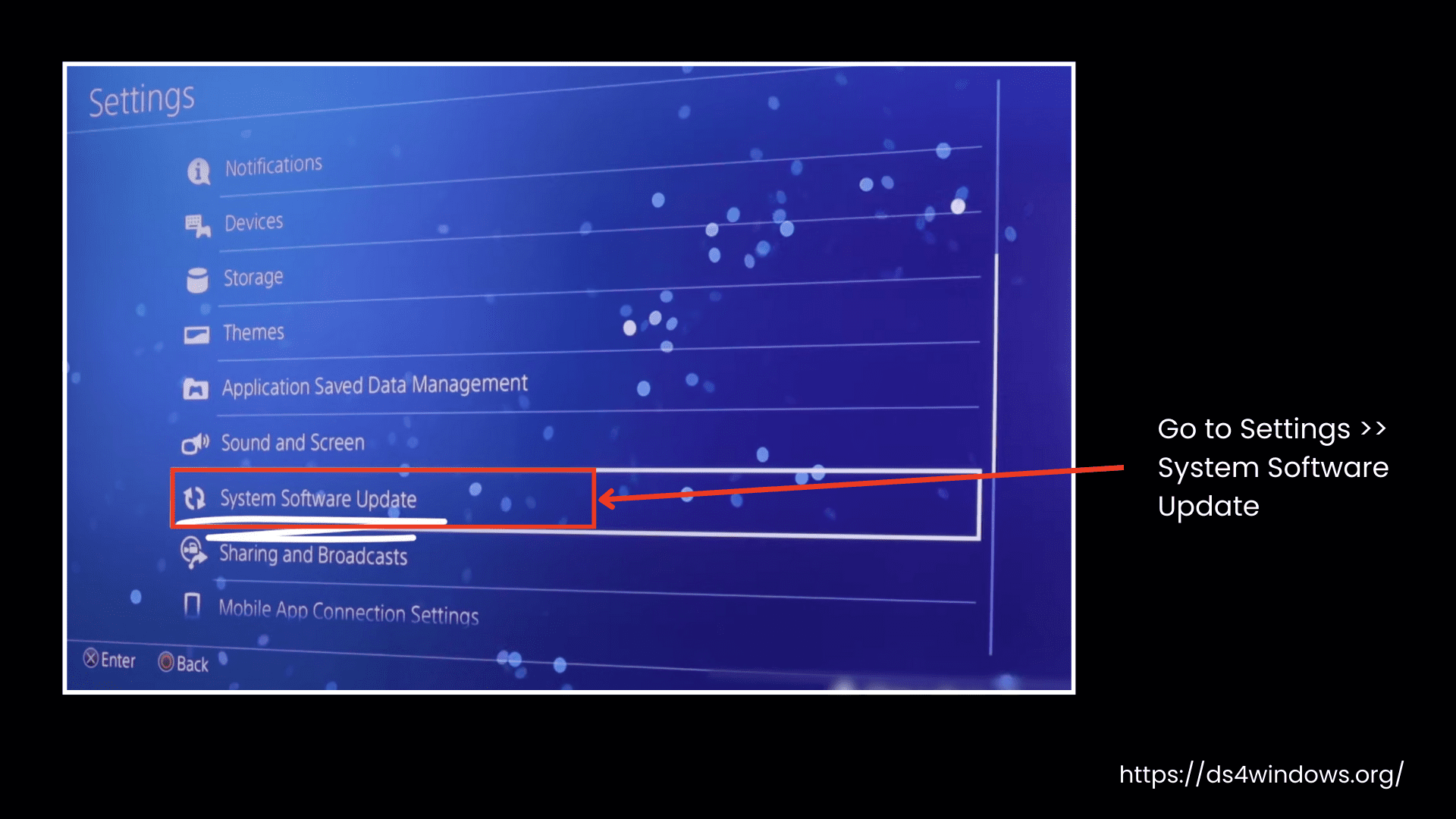
- Select Update Now and hit Next.
- Accept the update, and let it install.
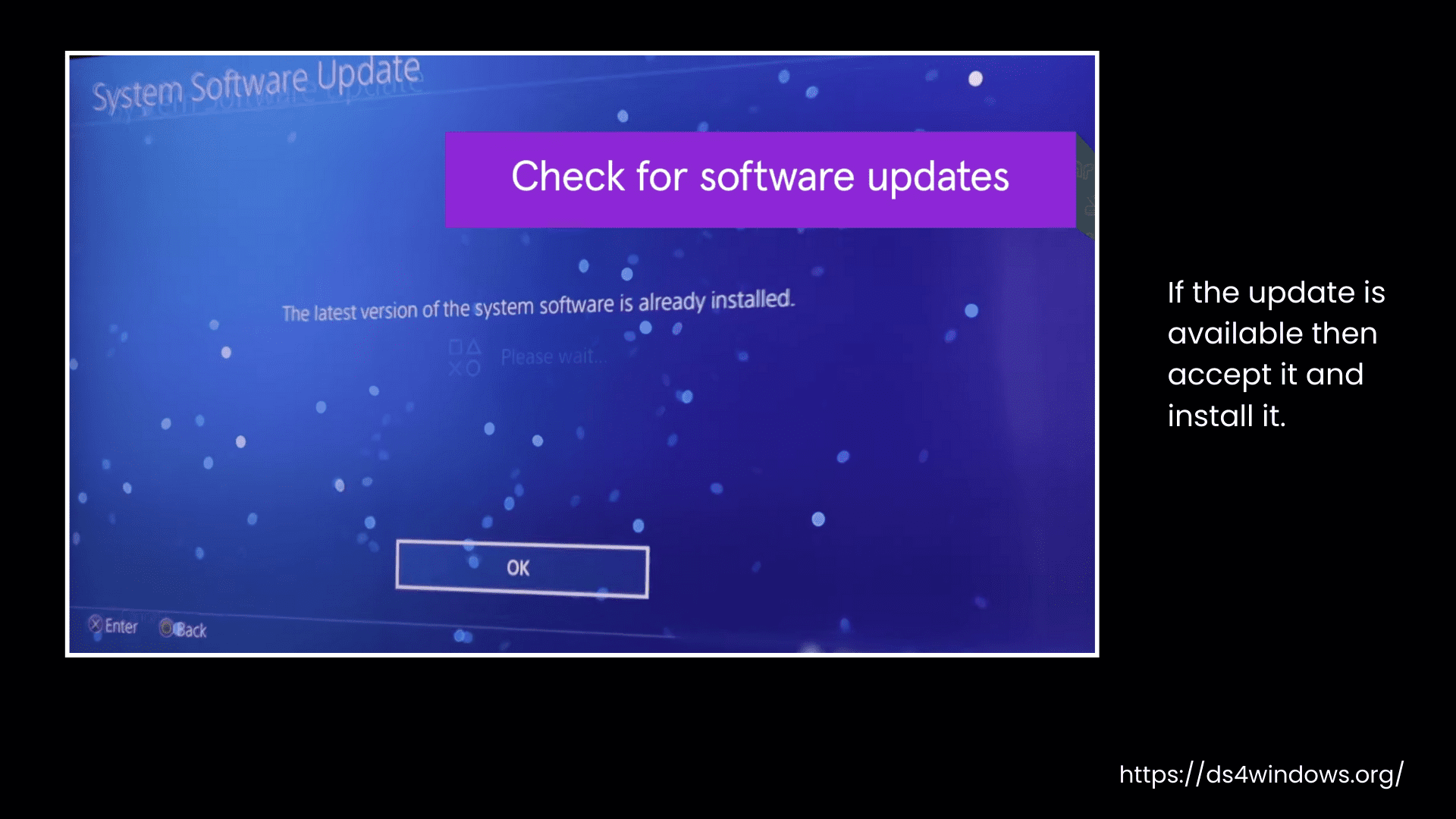
That’s it! Your controller should be good to go.
PS4 Controller Buttons Not Working
Follow the rule: Keep it clean, keep it working.
If the buttons are not working, give them a quick check. If a button is broken, that could be the real issue. Clean the dirty buttons with a cotton swab dipped in alcohol. Just don’t go overboard; avoid pouring liquid on the controller.
The PS4 Controller Battery is Not Charging
Your DualShock 4 should last up to 8 hours, but if it’s draining too quickly, first let it charge with the help of a USB cable plugged into the console. Secondly, turn it off when not in use to save battery.
- From the controller: Hold the PS button for about 10 seconds.
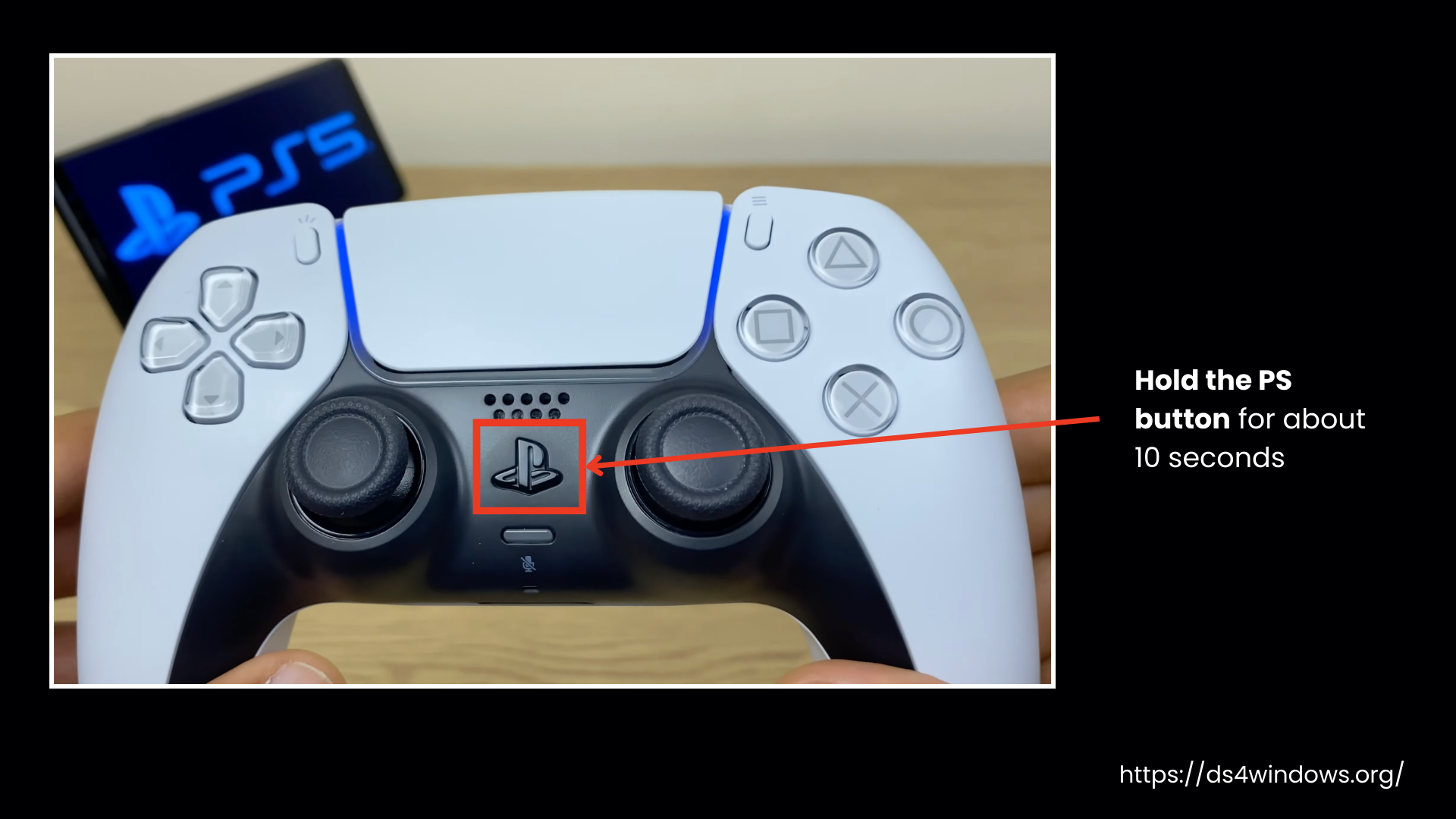
- From the PlayStation dashboard: Hold the PS button for 2 seconds, go to Sound/Devices > Turn Off Device, and select your controller.
- Auto turn-off: Set a timer in the Quick Menu (10, 30, or 60 minutes).
- But if the battery is still draining fast, you might have to replace it. Just don’t do it yourself— it will void your controller’s warranty.
Fixing PS4 Controller
So far, we have been tackling PS4 controller connection issues with the PS4 itself. Here, we have discussed three solutions addressing how to fix the PS4 controller. These fixes can also work when connecting your PS4 controller to a PC, phone, or other devices. But for other devices other than the PS4 console, you might need extra steps like enabling Bluetooth, updating drivers, or using third-party software.
If, after checking all the points covered in the above section, you are still stuck with the controller not working, then try out these solutions.
As we are discussing all the troubleshooting for a wireless connection, plug the controller into your PS4 with a USB cable. If it doesn’t work, try a different cable.
- Hold down the Power button for 3–7 seconds until the console shuts off.
- Hold the Power button again until you hear two beeps, then let go.
- Connect your DualShock 4 controller with a USB cable and press the PS button.
If syncing still doesn’t work, here are the steps for resetting the PS4 controller.
- Turn off the PS4 and disconnect from the internet.
- Unplug the controller and flip it over.
- Use a paperclip or pin to press the small reset button near the L2 trigger for 5 seconds.
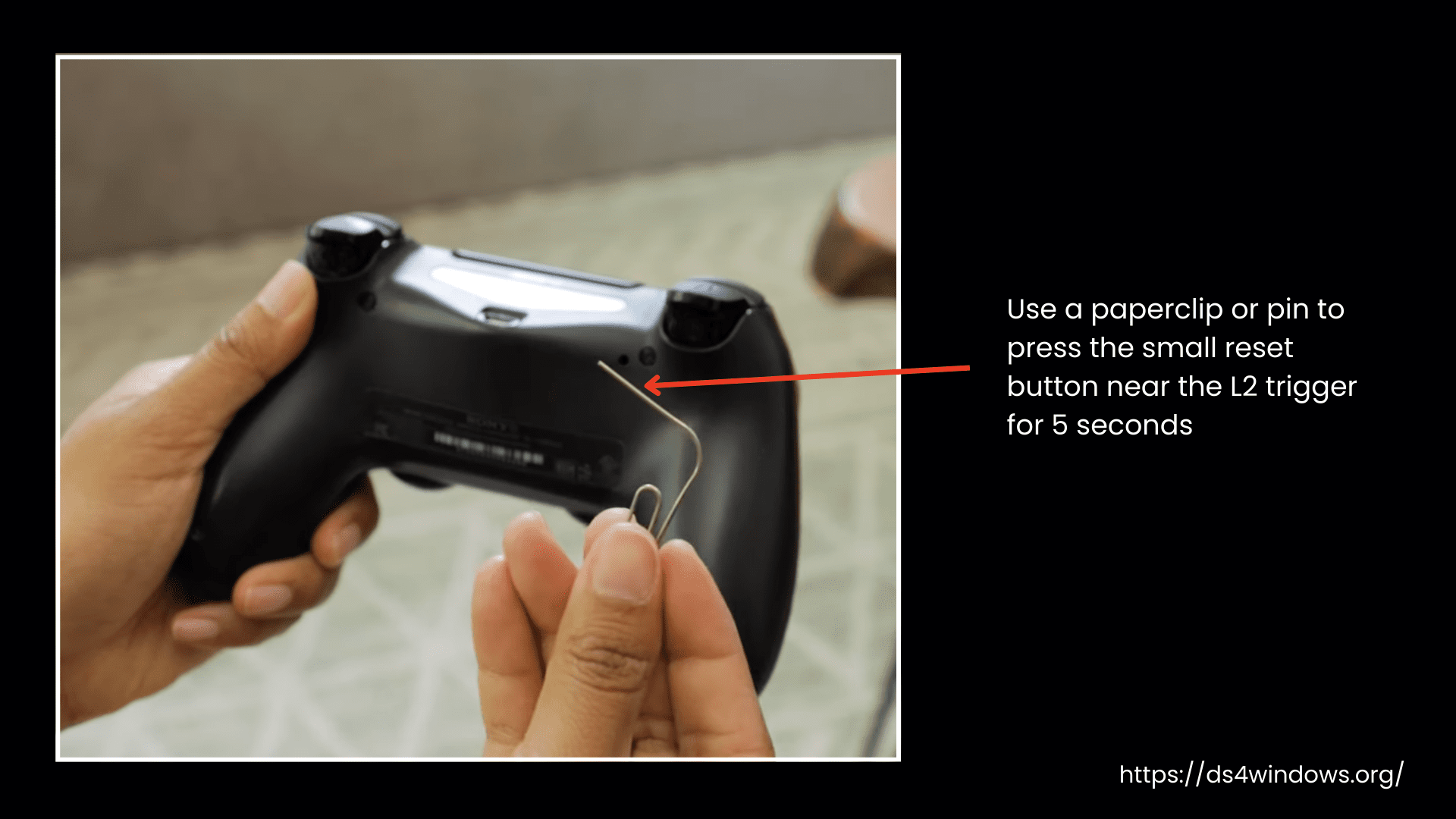
- Wait a few seconds, then reconnect with a USB cable.
- Press the PS button. If the light bar turns blue, your controller is paired successfully.
How to Connect a PS4 Controller to a PS5
You can sync your PS4 (DualShock 4) controller to your PS5 in two ways:
Save your money or use an extra controller for multiplayer, connecting a PS4 controller to PS5 lets you play PS4 games on the PS5, but not exclusive DualSense titles. This is known as backward compatibility. Here’s how to pair a PS4 controller to PS5, whether through Bluetooth or a USB cable.
Whatever method you choose, the PS5 can handle up to four controllers at one time.
Connecting with Bluetooth
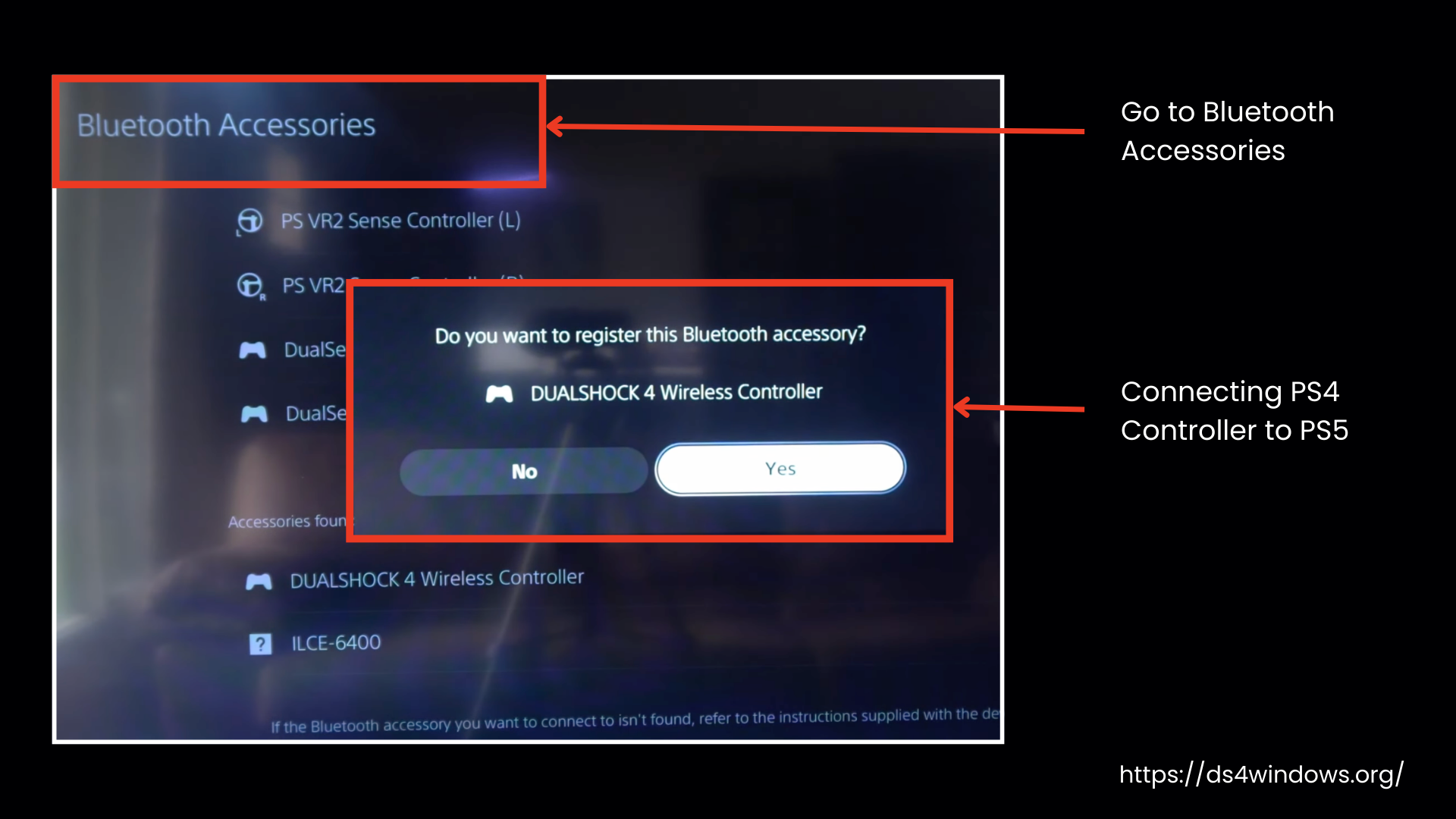
- Turn on the fifth PlayStation, the PS5.
- Press and hold the PS + Share button together on your PS4 controller until the light bar begins to blink.
- Head to the Settings of your PS5.
- Choose Accessories from Bluetooth & Accessories. You will see your PS4 controller pop up, select it to pair.
Connecting with a USB Cable
If you prefer a wired connection or need to charge while playing, this method is even easier.
- Attach your PS4 controller to the PS5 using a USB cable.
- The PS5 will detect it and pair it automatically.
Connecting PS5 controller to PS4
Contrary to connecting a PS4 controller to PS5, is it possible to connect a PS5 controller to a PS4? The answer is NO. If you try to connect DualSense to a PS4, it will act like it doesn’t exist. You can connect a DualSense/PS5 controller to a PC, but for this, you may have to use DualSenseX software to be good to go.
How to Connect PS4 Controller to iPhone and iPad
Compared to Android, many gamers love playing on iPhones and iPads because of their improved operating system and good sound quality. But by community experience, touch controls just don’t cut it when we need precision, especially in aiming games. That’s why we scramble for physical controllers.
Let’s talk about how to connect a PS4 controller to an iPhone or iPad to play games on the device. When the gaming session is over, you will want to know how to disconnect it too. Don’t worry, we have also got some quick fixes in case you run into any trouble.
Check Device Compatibility
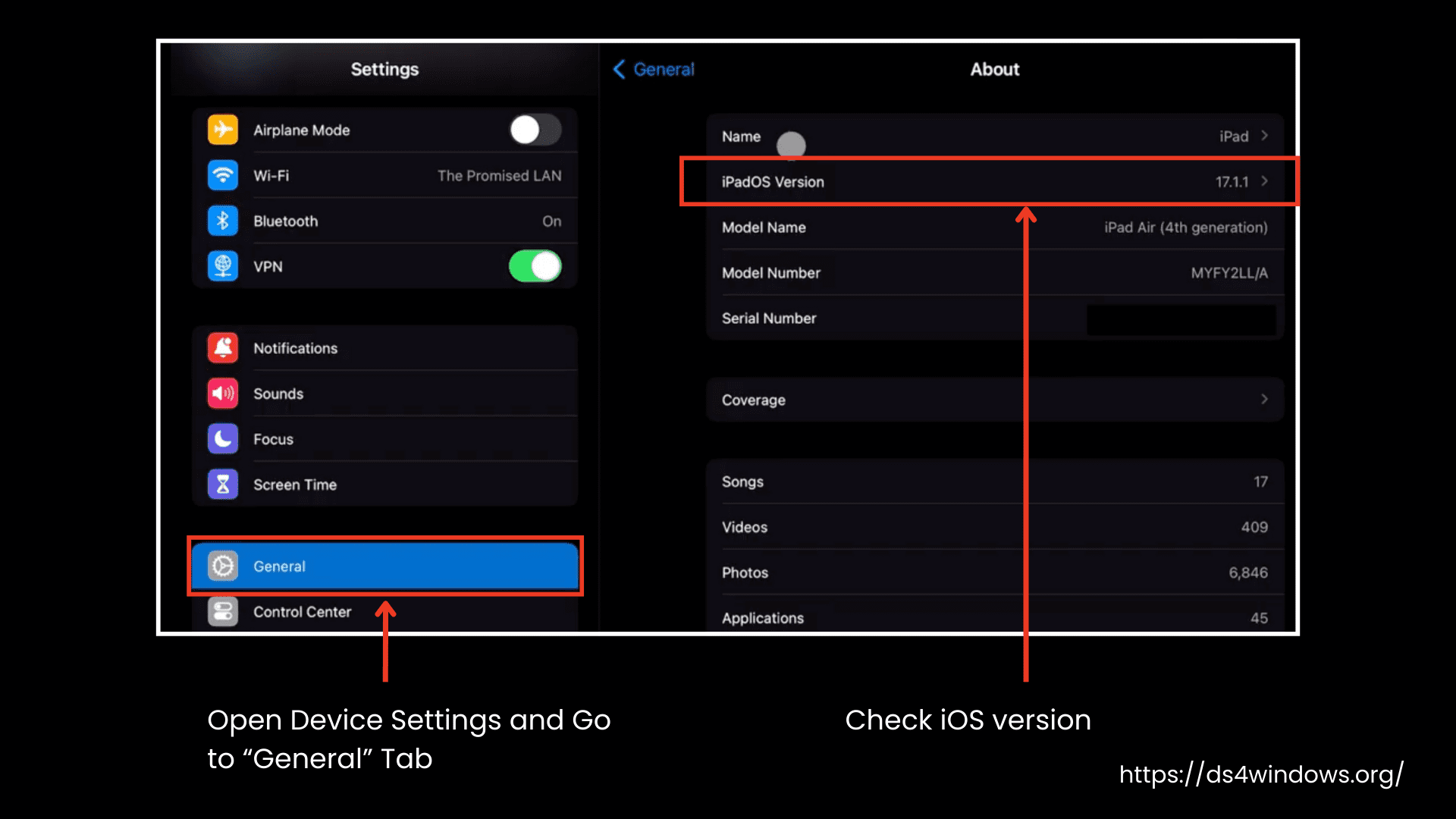
Before addressing how to connect a PS4 controller to an iPhone or iPad, first perform a device compatibility check.
Before pairing the DualShock 4, make sure your iPhone or iPad is running iOS 13 / iPadOS 13 or later. Although the recommended compatibility is iOS 14.5 or higher.
- Open your device Settings.
- Tap General, then head to About.
- Look for the Software Version. If it’s 13.0 or higher, you are good to go. If not, go back to General > Software Update and install the latest version.
Now, let’s move on to connecting the PS4 controller to the iPhone or iPad.
Connect via Bluetooth
For controller:
- Put Your Controller in Pairing Mode.
- Hold down the PS button that you can see in the middle and the ShareE button at the top left at the same time.
- Keep holding until the light bar starts flashing. This means it’s in pairing mode.
For iPhone or iPad:
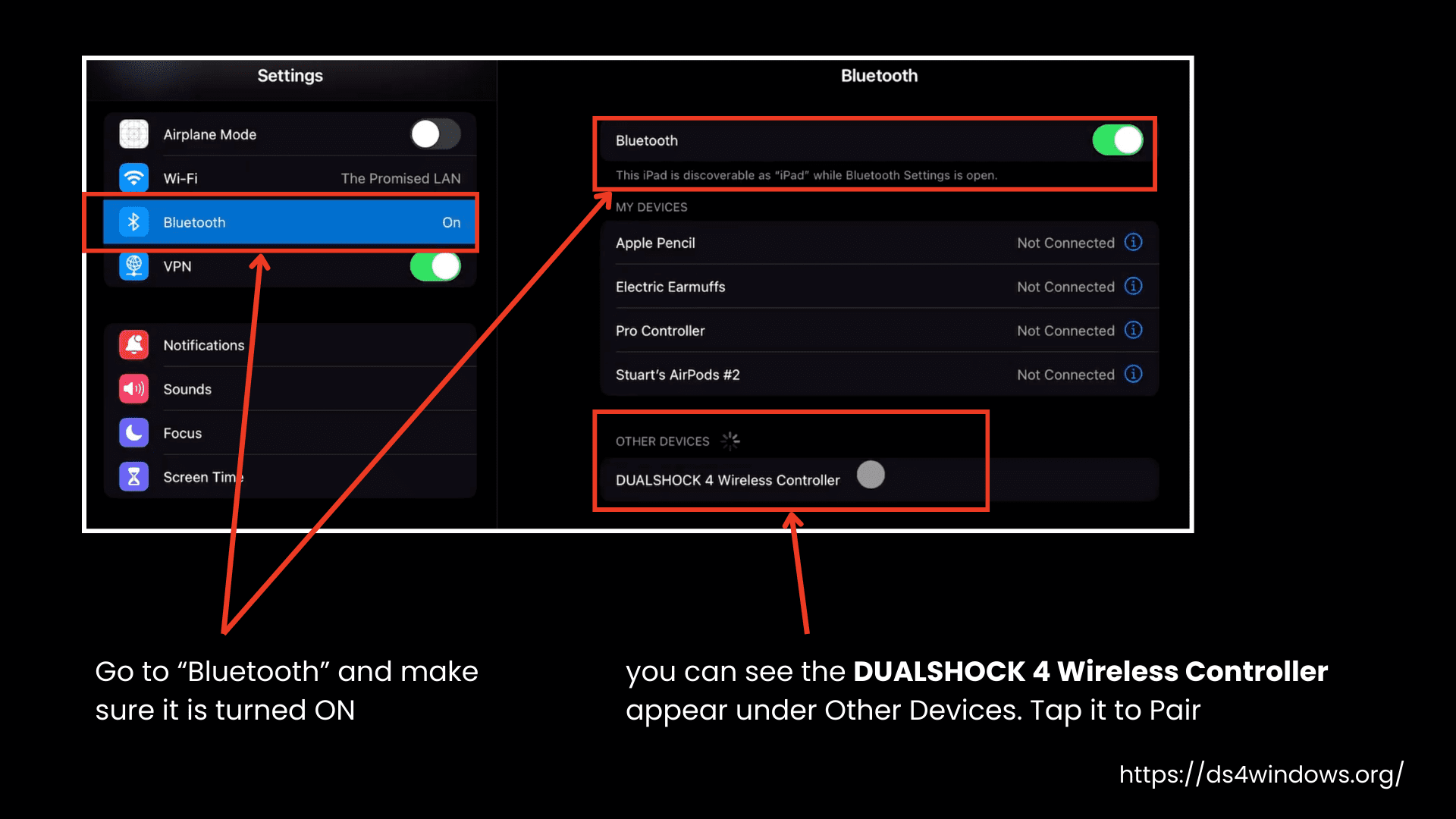
- Open Settings on your iPhone/iPad.
- Confirm that Bluetooth is turned ON.
- After waiting a few moments, you can see the DUALSHOCK 4 Wireless Controller appear under Other Devices.
- Tap it to pair. The light on your DS4 will stop flashing and stay solid after it gets connected.
And that’s all it is, you can play any PlayStation game on your iPhone or iPad with a physical controller.
How to Disconnect Your DualShock 4 or PS4 Controller
Finished playing? Here’s how to turn it off:
- Pull down from the top right corner or slide up on older iPhones.
- Long-press the Bluetooth icon.
- Tap the DUALSHOCK 4 Wireless Controller to disconnect.
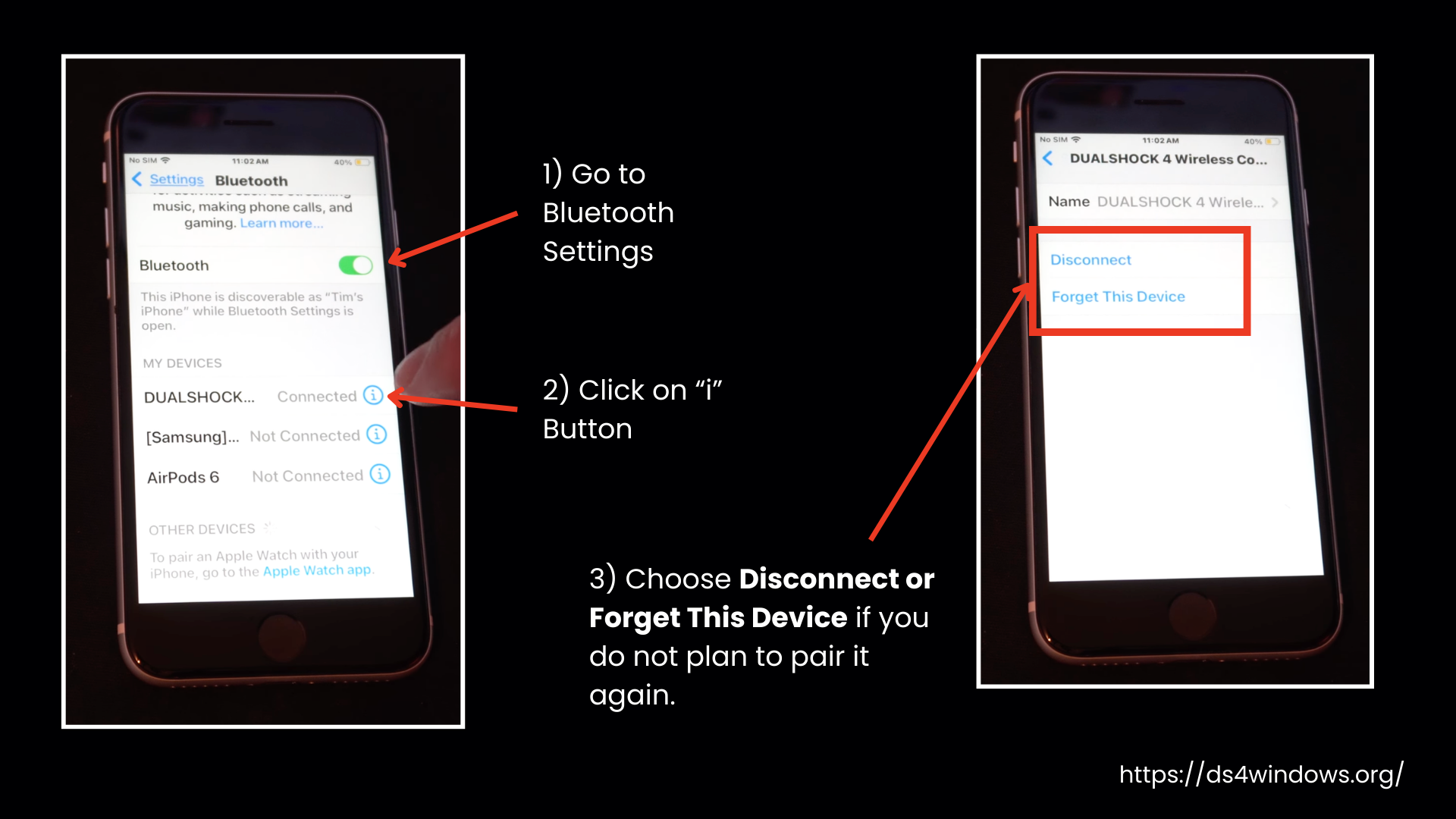
- Open Settings and go to Bluetooth.
- Find the DUALSHOCK 4 Wireless Controller under My Devices.
- Tap the tiny ⓘ button next to it.
- Choose Disconnect or Forget This Device if you do not plan to pair it again.
Troubleshooting: What If It Doesn’t Connect?
If your controller won’t pair, don’t panic. Try these quick fixes:
- Turn Bluetooth OFF and ON again in Settings.
- In Bluetooth settings, you will tap the (i) button next to the controller, select Forget This Device, and then pair it again.
- Not forgetting that many times a simple restart can fix everything.
- The culprit may be the low-charged battery. If the battery is low, it may struggle to connect.
How to connect a PS4 controller to Android
Touchscreen controls work well, but when it comes to accuracy, fast reflexes, and true comfort, they fall short. If you own a PlayStation 4 or 5, why not make the most of your fantastic DualShock 4 controller on your Android phone or tablet? Setting it up is a breeze. Whether you opt for a wireless Bluetooth connection or a wired setup, just follow the steps below.
Connect via Bluetooth
- Hold down the PS button (in the middle) and the Share button (top-left) at the same time.
- The light bar will start flashing white, meaning it’s in pairing mode.
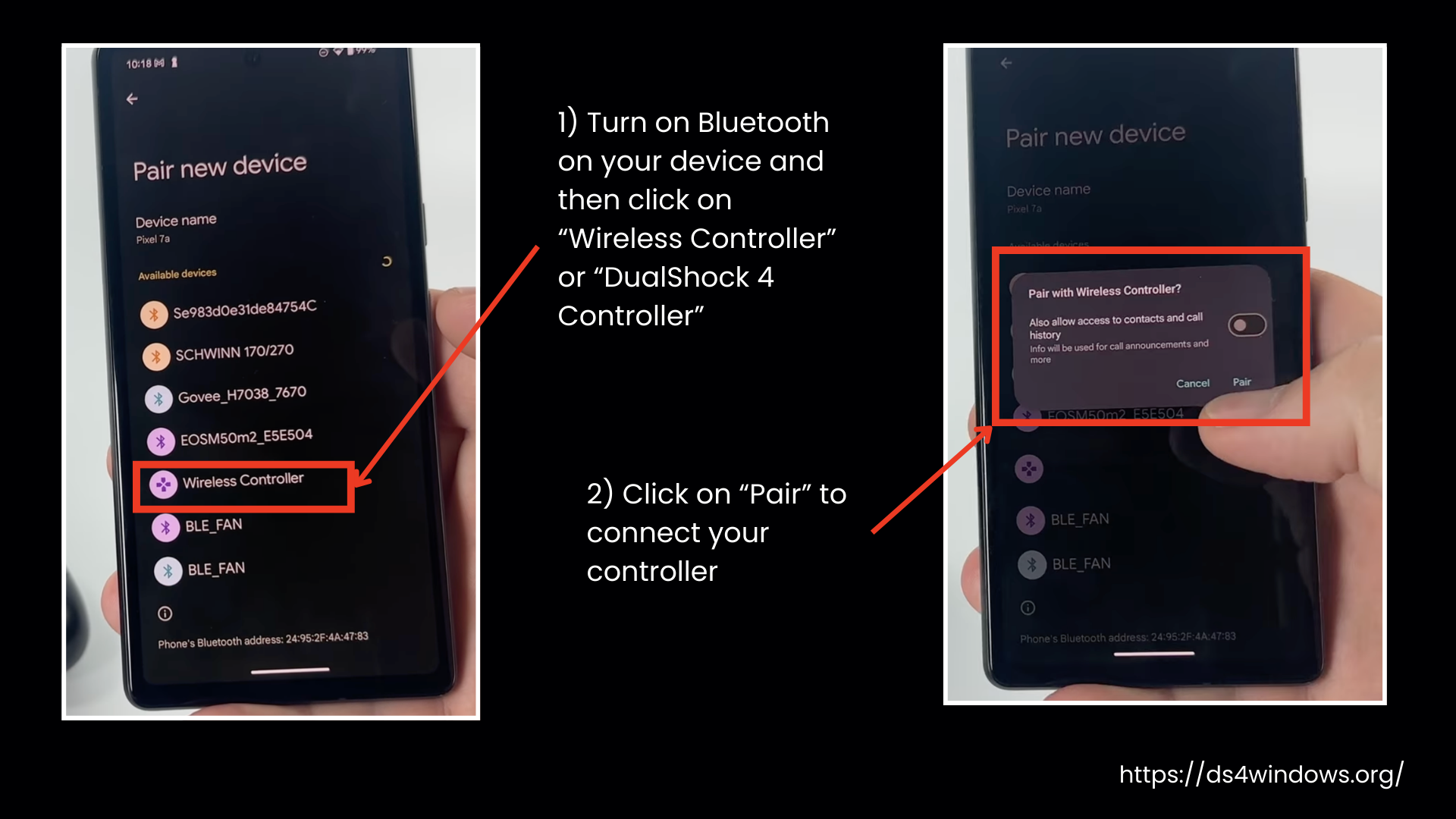
- Open Settings on your Android device.
- Search for Bluetooth to activate it.
- Tap Pair New Device and look for DualShock 4 in the list.
- Tap it, and once connected, the light bar will stop flashing and stay solid.
Connect DualShock 4 to Android via USB
If you prefer a more stable connection or your Bluetooth is acting up, you can use a USB cable instead. Here’s what you need:
- A USB-C to Micro-USB cable or a USB-A to USB-C adapter (since the controller’s original cable won’t fit most Android devices).
- Plug the cable into both your controller and phone.
- No setup is needed. Your phone should detect it immediately, and you will be good to go.
- Heads-up: A wired connection drains your phone’s battery faster, so keep that in mind.
Troubleshooting: Stuck? Try These Fixes
If your controller refuses to connect, don’t stress; give these quick fixes a shot.
- Switch Bluetooth off and back on in your phone’s settings.
- Forget the controller and pair it again.
- Give your phone a restart.
- Check the battery. A drained controller might be too weak to connect properly.
What’s New with DualShock 4 on Android?
If your device is running Android 12 or later, your DualShock 4 controller comes with some awesome upgrades.
- The touchpad now works for added control.
- Motion sensors let you tilt and move in supported games.
- Rumble feedback makes gameplay more immersive.
- You can check the controller’s battery level right from your phone.