

DS4Windows
DS4Windows is a program that allows you to play PC games with modern PlayStation controllers by connecting them to your Windows 10/11 PC through Bluetooth or USB. It is an input mapper/translator that converts signals from PlayStation controllers (DualShock 3, DualShock 4, and PS5 DualSense) into a virtual Xbox (XInput) controller that your computer or games can understand.
What is DS4Windows?
DS4Windows is a gamepad virtual emulator that emulates the PS controllers into an Xbox 360 controller. Some games only support Xbox controllers, DS4 Windows 11/10 acts as an input mapper to translate the PlayStation controller’s inputs so they work like an Xbox controller. It acts as a translator between the controller and the game.
The latest version of DS4Windows is originally developed by Ryochan7 and has received great popularity among gamers. It has 7.6K+ stars on GitHub. With this software, you can connect most modern PlayStation controllers to your Windows 10/11 PC. It supports the DualShock 3, DS4, and PS5 DualSense. This also maps or emulates the Nintendo Switch Pro controller and Joy-Cons. Moreover, you can also play those games with PS controllers that are natively designed to be played with a keyboard and mouse.
Key Features
It maps the DS4, DS3, and PS5 DualSense controllers to work like an Xbox controller.
It even emulates the original DS4 v.1 to make it compatible with games that only support that version.
You can also set up other modern PS controllers like DS4, DualSense, Switch Pro, and Joy-Cons.
Use its touchpad and buttons to play games that only support a keyboard and mouse.
Change the light on the controller, turn it off, show battery levels, or customize it.
Change what the buttons and sticks do by linking them to Xbox buttons, keyboard keys, or shortcuts.
Save your controller settings/profiles and switch between them quickly.
Automatically switch to different profiles when you open different apps or games.
Use a modifier button to activate an extra layer of controls and map more actions.
AAdjust how sensitive the sticks, triggers, and motion controls feel.
Automatically checks for updates and lets you download them.
Download DS4Windows (v3.3.3) for PC

DS4Windows || v3.3.3 || 4.3 MB
Requirements
DS4Windows download is only available for Windows PCs. Till the release of its latest version 3.3.3, no version has been released for Mac or Linux systems. But before heading to the download, make sure to meet the minimum requirements for downloading this PS controller virtual emulator.
Install DS4 Windows on PC (Windows 10/11/8.1/7)
DS4Win emulates well on newer Windows versions, 10 and 11. For Windows 7 or 8.1, it may cause bugs and other latency issues. So, we only recommend installing this PlayStation controller emulator on Windows 10 and 11.
Note: Some games work with the DS4 without needing DS4Windows. However, these games can cause double inputs in menus. For example, pressing down on the D-pad may move two spaces at once, or the wrong button may perform another action.
To fix this, check “Hide DS4” in the settings. If you see a warning at the bottom, it means you need to close the game or client causing the issue and reconnect the controller.
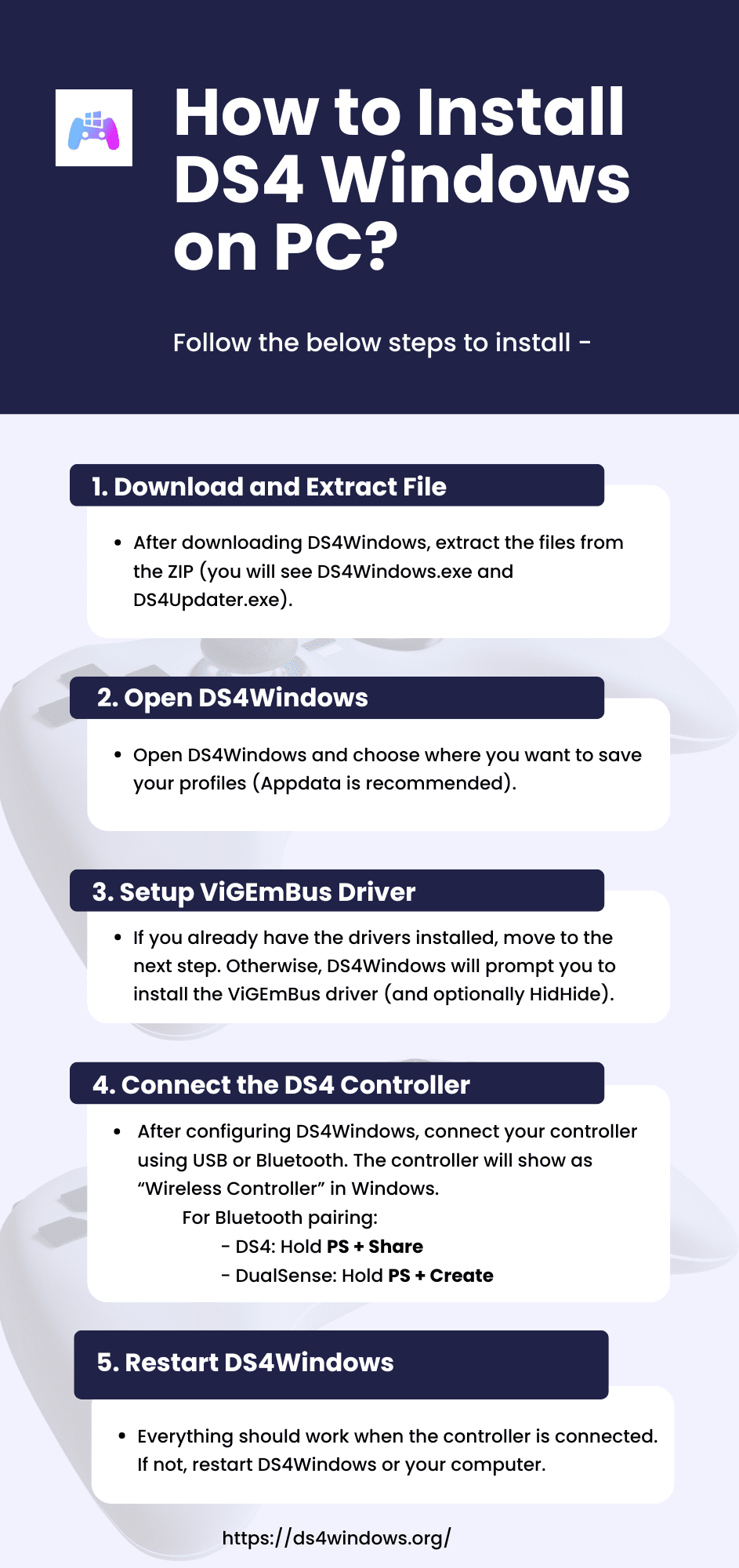
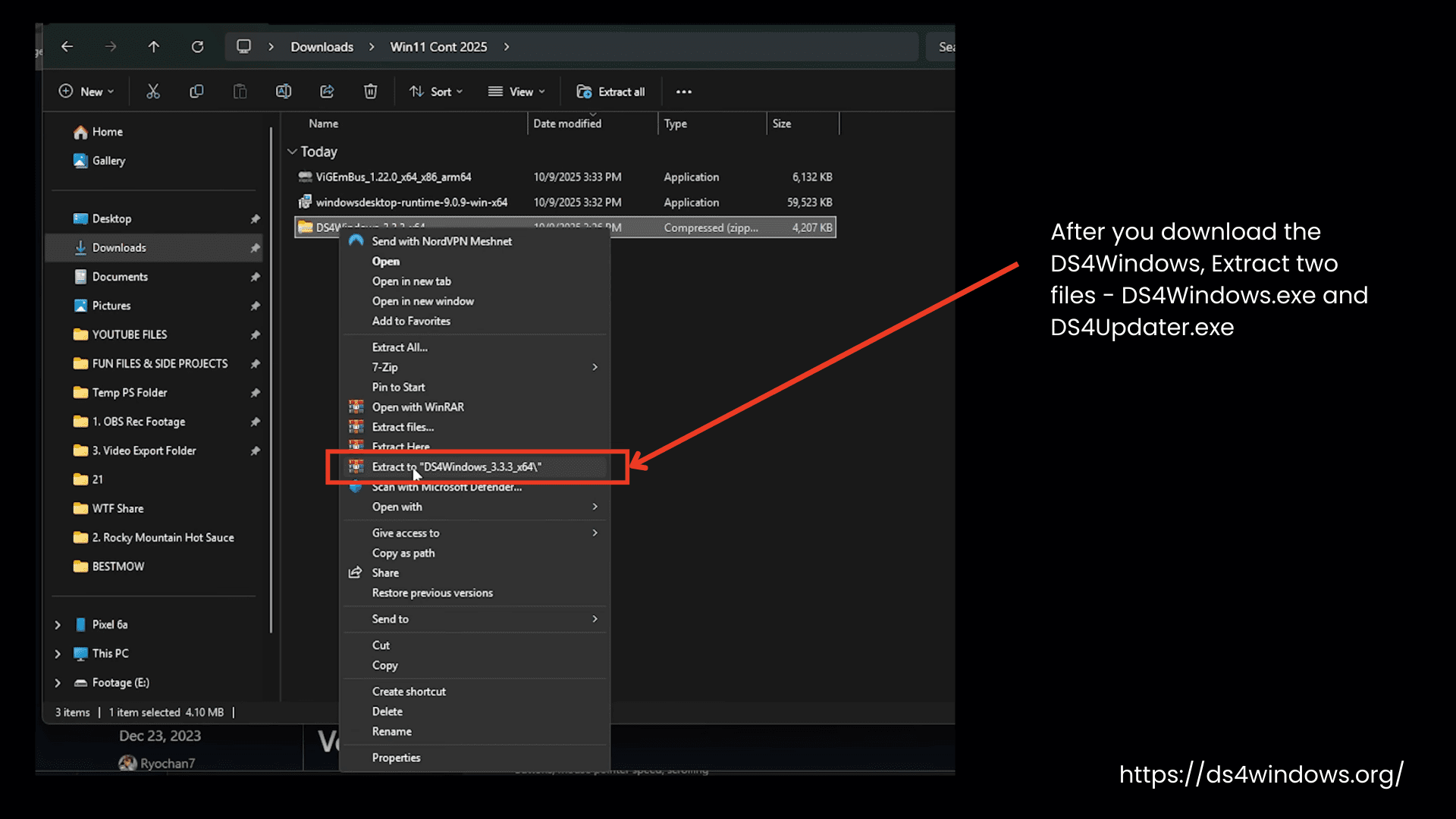
Extract the Zip File.
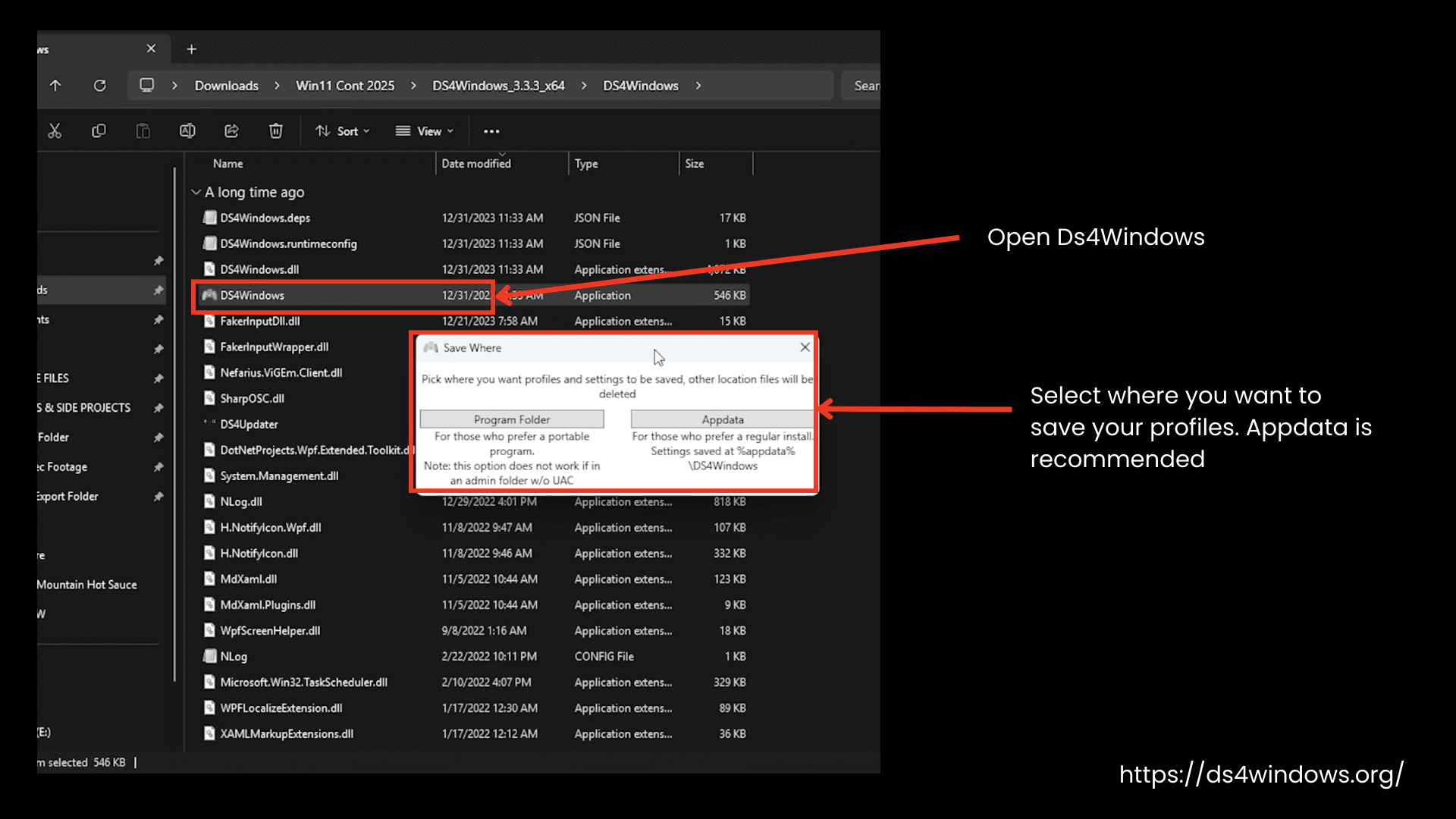
Choose where you want to save profiles
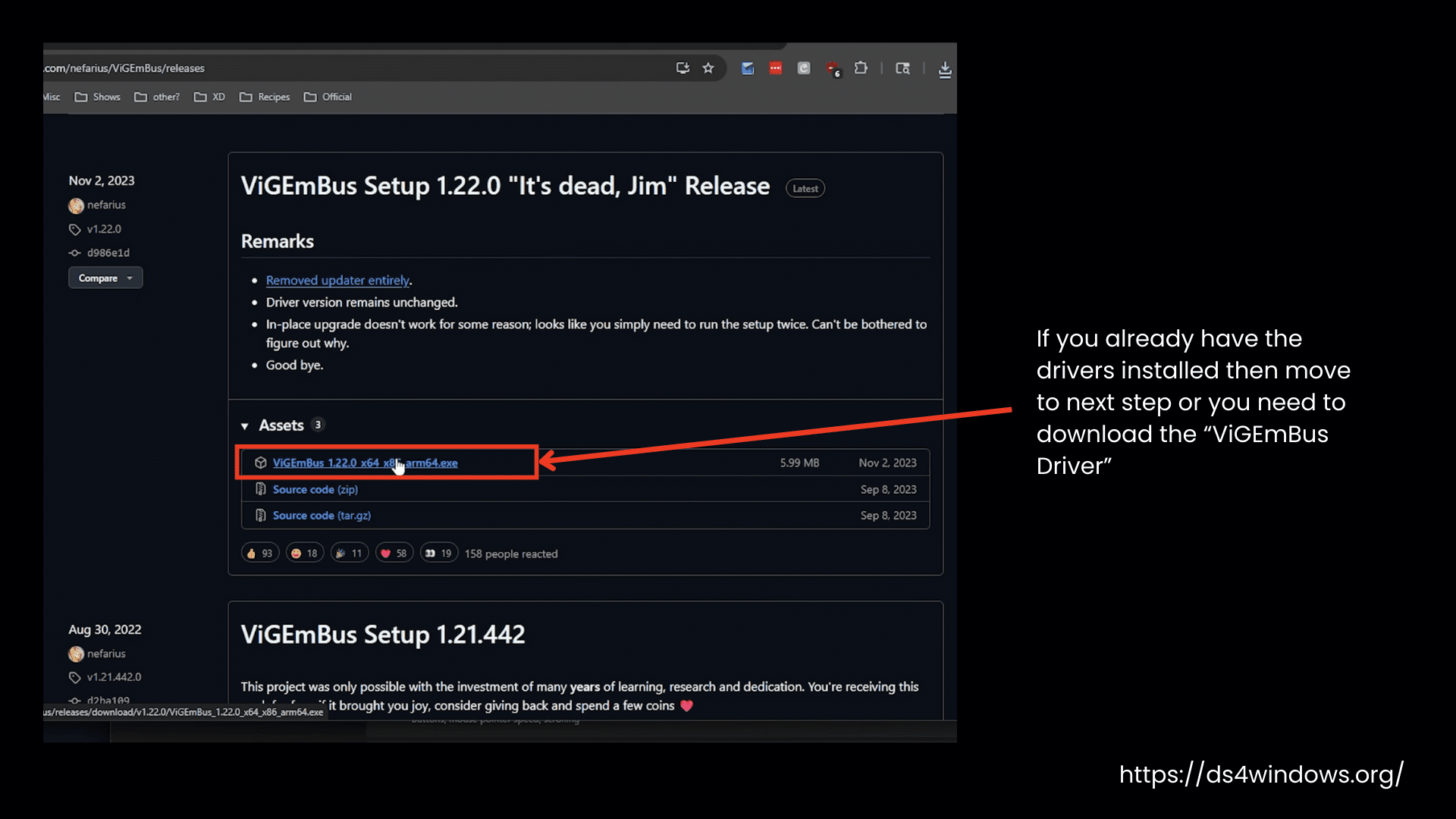
Install ViGEmBus Driver.
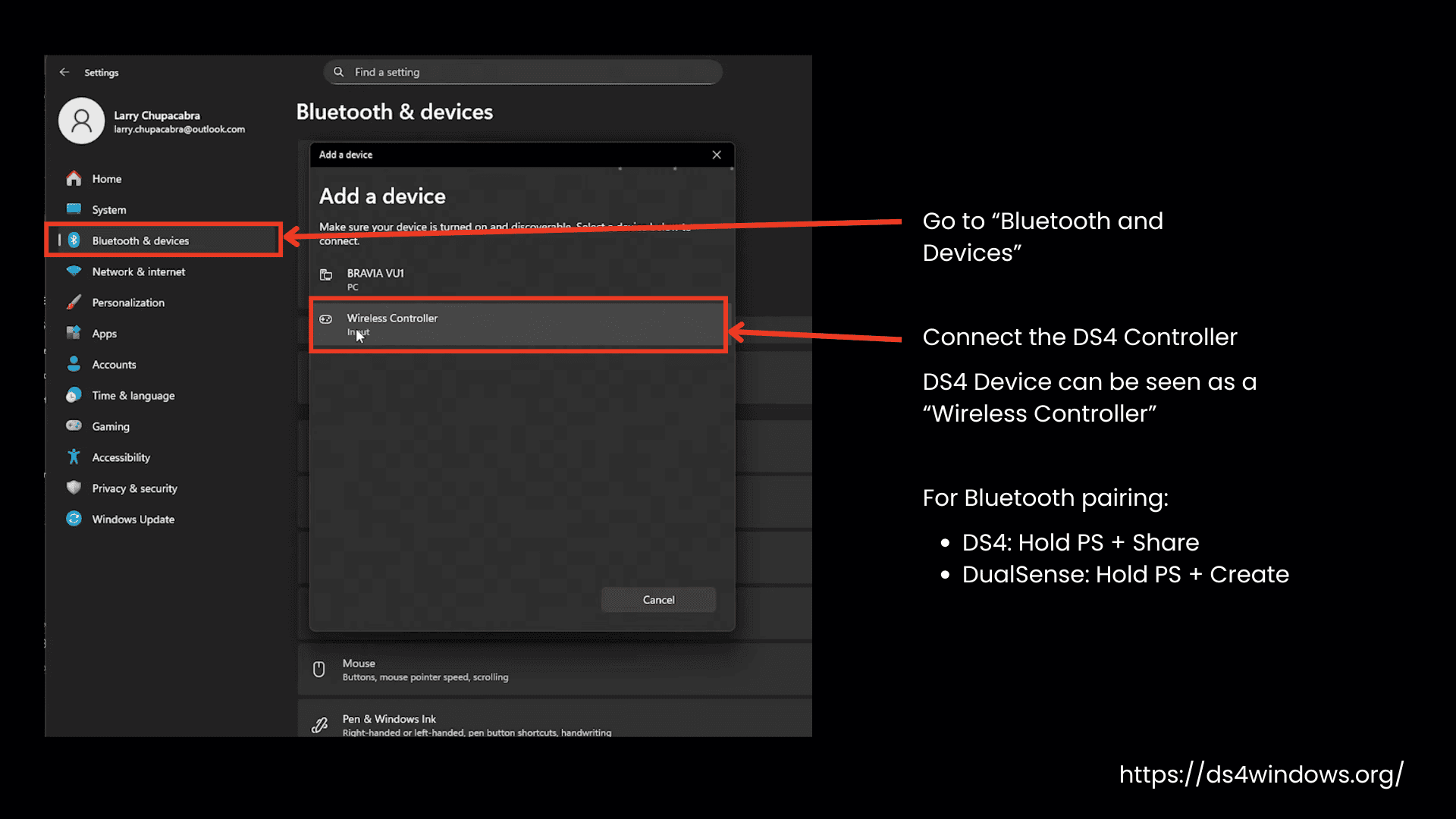
Connect DS4 Controller
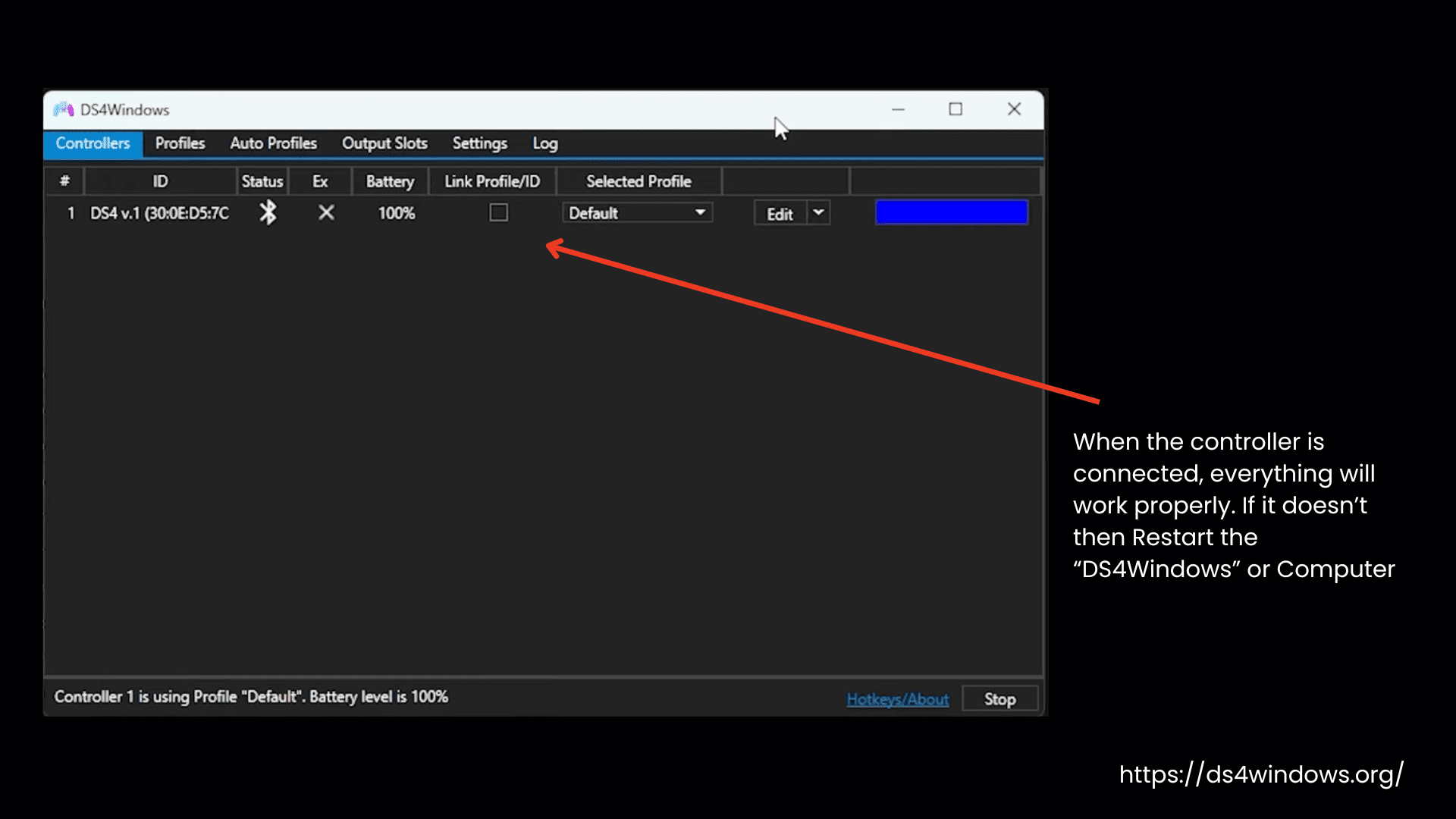
Restart DS4Windows or Computer
Why DS4Windows?
DS4Windows’ purpose is to let us play PC games with PS controllers. Many of us prefer to play games with PlayStation controllers because of their customizable features or because they are comfortable to hold compared to Xbox controllers.
But PS controllers don’t work with Windows by default. For whatever reason, if anyone wants to play games with a PS controller, that can be possible with DS4Windows. It tricks your computer into thinking the DS4 is an Xbox controller by creating a “virtual” Xbox gamepad.
Why do you need DS4 Windows? Let’s read some of its features to get the answer.
Free Application
The first and foremost reason is it’s free. DS4Windows 10/11 is an easy-to-use, free application maintained by Ryochan7/Community.
Custom Game Profiles
DS4Windows lets you create as many profiles as you want. Each profile can have its own settings for your controller. You can easily switch between different setups to use one profile for one game and another for a different game. You can customize the controls, like changing the button layout and sensitivity, to make the controller work best for each game you play.
Multiple Controller Mapping
This tool can map multiple controllers, including DualShock 3, 4, and PS5 DualSense, as well as Joycons, Nintendo Switch Pro, and even third-party DS4 replicas. It can act like a keyboard and mouse to play those games that are natively designed for keyboard and mouse.
You can create shortcuts (macros) for actions and use motion sensors (like tilting the controller, or gyro movement) to control in-game actions.
Customized Controls
Its customized controls make this application more compatible with many games.
Lightbar Controls
The Lightbar Control has two modes: Normal and Passthru. The Passthru mode is currently disabled because of driver problems. In Normal mode, you can change the lightbar colors on your controller to customize it however you like.
Gyro Modes
With DS4Windows gyro modes, you can control your game movements by tilting your controller. Each mode has further settings to control the movement. Here’s what each mode does:
Wireless Rumble Support
This feature is added for the PS5 DualSense controller. To make the game more realistic, your controller vibrates to match what’s happening in the game.
Controller Remap
Switch the functions of certain buttons or keys in the controller remapping feature to use them more flexibly and comfortably. If you choose the “Gamepad + KB + M” preset option, you can adjust and control both your gamepad (controller) and your keyboard/mouse buttons at the same time.
Controller Deadzone
Controller dead zones are areas where the controller doesn’t respond to small movements. The default setting for dead zones is 0, and the max range is 1. You can change the settings of both dead zones: Radial (a circular dead zone around the center) and Axial (along the X or Y axis) to make the controller more or less sensitive, depending on how you like to play.
DS4 Screenshots
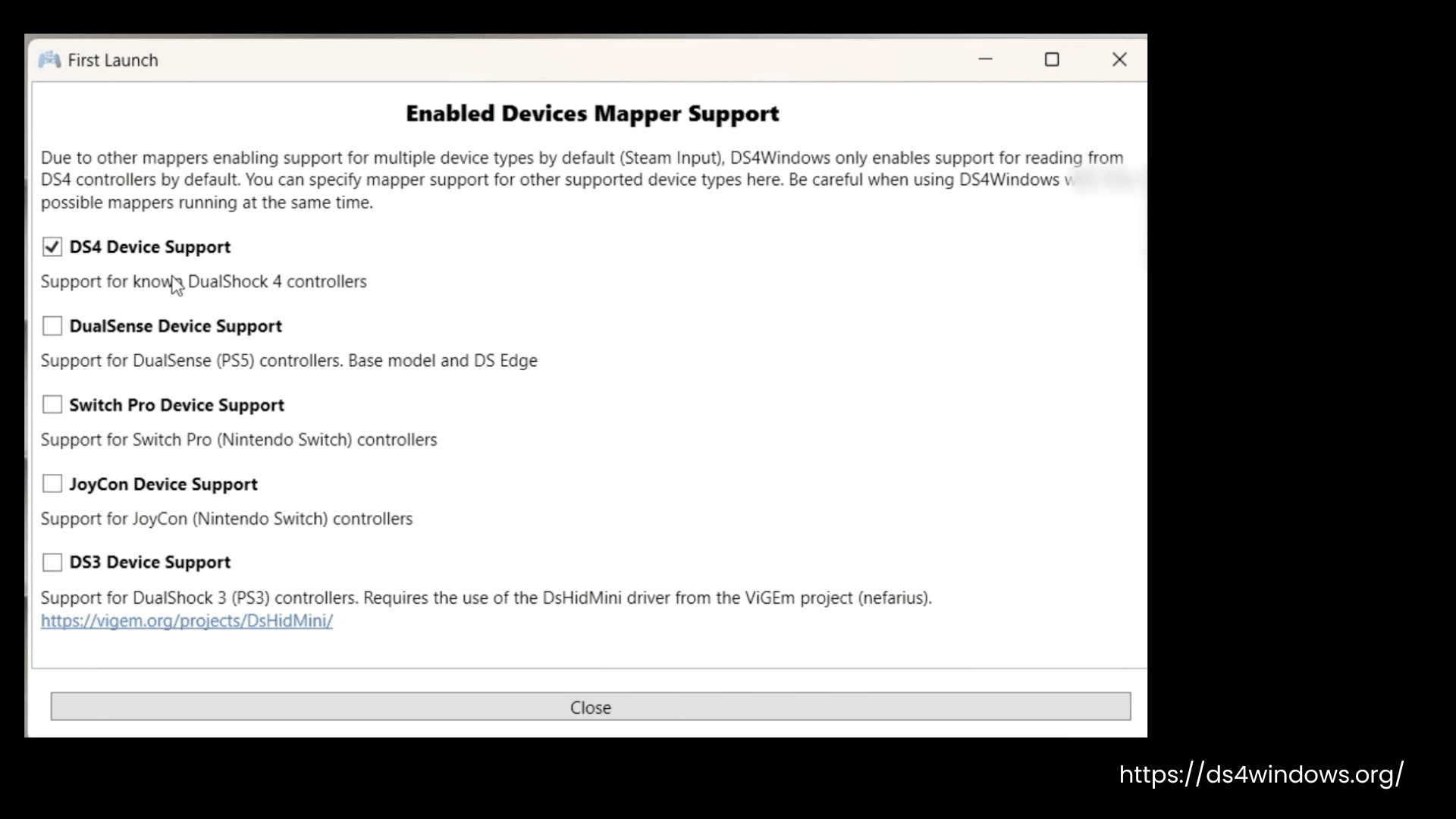
DS4Windows First Launch
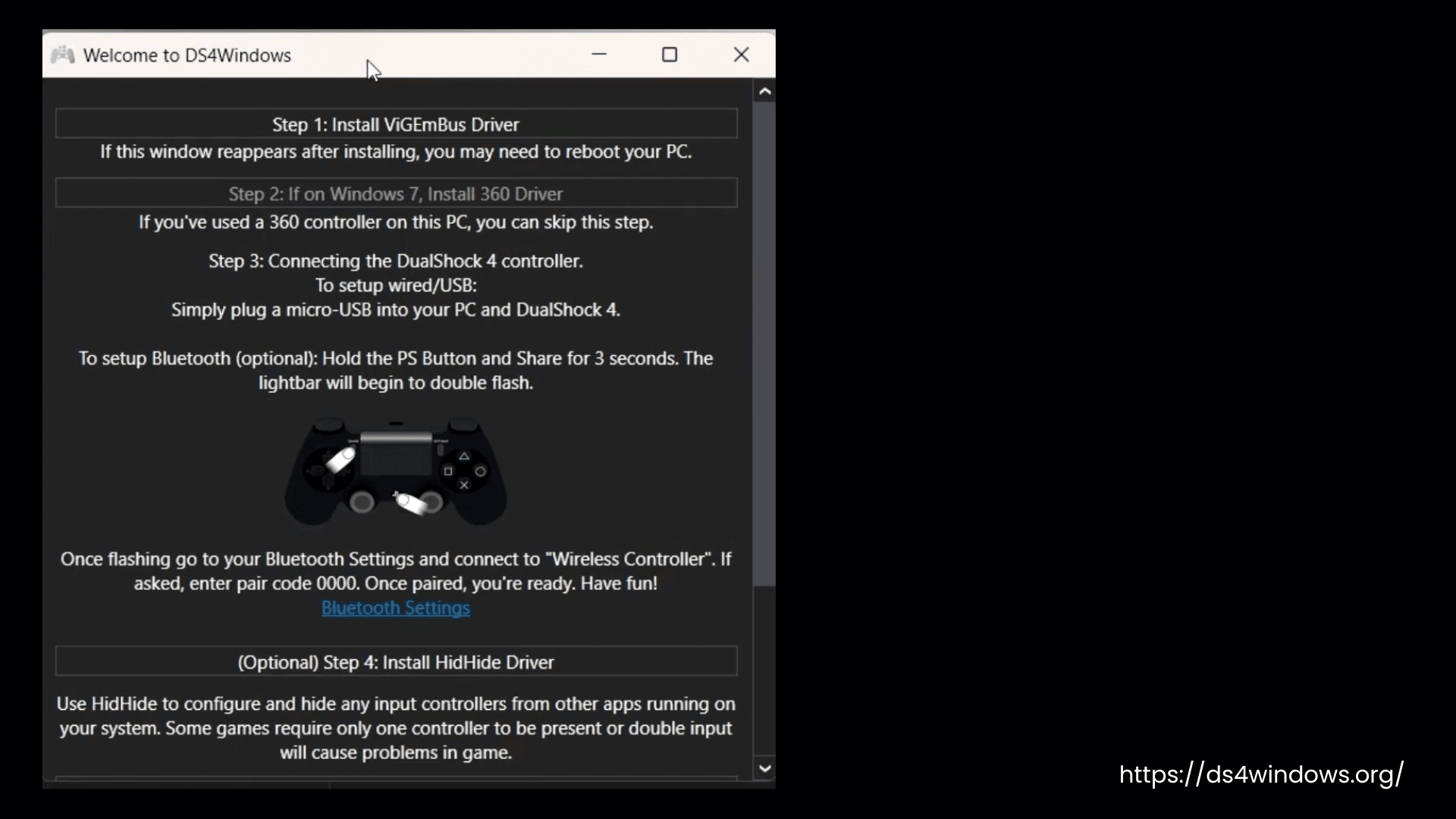
Welcome to DS4Windows
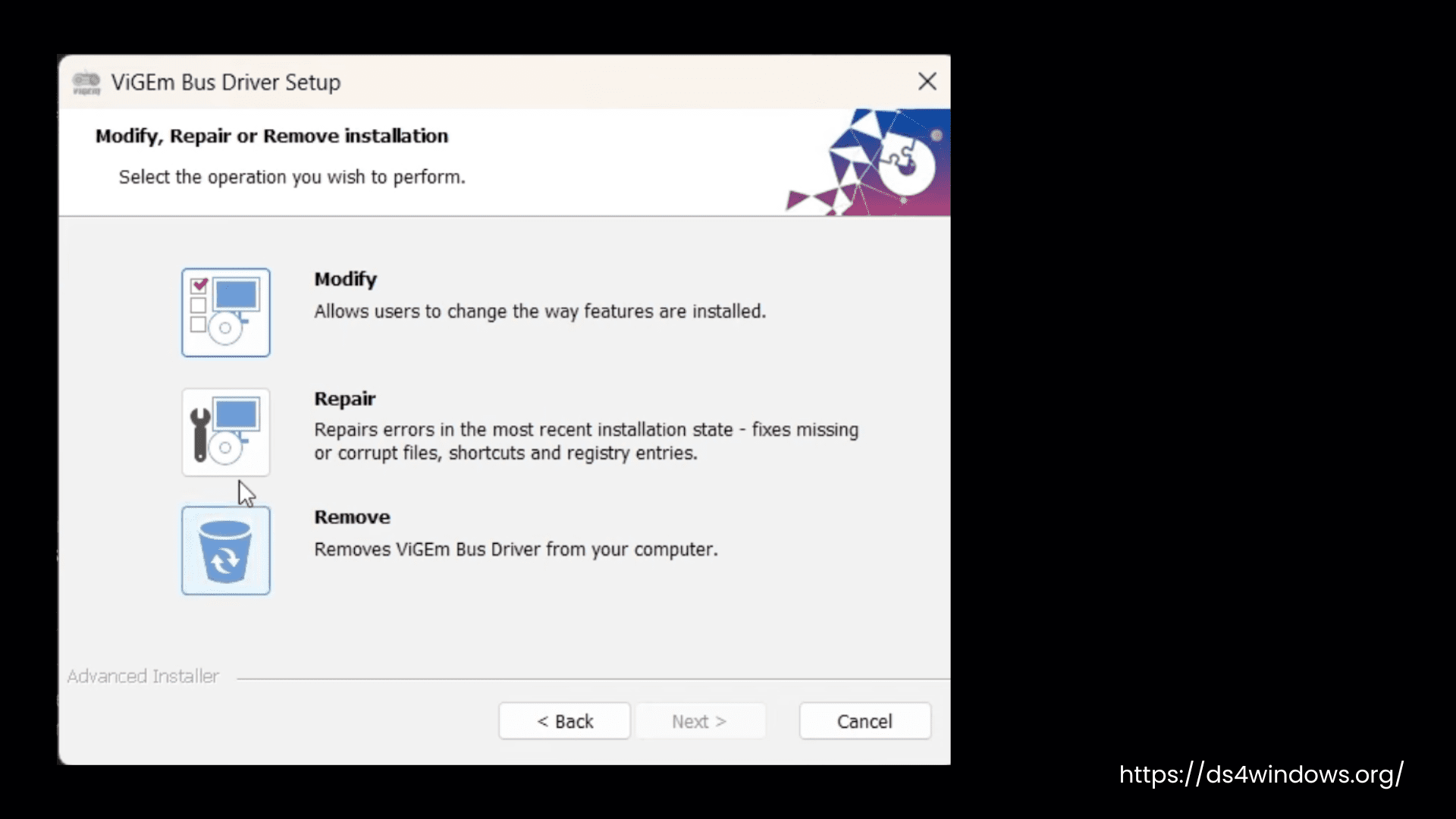
ViGEmBus Driver Setup
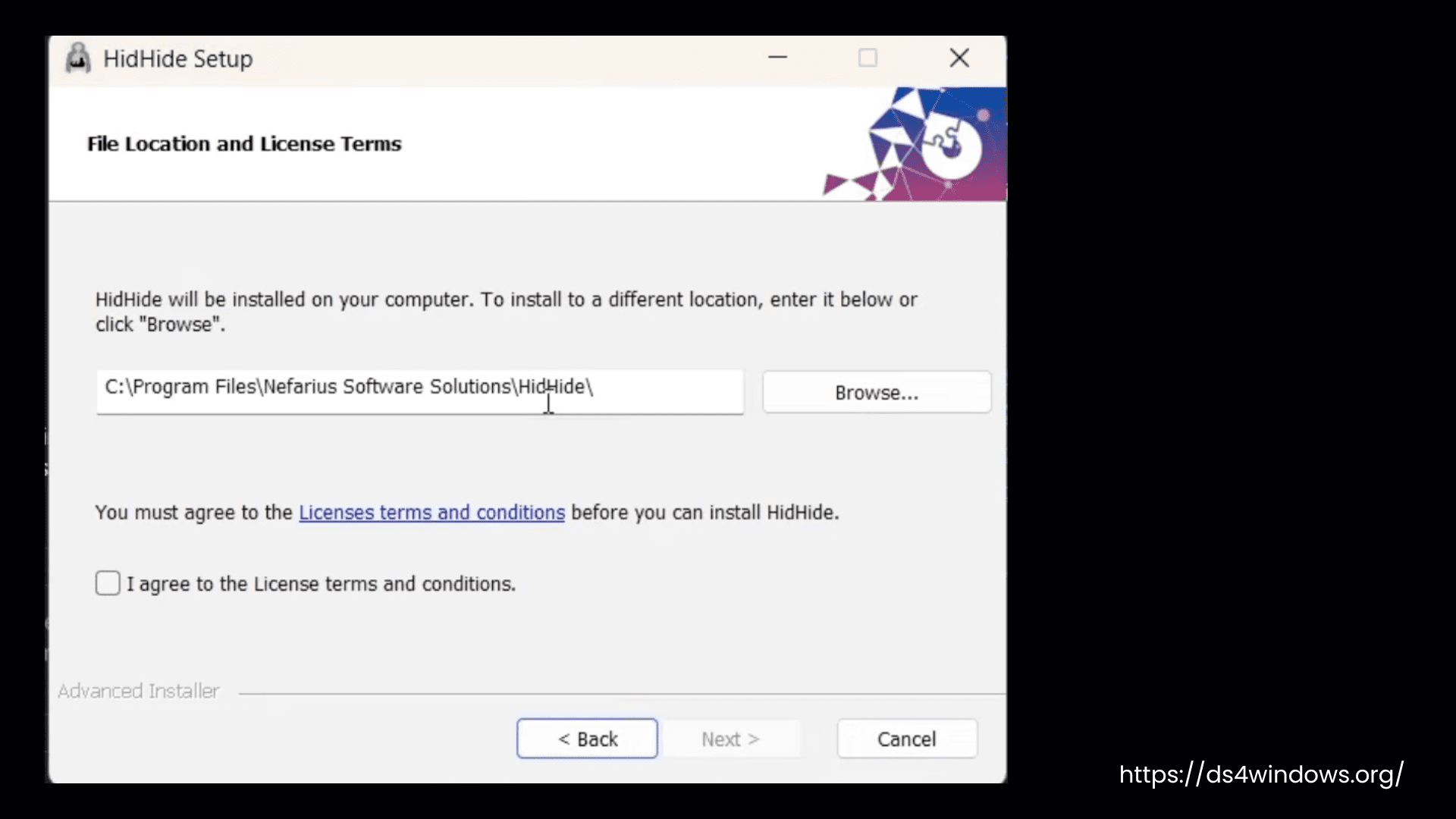
HidHide Setup
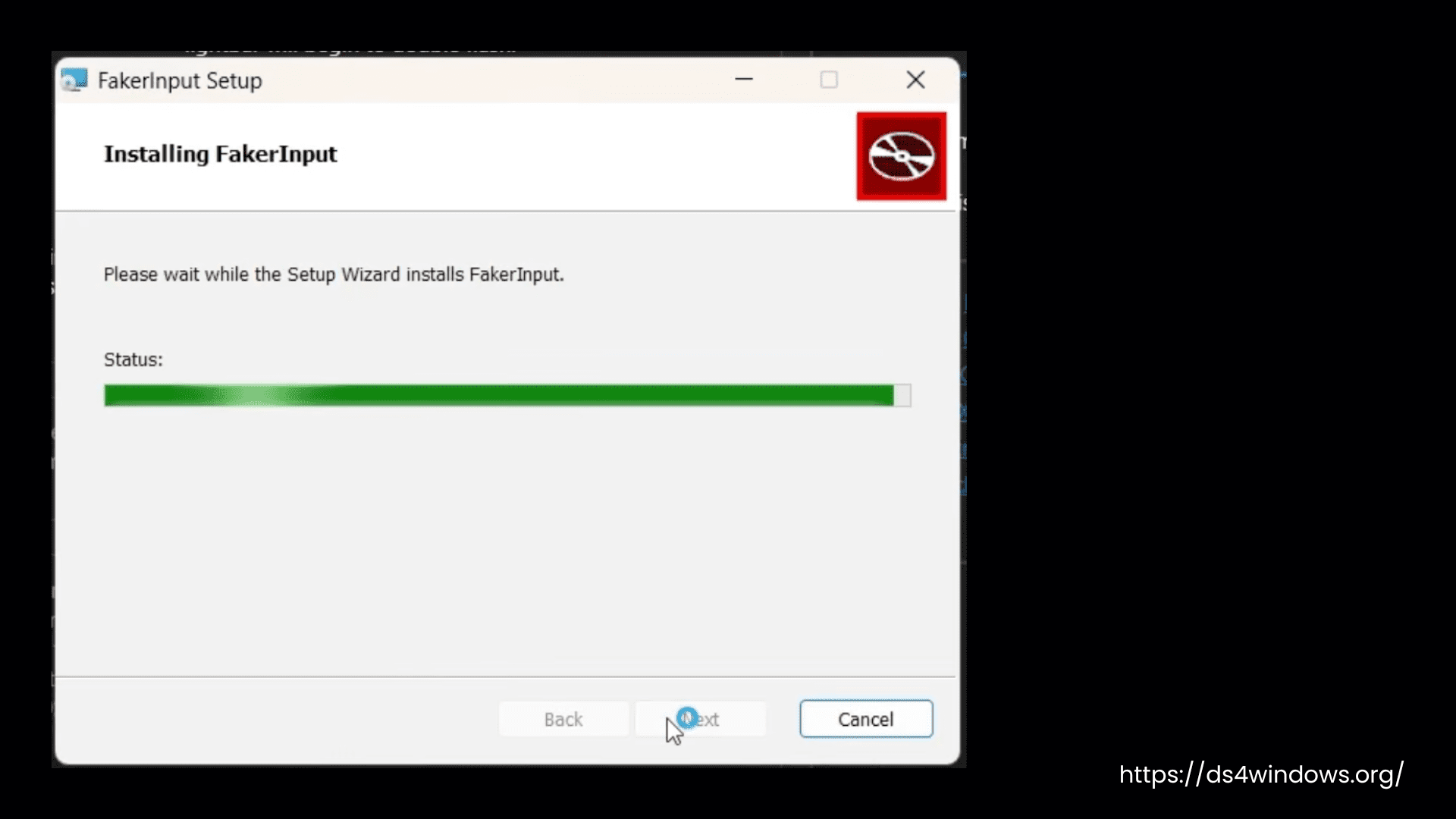
FakerInput Setup
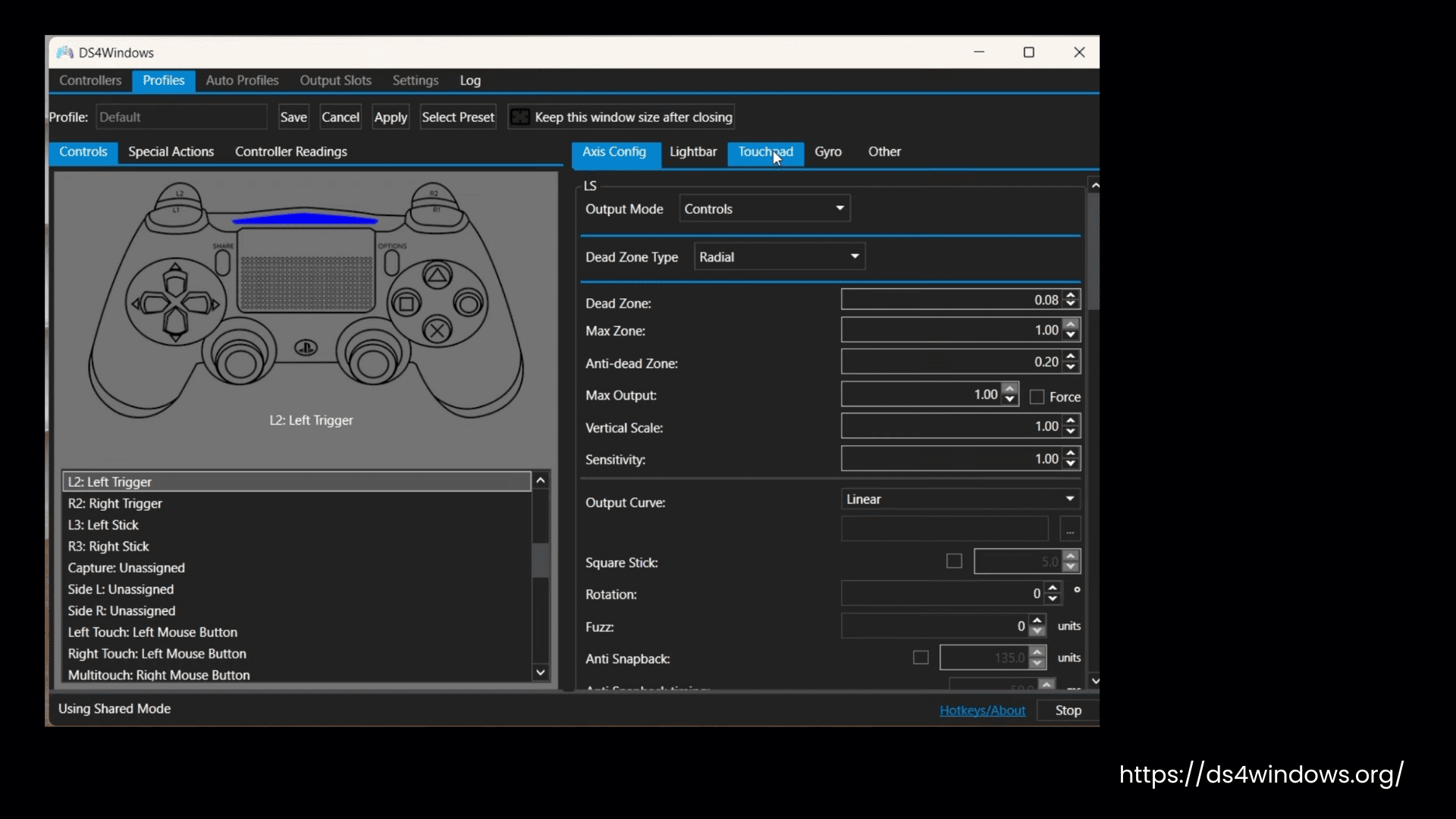
DS4Windows Profiles Axis Configuration
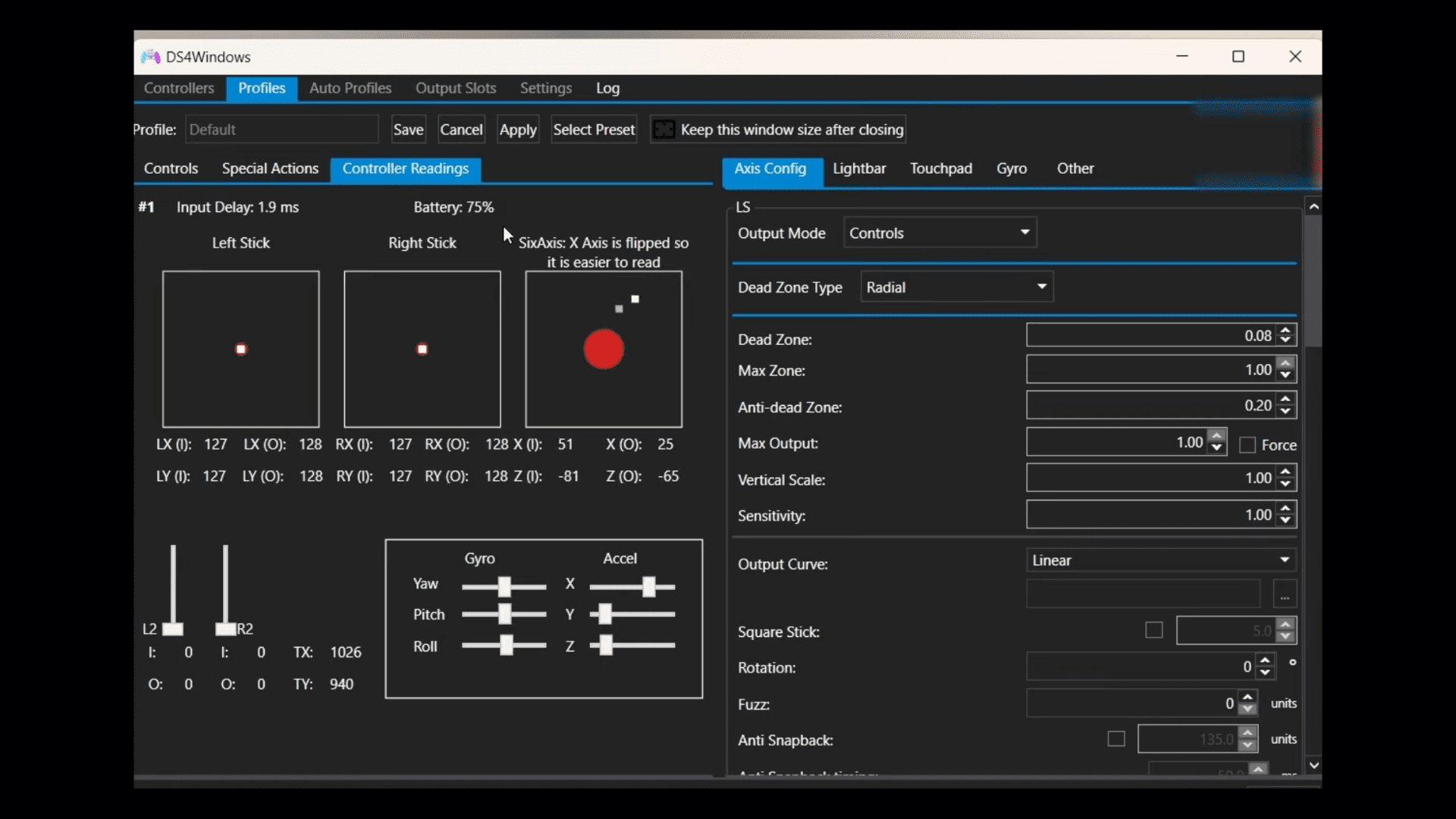
DS4Windows Axis Config – Controller Readings
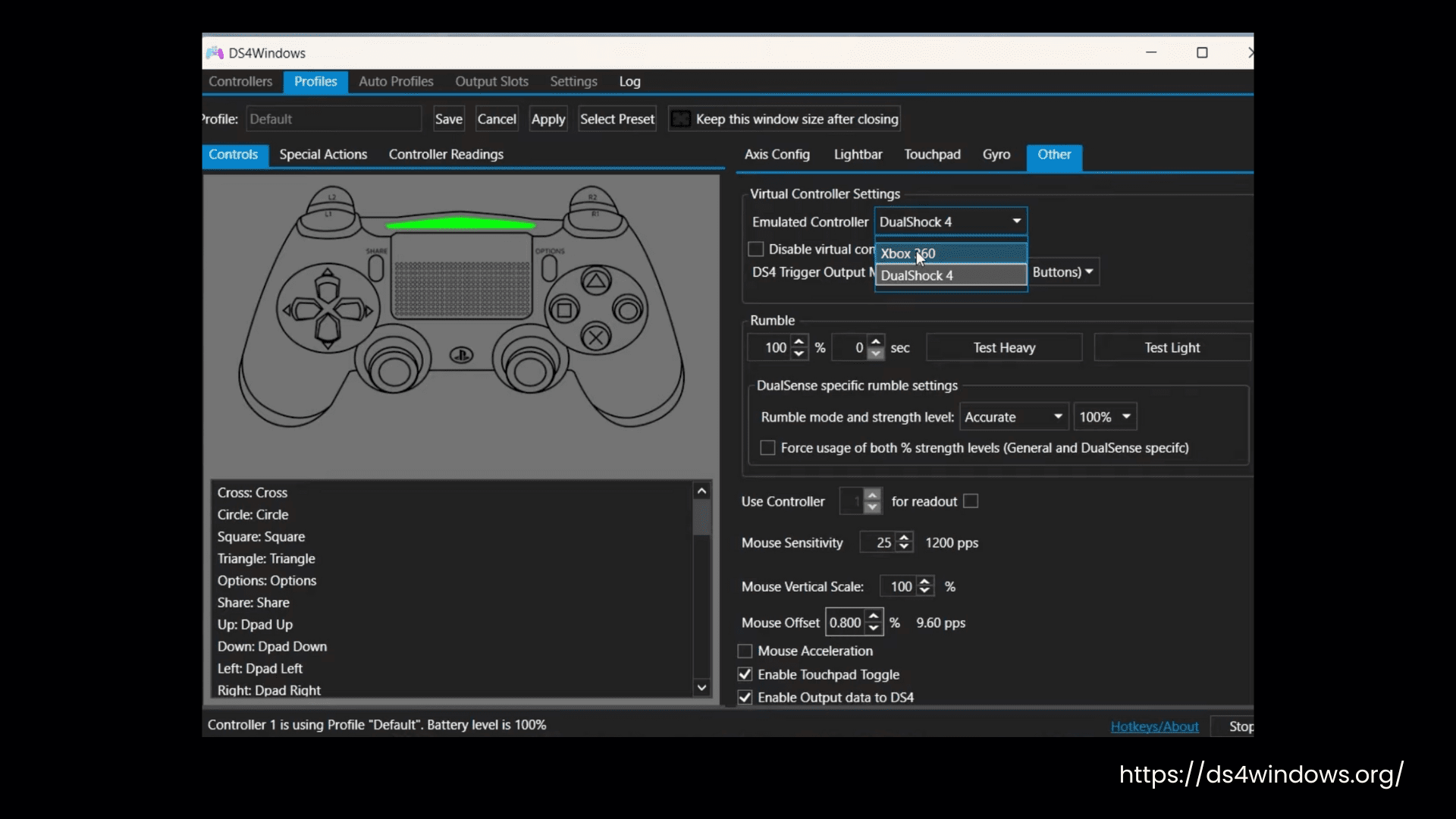
DS4Windows Virtual Controller Settings
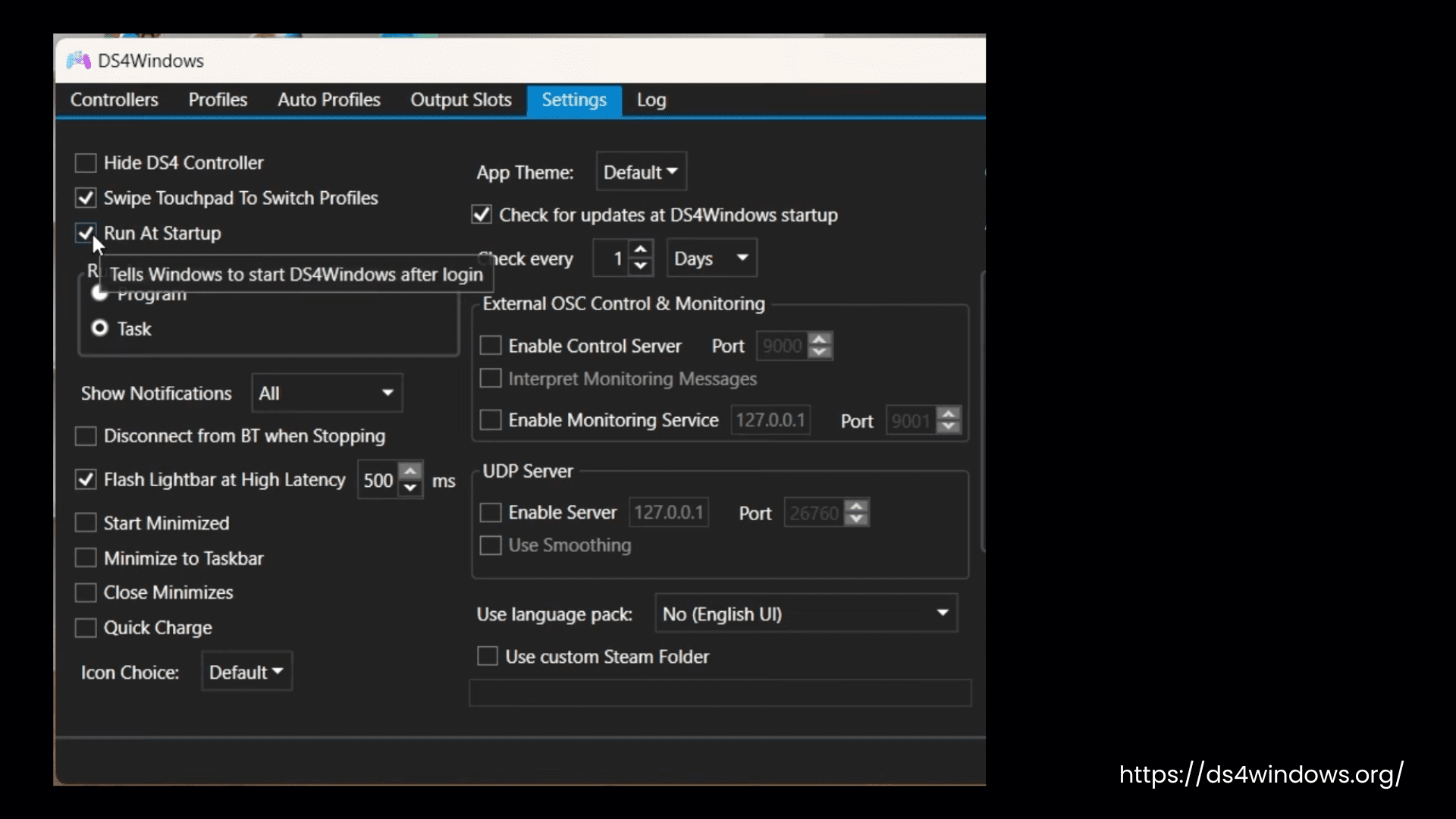
DS4Windows Settings
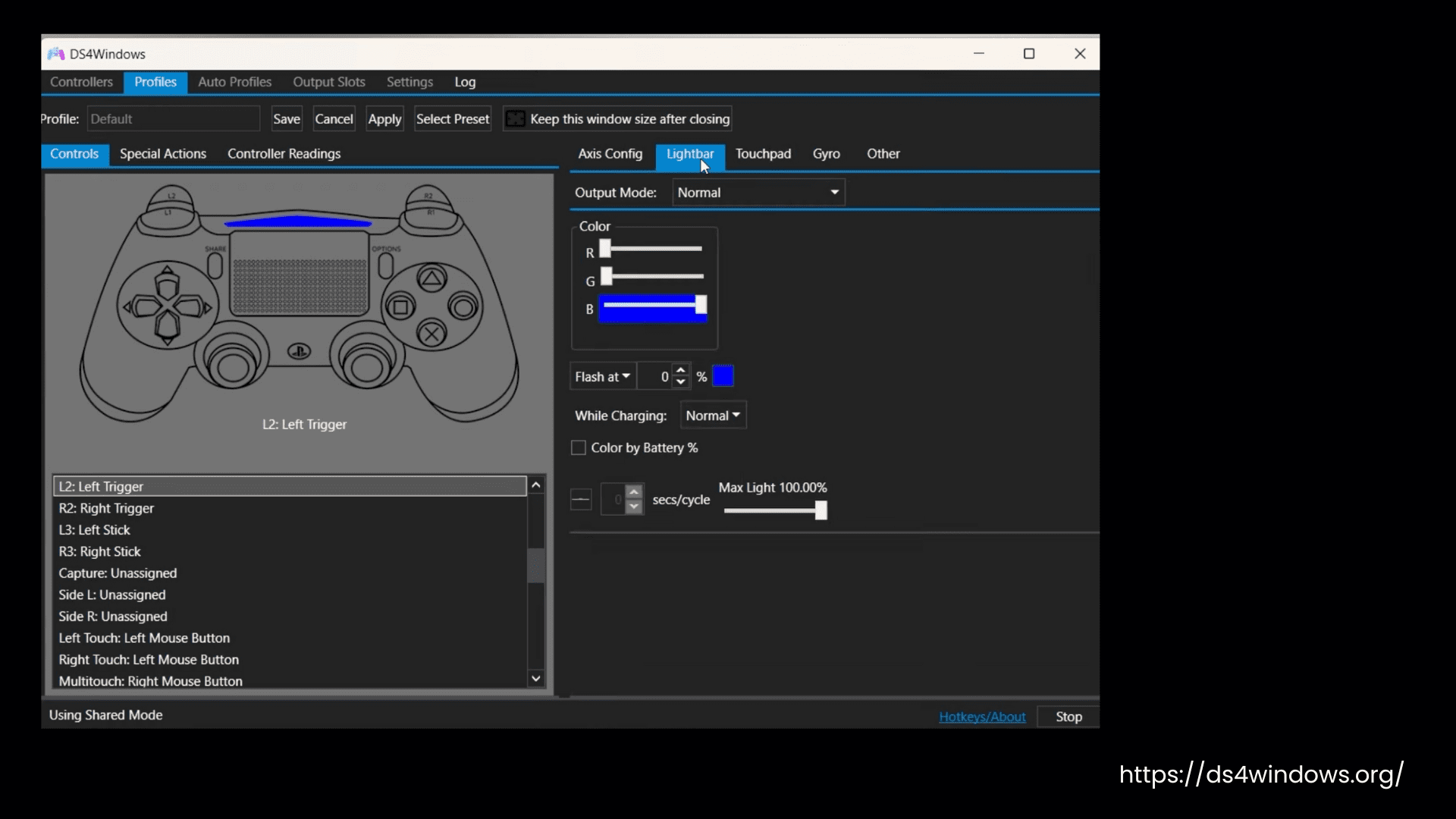
DS4Windows Lightbar Settings
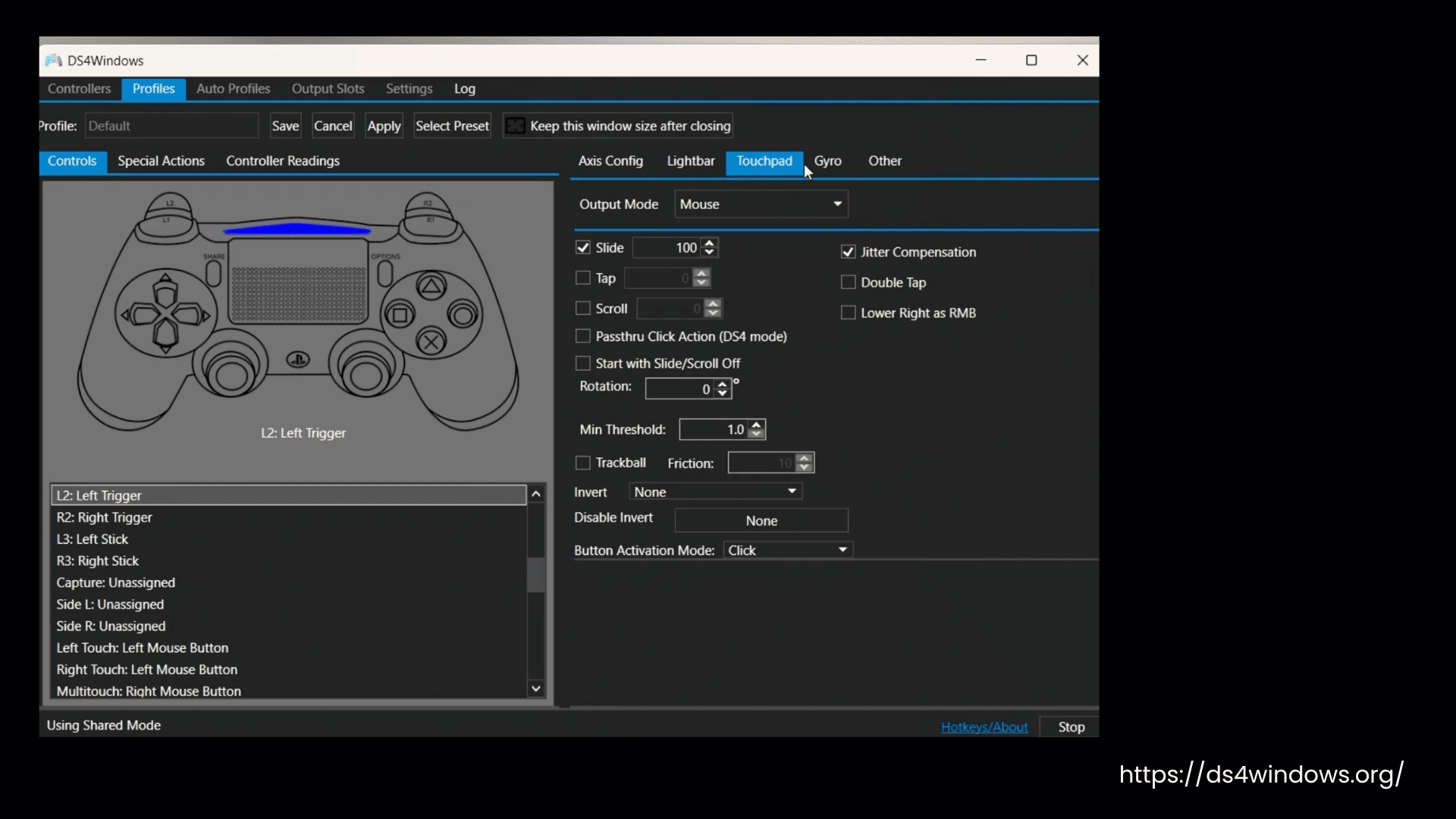
DS4Windows Touchpad Settings
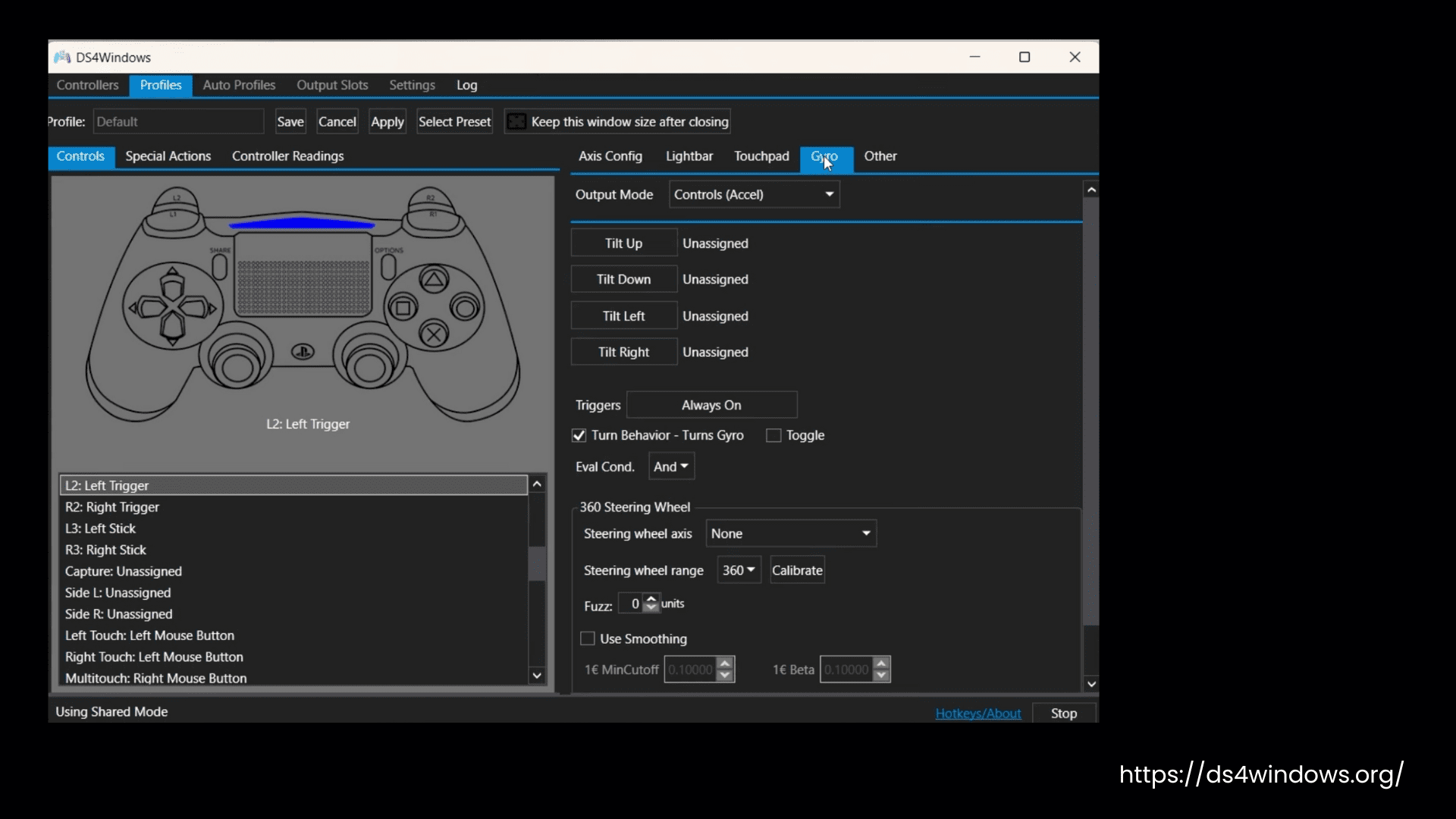
DS4Windows Gyro Settings
How Does It Work?
DS4Windows is an application that works like a translator, translating PS controllers into Xbox controllers for your PC. As many PC games are compatible with Xbox, it tricks the PC into recognizing PS controllers like the DS3, DS4, and DS5 as Xbox controllers so that you can play PC games with better controls.
We can use the DualShock controller wirelessly via Bluetooth in games that usually require a USB connection. This input mapper provides more comfort with its gyro movement to control in-game movements by physically moving the controller.
Controller connects to your PC:
First, you connect your PS controller to your Windows PC using Bluetooth or USB.
DS4Windows read raw inputs:
Then, DS4Windows runs in the background and reads all inputs like buttons and sticks, triggers (analog input), touchpad clicks, gyro and motion sensors (if enabled).
Translation:
Further, DS4Windows translates those inputs into XInput (controller standard used by Xbox controllers on Windows). Most PC games understand XInput only.
Creation of virtual Xbox controller:
With the help of a virtual driver (ViGEmBus), DS4Windows creates a fake Xbox 360 controller inside Windows.
Game receives the input:
The game receives the translated input from the virtual Xbox controller and responds as if you were using a real Xbox gamepad.
FAQs
- Automatic profile setup is fixed when a device is missing in an input slot.
- The Portuguese translation is updated.
- Closed ProfileMigration instances after unit tests are finished.
- Removed the unused Net8NoticeWindow class.
- Fixed the dead zone check for DS4Windows by Jays2Kings.
